To perform Cash Application, Upflow needs your bank transactions on a regular basis. When your bank can’t be connected through an automatic bank feed, you can still bring your transactions in by uploading a CSV file you exported from your bank. This guide covers how to format your file, upload it, map its columns to Upflow fields, and check the result.
If your bank is supported by our bank feed, connect it instead — transactions then sync automatically every day with no manual upload.

Before you start

You need at least one bank account set up in Upflow to receive the imported transactions. You can review and add bank accounts from Settings > Cash Application. When you start an import, you’ll choose which of these accounts the transactions belong to.

Prepare your CSV file

Export your transactions from your bank as a CSV file, then make sure it includes the columns Upflow needs. Each row is one transaction. Required columns
ColumnDetailsExample
External IDA unique identifier for each transaction. Upflow uses it to recognize transactions and avoid creating duplicates. Free text. If there is none in your bank export, you will need to create one (e.g. concatenate transaction date and amount).TXN-10024
Transaction dateThe date the transaction occurred. Use the YYYY-MM-DD format.2026-06-02
AmountThe transaction amount. Use a period (.) for decimals, with no currency symbol and no thousands separator.1250.00
Optional columns
ColumnDetailsExample
Posted dateThe date the transaction was posted to your account. Use the YYYY-MM-DD format.2026-06-03
CurrencyThe transaction currency, as a three-letter ISO code. If omitted, the currency of the selected bank account is used.EUR
DescriptionThe transaction description from your bank. Helps you and the Cash App agent match it to an invoice. Free text.Invoice INV-4471 payment
Counterparty nameThe name of the payer as provided by your bank. Free text.ACME Corp
Your bank doesn’t provide a unique transaction reference? Build your own External ID by combining the transaction’s date, amount and description into a single value, and use that column in your file.
Only credit (incoming) transactions are imported. To keep your reconciliation accurate, Upflow imports incoming transactions only — any debit transaction in your CSV is ignored.
Your file must be a .csv and smaller than 20MB.

Import your file

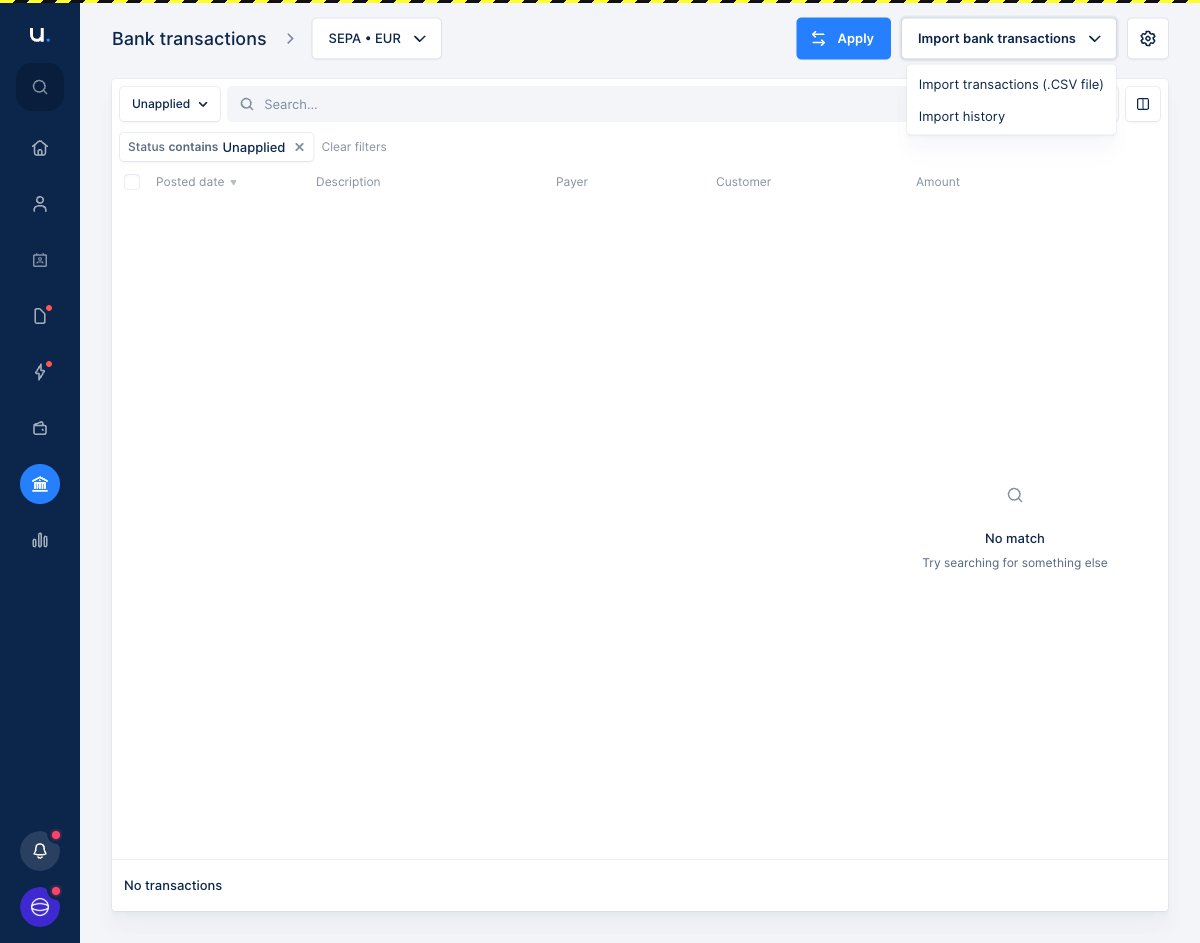
  1. From the Bank transactions page, click Import bank transactions in the top-right corner and select Import transactions (.CSV file). The Import bank transactions dropdown open, showing the Import transactions (.CSV file) and Import history options.
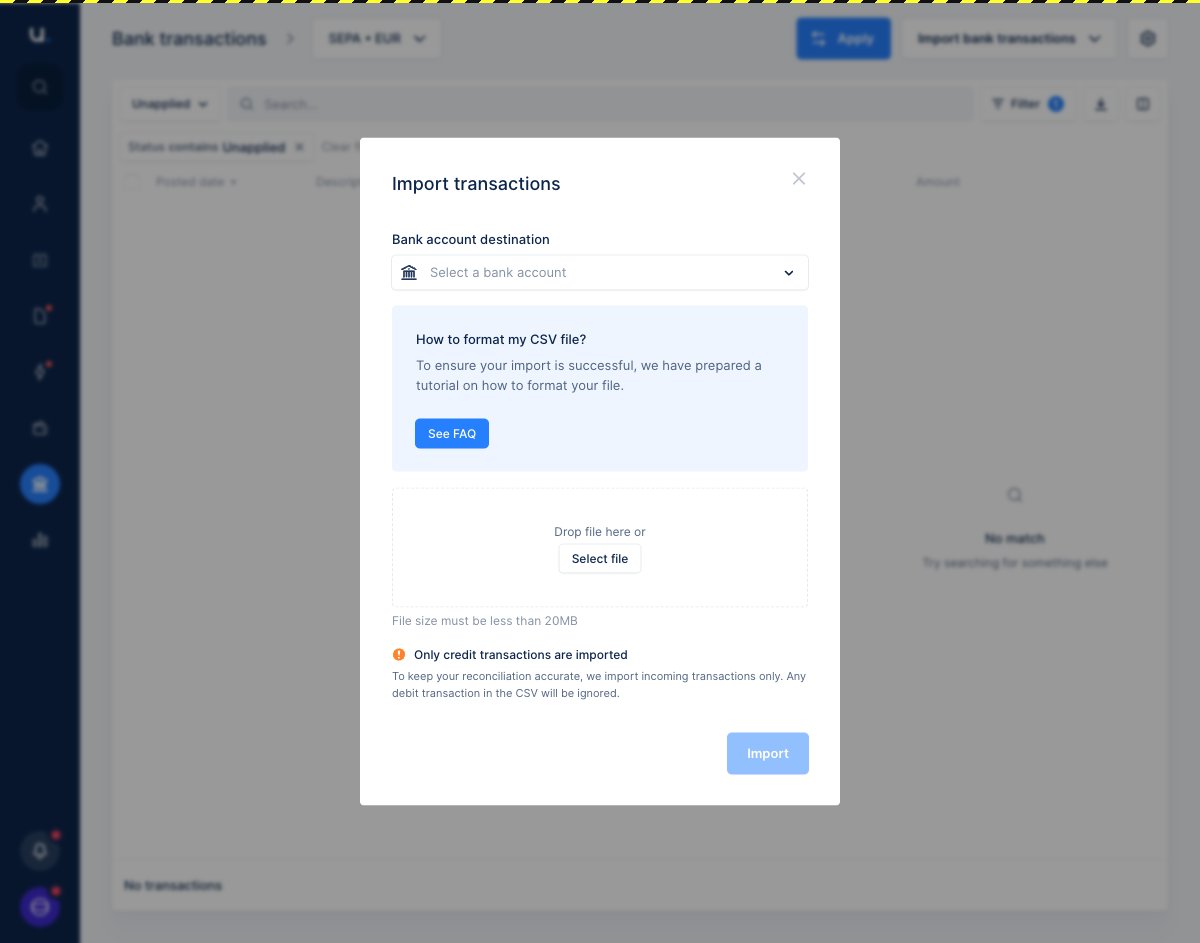
  2. In the Import transactions window, choose the Bank account destination — the account these transactions belong to. The Import transactions window showing the Bank account destination selector, the file drop zone, and the notice that only credit transactions are imported.
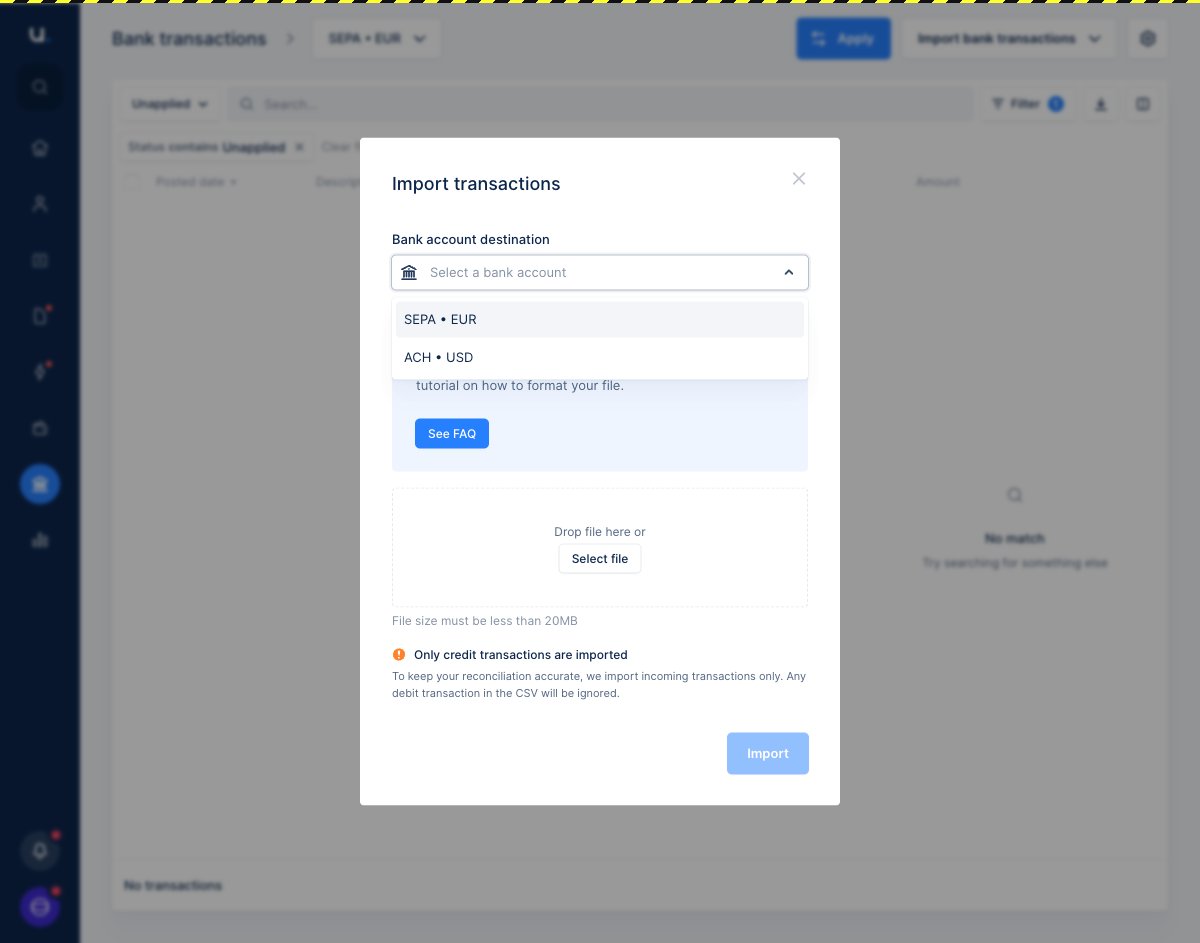
  3. Open the dropdown to pick the relevant bank account. The Bank account destination dropdown open, listing the available bank accounts to import into.
  4. Drop your CSV into the upload zone or click Select file to choose it from your computer, then click Import.

Map your columns

After uploading, the Match properties step shows a sample of your file. For each column, choose which Upflow field it corresponds to — you don’t need to map every column, only the ones you want to import. The Match properties step showing a sample of the uploaded file, with a field selector open on a column to map it to an Upflow field.
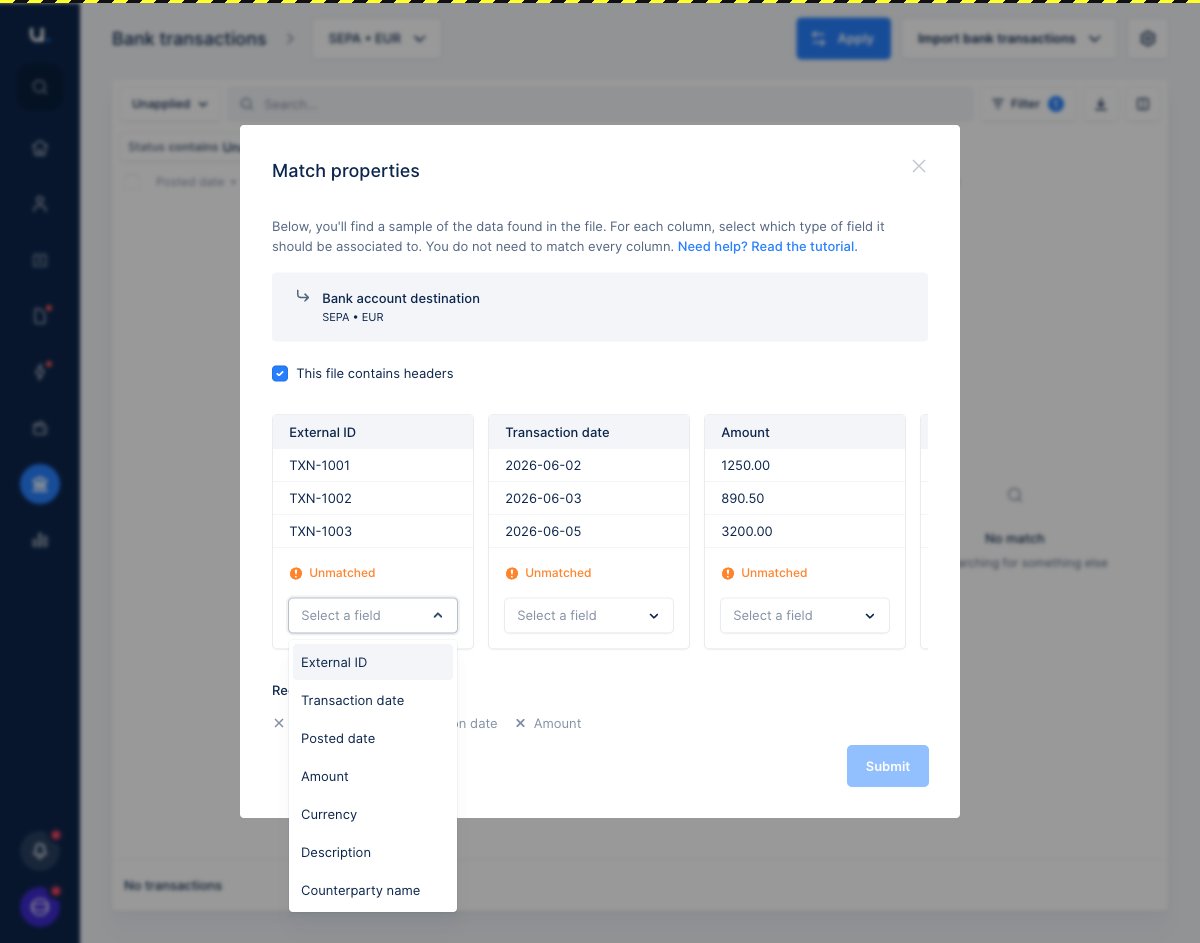
  • Keep This file contains headers checked if your CSV’s first row contains column titles.
  • The External ID, Transaction date and Amount fields are required. They appear under Required columns and must each be matched before you can continue.
  • Once your required columns show Matched, click Submit.
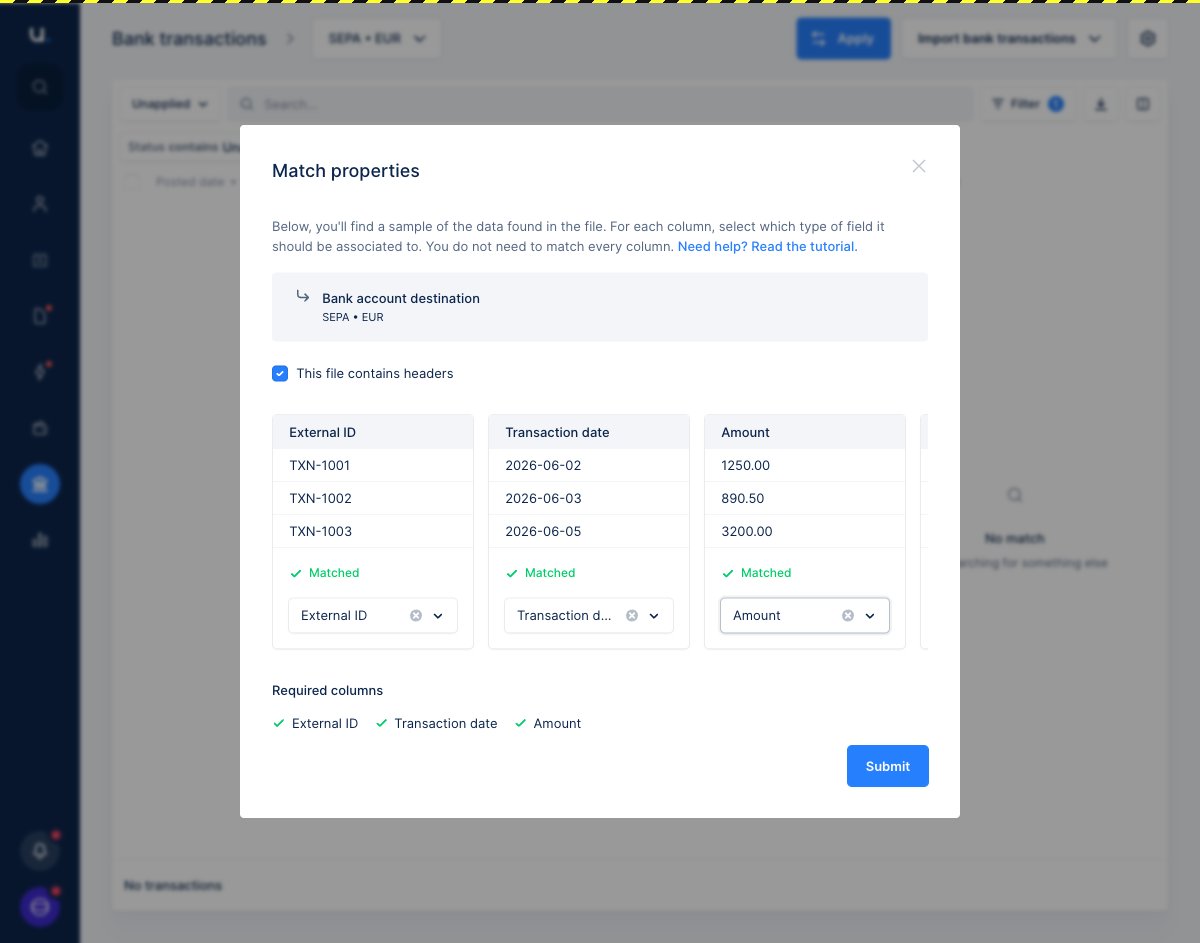
The Match properties step with External ID, Transaction date and Amount all matched, the Required columns all checked, and the Submit button enabled. Your transactions are imported into the selected bank account and appear in your Unapplied list, ready to be matched to invoices.

Check your import history

To review your past uploads, click Import bank transactions and select Import history. This list shows every file you’ve uploaded, who imported it, and the result. The Bank transaction import history showing a successful upload with the file name, date, who imported it, a SUCCESS status, and the number of transactions imported. Each row shows the file’s Status, along with how many transactions were Created and Updated:
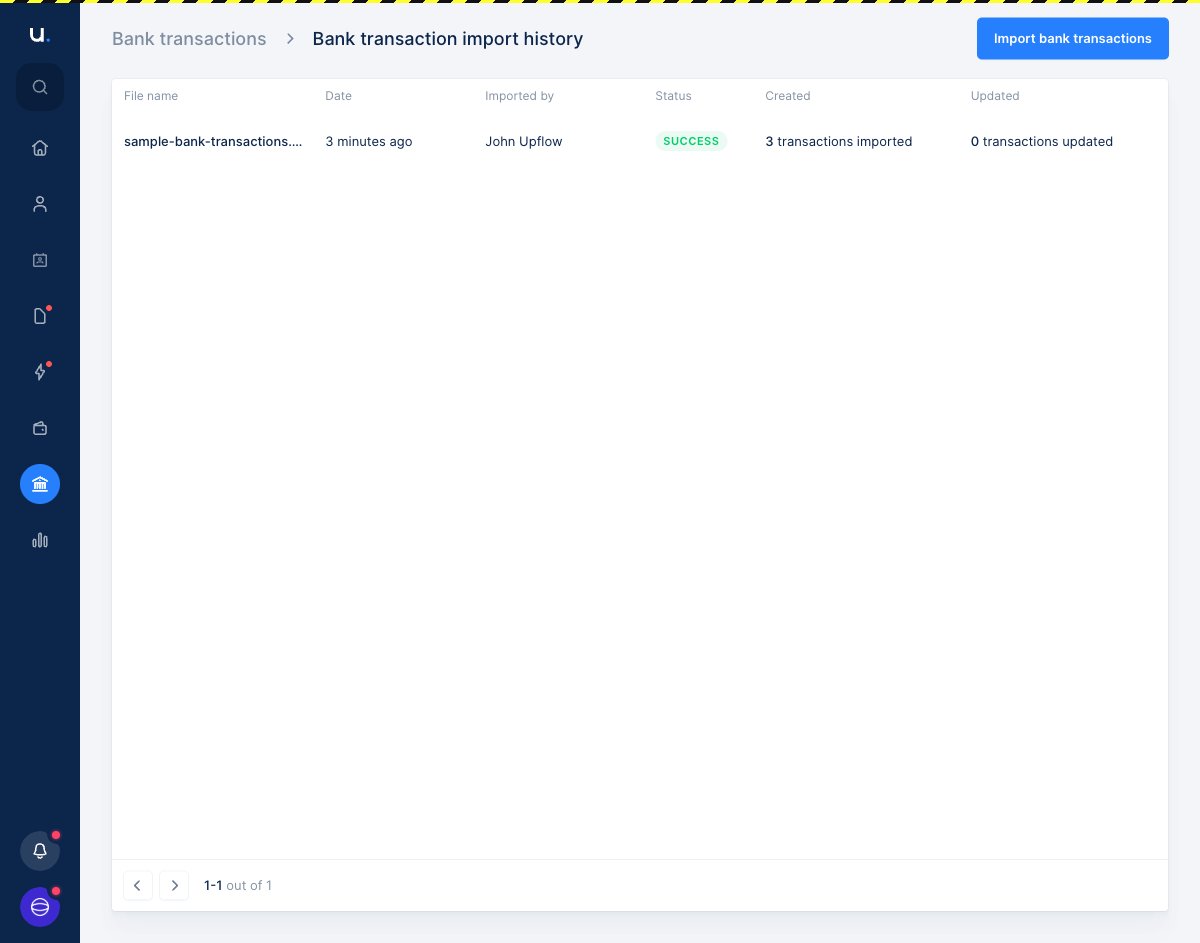
  • Success — the file was processed and its transactions imported.
  • Failure — the file couldn’t be processed. Review the error, correct your file, and upload it again.
Because Upflow recognizes transactions by their External ID, re-uploading a corrected file won’t create duplicates — transactions that already exist are updated rather than added again.
Need a hand with a failed import or your file format? Reach out to support@upflow.io.