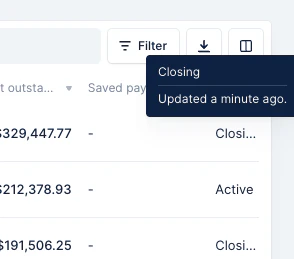
👉 Fields with AI autofill enabled cannot be edited manually; their value is always set by the AI.
Enable AI autofill on a custom field
AI autofill is configured per field in Settings > Custom fields. Only admin users can configure it.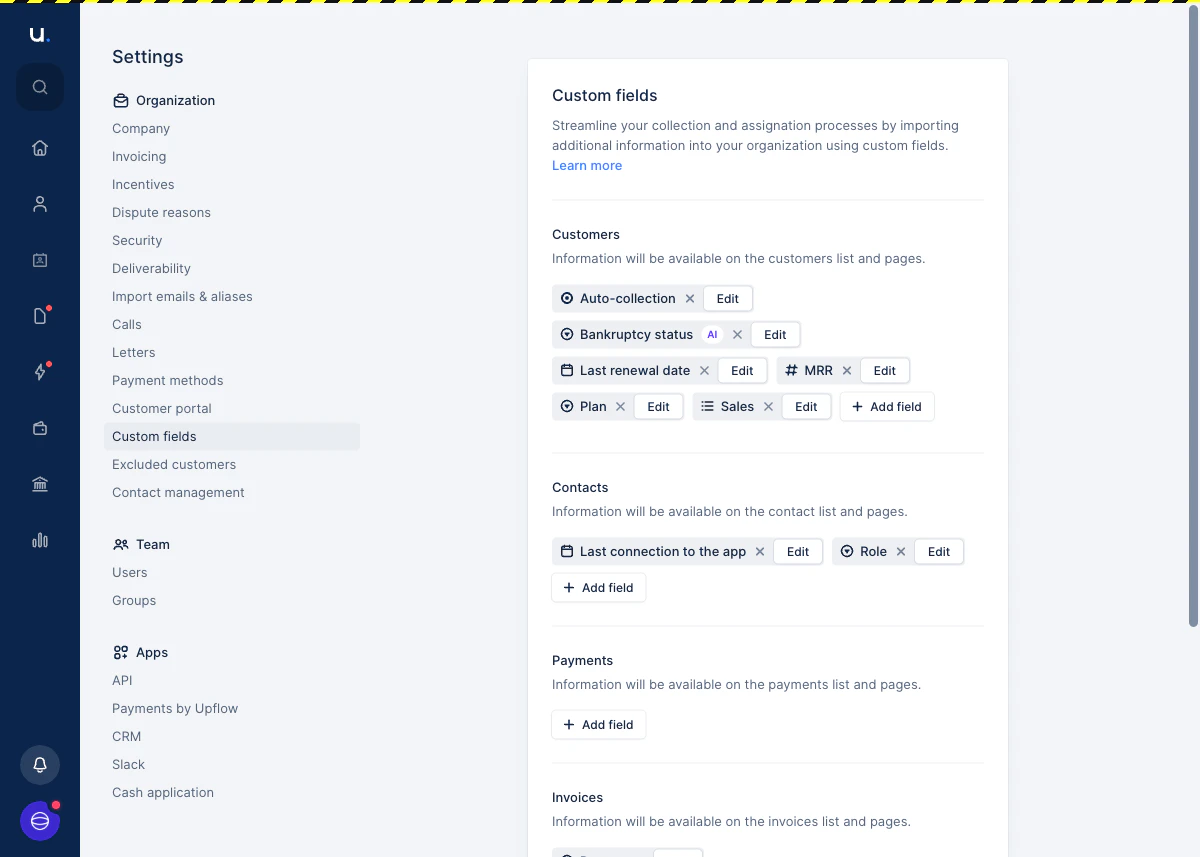
- Go to Settings > Custom fields.
- Click Edit next to the field you want to configure.
-
Toggle on AI autofill.
The Prompt field appears. Write the question or instruction you want the AI to answer for each entity.
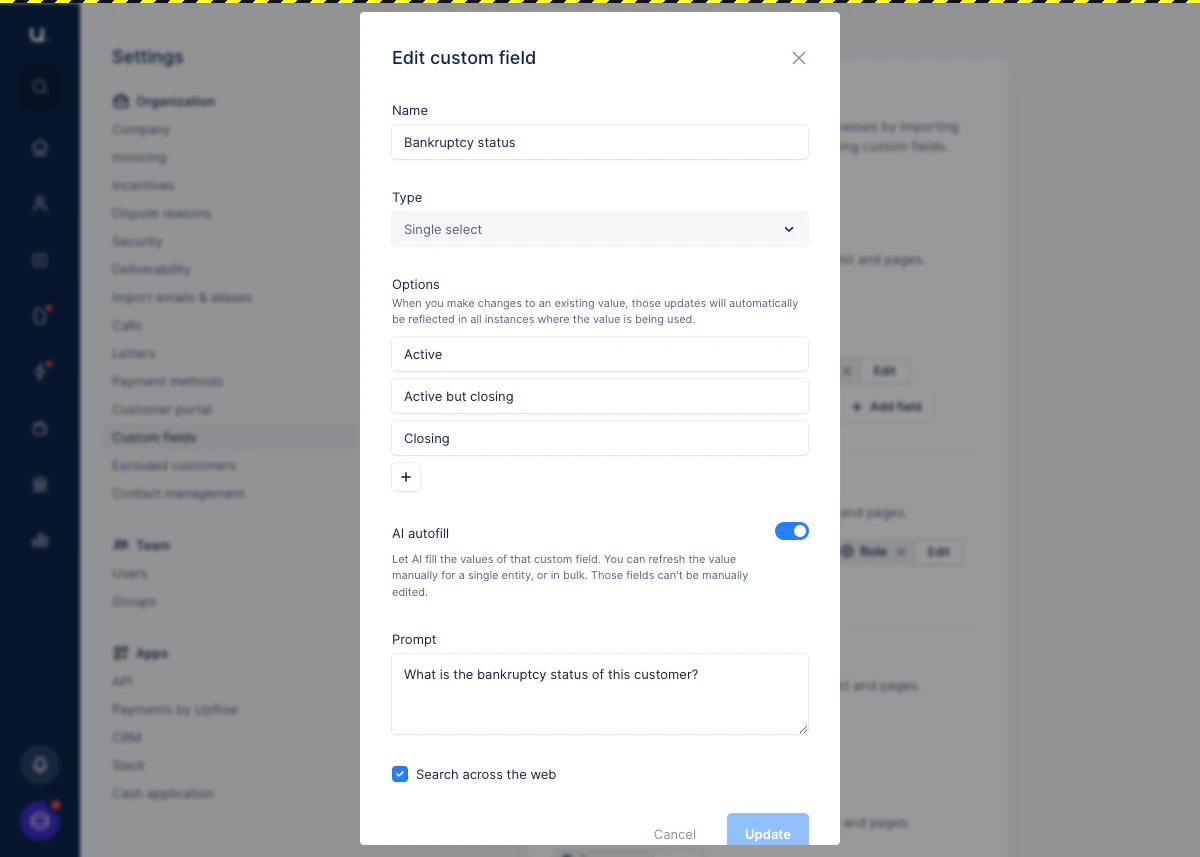
- Optionally, check Search across the web to allow the AI to look up information from public web sources in addition to your Upflow data. This is disabled by default.
- Click Update to save.
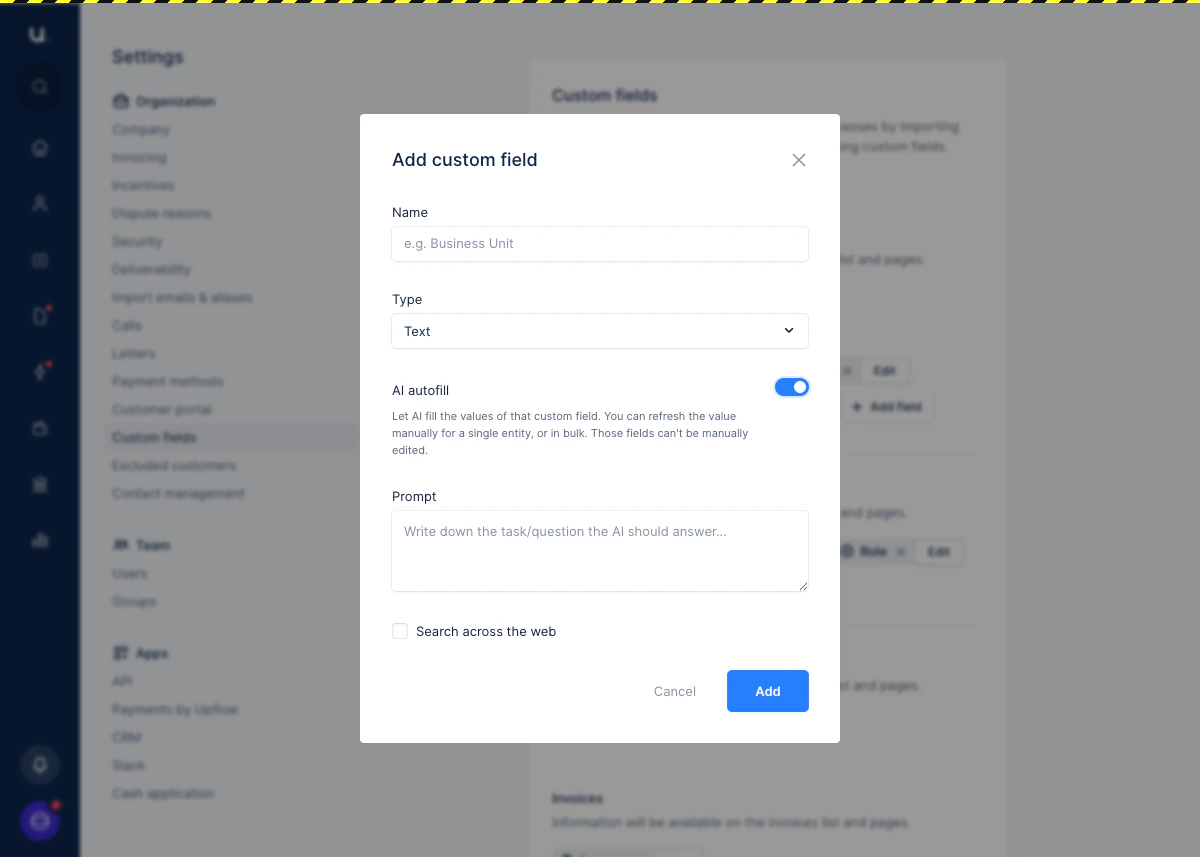
Write an effective prompt
The prompt is the question or instruction the AI will answer for each entity. It has access to the entity’s data in Upflow — including invoice details, customer information, and communication history. A few examples:What is the bankruptcy status of this customer?(Single select field)Why has this invoice not been paid?(Text field)Is this customer currently responsive?(Boolean field)When should we expect the next payment from this customer?(Date field)
👉 AI autofill results are based on the data available in Upflow at the time of the refresh. For fields that depend on time-sensitive information (such as dates), the value is not automatically recomputed each day — you need to refresh it manually.
Refresh a field value
AI autofill does not run automatically. You trigger a refresh manually, either one entity at a time or in bulk.Refresh on an entity page
On any customer or invoice page, AI fields show a ✨ sparkle button next to their value. Click it to ask the AI to recompute the value for that entity.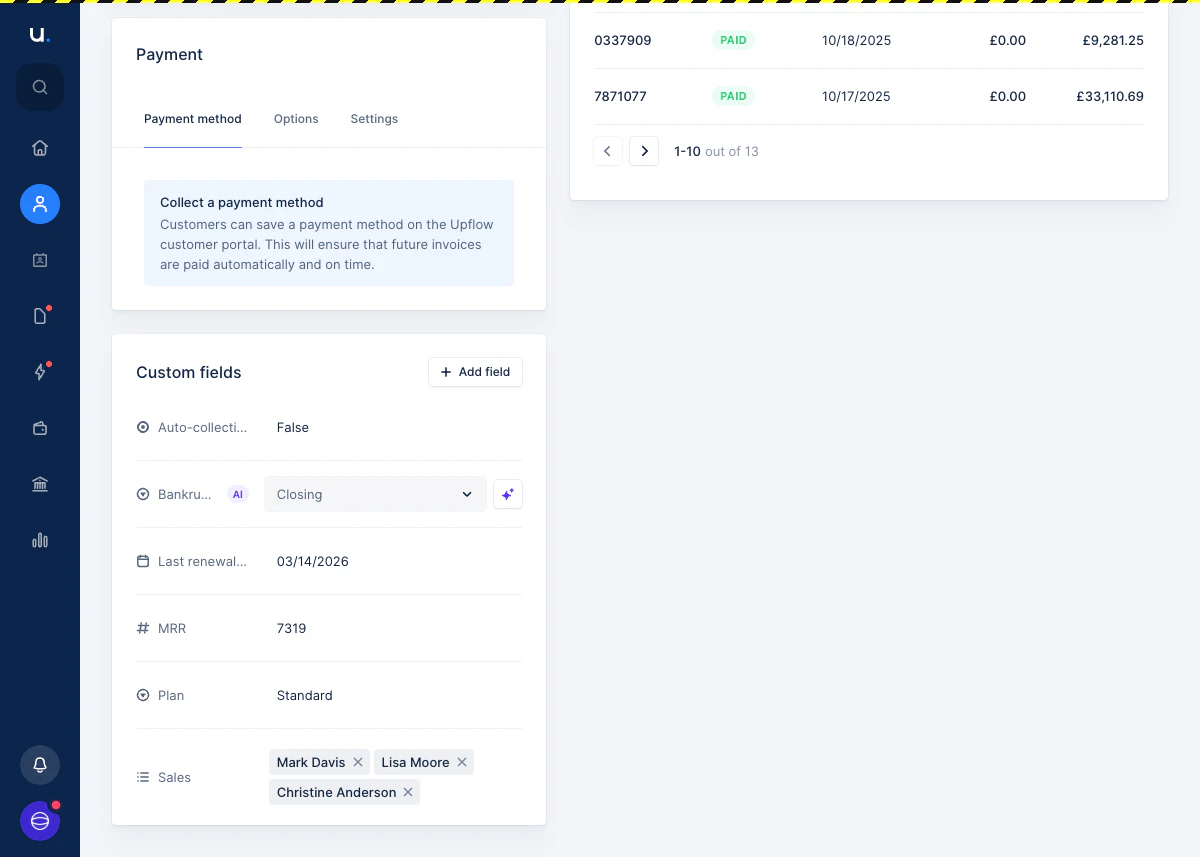
Refresh in bulk from a list view
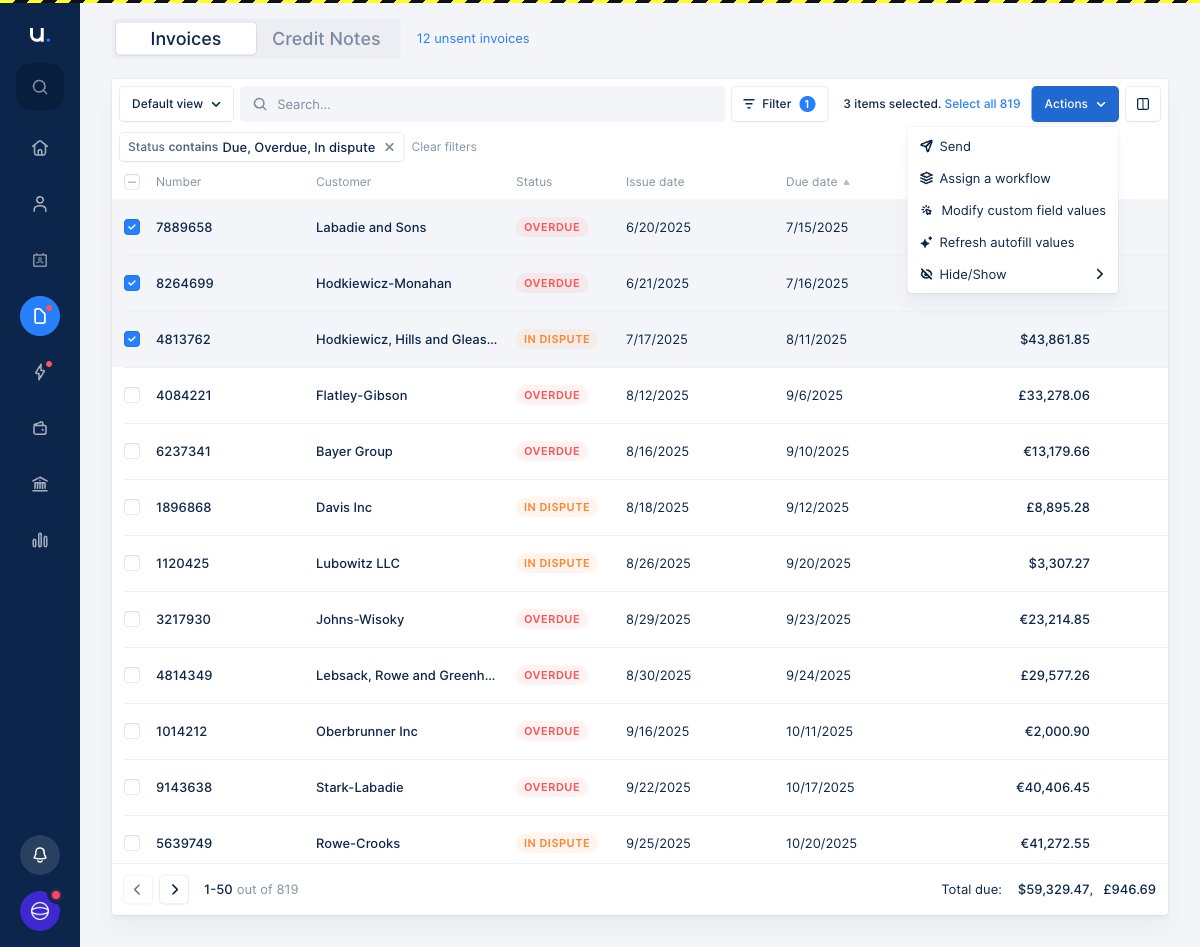
From the customer or invoice list view, you can refresh AI autofill values for multiple entities at once:- Select the customers or invoices you want to update — or click Select all to include every entity matching the current filters.
- Click Actions and choose Refresh autofill values.
- Pick the AI custom field to recompute.
Edit or disable AI autofill
To change the prompt or disable AI autofill on a field, go back to Settings > Custom fields and click Edit on the field.- Editing the prompt does not automatically recompute existing values. You need to refresh the field manually after saving.
- Disabling AI autofill preserves the current field values and the prompt configuration. If you re-enable it later, your prompt is still there.
Data freshness
Each AI field shows when it was last updated, so you can assess how current the value is. Hover over a field value to see the exact timestamp.