Unapplied amounts
Unapplied amounts are payments, refunds or credit notes that have been issued, but have not yet been applied to an invoice. This can happen for a number of reasons, such as:- The payment was received before the invoice was created
- An excess payment was received and not refunded
- A credit note was issued and will be applied to a future invoice
Benefits of reducing unapplied amounts
Unapplied amounts can have a number of impacts on your business, including:- Improved cash flow forecast: Unapplied amounts can lead to incorrect analysis and forecast of your cash flow, making it more difficult to manage your business.
- Improved customer service: Unapplied amounts can lead to confusion and frustration for your customers. By reducing unapplied amounts, you can improve customer service and satisfaction.
- Reduced administrative costs: Unapplied amounts can increase your administrative costs, as you have to spend time tracking them down and applying them to invoices. Reducing unapplied amounts can reduce your administrative costs, freeing up your time and resources.
- Improved financial reporting: Unapplied amounts can make it difficult to get an accurate picture of your financial health. By reducing unapplied amounts, you can improve your financial reporting and make better decisions about your business.
Unapplied amounts in analytics
Historically in Upflow, unapplied amounts were not included in Analytics but were included in outstanding amounts calculations: for example on the homepage and customer list view. This led to inconsistencies between totals, underlying data, and analytics metrics such as the DSO. Our latest logic aligns all calculations according to the definition: Outstanding = Due + Overdue - Unapplied.Aging balance and unapplied amounts
How are unapplied amounts associated to each bucket?
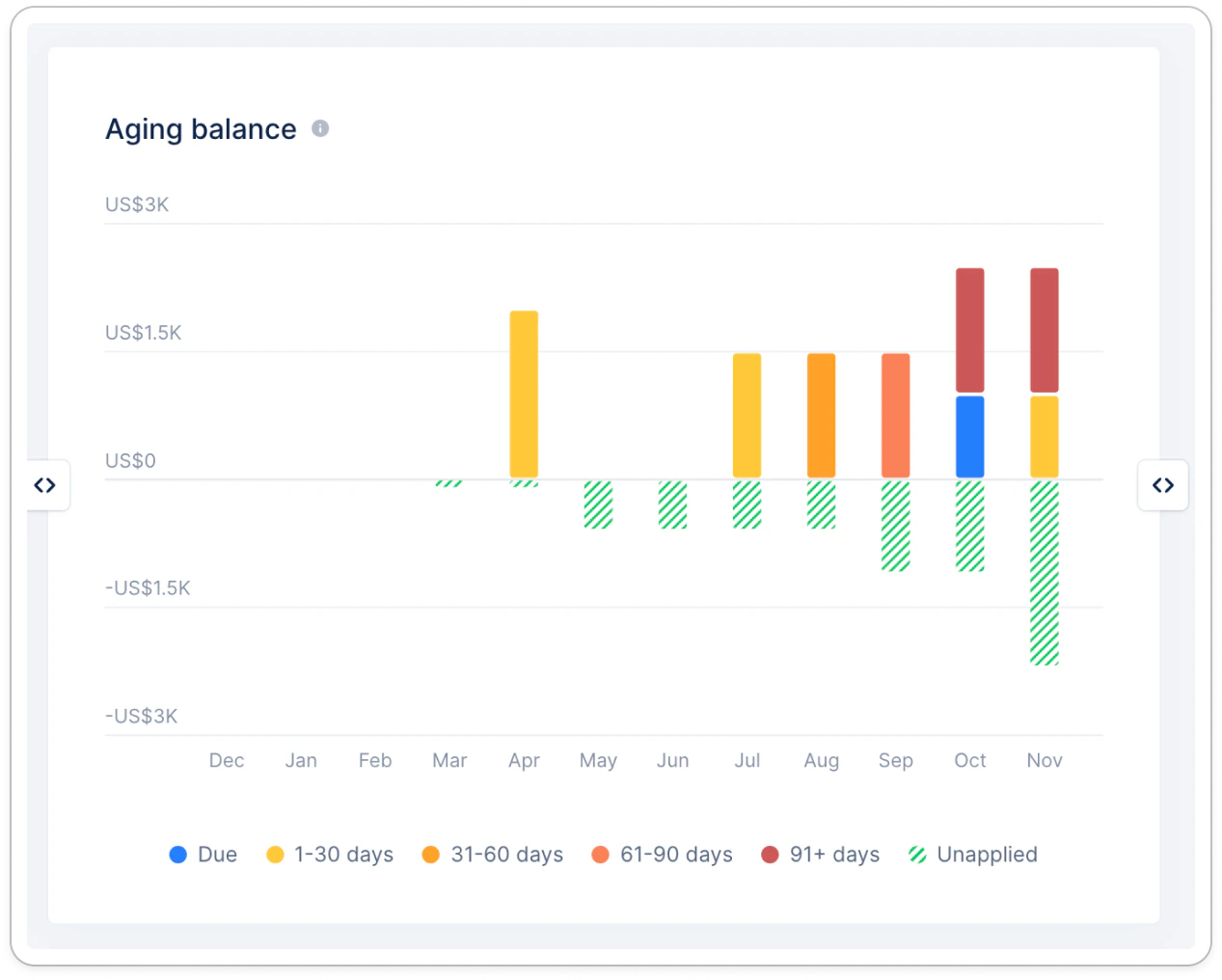
By definition, unapplied amounts are not associated to an invoice and so cannot be precisely aged. However, it is common across the ERP industry (NetSuite, QBO) to “assume” that the age of an unapplied amount is equal to the age of the underlying transaction, as of today. 💡 Example: Today is the 28th of November, a credit note of $1,000 issued on the 1st of November would be 27 days old. It is associated to the bucket 1-30 days. An unapplied payment issued today would be 0 days old, and associated to the due bucket. In Upflow’s homepage this translates to a negative value in the aging balance bar chart, with a striped color coding that helps identify it.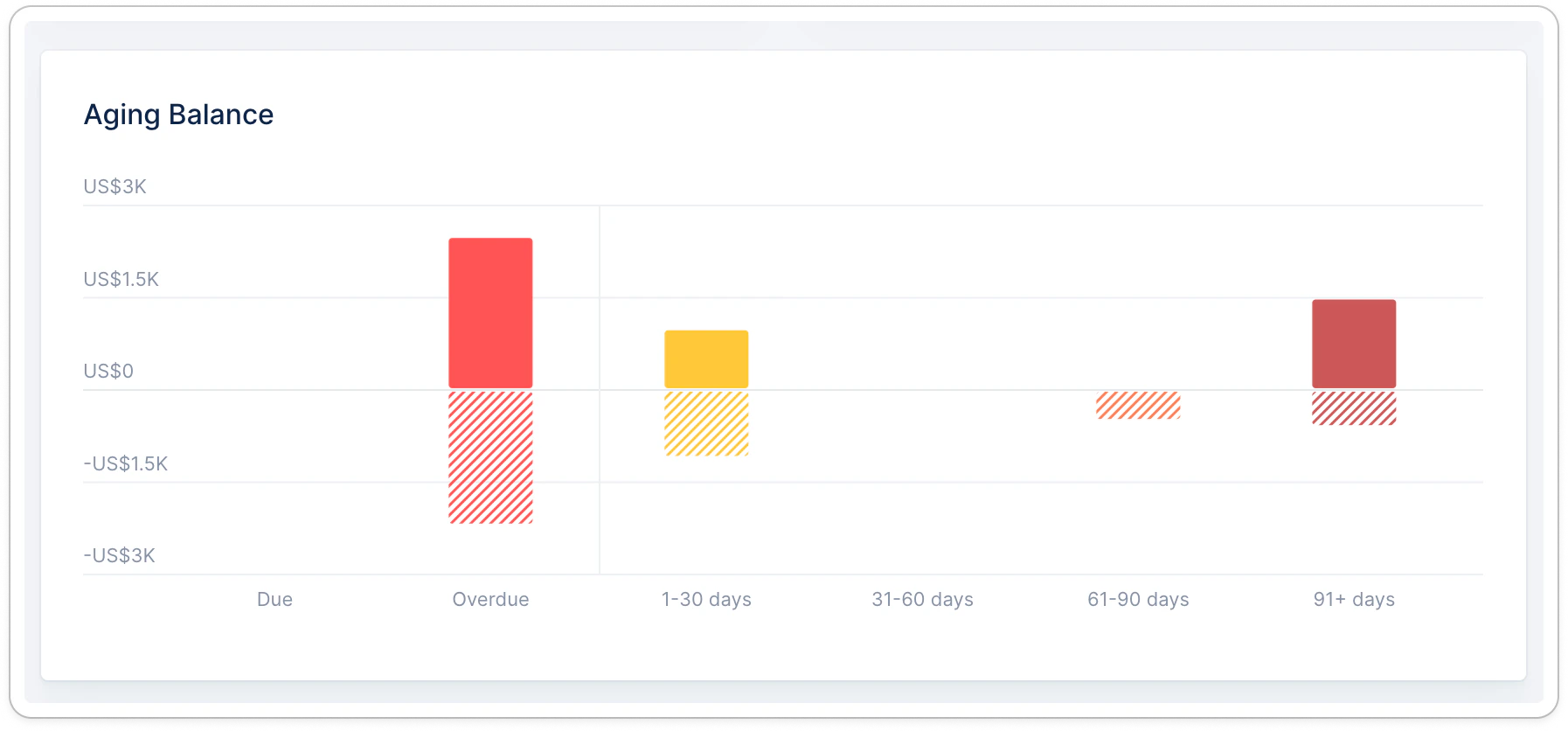

Unapplied amounts - globally in the Upflow app
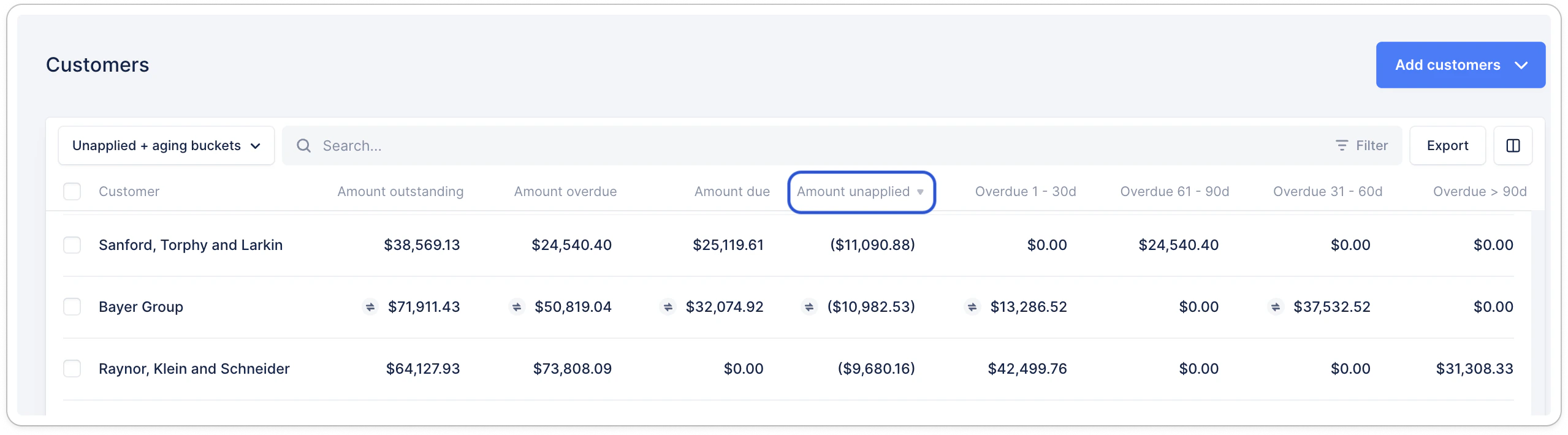
You can have a quick view on unapplied amounts in:The Customers list view
Add the Amount unapplied column to your default view or save it as a new one.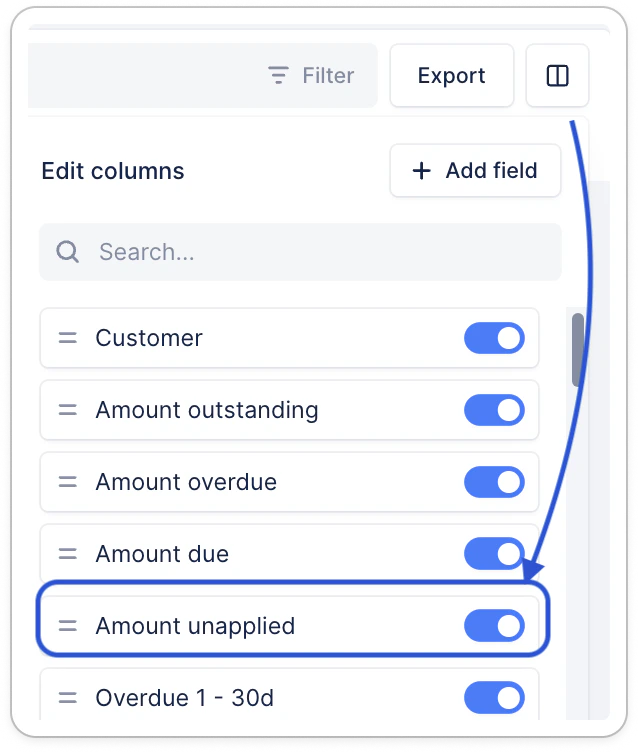
The Payments list view or Credit notes tab
Filter unapplied amounts or add it as a column: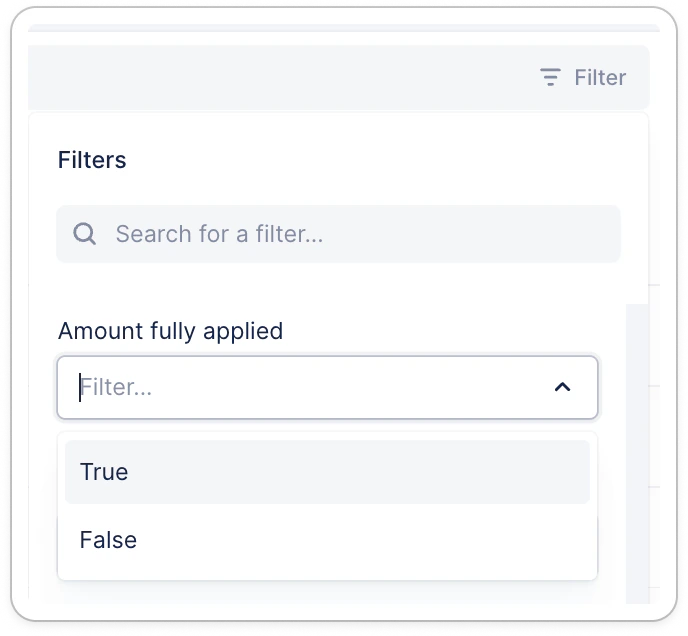
The customer detail page
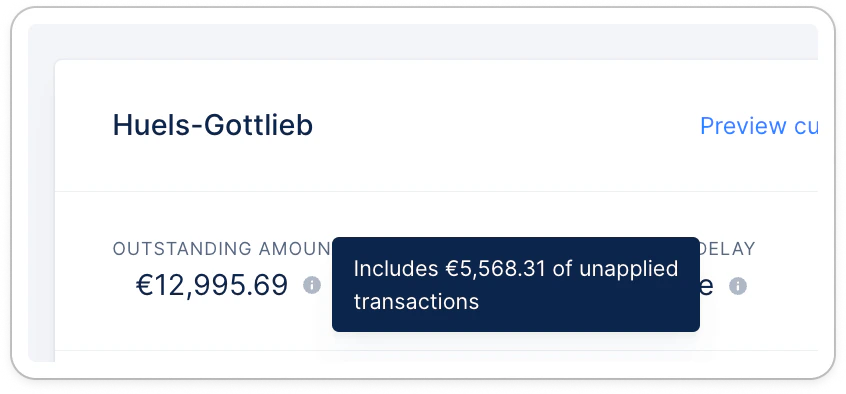
Hover your mouse over the tooltip next to the balance: