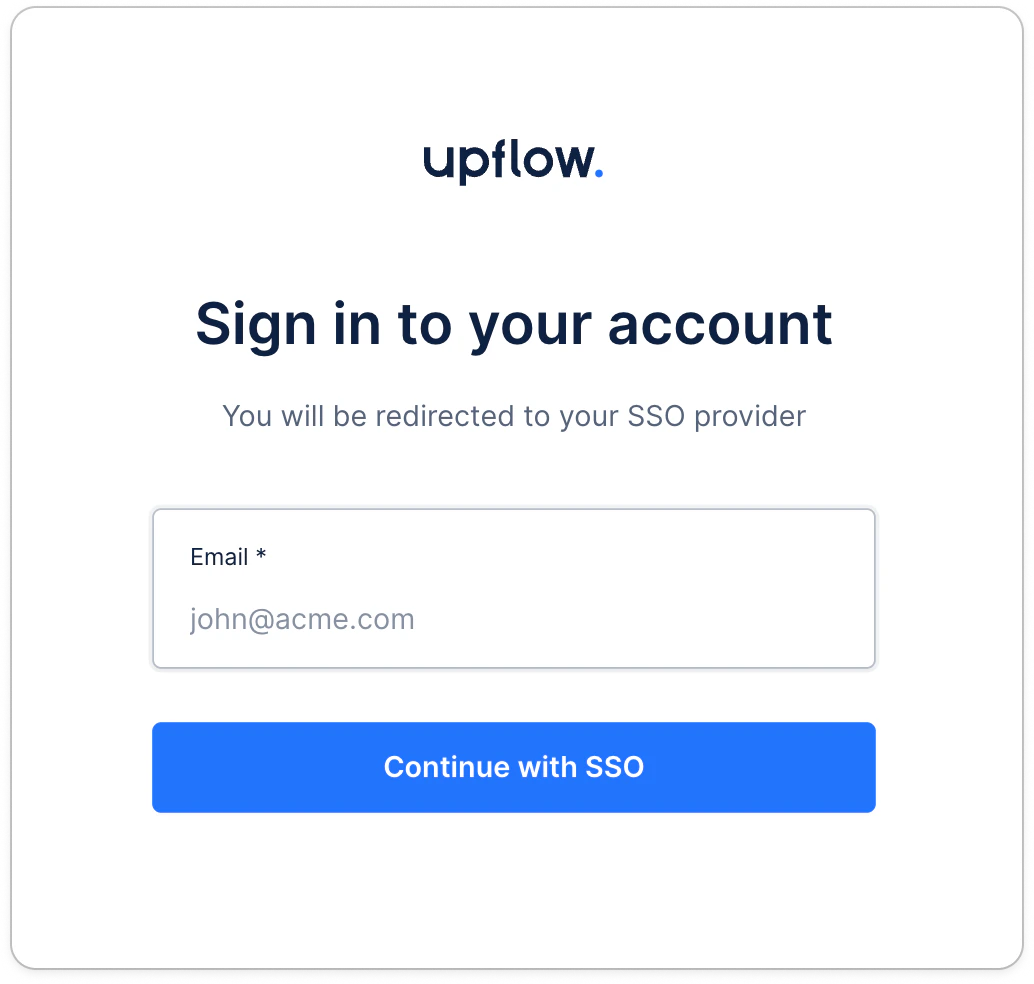
In short
To simplify it, once you have shared your email address and launched the SSO process, Upflow will knock at your IP’s door. The latter will make sure you are who you say you are and confirm it to Upflow who will let you in!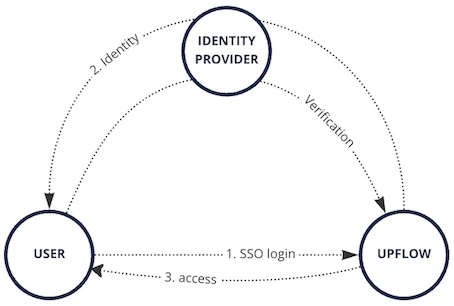
How to enable it?
First things first, you will need to introduce Upflow to your Identity Provider, by creating a new app in it. This grants Upflow (the new app) the right to read information associated to the credentials your users submit. Refer to Enabling Single Sign On (SSO) for your Upflow Users to find your SSO provider details. Once you’ve followed the necessary steps in your SSO provider, open secrets.upflow.io and add the required information to the Editor field:- Parameters of the newly registered app, pulled from your IP:
client_id,client_secret,issuer. - Email domain name of your users (what comes after the “@” in their address, like “upflow.io”).
Log into Upflow with SSO
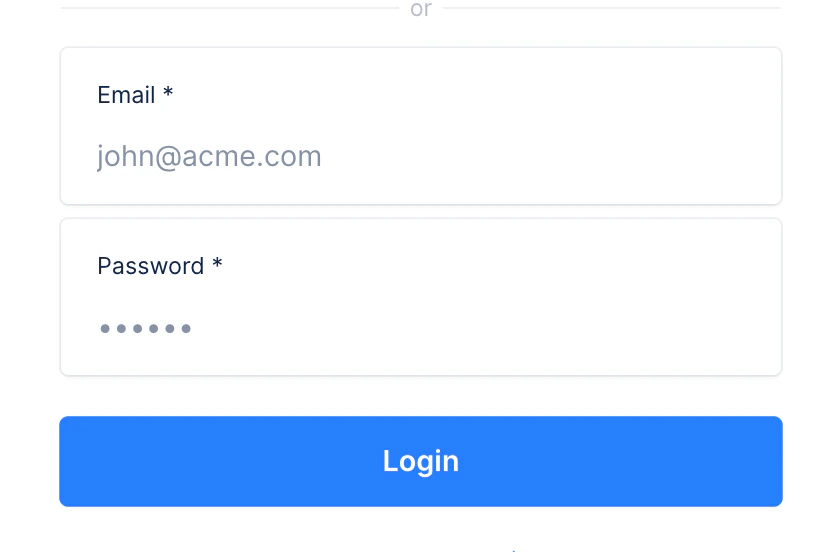
Once our team confirmed SSO is on for your domain, head to your Upflow login page. Click the “Use Single Sign-On (SSO) instead” option: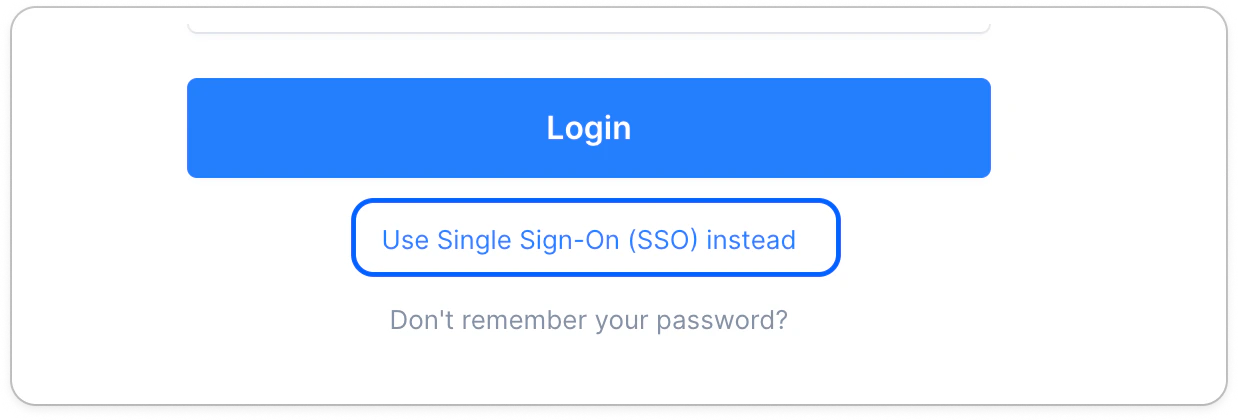
I can’t access Upflow
When SSO is enforced, if you experience any access issues, it can be due to different reasons. First, check with your IT team if your SSO configuration was correct and isn’t missing anything. Then check if you’re allowed to access Upflow in your SSO settings. If all the above is ok, check with your team if anyone else experiences this issue and if teammates can log in on their end. If the latter, then it could be a missing setting for your profile in your SSO provider’s system, or related to your browser. Please try accessing Upflow in another browser or a private navigation tab/window. If you’ve tried all the above, please contact us with as much detail as possible.Removing SSO
If you need the SSO login configuration to be removed, please contact our Support to proceed. Once confirmed by our team that SSO is no longer active on your domain in Upflow, your team can log in using their email and password, or Google SSO if enabled before.