> ## Documentation Index
> Fetch the complete documentation index at: https://docs.upflow.io/llms.txt
> Use this file to discover all available pages before exploring further.
# Create user Groups
> Organize Upflow users into groups by job function so you can identify each person's role and assign them collection actions inside your workflows.
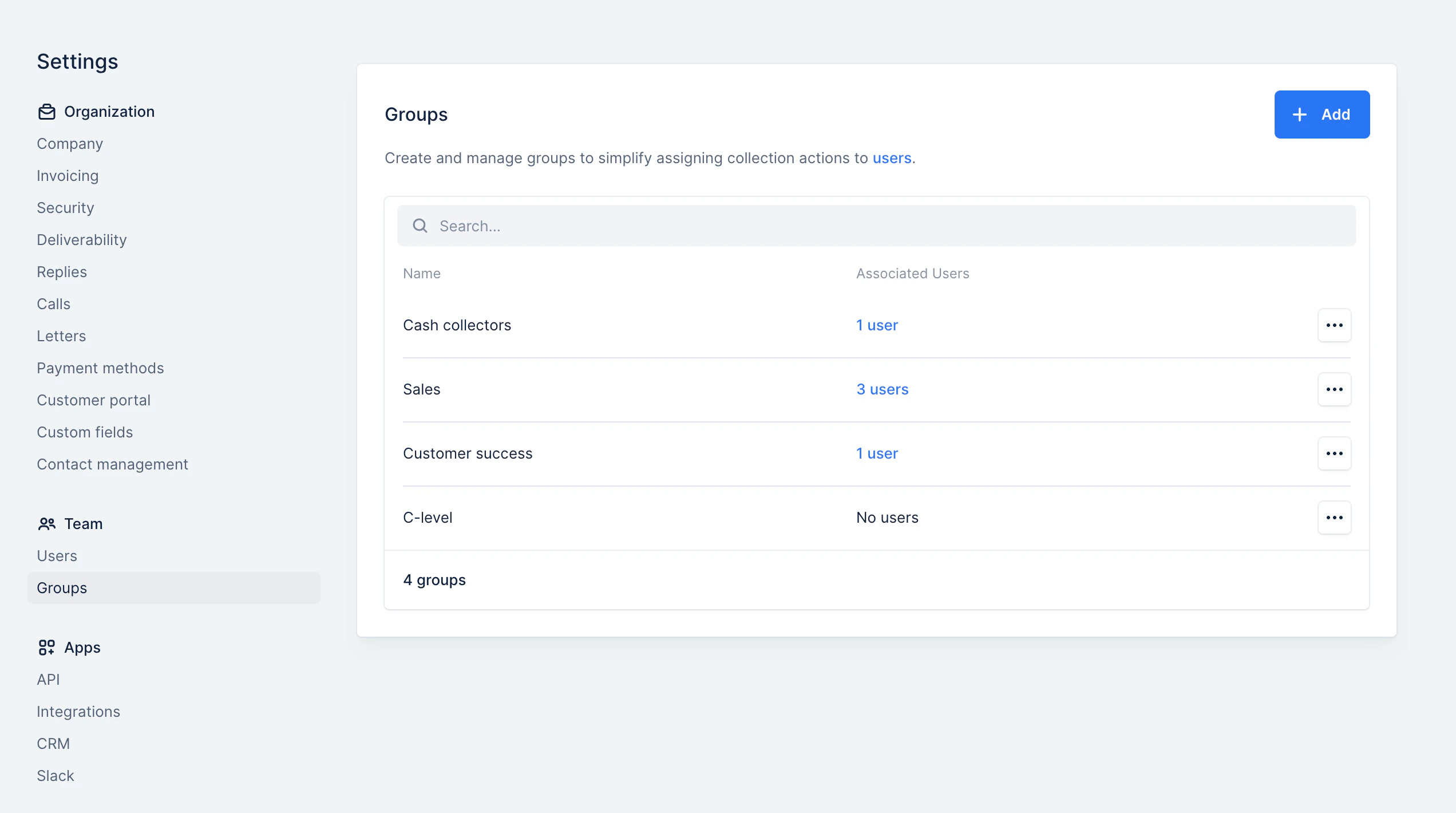
Groups allow you to associate the users in Upflow with their jobs. It will enable you to (1) know what each user's job is and also (2) assign them actions in the collection process.
# Managing a group
A group is defined simply by its name.
## Adding a group
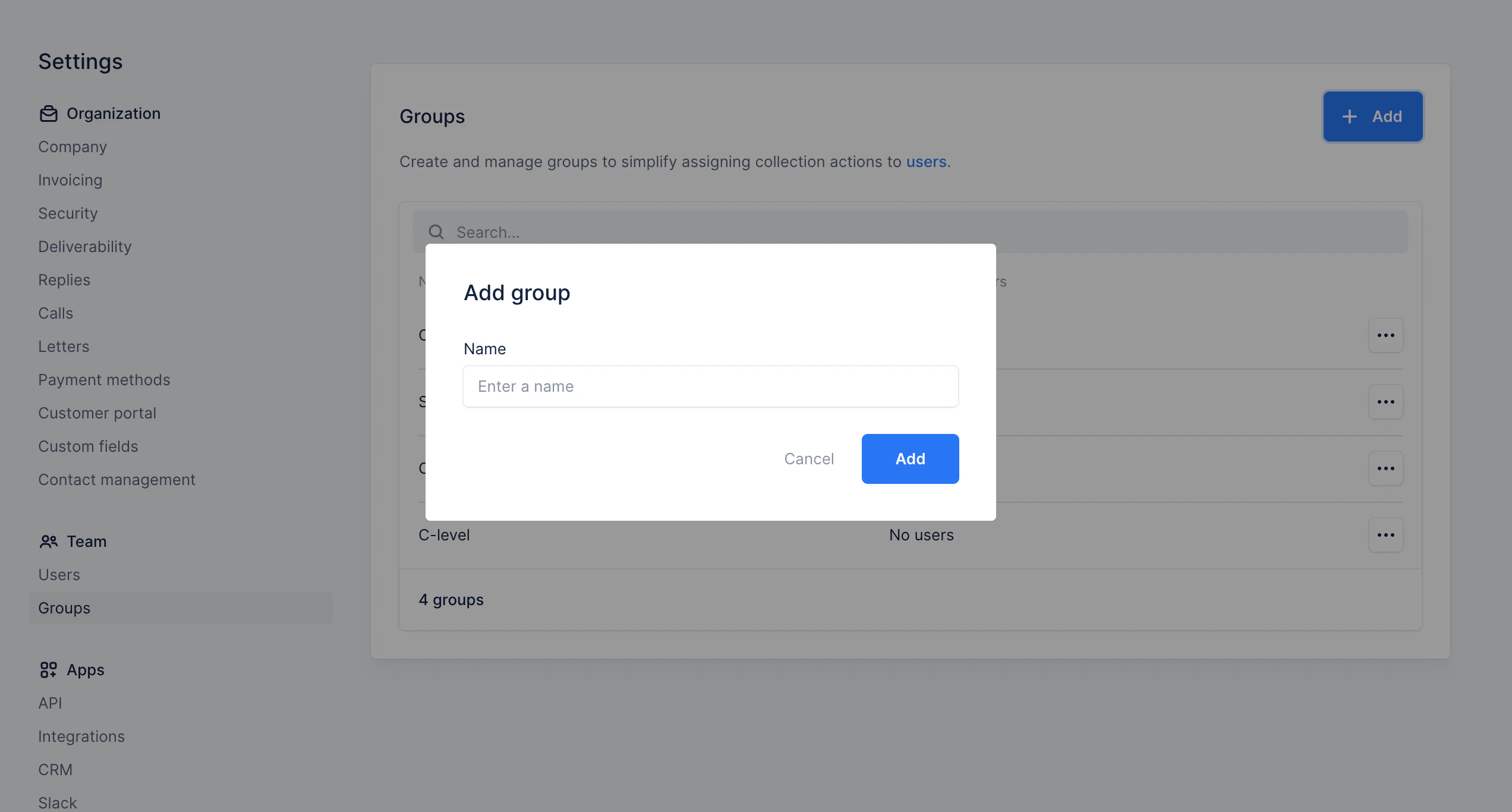
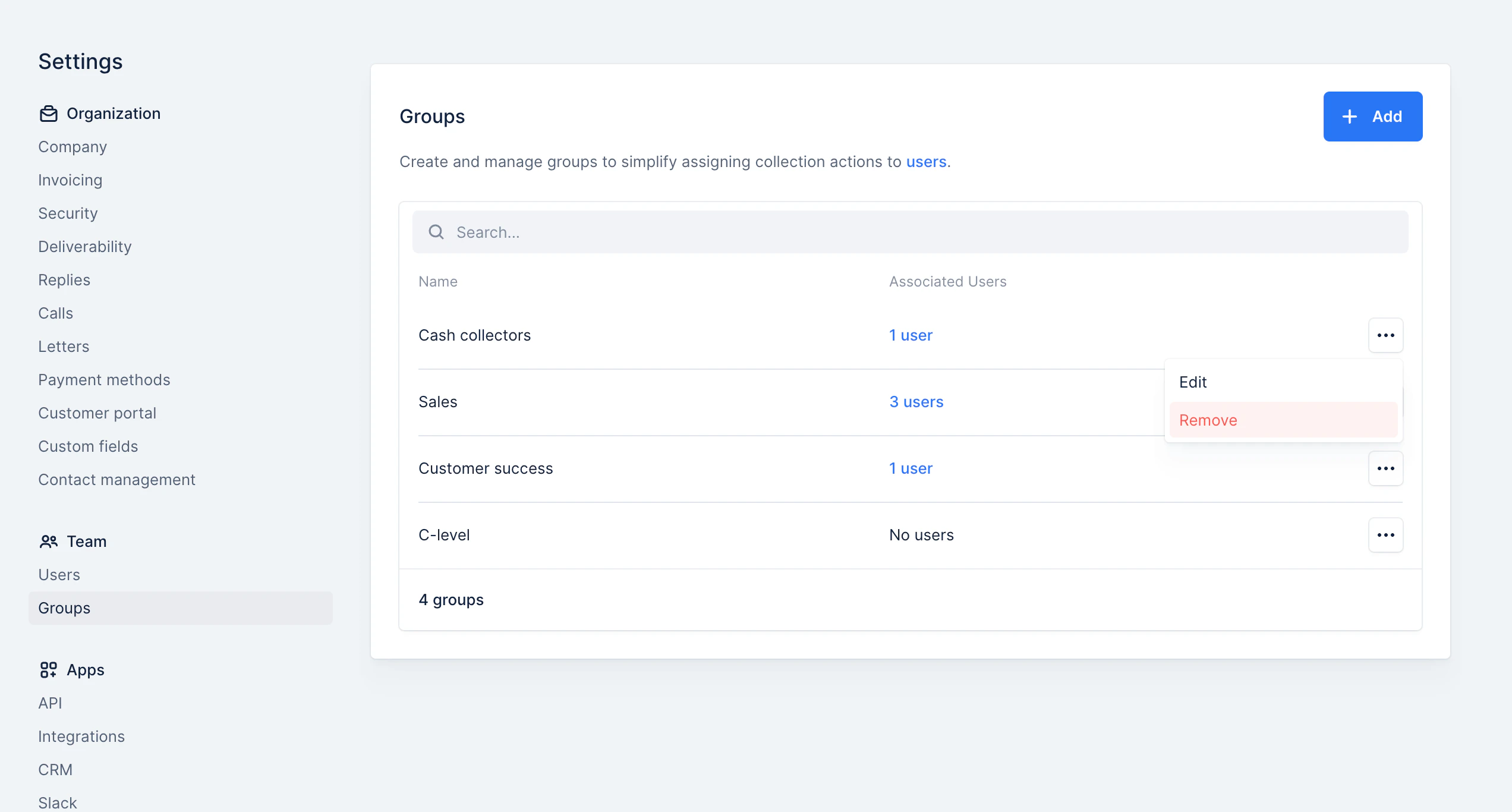
To create a group, go to your [Settings > Groups section](https://app.upflow.io/organization/-/settings/groups), hit the **Add** button and fill in its name.
 ## Editing a group
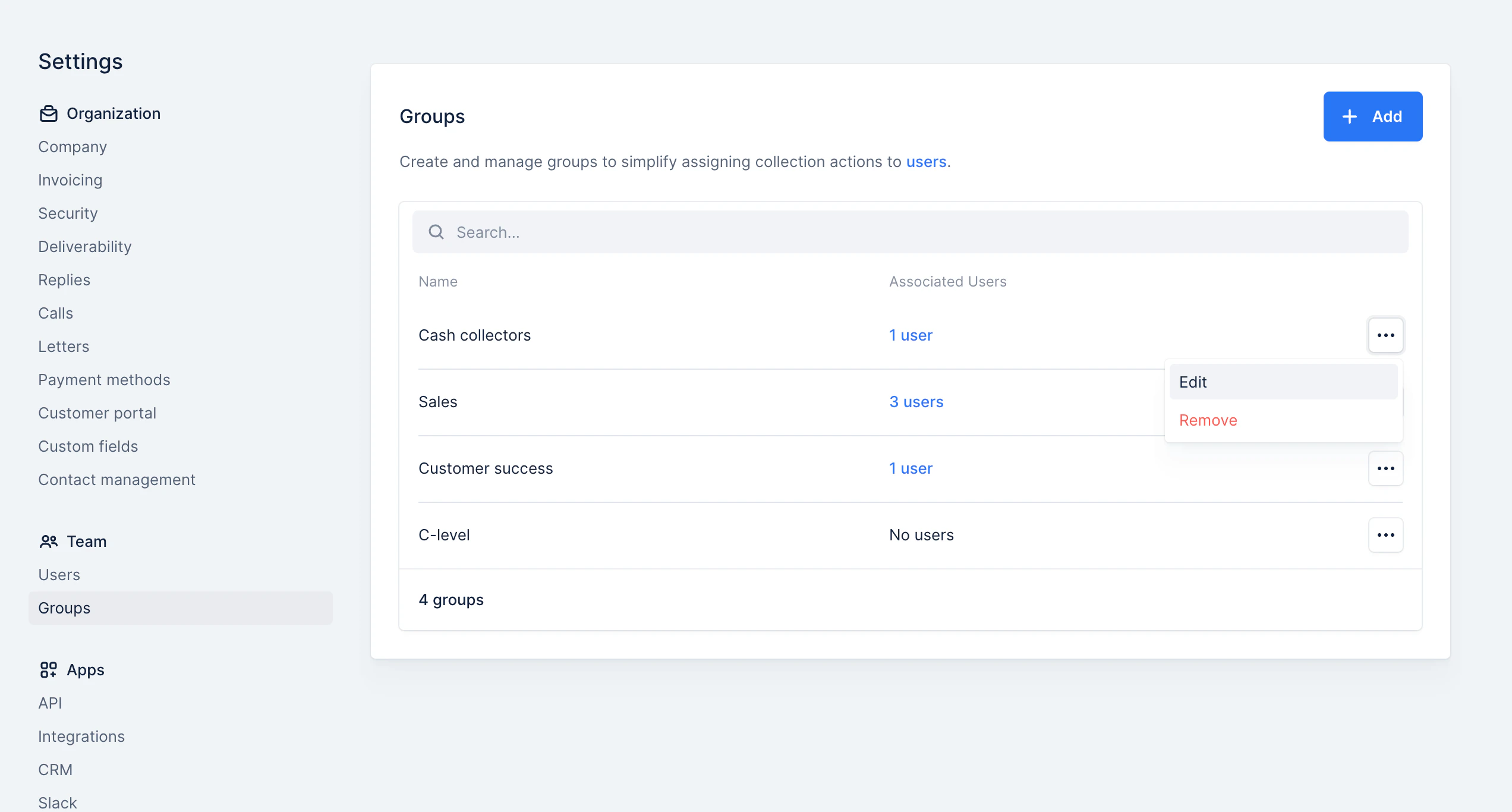
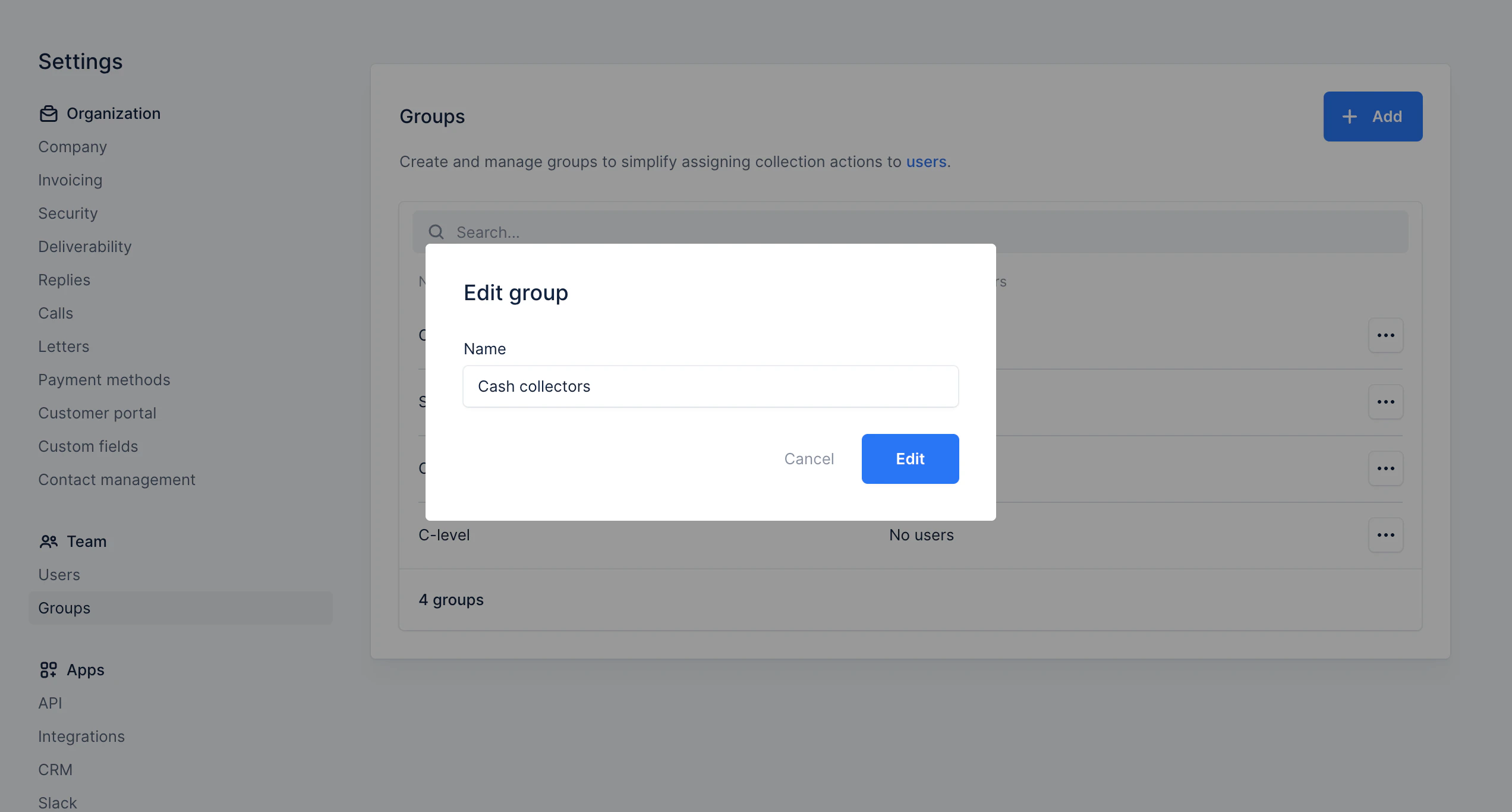
When you edit a group, only the name can be edited.
All the related users and actions will keep their association.
## Editing a group
When you edit a group, only the name can be edited.
All the related users and actions will keep their association.
 ## Removing a group
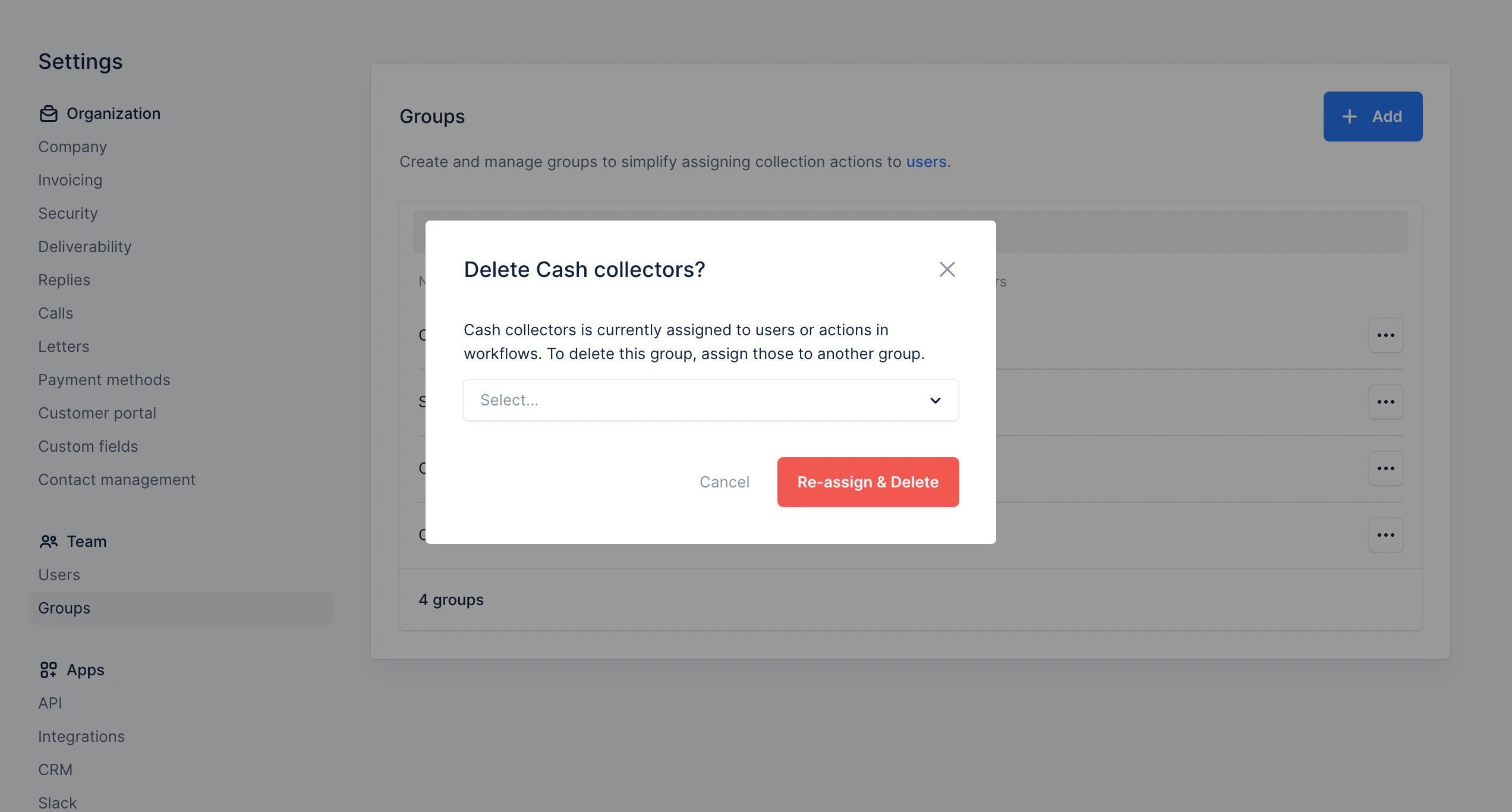
To remove a group, you need to ensure no user or action is still assigned to it. If so, we will allow you to transfer them to another group.
## Removing a group
To remove a group, you need to ensure no user or action is still assigned to it. If so, we will allow you to transfer them to another group.
 # Assigning users to a group
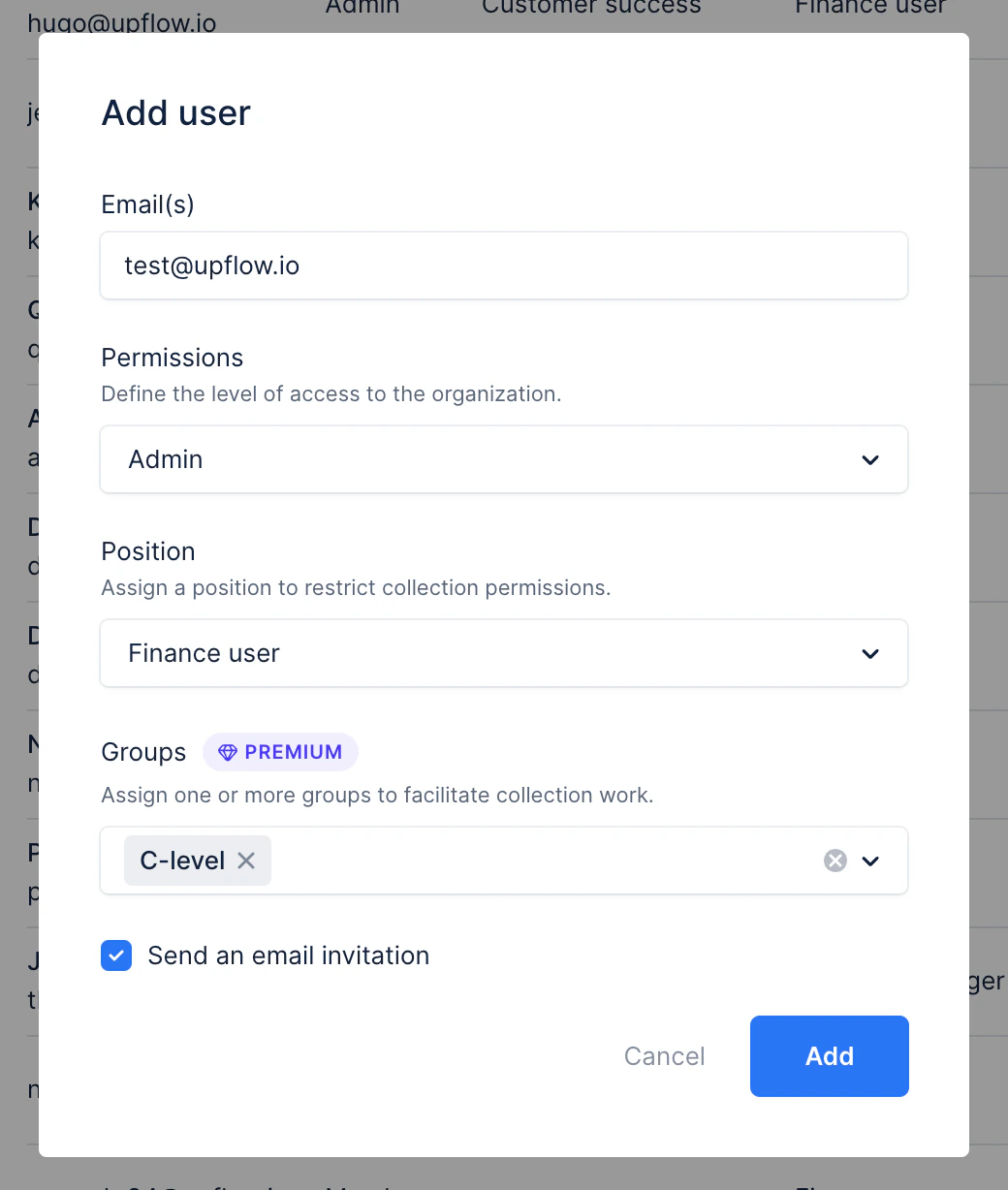
Once you have groups, you can assign users to them from the Users section. You can do the assignment when you invite the user or afterward.
One user can belong to multiple groups.
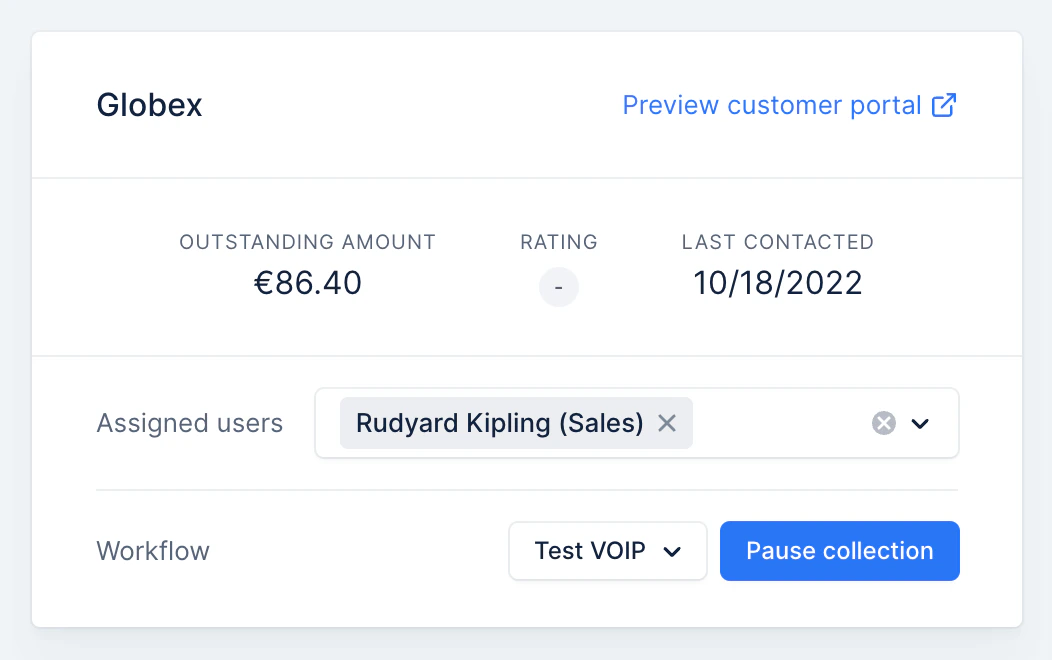
Once assigned, you will see the groups a user belongs to in the app's various dropdowns. Below is an example on the customer details page:
# Assigning users to a group
Once you have groups, you can assign users to them from the Users section. You can do the assignment when you invite the user or afterward.
One user can belong to multiple groups.
Once assigned, you will see the groups a user belongs to in the app's various dropdowns. Below is an example on the customer details page:
 # Assigning collection actions to a group
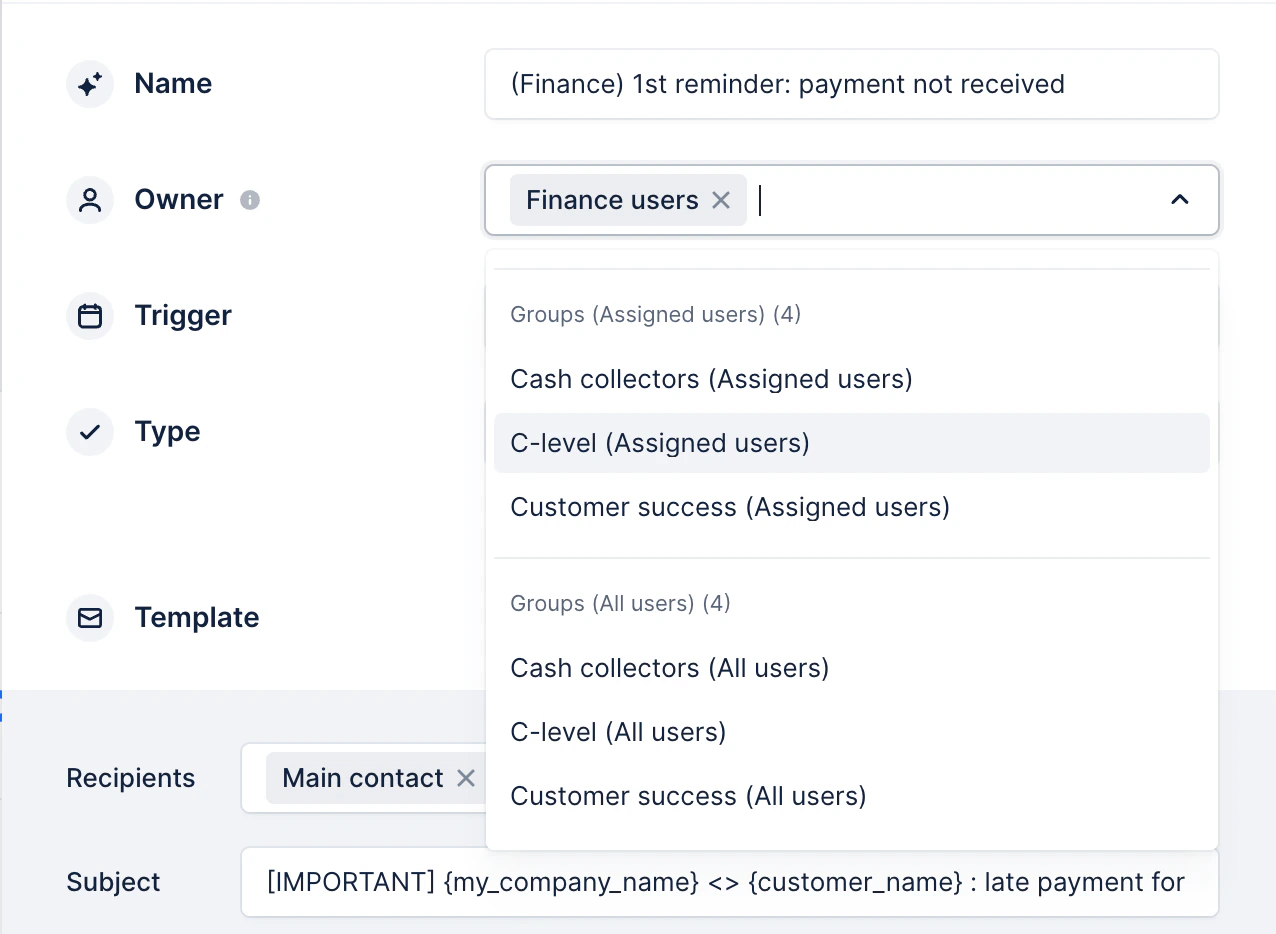
Once created, groups will be available as action owners. When you select which group should be in charge of the action, you can use:
* **Assigned users** : only the users of that group assigned to the customer will have the action to do. If no user of that group is available, then we fall back on the finance users.
* **All users** : all the users of that group have the action to do, whether assigned to the customer or not. If no user of that group can access the customer, we fall back on the finance users.
# Assigning collection actions to a group
Once created, groups will be available as action owners. When you select which group should be in charge of the action, you can use:
* **Assigned users** : only the users of that group assigned to the customer will have the action to do. If no user of that group is available, then we fall back on the finance users.
* **All users** : all the users of that group have the action to do, whether assigned to the customer or not. If no user of that group can access the customer, we fall back on the finance users.
 If you have any questions, [contact us](mailto:support@upflow.io)!