> ## Documentation Index
> Fetch the complete documentation index at: https://docs.upflow.io/llms.txt
> Use this file to discover all available pages before exploring further.
# Manage multiple organizations
> Create and switch between as many Upflow organizations as your business needs, with each entity managed as its own independent workspace.
In Upflow, you can have as many organizations as your need, based on your business, and the number of entities you wish to manage in Upflow. One entity = one organization.
### Create a new organization
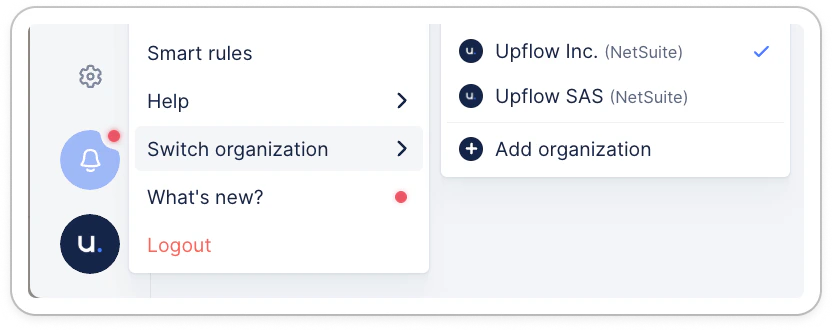
Click on your logo at the bottom of your navigation panel, and hover your mouse over **Switch organization** to display (and click on) ***+ Add organization.***
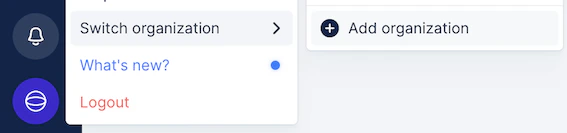 Name your new organization before clicking on ***Continue***.
Select the tool you want to connect to Upflow, and let us guide you through the process (more on this in the ***Integration*** part of our Help Center!).
Once synced, the new organization will be accessible following the same path you took to create it (click on your logo, and hover over **Switch organization.**)
***
❗Please note your teammates’ accounts are not duplicated, and you’ll need to re-invite those you want to access your new entity!
***
### Change organization
When your company has multiple organizations in Upflow, if you're a user in multiple orgs **with the same email address** , you will be able to easily switch from one to the other.
Click on your logo at the bottom of your navigation panel, and hover your mouse over **Switch organization** to display the list of organization you have access to. Then click the one you wish to access.
Note: a little blue checkmark will remind you of the organization you're currently on.
Name your new organization before clicking on ***Continue***.
Select the tool you want to connect to Upflow, and let us guide you through the process (more on this in the ***Integration*** part of our Help Center!).
Once synced, the new organization will be accessible following the same path you took to create it (click on your logo, and hover over **Switch organization.**)
***
❗Please note your teammates’ accounts are not duplicated, and you’ll need to re-invite those you want to access your new entity!
***
### Change organization
When your company has multiple organizations in Upflow, if you're a user in multiple orgs **with the same email address** , you will be able to easily switch from one to the other.
Click on your logo at the bottom of your navigation panel, and hover your mouse over **Switch organization** to display the list of organization you have access to. Then click the one you wish to access.
Note: a little blue checkmark will remind you of the organization you're currently on.