> ## Documentation Index
> Fetch the complete documentation index at: https://docs.upflow.io/llms.txt
> Use this file to discover all available pages before exploring further.
# Connect Claude to Upflow
> Connect Claude Desktop or Claude.ai to Upflow via OAuth in a few minutes.
Use this guide to connect Claude to the Upflow MCP server. Once connected, Claude can query data across every Upflow organization you have access to.
Before you start, make sure an admin has enabled the MCP Server for your organization in Upflow. See [Connect Upflow to your AI client](/en-us/technical-documentation/mcp-server/overview) for details.
## Which path applies to you?
The Claude setup depends on your **Claude plan**:
* **Claude Free, Pro, or Max** — you can add Upflow as a custom connector yourself. Follow [Path A: Personal Claude plan](#path-a-personal-claude-plan).
* **Claude Team or Enterprise** — only your organization's Owner can add a custom connector at the org level. Once they have, you can authorize Upflow from your own Claude account. Follow [Path B: Team or Enterprise Claude plan](#path-b-team-or-enterprise-claude-plan).
If you're on Claude Team or Enterprise and can't find **Add custom connector** in your settings, that's expected — your Claude Owner / IT admin needs to add the connector first. Share the steps in Path B with them.
## Path A: Personal Claude plan
For Claude Free, Pro, and Max users.
### Step 1 - Open the connector settings in Claude
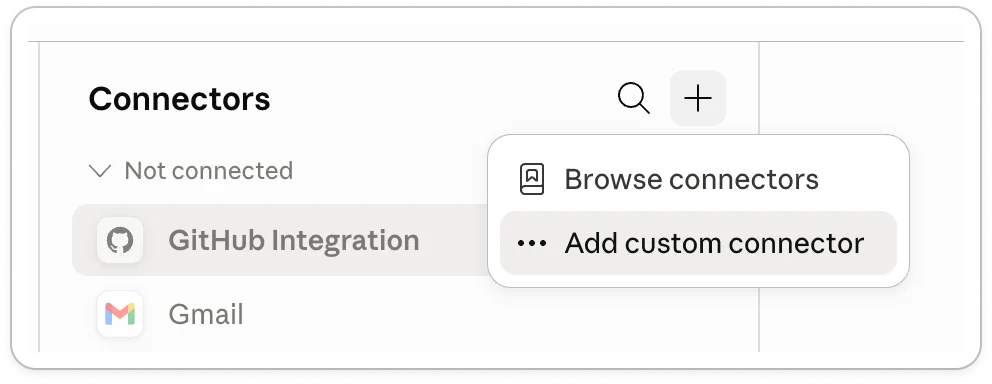
1. In Claude, open the **Customize** tab from the navigation bar
2. Click **+** and select **Add custom connector**, clicl Click **+** and select **Add custom connector**.
### Step 2 - Add Upflow as a connector
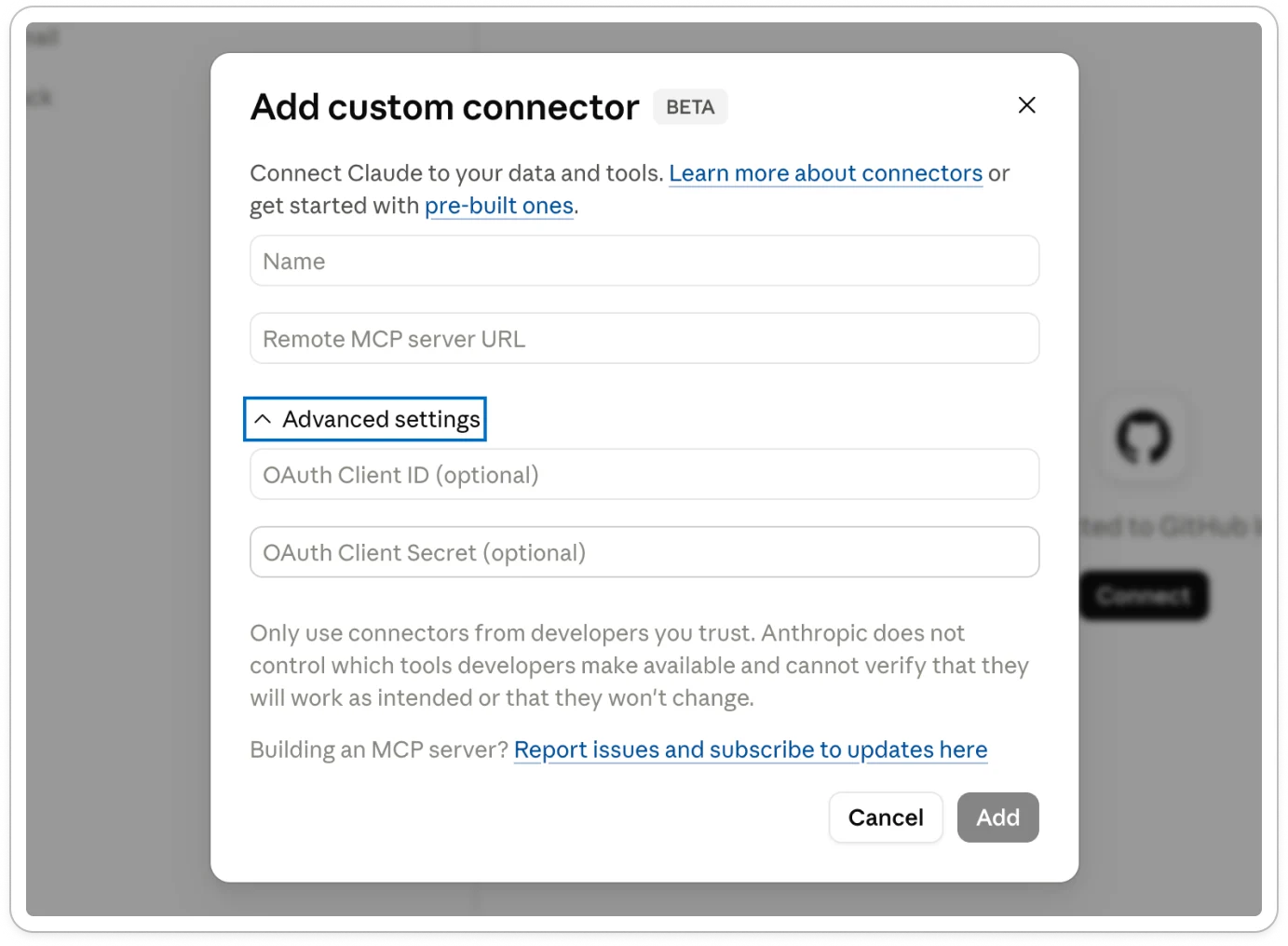
Fill in the form:
* **Name**: `Upflow`
* **URL**: `https://api.upflow.io/mcp`
No advanced settings are required. Click **Add**.
 ### Step 3 - Connect and authorize
1. Back in your connectors list, click **Connect** next to Upflow.
### Step 3 - Connect and authorize
1. Back in your connectors list, click **Connect** next to Upflow.
 2. If you're not already signed in to Upflow, you'll be prompted to log in.
3. On the consent page, review the access Upflow is granting and click **Authorize**. You'll be redirected back to Upflow with a confirmation.
### Step 4 - (Optional) Skip approval prompts
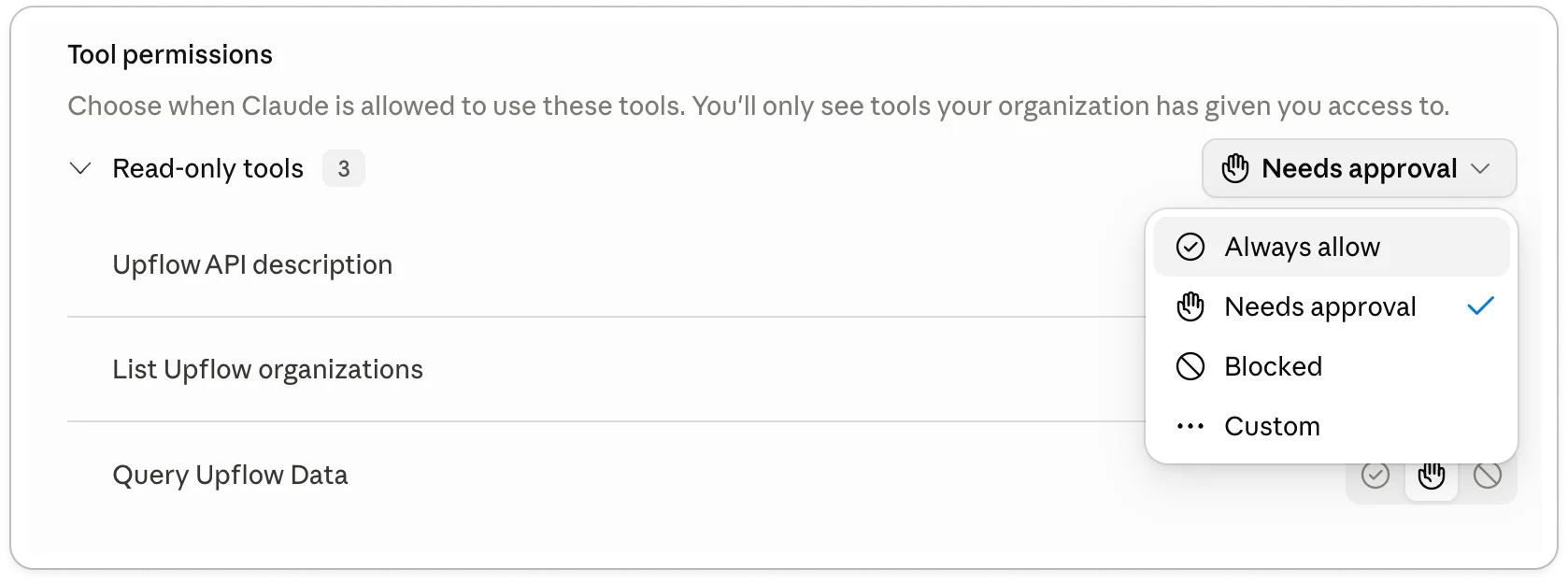
By default, Claude asks for your permission each time it uses a tool to query Upflow. To stop the prompts, select **Always allow** the first time Claude requests access.
2. If you're not already signed in to Upflow, you'll be prompted to log in.
3. On the consent page, review the access Upflow is granting and click **Authorize**. You'll be redirected back to Upflow with a confirmation.
### Step 4 - (Optional) Skip approval prompts
By default, Claude asks for your permission each time it uses a tool to query Upflow. To stop the prompts, select **Always allow** the first time Claude requests access.
 ## Path B: Team or Enterprise Claude plan
On Team and Enterprise plans, the setup is two-sided: an **Owner** adds Upflow at the organization level once, then each **member** connects individually.
### For the Claude Owner / IT admin
#### Step 1 - Add Upflow at the organization level
1. In Claude, go to **Organization settings → Connectors**.
2. Click **Add**, hover over **Custom**, then select **Web**.
#### Step 2 - Fill in the form
* **Name**: `Upflow`
* **URL**: `https://api.upflow.io/mcp`
Click **Add**.
Once added, every member of your Claude organization can authorize Upflow individually from their own Claude account.
### For each Claude member
#### Step 1 - Connect Upflow from your account
1. In Claude, open the **Customize** tab from the navigation bar. Upflow now appears in the list of available connectors.
2. Click **Connect** next to Upflow.
#### Step 2 - Authorize
1. If you're not already signed in to Upflow, you'll be prompted to log in.
2. On the consent page, review the access Upflow is granting and click **Authorize**. You'll be redirected back to Upflow with a confirmation.
#### Step 3 - (Optional) Skip approval prompts
By default, Claude asks for your permission each time it uses a tool to query Upflow. To stop the prompts, select **Always allow** the first time Claude requests access.
## Try it out
Ask Claude anything about your Upflow data. A few prompts to get started:
* **Top debtors** — *Who are the top 5 debtors by outstanding balance?*
* **Recent collections** — *How much have we collected since the beginning of the month?*
* **Customer contact** — *Who is the main contact for \[customer name]?*
## Manage or disconnect
To see all the AI clients you've connected to Upflow, or to revoke this connection, go to [**Settings → User → MCP access**](https://app.upflow.io/organization/-/settings/user/mcp-access) in the Upflow app. Each connected client can be revoked individually.
## Related articles
* [Connect Upflow to your AI client (overview)](/en-us/technical-documentation/mcp-server/overview)
* [Connect ChatGPT](/en-us/technical-documentation/mcp-server/connect-chatgpt)
## Path B: Team or Enterprise Claude plan
On Team and Enterprise plans, the setup is two-sided: an **Owner** adds Upflow at the organization level once, then each **member** connects individually.
### For the Claude Owner / IT admin
#### Step 1 - Add Upflow at the organization level
1. In Claude, go to **Organization settings → Connectors**.
2. Click **Add**, hover over **Custom**, then select **Web**.
#### Step 2 - Fill in the form
* **Name**: `Upflow`
* **URL**: `https://api.upflow.io/mcp`
Click **Add**.
Once added, every member of your Claude organization can authorize Upflow individually from their own Claude account.
### For each Claude member
#### Step 1 - Connect Upflow from your account
1. In Claude, open the **Customize** tab from the navigation bar. Upflow now appears in the list of available connectors.
2. Click **Connect** next to Upflow.
#### Step 2 - Authorize
1. If you're not already signed in to Upflow, you'll be prompted to log in.
2. On the consent page, review the access Upflow is granting and click **Authorize**. You'll be redirected back to Upflow with a confirmation.
#### Step 3 - (Optional) Skip approval prompts
By default, Claude asks for your permission each time it uses a tool to query Upflow. To stop the prompts, select **Always allow** the first time Claude requests access.
## Try it out
Ask Claude anything about your Upflow data. A few prompts to get started:
* **Top debtors** — *Who are the top 5 debtors by outstanding balance?*
* **Recent collections** — *How much have we collected since the beginning of the month?*
* **Customer contact** — *Who is the main contact for \[customer name]?*
## Manage or disconnect
To see all the AI clients you've connected to Upflow, or to revoke this connection, go to [**Settings → User → MCP access**](https://app.upflow.io/organization/-/settings/user/mcp-access) in the Upflow app. Each connected client can be revoked individually.
## Related articles
* [Connect Upflow to your AI client (overview)](/en-us/technical-documentation/mcp-server/overview)
* [Connect ChatGPT](/en-us/technical-documentation/mcp-server/connect-chatgpt)