> ## Documentation Index
> Fetch the complete documentation index at: https://docs.upflow.io/llms.txt
> Use this file to discover all available pages before exploring further.
# Payout reconciliation
> Reconcile Stripe payouts from Payments by Upflow with your accounting system using the CSV export, including payments, fees, refunds, and arrival dates.
When you collect online payments through **Payments by Upflow** (PBU), Stripe batches successful payments into **payouts** that are wired to your bank account. To keep your books in sync, the deposit that lands in your bank needs to be reflected in your accounting system, applied against the right customer payments and net of any processing fees.
For accounting integrations where Upflow does **not** create the bank deposit automatically, you reconcile the payout manually using a CSV export from Upflow. This page describes the principle and the data in the export. For the concrete steps in your accounting system, see the relevant integration article.
This article applies to merchants using **Payments by Upflow** (PBU). If you collect payments through a Stripe standard account connected to Upflow, payouts are managed by Stripe directly — reconcile them with Stripe's own reports.
## When does manual reconciliation apply?
It depends on the integration:
* **Automated payout sync** — the integration creates the bank deposit in your accounting system, automatically matched to the payments it contains. No manual step required. This is the case for our NetSuite integration only (see [Online payments sync for NetSuite](/en-us/integrations/netsuite/online-payments-sync-for-netsuite)).
* **Manual reconciliation** — the integration writes back individual payments but does not create the bank deposit, so you record the deposit yourself based on the Upflow payout export. This is the case for every other integration, including QuickBooks Online (see [QuickBooks - Payout reconciliation](/en-us/integrations/quickbooks/payout-reconciliation)) and Sage Intacct (see [Sage Intacct - Payout reconciliation](/en-us/integrations/sage-intacct/payout-reconciliation)).
## The Upflow payout export
In Upflow, go to the [**Payments settings**](https://app.upflow.io/organization/-/settings/payments-by-upflow) (**Settings → Payments by Upflow**) and, under **Download payout data**, click **Download**. This exports all your payment and payout data as a single CSV.
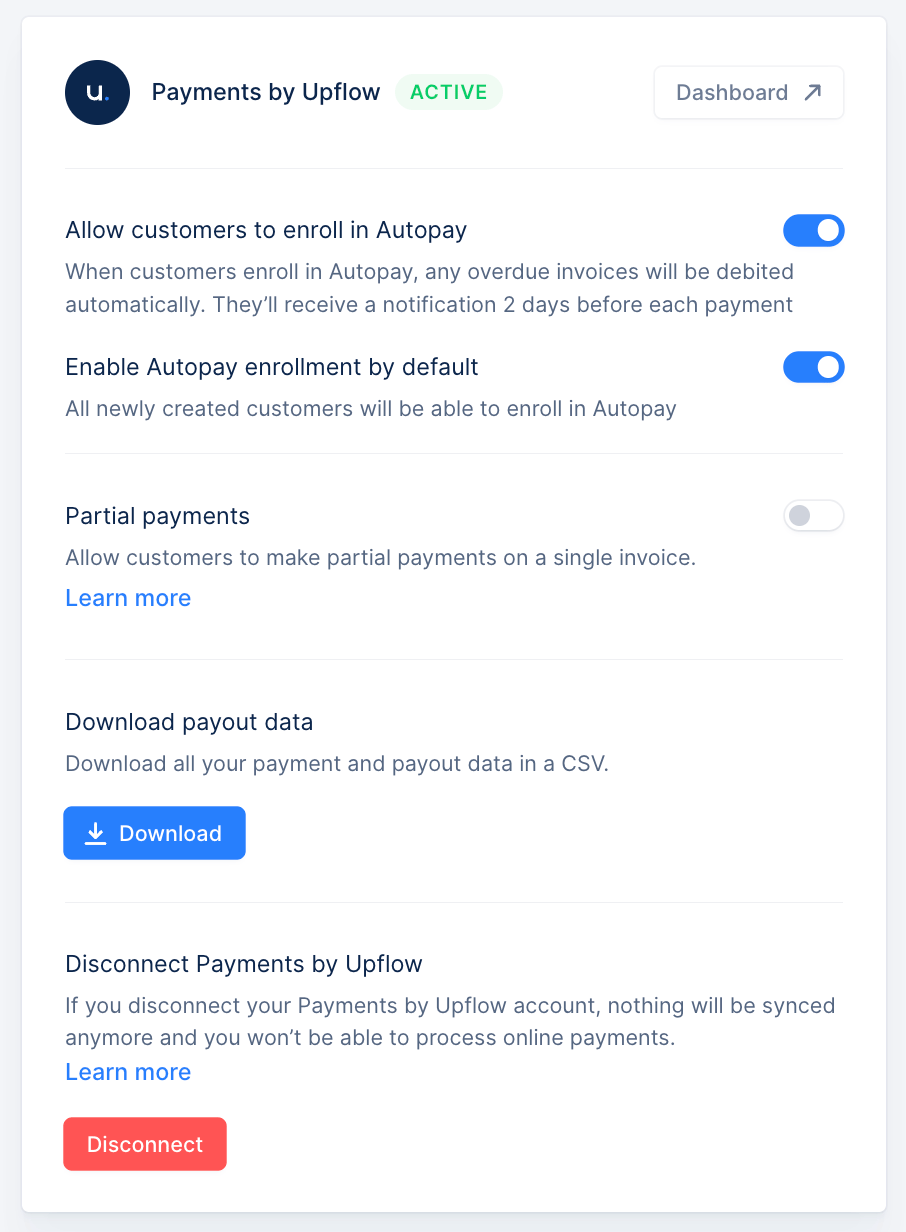 The export contains one row per Upflow transaction included in your payouts. The columns most useful for accounting reconciliation are:
* `payout_arrival_date` and `payout_amount` — the date and total of the bank deposit you'll record in your accounting system.
* `transaction_upflow_id` — the Upflow payment identifier. When an integration writes back payments individually (as QuickBooks Online does), this matches the corresponding payment record in your accounting system, so you can find each payment unambiguously.
* `transaction_converted_total_amount` — the transaction's contribution to the payout in the payout currency (what actually lands in the bank).
* `transaction_processing_fees` and `transaction_net_amount` — fees withheld by Upflow and the net amount deposited.
* `customer_name` — the customer the payment is applied to.
Sample export: [upflow-payout-sample.csv](/images/upflow-payout-sample.csv) — one payout, four transactions, full set of columns.
## High-level reconciliation flow
1. **Export your payout data from Upflow** as described above, and identify the payout you want to reconcile (the rows sharing the same `payout_arrival_date` / `payout_amount` in the CSV).
2. **In your accounting system, record a deposit** on the bank account where the payout arrived, dated to the payout's arrival date, for the payout amount. Apply that deposit against the individual payments listed in the CSV so they're cleared from any "undeposited" / clearing account, and post any processing fees to the relevant expense account.
3. **Match the deposit against your bank feed** when the corresponding bank transaction appears.
The exact mechanics depend on your accounting system.
The export contains one row per Upflow transaction included in your payouts. The columns most useful for accounting reconciliation are:
* `payout_arrival_date` and `payout_amount` — the date and total of the bank deposit you'll record in your accounting system.
* `transaction_upflow_id` — the Upflow payment identifier. When an integration writes back payments individually (as QuickBooks Online does), this matches the corresponding payment record in your accounting system, so you can find each payment unambiguously.
* `transaction_converted_total_amount` — the transaction's contribution to the payout in the payout currency (what actually lands in the bank).
* `transaction_processing_fees` and `transaction_net_amount` — fees withheld by Upflow and the net amount deposited.
* `customer_name` — the customer the payment is applied to.
Sample export: [upflow-payout-sample.csv](/images/upflow-payout-sample.csv) — one payout, four transactions, full set of columns.
## High-level reconciliation flow
1. **Export your payout data from Upflow** as described above, and identify the payout you want to reconcile (the rows sharing the same `payout_arrival_date` / `payout_amount` in the CSV).
2. **In your accounting system, record a deposit** on the bank account where the payout arrived, dated to the payout's arrival date, for the payout amount. Apply that deposit against the individual payments listed in the CSV so they're cleared from any "undeposited" / clearing account, and post any processing fees to the relevant expense account.
3. **Match the deposit against your bank feed** when the corresponding bank transaction appears.
The exact mechanics depend on your accounting system.