> ## Documentation Index
> Fetch the complete documentation index at: https://docs.upflow.io/llms.txt
> Use this file to discover all available pages before exploring further.
# Generate refunds in Upflow
> Issue full refunds on succeeded online payments from the Upflow Payments list view, with automatic invoice and credit memo updates in your accounting system.
You may need to refund a previously collected payment to your customer as part of your contractual relationship with them.
**While we generally recommend to try & resolve refund requests by offering alternatives** outside of your payment flow (typically: issuing credit notes applied to future invoices), it is important to acknowledge that:
* your customer may prefer a refund, especially if your commercial relationship is occasional or if your company made a billing mistake.
* refunds can be proactively issued to [avoid payment disputes](/en-us/payments/process-online-payments/disputes-and-chargebacks), which hurt both your customer relationship & reputation with payment networks.
👉 When you accept online payments with Upflow, you can issue full refunds for payments received via customer portals in a few clicks directly from your interface.
## How to process a refund
Only Upflow Admin users can initiate a full refund for a payment from the [Payments list view](https://app.upflow.io/organization/-/transactions).
First, find the payment you want to refund. You can use the search bar or filters to help you:
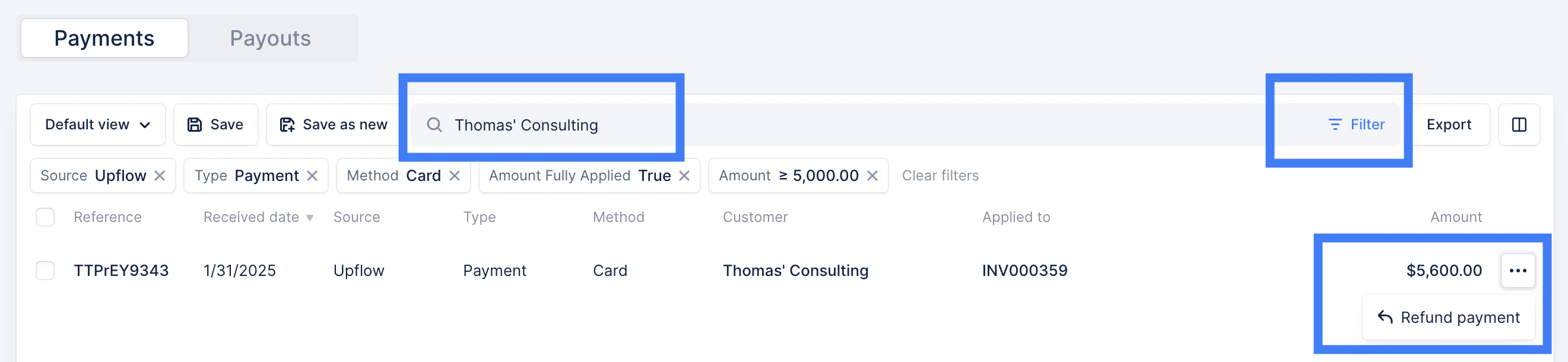 Then, confirm the refund initiation. Once done, the refund will immediately be materialized in Upflow. Depending on your integration, it will either be linked to the initial payment or to the corresponding credit memo if the initial payment is still applied to an invoice.
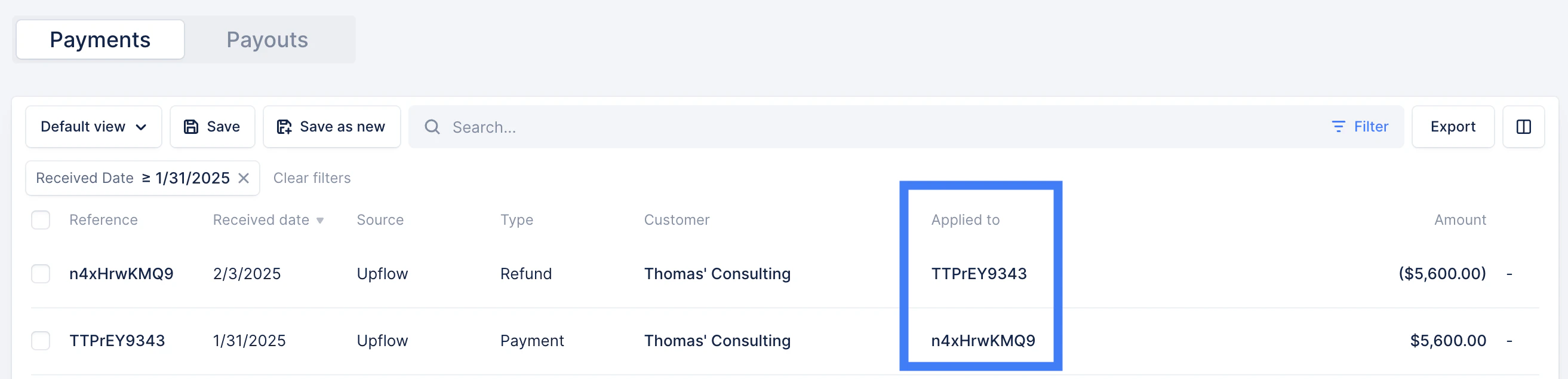 If the refund is applied to the initial payment, the previously paid invoices will be automatically reverted to unpaid and included in the collections workflows again. If you'd like to handle those separately, you can just flag them as [invoices in dispute](/en-us/core-entities/invoices/invoice-disputes).
## Good to know
* Refunds can only be created on succeeded payments made in Upflow.
* Partial refunds (amount less than the original payments) are not yet supported.
## Troubleshooting
If the refund is applied to the initial payment, the previously paid invoices will be automatically reverted to unpaid and included in the collections workflows again. If you'd like to handle those separately, you can just flag them as [invoices in dispute](/en-us/core-entities/invoices/invoice-disputes).
## Good to know
* Refunds can only be created on succeeded payments made in Upflow.
* Partial refunds (amount less than the original payments) are not yet supported.
## Troubleshooting
 When attempting to create a refund from Upflow, this error message is generated, this means your Stripe balance' funds aren't enough to cover the refund amount. You can track the balance directly from your Stripe Express dashboard. In Stripe Express, go to **Balance →** there you’ll be able to see the split between Available and Pending funds.
For the refund to be processed to the customer’s card/account, the available balance must be sufficient to cover the refund amount.
To avoid the funds being paid out before the balance reaches the required amount, we can switch the payout schedule to manual, so the funds remain in Stripe until there is enough available balance to process the refund.
Additional solutions:
1. Refund the customer outside of Upflow, via bank transfer or wire, if they need the funds back as soon as possible.
2. Wait until the Stripe Express available balance is sufficient, then process the refund back to the customer's used payment method.
3. Top up your Stripe account to have the necessary funds for the refund
* Go to Balance
* Click "See details" on the top right
* A pop up of "Your balance" full details will show up.
* Below Your balance section, there would be the section "Future refunds, disputes, or negative balance"
* Just click "Add to balance" and enter the amount you'd like to top up.
* Click continue and follow the prompts.
You can submit a Support request at the top of your screen if you have any additional questions.
When attempting to create a refund from Upflow, this error message is generated, this means your Stripe balance' funds aren't enough to cover the refund amount. You can track the balance directly from your Stripe Express dashboard. In Stripe Express, go to **Balance →** there you’ll be able to see the split between Available and Pending funds.
For the refund to be processed to the customer’s card/account, the available balance must be sufficient to cover the refund amount.
To avoid the funds being paid out before the balance reaches the required amount, we can switch the payout schedule to manual, so the funds remain in Stripe until there is enough available balance to process the refund.
Additional solutions:
1. Refund the customer outside of Upflow, via bank transfer or wire, if they need the funds back as soon as possible.
2. Wait until the Stripe Express available balance is sufficient, then process the refund back to the customer's used payment method.
3. Top up your Stripe account to have the necessary funds for the refund
* Go to Balance
* Click "See details" on the top right
* A pop up of "Your balance" full details will show up.
* Below Your balance section, there would be the section "Future refunds, disputes, or negative balance"
* Just click "Add to balance" and enter the amount you'd like to top up.
* Click continue and follow the prompts.
You can submit a Support request at the top of your screen if you have any additional questions.