> ## Documentation Index
> Fetch the complete documentation index at: https://docs.upflow.io/llms.txt
> Use this file to discover all available pages before exploring further.
# Capturing payment methods
> Let customers save one or more cards or direct debits on their Upflow portal for faster manual payments and to enroll a method in autopay for future invoice collection.
With Upflow, your customers can save one or more payment methods for future payments. They can pay invoices manually with any saved method, or enroll a method in autopay so future invoices are collected automatically.
From their portal, your customers can:
* Save multiple cards or direct debits — and add a new one at any time, even with no invoice to pay
* Choose which saved method is used for Autopay, and change it whenever they need to
* Pay any invoice with any of their saved methods
* Delete a method, or reactivate one that was paused after a failed Autopay attempt
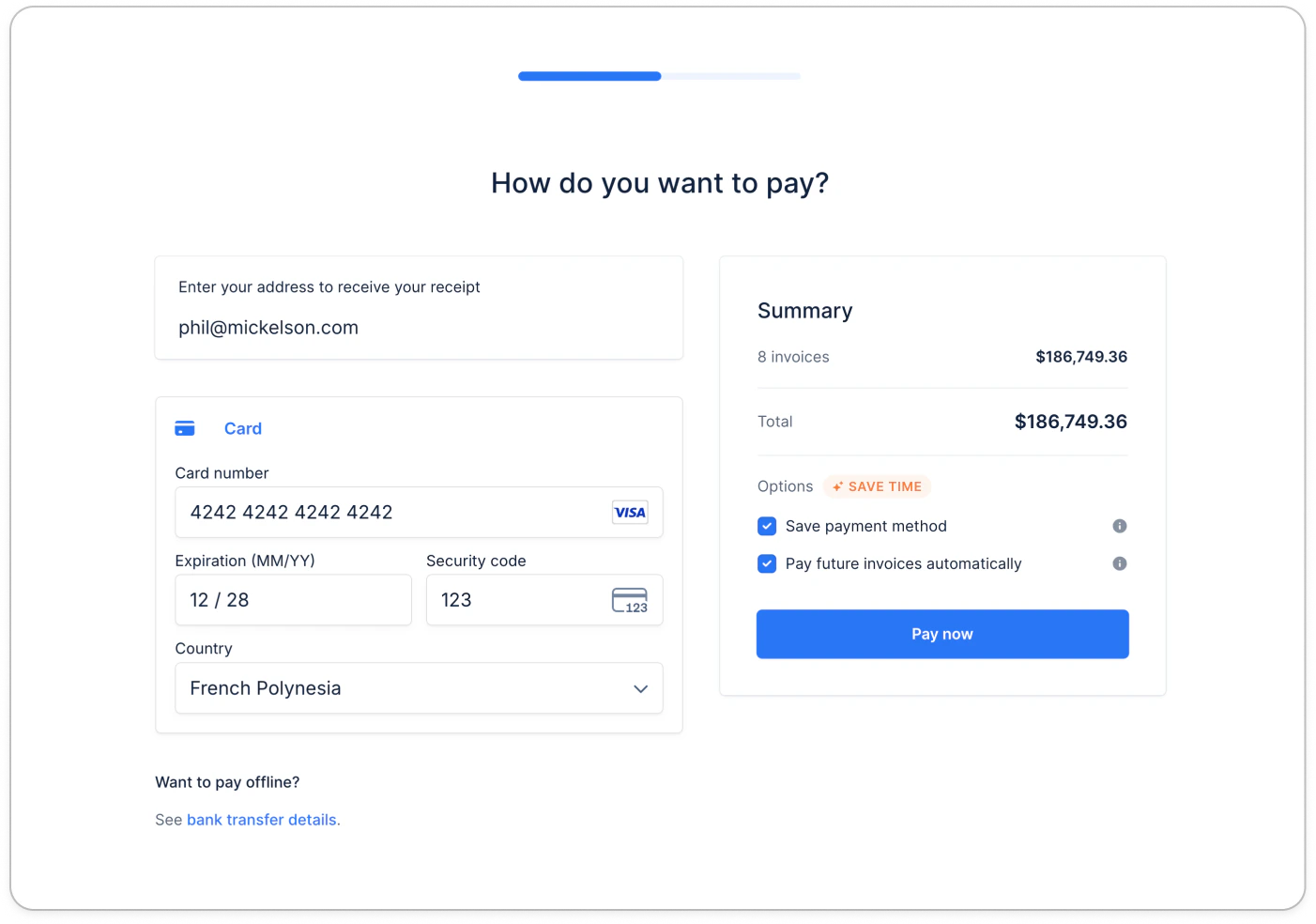 ## Enabling your customers to enroll into autopay
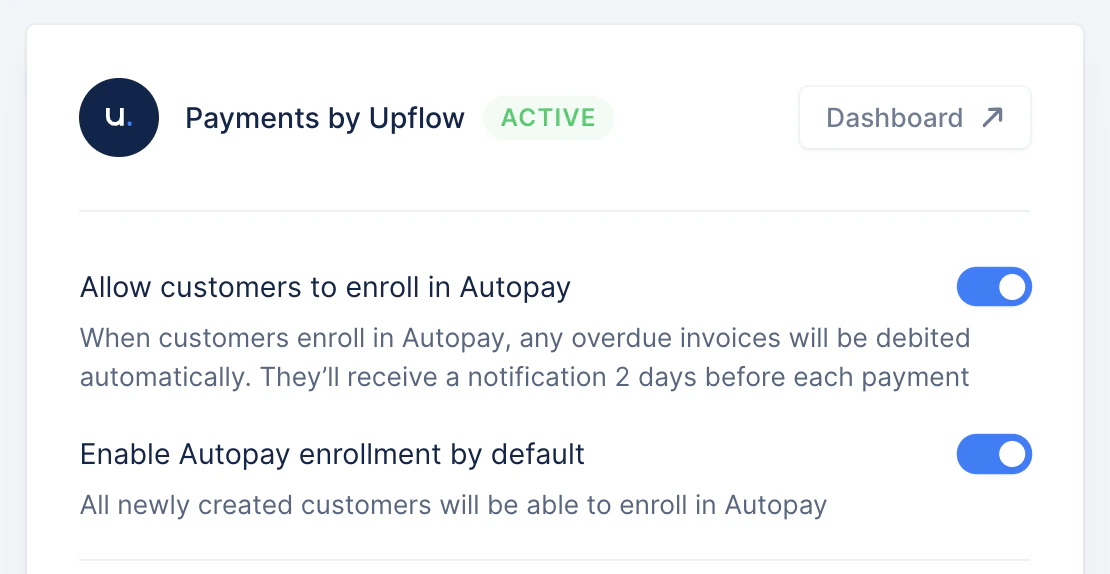
To enable your customers to enroll into Autopay, simply navigate to your [payment settings](https://app.upflow.io/organization/-/settings/payments-by-upflow) and toggle the option on. You can have it on by default for all new customers as well.
## Enabling your customers to enroll into autopay
To enable your customers to enroll into Autopay, simply navigate to your [payment settings](https://app.upflow.io/organization/-/settings/payments-by-upflow) and toggle the option on. You can have it on by default for all new customers as well.
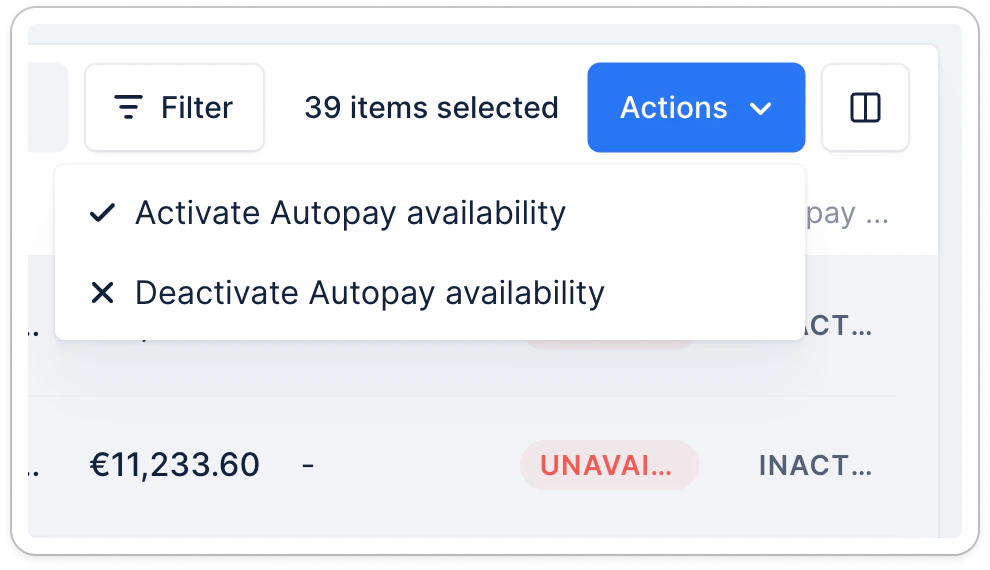
 From there, you can head over to your [customer list view](https://app.upflow.io/organization/-/customers) to ensure that all your existing customers can enroll in autopay:
 After that, all your customers will be able to save payment methods and choose to enroll in autopay or not.
→ If you decide afterward to disable the save payment method capability after some of your customers have saved a payment method, we will delete their existing saved payment methods.
→ If you decide afterward to disable the autopay capability after some of your customers have enrolled, we will disable autopay for them as well, but their payment methods will remain.
## Saving payment methods on the portal
Your customers can save more than one payment method on their portal — for example a card and a direct debit, or methods in different currencies. They can add a new one at any time, including when they have no invoice to pay (see [Capturing payment methods without outstanding invoices](/en-us/payments/collect-online-payments/capturing-payment-methods-without-outstanding-invoices)).
When saving a method, they choose whether to use it for Autopay. All of their saved methods are visible on their portal, and you can see the full list on the customer's [details page](/en-us/core-entities/customers/your-customer-details-page).
## Choosing which method is used for Autopay
The **Autopay method** is the saved method Upflow uses to automatically collect a customer's future invoices. Customers decide whether to use a method for Autopay when they save it, and can change which method is used at any time from the saved payment methods section of their portal.
Deleting the method currently used for Autopay stops Autopay for that customer. To keep collecting their invoices automatically, they'll need to set another saved method for Autopay.
## Paying manually an invoice with a saved payment method
If they don't enroll in autopay, this is what their portal will look like:
After that, all your customers will be able to save payment methods and choose to enroll in autopay or not.
→ If you decide afterward to disable the save payment method capability after some of your customers have saved a payment method, we will delete their existing saved payment methods.
→ If you decide afterward to disable the autopay capability after some of your customers have enrolled, we will disable autopay for them as well, but their payment methods will remain.
## Saving payment methods on the portal
Your customers can save more than one payment method on their portal — for example a card and a direct debit, or methods in different currencies. They can add a new one at any time, including when they have no invoice to pay (see [Capturing payment methods without outstanding invoices](/en-us/payments/collect-online-payments/capturing-payment-methods-without-outstanding-invoices)).
When saving a method, they choose whether to use it for Autopay. All of their saved methods are visible on their portal, and you can see the full list on the customer's [details page](/en-us/core-entities/customers/your-customer-details-page).
## Choosing which method is used for Autopay
The **Autopay method** is the saved method Upflow uses to automatically collect a customer's future invoices. Customers decide whether to use a method for Autopay when they save it, and can change which method is used at any time from the saved payment methods section of their portal.
Deleting the method currently used for Autopay stops Autopay for that customer. To keep collecting their invoices automatically, they'll need to set another saved method for Autopay.
## Paying manually an invoice with a saved payment method
If they don't enroll in autopay, this is what their portal will look like:
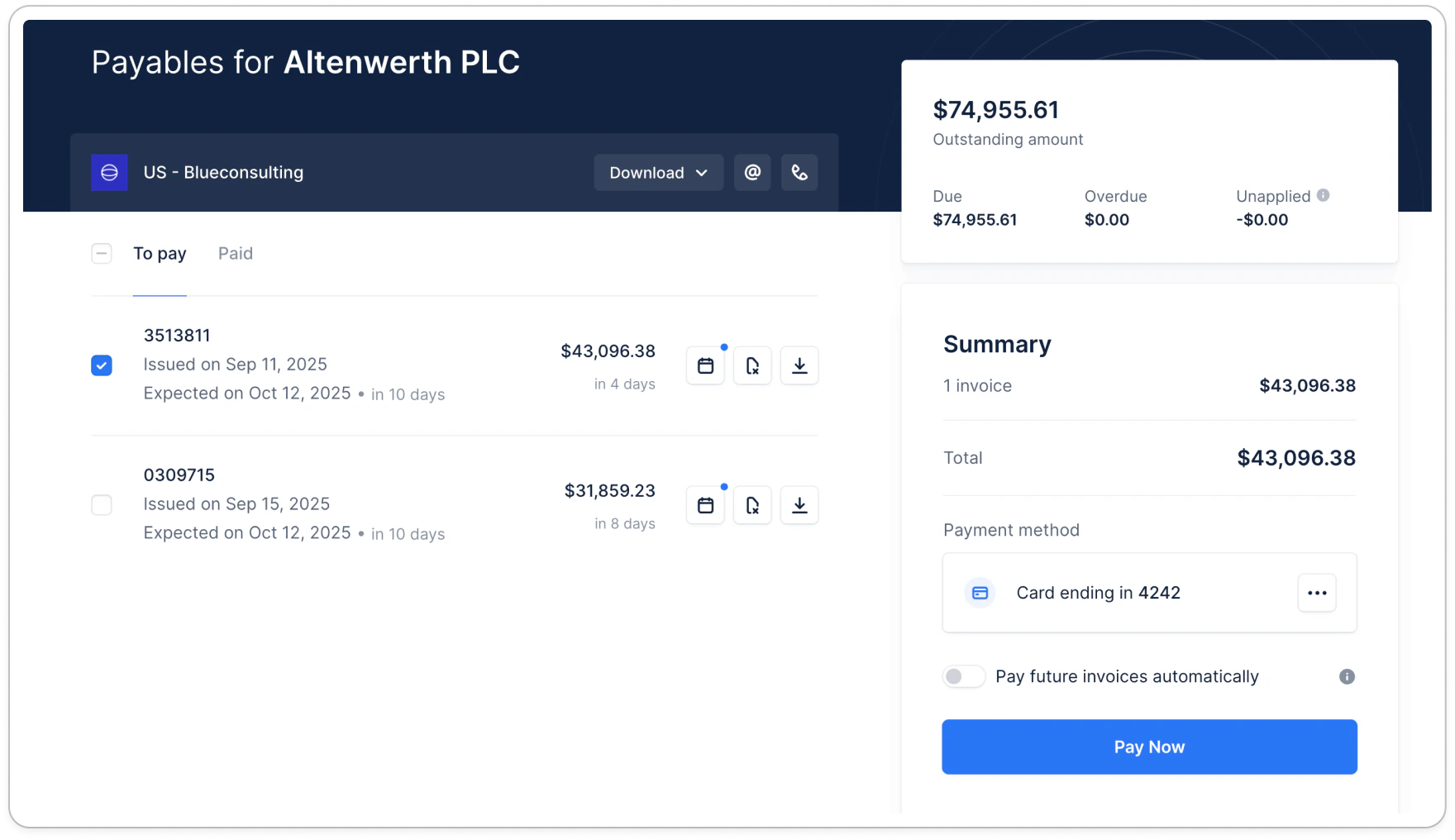 They can select the invoices they want to pay, click the pay now button, choose which saved method to use — or add a new one — and confirm the payment.
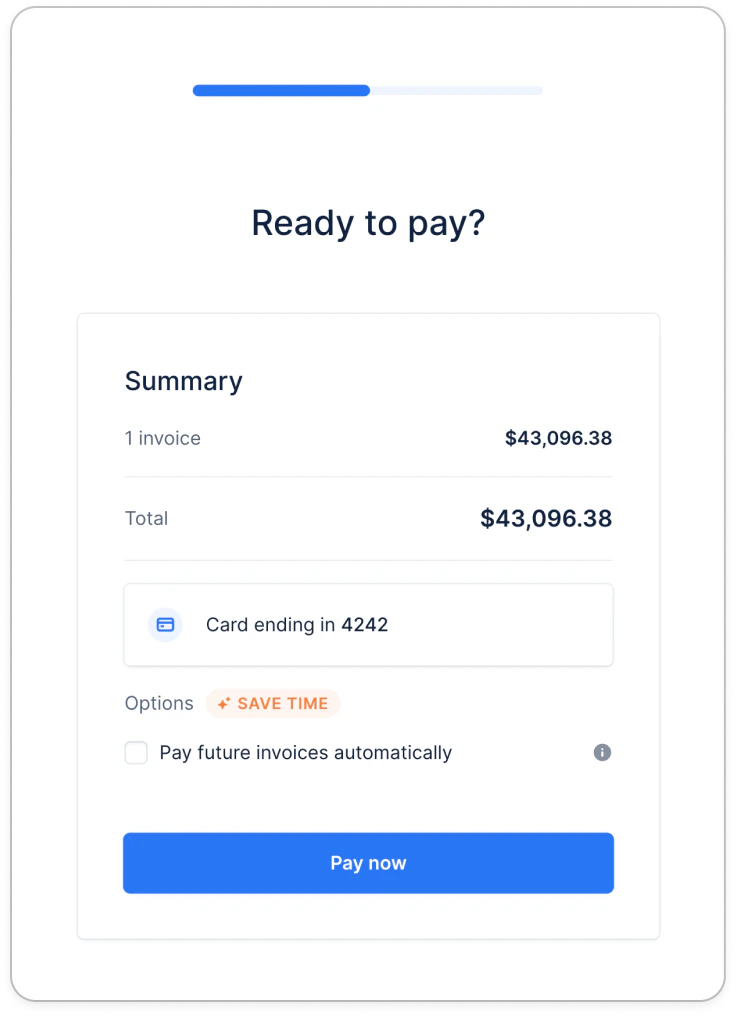 If a saved method can't be used for a particular invoice — for example because of a currency mismatch or an amount limit — it won't be available to select for that payment.
## Automatic payment of invoices
If your customers decide to enroll in autopay, then we will automatically debit their invoices on the due date. For more details on the autopay logic, please refer to [this article](/en-us/payments/collect-online-payments/collecting-automatically-with-autopay).
If a saved method can't be used for a particular invoice — for example because of a currency mismatch or an amount limit — it won't be available to select for that payment.
## Automatic payment of invoices
If your customers decide to enroll in autopay, then we will automatically debit their invoices on the due date. For more details on the autopay logic, please refer to [this article](/en-us/payments/collect-online-payments/collecting-automatically-with-autopay).