> ## Documentation Index
> Fetch the complete documentation index at: https://docs.upflow.io/llms.txt
> Use this file to discover all available pages before exploring further.
# Connect Zuora to Upflow - Initial Sync
> Set up the Zuora integration with Upflow in about ten minutes: create an API user, grant the right permissions, and run the initial AR data sync.
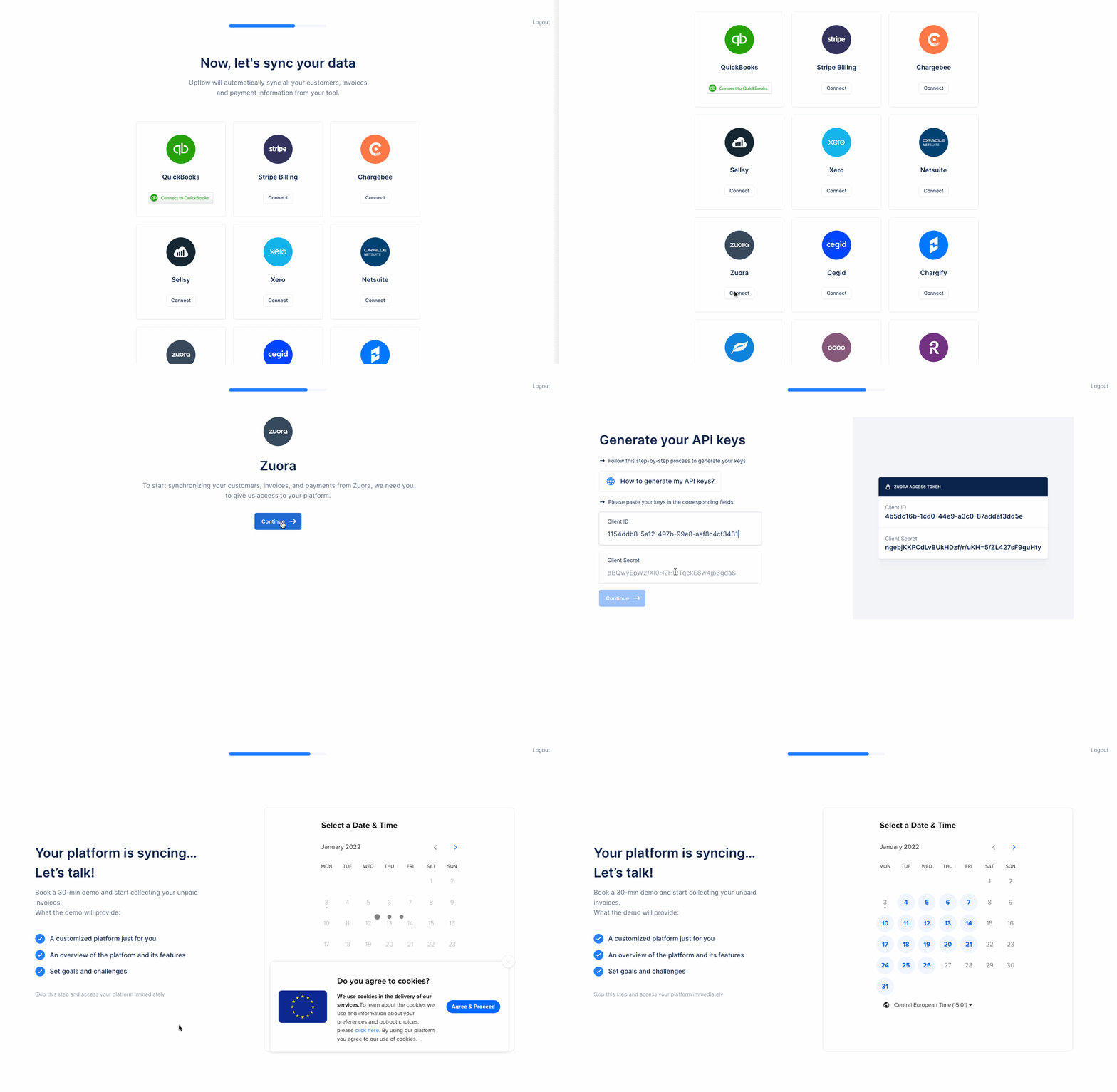 In a few minutes, you will be able to dig into your ARs and start your collection, but before that, we need to get you set up! *It takes approximately 10 minutes.*
# Step 1: Create a New user with API access rights
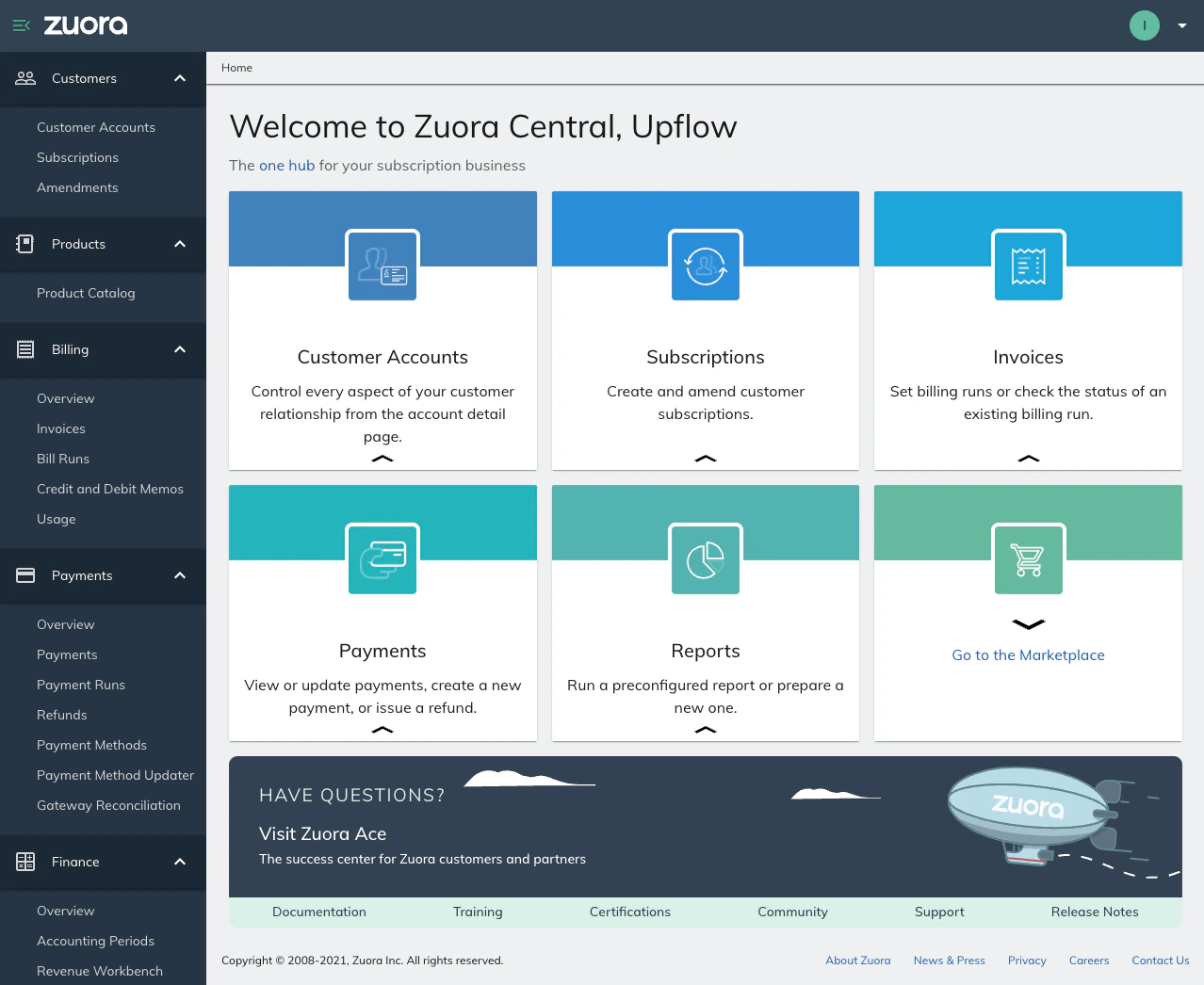
## 1. Go to your Zuora Platform logged as an Admin.
In a few minutes, you will be able to dig into your ARs and start your collection, but before that, we need to get you set up! *It takes approximately 10 minutes.*
# Step 1: Create a New user with API access rights
## 1. Go to your Zuora Platform logged as an Admin.
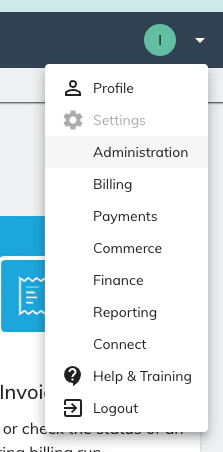
 ## 2. Go to your Administration section
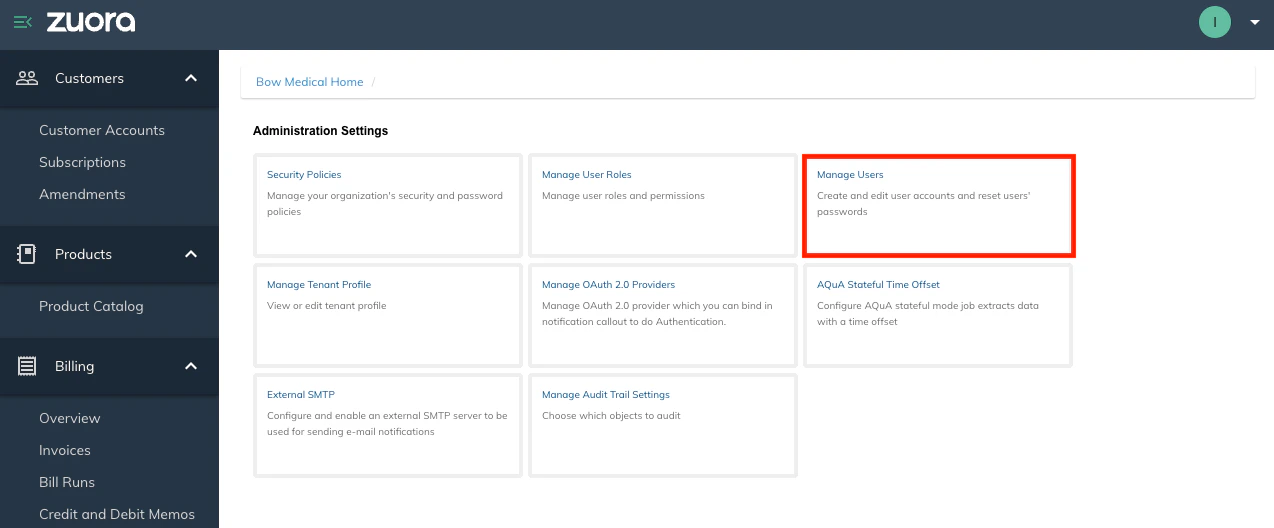
 ## 3. Click on **Manage users** then on **add single user**
 ## 4. Create a new user with that information:
* First Name: Upflow
* Last Name: Integration
* Work Email: **your own work email (This is important as you will get a verification email to activate the user) - If you already are using this email you can add "+Upflow" in your email as such: "[name+upflow@domain.com](mailto:name+upflow@domain.com)" instead of your [name@domain.com](mailto:name@domain.com) this will create an alias and you will be able to receive the email on your [name@domain.com](mailto:name@domain.com) inbox.**
* Login Name: Same as your work email
* Zuora Platform Role: **Set as API User (This is important)**
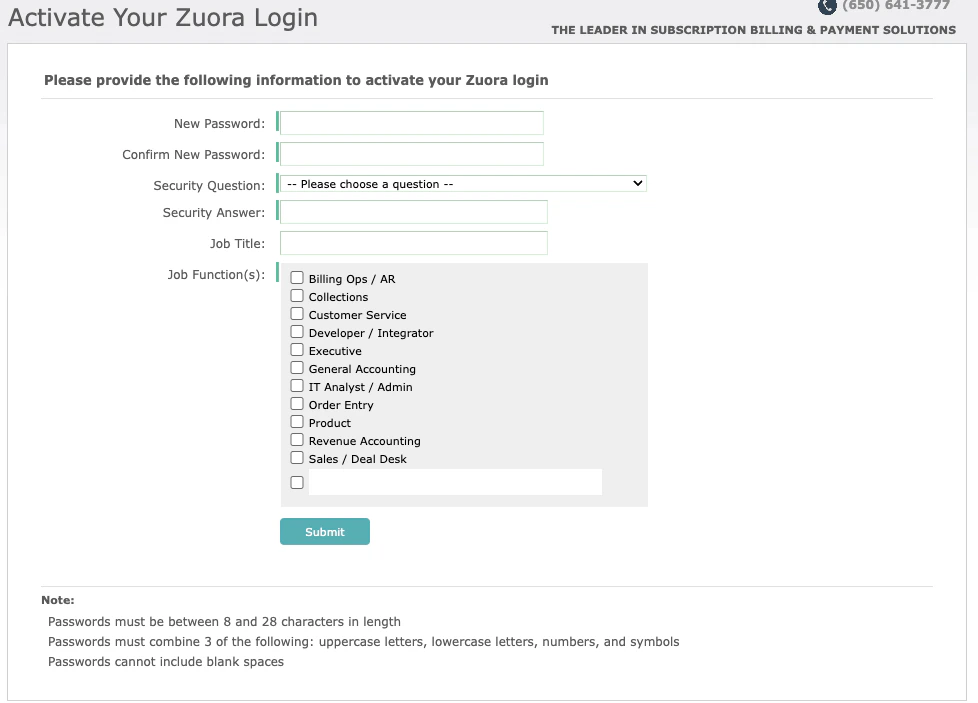
## 5. You will get an activation email from Zuora in your inbox, click on the link, and finish activating your Zuora login by filling up the information
## 4. Create a new user with that information:
* First Name: Upflow
* Last Name: Integration
* Work Email: **your own work email (This is important as you will get a verification email to activate the user) - If you already are using this email you can add "+Upflow" in your email as such: "[name+upflow@domain.com](mailto:name+upflow@domain.com)" instead of your [name@domain.com](mailto:name@domain.com) this will create an alias and you will be able to receive the email on your [name@domain.com](mailto:name@domain.com) inbox.**
* Login Name: Same as your work email
* Zuora Platform Role: **Set as API User (This is important)**
## 5. You will get an activation email from Zuora in your inbox, click on the link, and finish activating your Zuora login by filling up the information
 # Step 2: Create an OAuth client
## 1. With Your Admin account go back to the Manage Users tab
# Step 2: Create an OAuth client
## 1. With Your Admin account go back to the Manage Users tab
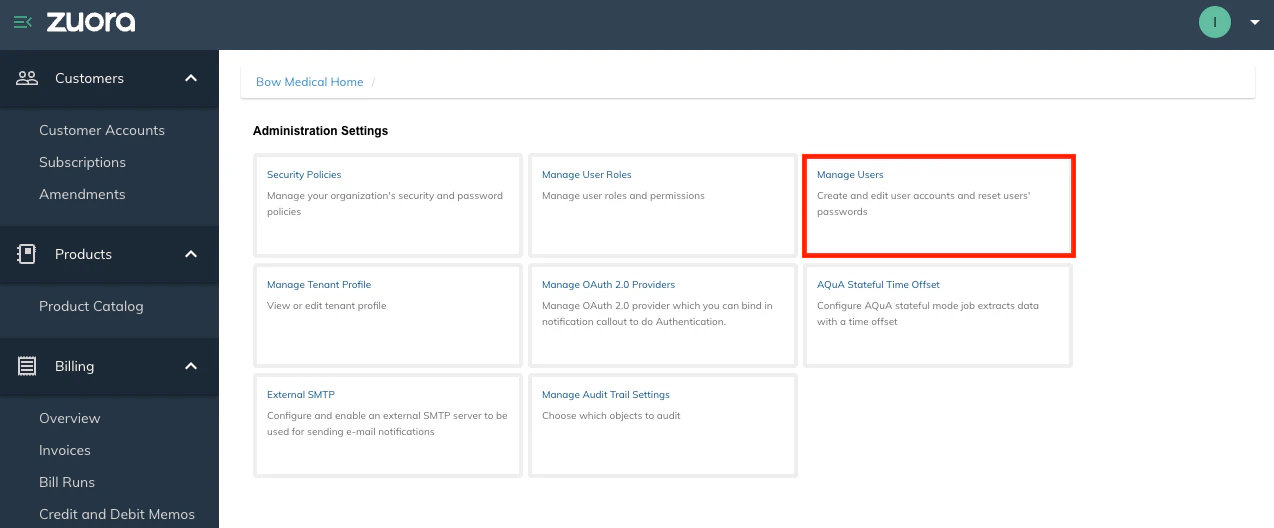 ## 2. Click on the New User you just created. The following screen should appear :
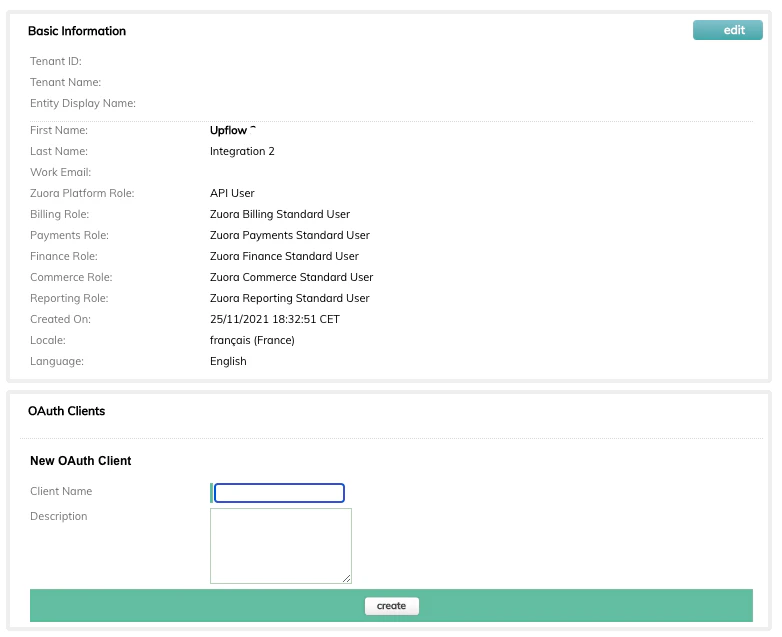 ## 3. In the section OAuth Clients create a New OAuth Client named "Upflow" and click on create. A window with 2 keys will appear :
 Keep the two keys (Client ID and Client Secret).
# Step 3: Share the client ID and client secret with Upflow
1. Input the Client ID and Client Secret in Upflow
**- You are connected!**
Keep the two keys (Client ID and Client Secret).
# Step 3: Share the client ID and client secret with Upflow
1. Input the Client ID and Client Secret in Upflow
**- You are connected!**