> ## Documentation Index
> Fetch the complete documentation index at: https://docs.upflow.io/llms.txt
> Use this file to discover all available pages before exploring further.
# Stripe Billing & Upflow
> Connect Stripe Billing to Upflow and see how invoices, customers, and payments sync to power your AR workflows and accelerate cash collection.
## Connect Stripe Billing with Upflow
To connect Upflow with Stripe Billing, click on the Connect button after you have created a new organization.
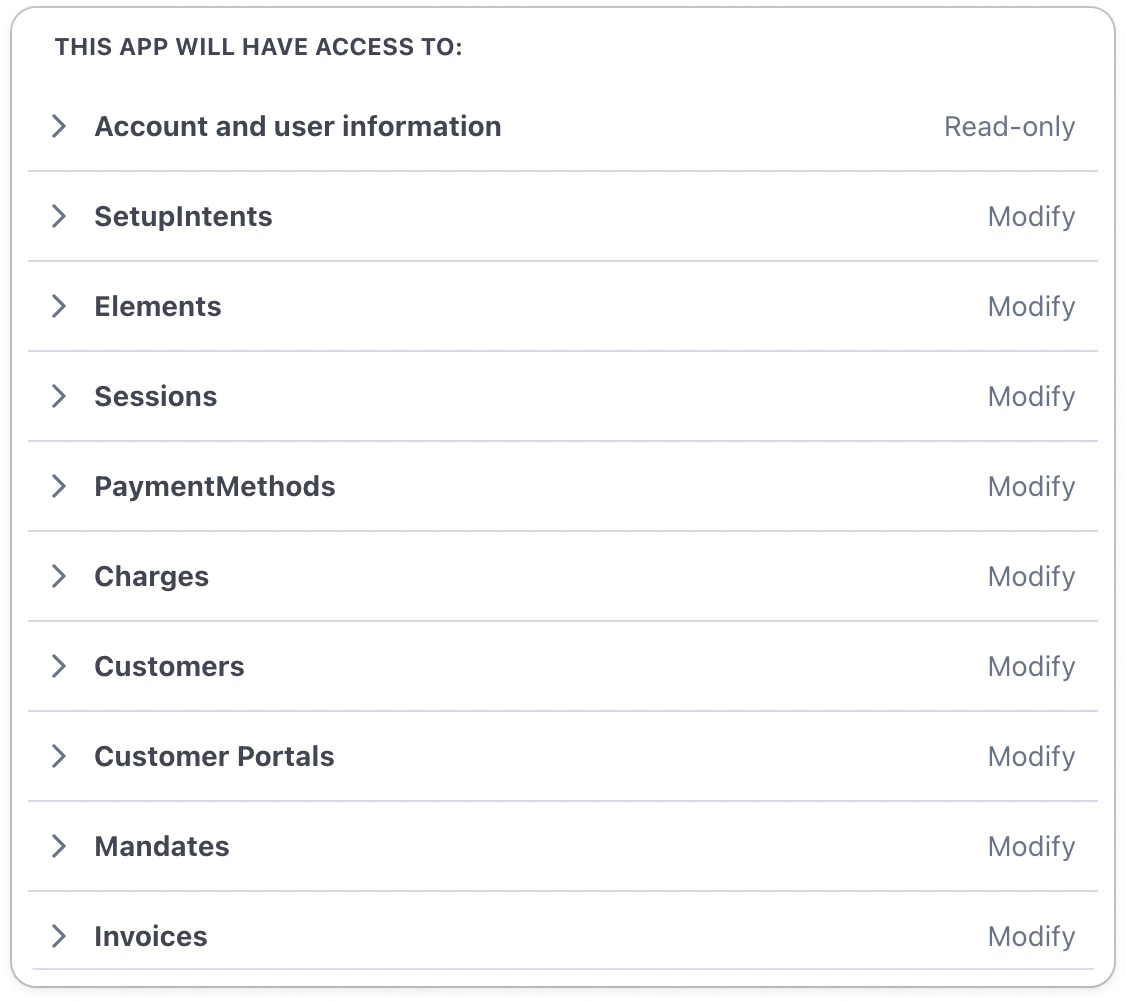
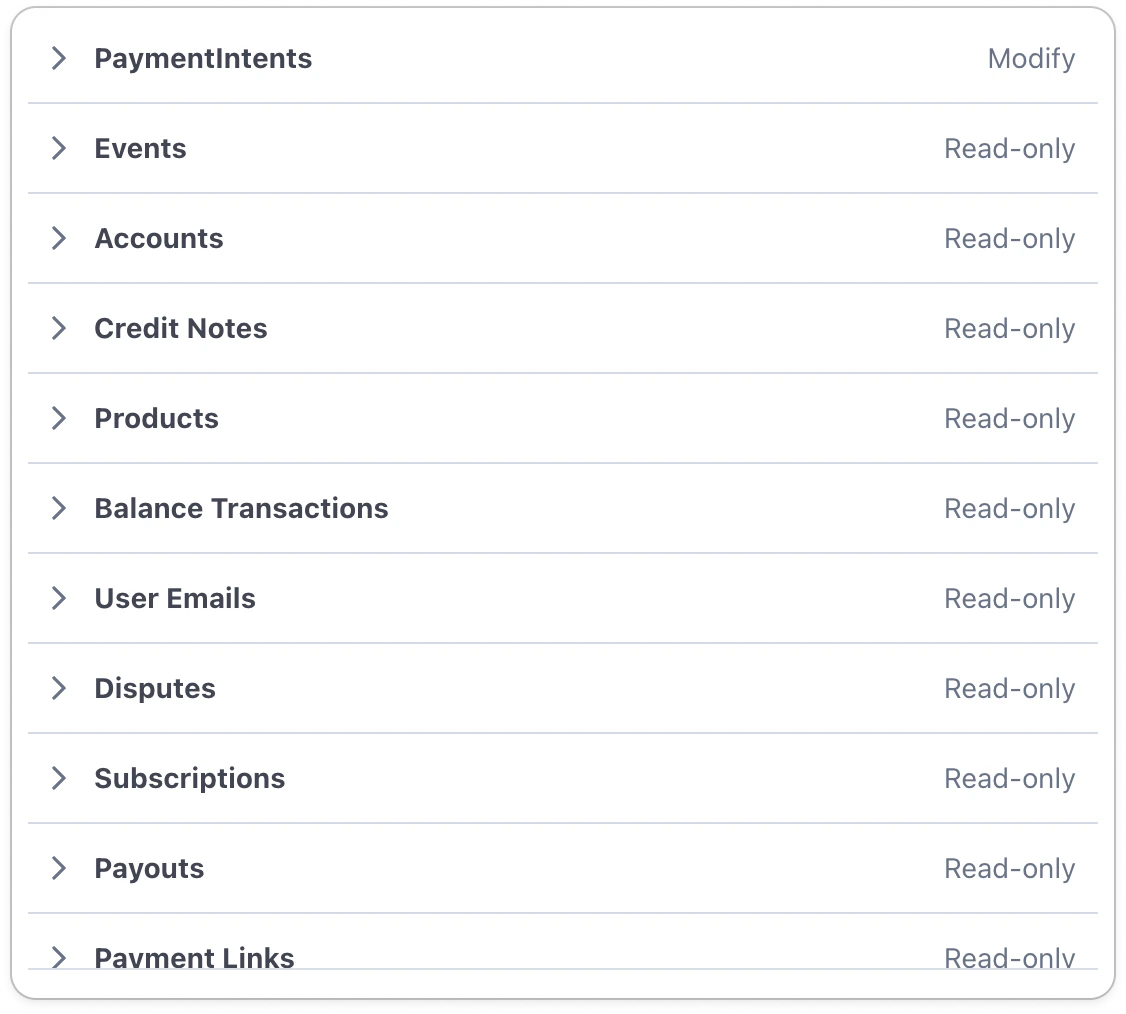
 For Upflow to work properly with Stripe Billing, we need the following permissions from your Stripe account:
 ## How does the synchronization work?
Once you have given Upflow access to your Stripe data, we will run a full synchronization of it. This can take several hours, and then the data will be synced in real time.
### Contact sync
We import the customer's email address as the customer's main contact.
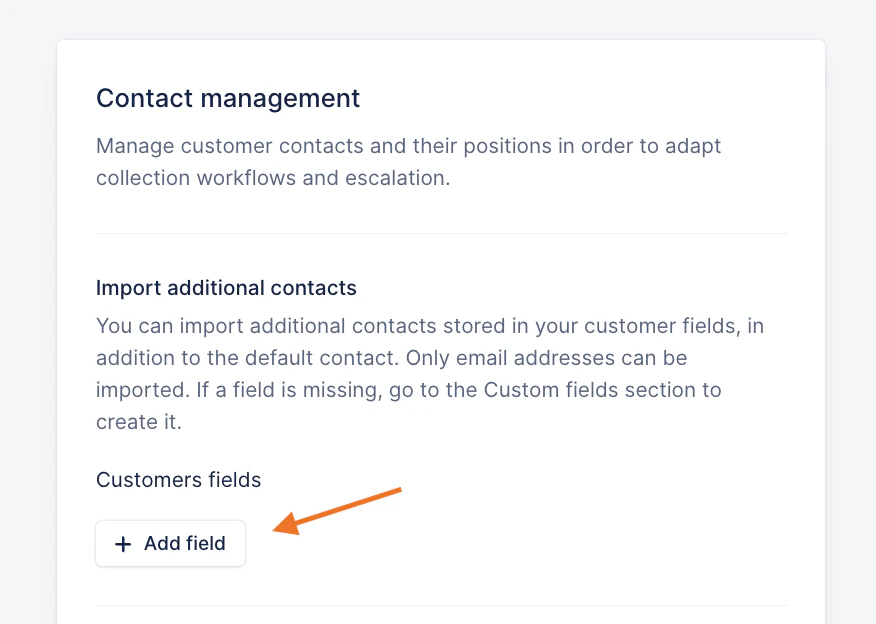
For additional contacts, you can rely on our feature [Import contacts from custom fields](/en-us/core-entities/contacts/import-contacts-from-custom-fields). From your Upflow Settings > Contact management, click "Add field":
## How does the synchronization work?
Once you have given Upflow access to your Stripe data, we will run a full synchronization of it. This can take several hours, and then the data will be synced in real time.
### Contact sync
We import the customer's email address as the customer's main contact.
For additional contacts, you can rely on our feature [Import contacts from custom fields](/en-us/core-entities/contacts/import-contacts-from-custom-fields). From your Upflow Settings > Contact management, click "Add field":
 Add the following fields:
* Additional emails cc
* Additional emails to
Add the following fields:
* Additional emails cc
* Additional emails to
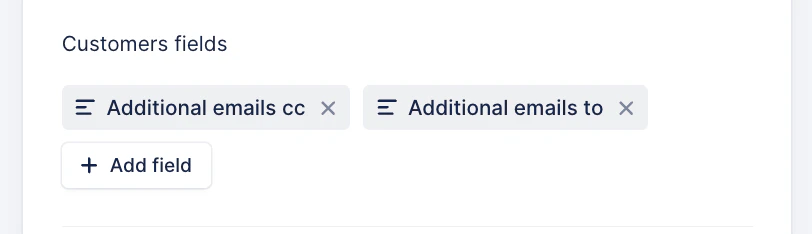 And click **Save** at the bottom of the page. Give the system a bit of time to sync the data from Stripe and create contacts into Upflow.
Then, from your Contacts list view, follow the sync using the filter "Source contains Custom field".
You can now use these additional contacts in your collection process. Refer to our [article](/en-us/core-entities/contacts/import-contacts-from-custom-fields) for more insights.
### Invoice sync
Draft invoices are not imported into Upflow.
Voided invoices are imported with the status VOIDED.
Uncollectible invoices are imported and considered as PAID.
### Payment sync
Unapplied payments are not imported into Upflow as they don't impact the Stripe credit balance.
Payment methods are imported along with the payment.
If invoices are paid via the Upflow portal, we will write back the payment to Stripe. As the Stripe Billing API doesn't allow us to specify the payment invoice, we mark the invoice as paid out of band.
#### Payment export error
If a payment made by your customer in their Upflow portal, shows a Stripe Billing error status, you can identify them through the dedicated filter:
And click **Save** at the bottom of the page. Give the system a bit of time to sync the data from Stripe and create contacts into Upflow.
Then, from your Contacts list view, follow the sync using the filter "Source contains Custom field".
You can now use these additional contacts in your collection process. Refer to our [article](/en-us/core-entities/contacts/import-contacts-from-custom-fields) for more insights.
### Invoice sync
Draft invoices are not imported into Upflow.
Voided invoices are imported with the status VOIDED.
Uncollectible invoices are imported and considered as PAID.
### Payment sync
Unapplied payments are not imported into Upflow as they don't impact the Stripe credit balance.
Payment methods are imported along with the payment.
If invoices are paid via the Upflow portal, we will write back the payment to Stripe. As the Stripe Billing API doesn't allow us to specify the payment invoice, we mark the invoice as paid out of band.
#### Payment export error
If a payment made by your customer in their Upflow portal, shows a Stripe Billing error status, you can identify them through the dedicated filter:
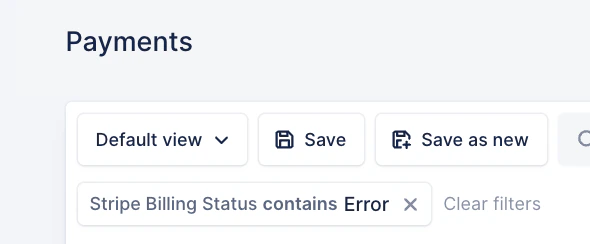 Then, you can first check the error message by hovering over the Error status, or add the Stripe Billing Status column to the view. See here:
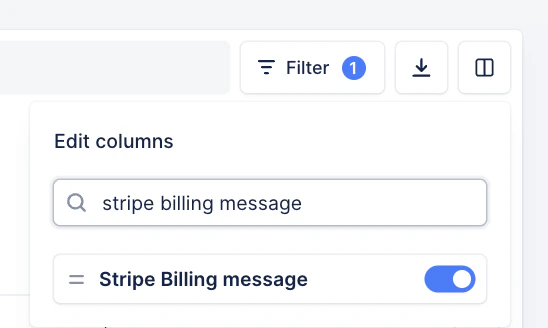 If the message is explicit enough, check the root cause or solution, and proceed with the necessary updates in Upflow or Stripe.
Then, try exporting the payment back to Stripe:
If the message is explicit enough, check the root cause or solution, and proceed with the necessary updates in Upflow or Stripe.
Then, try exporting the payment back to Stripe:
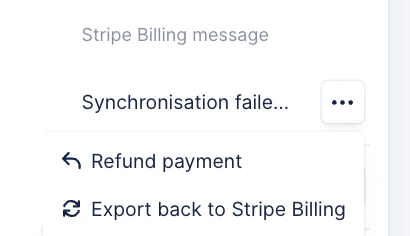 If the message is "Synchronisation failed. Please contact support.", and exporting back to Stripe fails, please contact our Support team (at the top right of this page), with as much context as possible.
### Custom field sync
You can import Stripe metadata as custom fields in Upflow.
These fields are available for customers, invoices, and payments.
Additionally, some native Stripe fields can be added from the Upflow custom field section. They are:
* Account email
* Delinquent
* Description
* Discount
* Default payment method
* Sources
* Subscriptions
* Tax location country
* Tax exempt
## Troubleshooting
### Time zone - time difference between Stripe & Upflow
If you notice a time difference between your Stripe data and Upflow, such as an invoice issue/due date, a payment synced time, etc., this might be due to a time zone difference between your Stripe instance, and Upflow organization.
Check your Stripe settings account details, or click a Transaction, and its activity times to see the Time conversation → xx - Your Account (eg, EST - Your Account).
In Upflow, head to your Settings > Company, scroll down to the time zone field and ensure it matches. If it doesn't, please contact your Support team with the time zone you'd need in Upflow.
If the message is "Synchronisation failed. Please contact support.", and exporting back to Stripe fails, please contact our Support team (at the top right of this page), with as much context as possible.
### Custom field sync
You can import Stripe metadata as custom fields in Upflow.
These fields are available for customers, invoices, and payments.
Additionally, some native Stripe fields can be added from the Upflow custom field section. They are:
* Account email
* Delinquent
* Description
* Discount
* Default payment method
* Sources
* Subscriptions
* Tax location country
* Tax exempt
## Troubleshooting
### Time zone - time difference between Stripe & Upflow
If you notice a time difference between your Stripe data and Upflow, such as an invoice issue/due date, a payment synced time, etc., this might be due to a time zone difference between your Stripe instance, and Upflow organization.
Check your Stripe settings account details, or click a Transaction, and its activity times to see the Time conversation → xx - Your Account (eg, EST - Your Account).
In Upflow, head to your Settings > Company, scroll down to the time zone field and ensure it matches. If it doesn't, please contact your Support team with the time zone you'd need in Upflow.