> ## Documentation Index
> Fetch the complete documentation index at: https://docs.upflow.io/llms.txt
> Use this file to discover all available pages before exploring further.
# Sage Intacct - Payment write-back
> How Upflow payments are written back to Sage Intacct, how to choose the GL account, how to track sync status, and how to recover from a failed export.
When a payment is collected through Upflow, it is written back to Sage Intacct so your accounting stays aligned with what you collected. This page covers what is written back, how to configure it, how to track the sync status, and how to recover from a failed export. Refund handling is documented in [Refund management](/en-us/integrations/sage-intacct/refund-management).
## What is written back
| Type | Supported | Note |
| -------- | --------- | ---------------------------------------------------------------------------------------------------------------------------------------------------------------------------------------------------------- |
| Payments | ✅ | The payment is written to Intacct as an AR Payment, allocated line-by-line to the matching invoices, posted to either a bank account or an undeposited-funds GL account depending on integration settings. |
| Refunds | ✅ | Handled as payment reversals. |
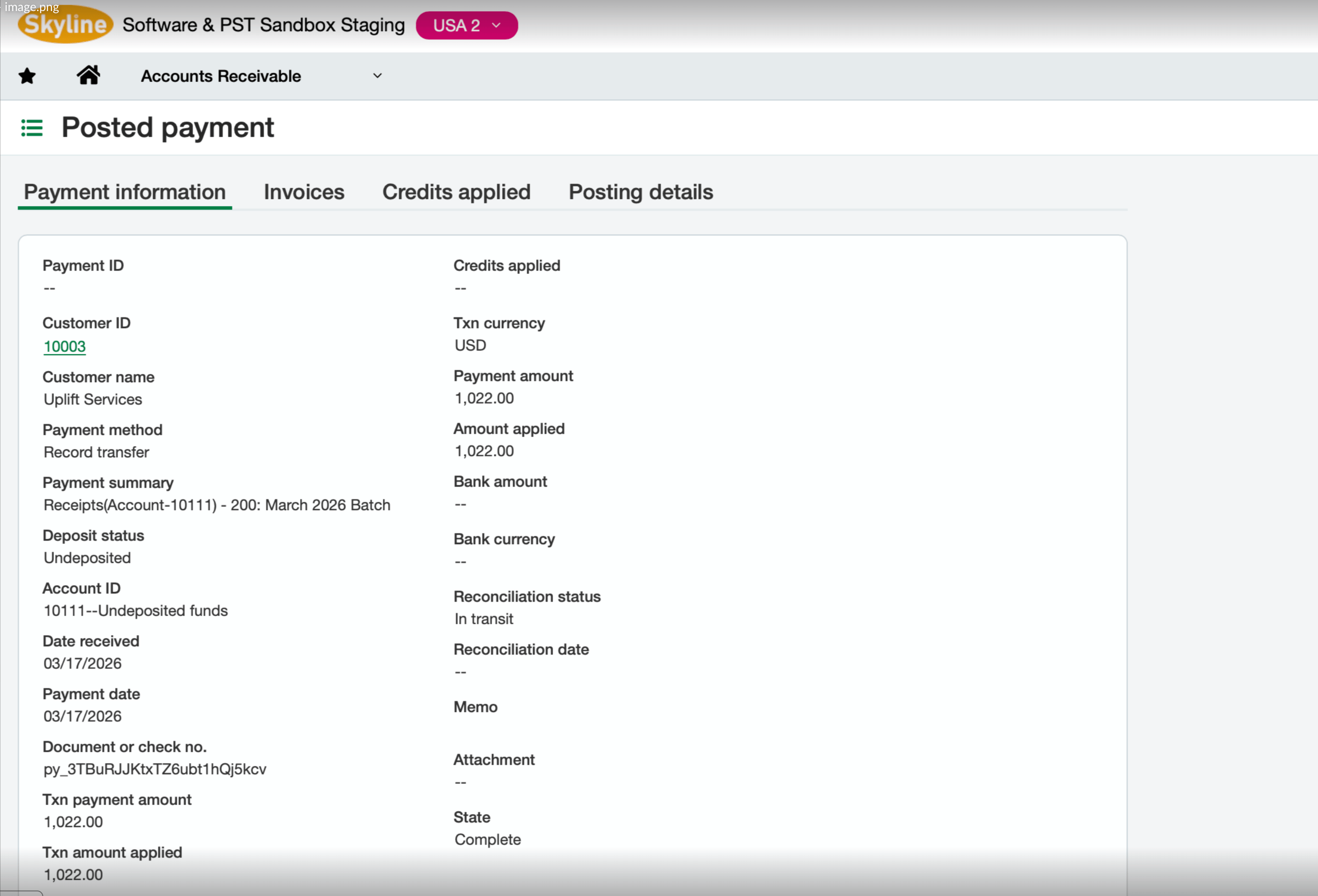
In Sage Intacct, the resulting **AR Payment** posts with **State** `Complete`. The **Document or check no.** field carries the Stripe payment ID, and the **Account ID** reflects the GL account configured in your settings (for example, an undeposited-funds account).
 ## Payment settings
You can select the GL account to which payments are written back in Sage, from your Upflow **Settings > Integrations**:
## Payment settings
You can select the GL account to which payments are written back in Sage, from your Upflow **Settings > Integrations**:
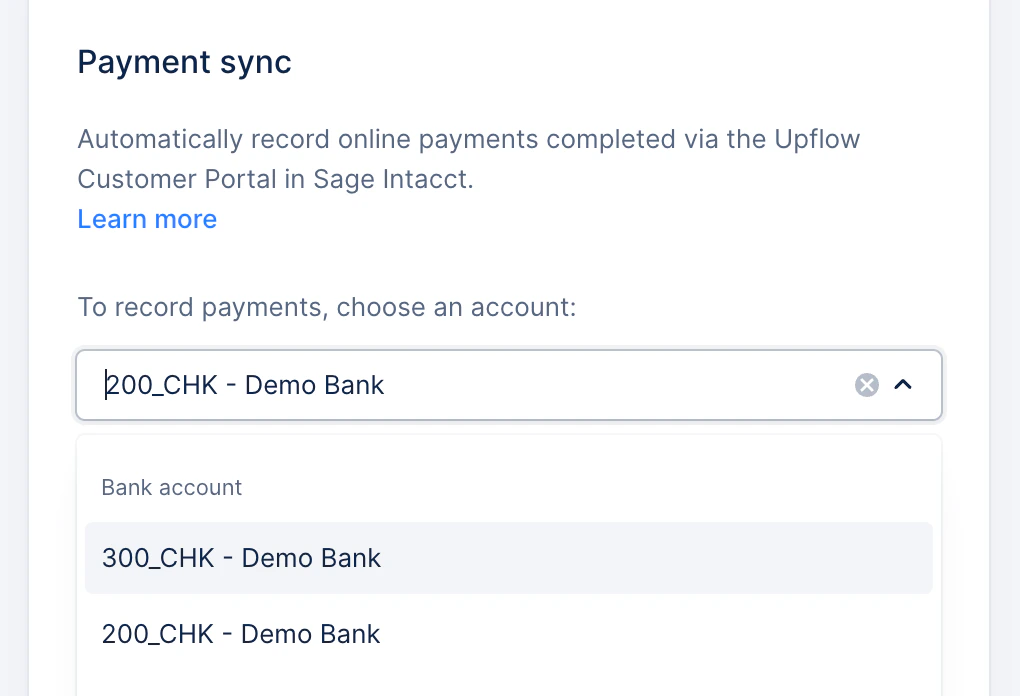 We recommend selecting an **undeposited funds** account. Payments stay there until the matching bank deposit is recorded, which makes reconciliation with your Stripe payouts much easier.
## Tracking the payment status
A payment carries two distinct statuses:
* **Gateway status** — the payment's current status in Stripe.
* **Sage Intacct status** — the export status of the payment from Upflow to Sage Intacct.
We recommend selecting an **undeposited funds** account. Payments stay there until the matching bank deposit is recorded, which makes reconciliation with your Stripe payouts much easier.
## Tracking the payment status
A payment carries two distinct statuses:
* **Gateway status** — the payment's current status in Stripe.
* **Sage Intacct status** — the export status of the payment from Upflow to Sage Intacct.
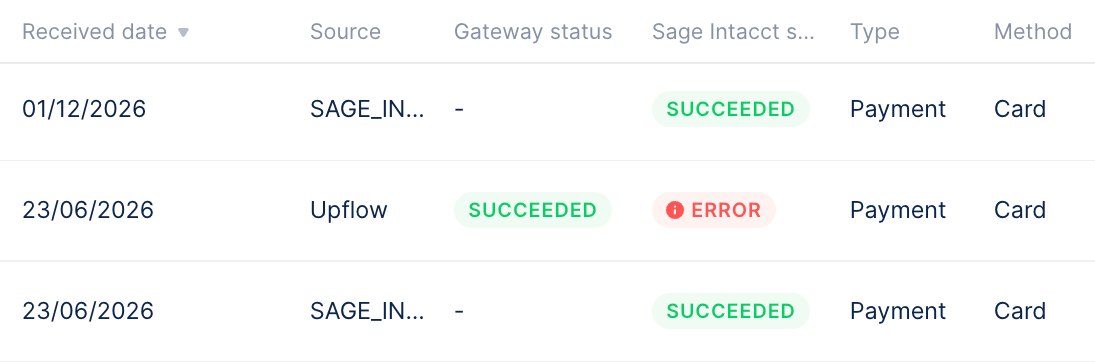 You can identify a payment's processing status by adding the **Gateway status** column to:
* your default payments view, ideally placing it next to the **Sage Intacct status** column, and saving the view — see [here](https://app.upflow.io/organization/-/transactions?columns=shortId%2CvalidatedAt%2Corigin%2Cstate%2CpaymentProcessorStatus%2Ctype%2Cinstrument%2Ccustomer%2CinvoicesTransactions%2CconvenienceFees%2Camount\&page=0\&filters=%7B%22origin%22%3A%7B%22in%22%3A%5B%22PORTAL%22%5D%7D%7D\&view=d533429c-3f71-4671-a307-81da368139f2\&sort=%7B%22field%22%3A%22validatedAt%22%2C%22order%22%3A%22DESC%22%7D)
* the customer details page → **Payments** tab ([learn more](https://docs.upflow.io/en-us/upflow-configuration/organization-configuration/list-views))
## Handling a failed write-back
You can identify payments that failed to export to Sage Intacct from your **Payments** list view, filtered on **Sage status contains Error**.
Hover over the **Error** status, and/or add the **Sage status** column to the list (see [here](https://app.upflow.io/organization/-/transactions?filters=%7B%22origin%22%3A%7B%22in%22%3A%5B%22PORTAL%22%5D%7D%2C%22state%22%3A%7B%22in%22%3A%5B%22ERROR%22%5D%7D%7D\&columns=shortId%2CvalidatedAt%2Corigin%2Cstate%2Ctype%2Cinstrument%2Ccustomer%2CinvoicesTransactions%2Camount%2CunappliedAmount%2CexportErrorSourceMessage\&page=0)), to learn more about the failure reason.
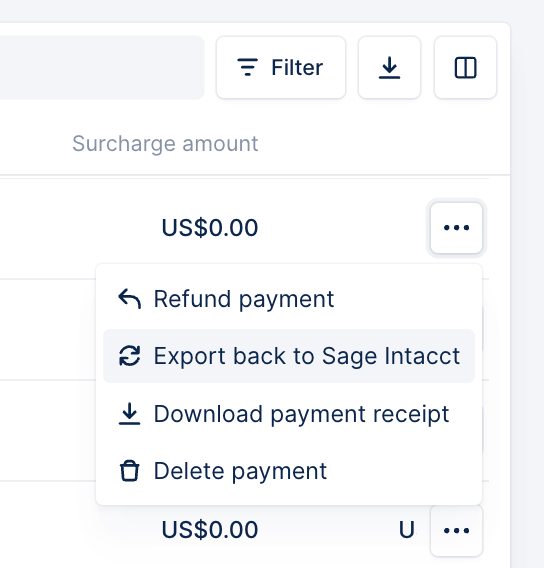
Once you've updated the required or missing settings, you can retry the export from the payment's three-dot menu on the Upflow list, by clicking **Export back to Sage Intacct**.
You can identify a payment's processing status by adding the **Gateway status** column to:
* your default payments view, ideally placing it next to the **Sage Intacct status** column, and saving the view — see [here](https://app.upflow.io/organization/-/transactions?columns=shortId%2CvalidatedAt%2Corigin%2Cstate%2CpaymentProcessorStatus%2Ctype%2Cinstrument%2Ccustomer%2CinvoicesTransactions%2CconvenienceFees%2Camount\&page=0\&filters=%7B%22origin%22%3A%7B%22in%22%3A%5B%22PORTAL%22%5D%7D%7D\&view=d533429c-3f71-4671-a307-81da368139f2\&sort=%7B%22field%22%3A%22validatedAt%22%2C%22order%22%3A%22DESC%22%7D)
* the customer details page → **Payments** tab ([learn more](https://docs.upflow.io/en-us/upflow-configuration/organization-configuration/list-views))
## Handling a failed write-back
You can identify payments that failed to export to Sage Intacct from your **Payments** list view, filtered on **Sage status contains Error**.
Hover over the **Error** status, and/or add the **Sage status** column to the list (see [here](https://app.upflow.io/organization/-/transactions?filters=%7B%22origin%22%3A%7B%22in%22%3A%5B%22PORTAL%22%5D%7D%2C%22state%22%3A%7B%22in%22%3A%5B%22ERROR%22%5D%7D%7D\&columns=shortId%2CvalidatedAt%2Corigin%2Cstate%2Ctype%2Cinstrument%2Ccustomer%2CinvoicesTransactions%2Camount%2CunappliedAmount%2CexportErrorSourceMessage\&page=0)), to learn more about the failure reason.
Once you've updated the required or missing settings, you can retry the export from the payment's three-dot menu on the Upflow list, by clicking **Export back to Sage Intacct**.