> ## Documentation Index
> Fetch the complete documentation index at: https://docs.upflow.io/llms.txt
> Use this file to discover all available pages before exploring further.
# QuickBooks - Upflow refund management
> How Upflow exports refunds to QuickBooks as Expenses and Credit Notes, what settings are required, and how partial refunds are applied to invoices.
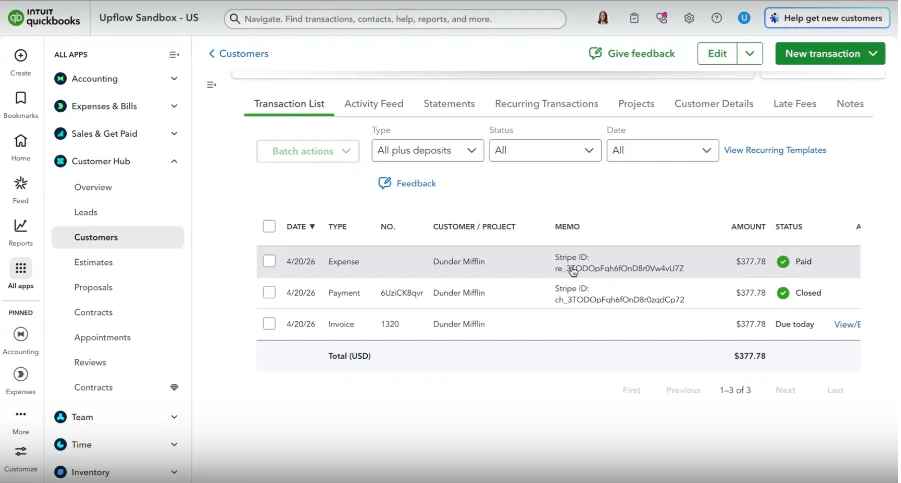
When you trigger a refund in Upflow for a payment that was previously exported to QuickBooks, Upflow automatically reflects that refund in QuickBooks as an **Expense** on the configured deposit-to account. If the original payment was applied to one or more invoices, Upflow also creates a **Credit Note** for each invoice and applies it to the Expense.
## Setup
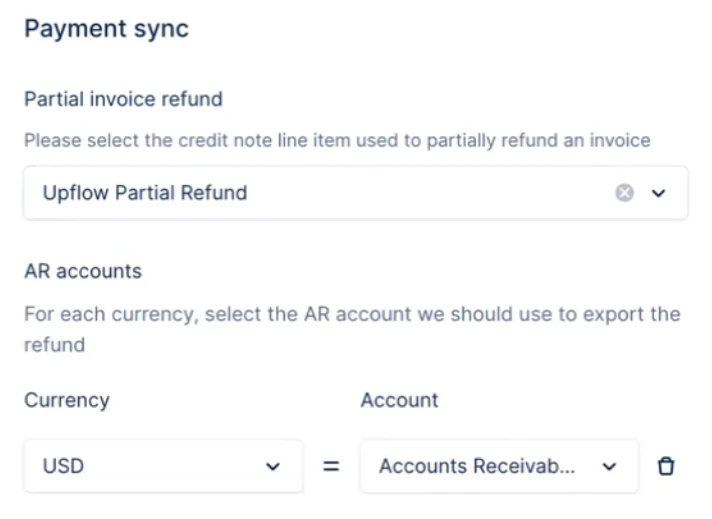
Before refunds can be exported, make sure your QuickBooks integration settings are complete. From the [**Integrations settings**](https://app.upflow.io/organization/-/settings/integrations) page, configure:
* **Accounts Receivable (AR) account** — the account the refund Expense will post to. If you work in multiple currencies, you can set a different AR account for each currency.
* **Partial invoice refund line item** — the QuickBooks line item Upflow uses to represent the refunded amount when a refund does not fully cover the original payment.
If either setting is missing when a refund is triggered, the export fails with a clear error message and no partial export is left in QuickBooks.
 ## Refund of a payment not applied to an invoice
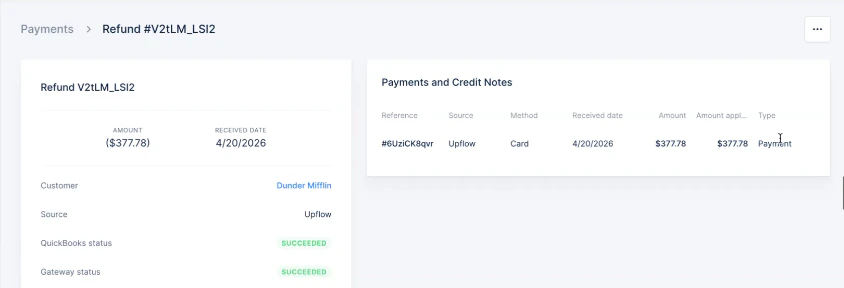
When the original payment is not applied to any invoice in Upflow, we generate the refund in QuickBooks as an **Expense** and apply it directly to the original payment.
## Refund of a payment not applied to an invoice
When the original payment is not applied to any invoice in Upflow, we generate the refund in QuickBooks as an **Expense** and apply it directly to the original payment.
 ## Refund of a payment applied to an invoice
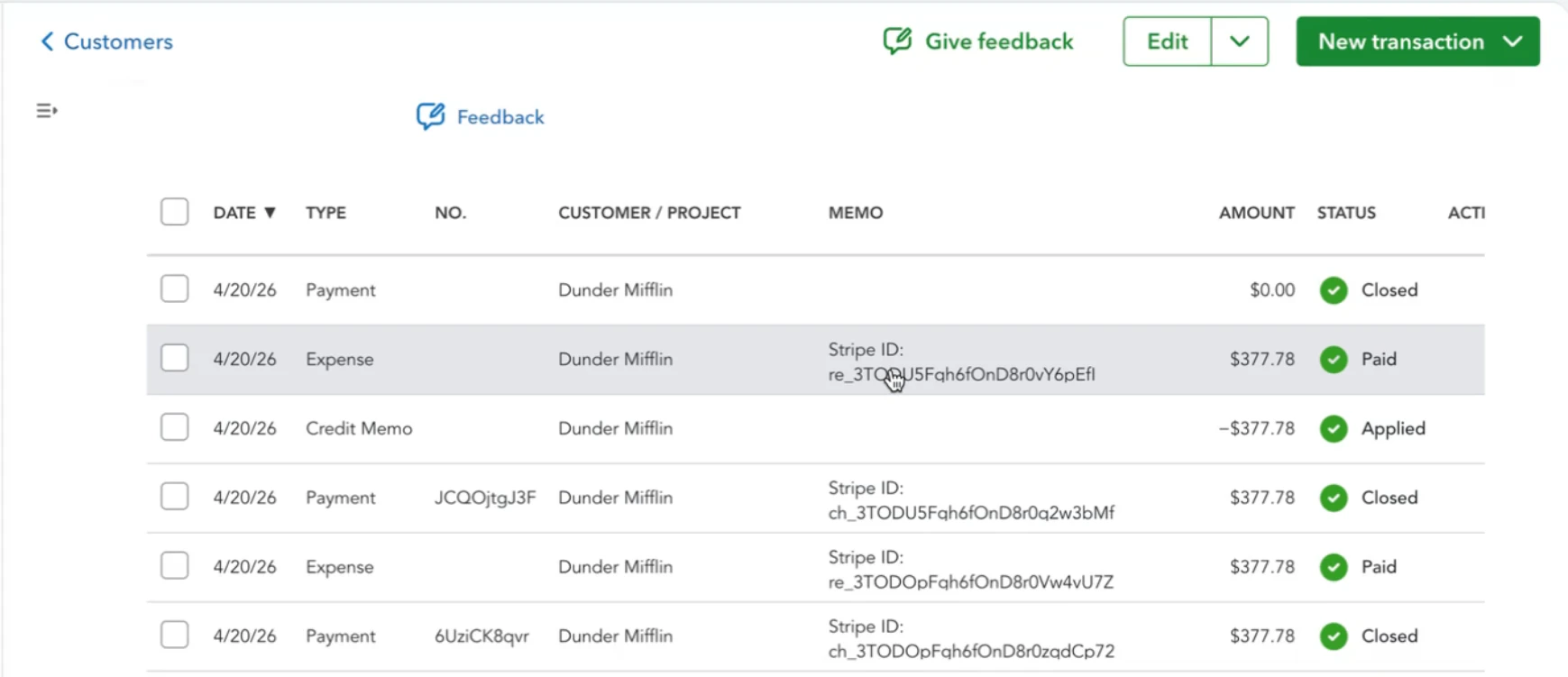
When the original payment was applied to an invoice, Upflow leaves the payment applied to the invoice and creates a **Credit Note** in QuickBooks. The refund is then exported as an Expense, and the Credit Note is applied to that Expense.
## Refund of a payment applied to an invoice
When the original payment was applied to an invoice, Upflow leaves the payment applied to the invoice and creates a **Credit Note** in QuickBooks. The refund is then exported as an Expense, and the Credit Note is applied to that Expense.
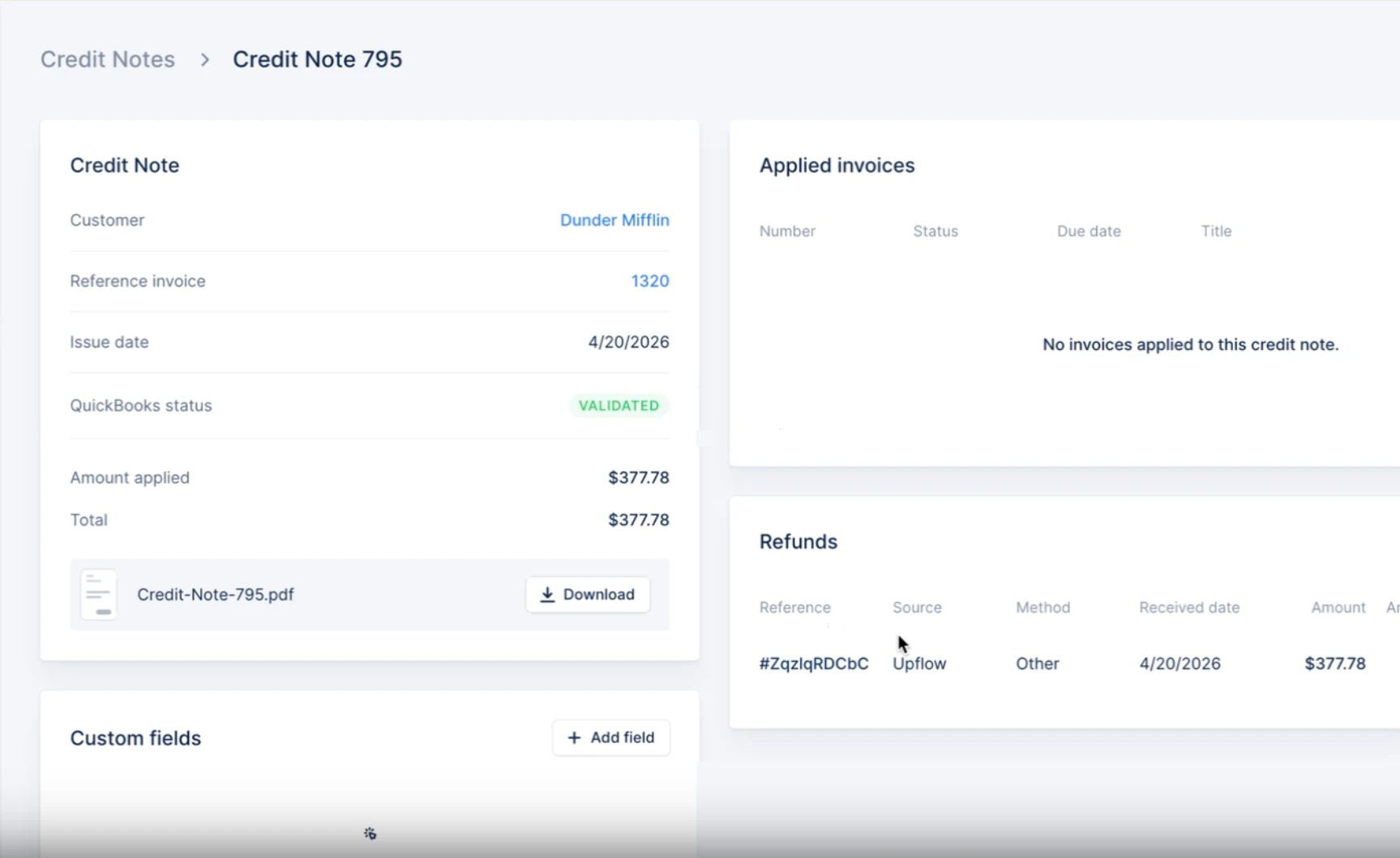
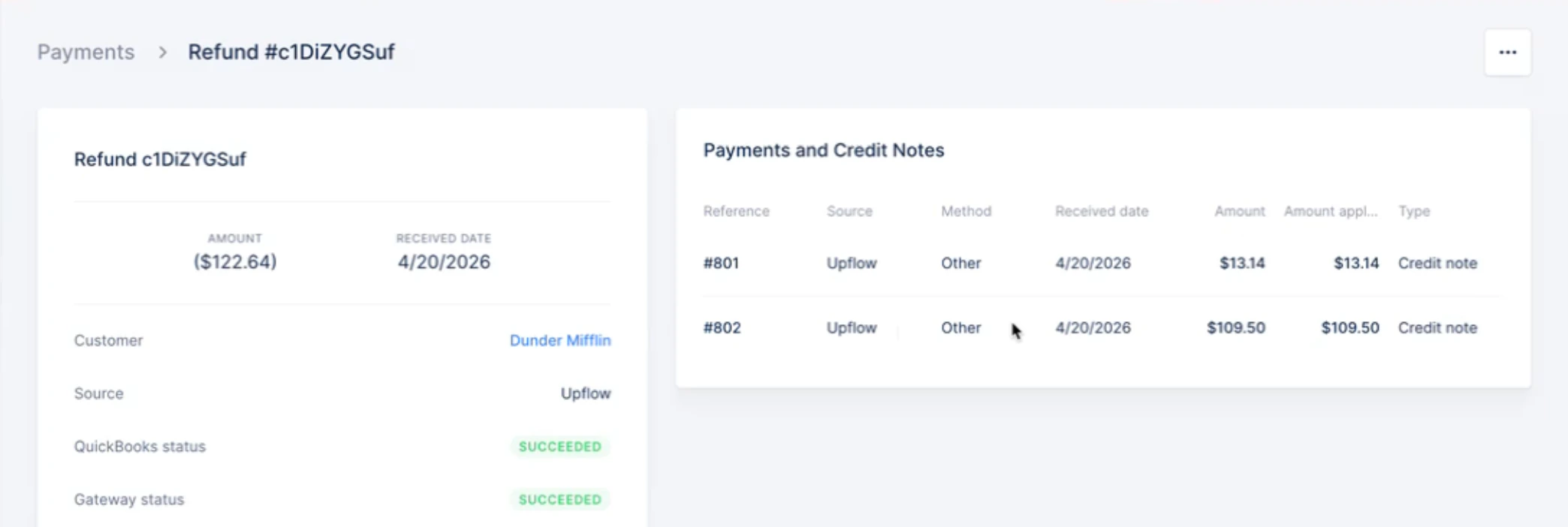
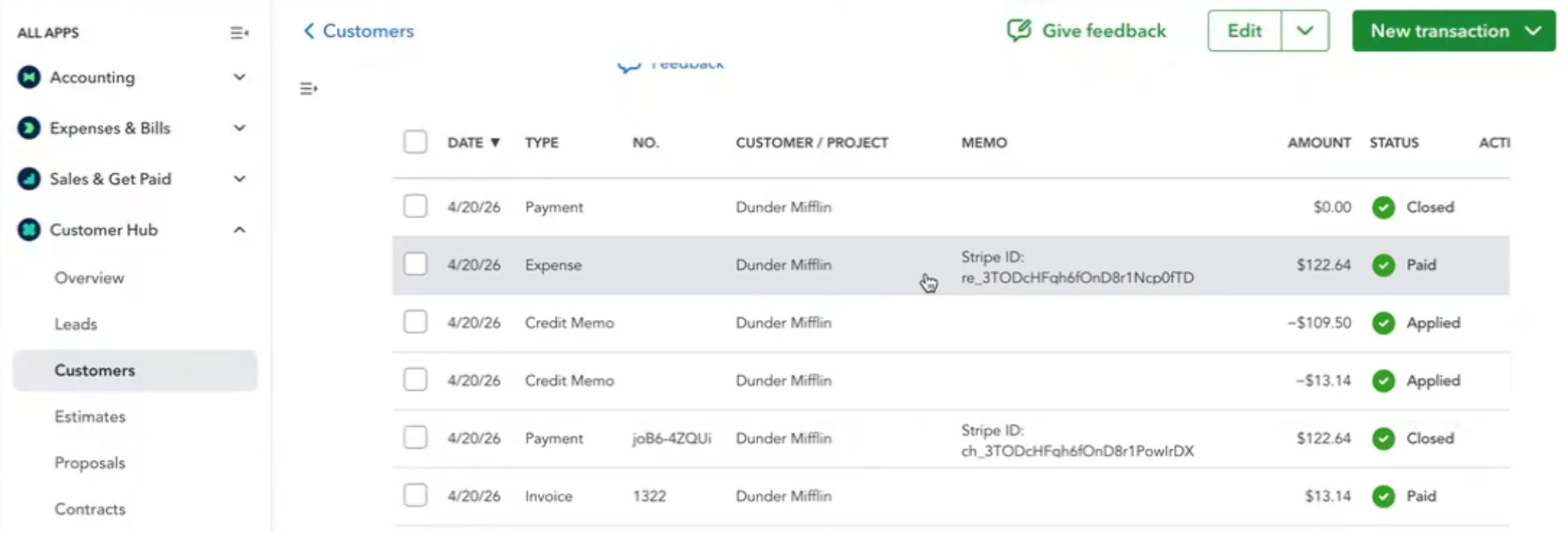
 If the payment covered several invoices, Upflow creates one Credit Note per invoice and applies them all to the same refund Expense.
 ## Partial refund
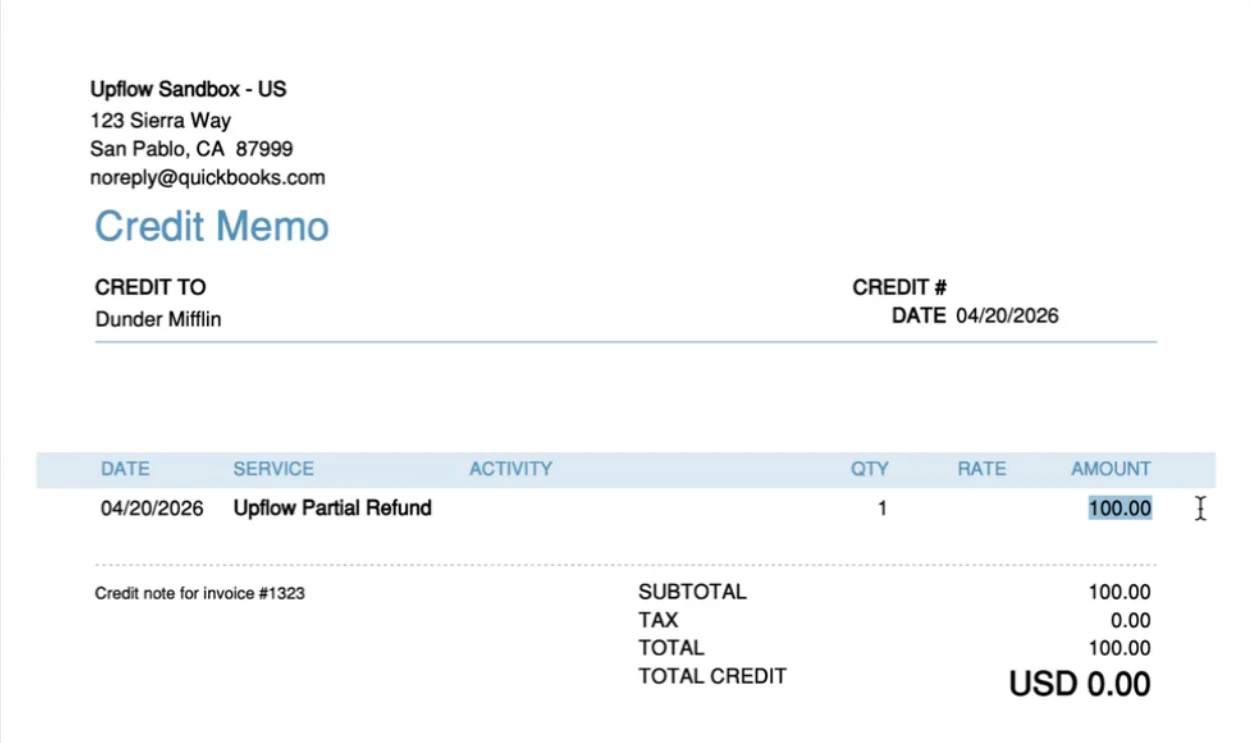
When a refund covers only part of the original payment, Upflow doesn't know which invoice line items it corresponds to. The refund Expense uses the **partial invoice refund line item** configured in your QuickBooks integration settings to represent the refunded amount. The remaining balance stays applied to the original invoice.
## Partial refund
When a refund covers only part of the original payment, Upflow doesn't know which invoice line items it corresponds to. The refund Expense uses the **partial invoice refund line item** configured in your QuickBooks integration settings to represent the refunded amount. The remaining balance stays applied to the original invoice.
 ## Troubleshooting
If a refund fails to export, check the error message on the refund from the [**Payments**](https://app.upflow.io/organization/-/transactions) list. The most common causes are a missing setting in your [**Integrations settings**](https://app.upflow.io/organization/-/settings/integrations):
* *Refund could not be exported. Please make sure you have selected the AR account in the integration settings.* → select the AR account for the refund's currency and retry the export.
* *Credit note could not be exported. Please make sure you have selected the partial invoice refund item in the integration settings.* → select a partial invoice refund line item and retry the export.
Once the setting is fixed, retry the export from the three-dot menu next to the refund on the [**Payments**](https://app.upflow.io/organization/-/transactions) list.
## Troubleshooting
If a refund fails to export, check the error message on the refund from the [**Payments**](https://app.upflow.io/organization/-/transactions) list. The most common causes are a missing setting in your [**Integrations settings**](https://app.upflow.io/organization/-/settings/integrations):
* *Refund could not be exported. Please make sure you have selected the AR account in the integration settings.* → select the AR account for the refund's currency and retry the export.
* *Credit note could not be exported. Please make sure you have selected the partial invoice refund item in the integration settings.* → select a partial invoice refund line item and retry the export.
Once the setting is fixed, retry the export from the three-dot menu next to the refund on the [**Payments**](https://app.upflow.io/organization/-/transactions) list.