> ## Documentation Index
> Fetch the complete documentation index at: https://docs.upflow.io/llms.txt
> Use this file to discover all available pages before exploring further.
# QuickBooks - Payout reconciliation
> Manually reconcile Payments by Upflow payouts in QuickBooks Online: required accounts, booking fees and surcharges, and matching the bank deposit.
For Payments by Upflow (PBU) merchants on QuickBooks Online, payouts are reconciled manually because the QuickBooks Online integration does not create the bank deposit automatically. This page walks through the QuickBooks-side steps. For the general principle, the contents of the CSV export, and a sample, see [Payout reconciliation](/en-us/payments/process-online-payments/payout-reconciliation).
## Prerequisites
Before reconciling, make sure you have:
* An **expense account** for **transaction fees** (e.g. "Transaction Fees").
* A **revenue account** for **surcharges**, if you collect them (e.g. "Surcharge Income").
* The Upflow → QuickBooks [payment write-back](/en-us/integrations/quickbooks/payment-write-back) configured. Upflow pushes the invoice amount as a Receive Payment to **Undeposited Funds**; surcharges and processing fees are **not** pushed and must be booked at reconciliation time.
## How to reconcile a payout
### 1. Export the payout from Upflow
In the [**Payments settings**](https://app.upflow.io/organization/-/settings/payments-by-upflow) (**Settings → Payments by Upflow**), under **Download payout data**, click **Download** to export the CSV — see [Payout reconciliation](/en-us/payments/process-online-payments/payout-reconciliation) for the columns. Each `transaction_upflow_id` in the CSV matches a **Receive Payment number** already created in QuickBooks by the write-back, posted against Undeposited Funds.
Only reconcile payouts with `payout_status = paid`. Pending payouts have not arrived in your bank yet — wait until they are marked paid before reconciling.
### 2. Compute the three totals for the payout
For each payout, sum the following from the CSV rows that share the same `payout_upflow_id`:
* **Gross customer payments** — sum of `transaction_converted_total_amount`. This equals the invoice amounts already in Undeposited Funds **plus** any surcharges collected.
* **Processing fees** — sum of `transaction_processing_fees`. Not yet in QuickBooks.
* **Surcharges in payout currency** — sum of `transaction_surcharge_amount` converted to the payout currency. Not yet in QuickBooks. Skip if you do not collect surcharges.
These balance to the deposit:
```
payout_amount = Undeposited Funds payments + Surcharge income − Processing fees
```
### 3. Record the deposit in QuickBooks
The deposit must clear the Receive Payments from Undeposited Funds, book surcharges as revenue, book fees as an expense, and land the net in the bank. Both the surcharge and fee adjustments are added as lines on the deposit itself — no separate journal entries are required.
The flow depends on whether the destination bank account is connected to a bank feed.
#### With a bank feed
When the payout appears in **Bookkeeping → Transactions → Bank transactions → For review**:
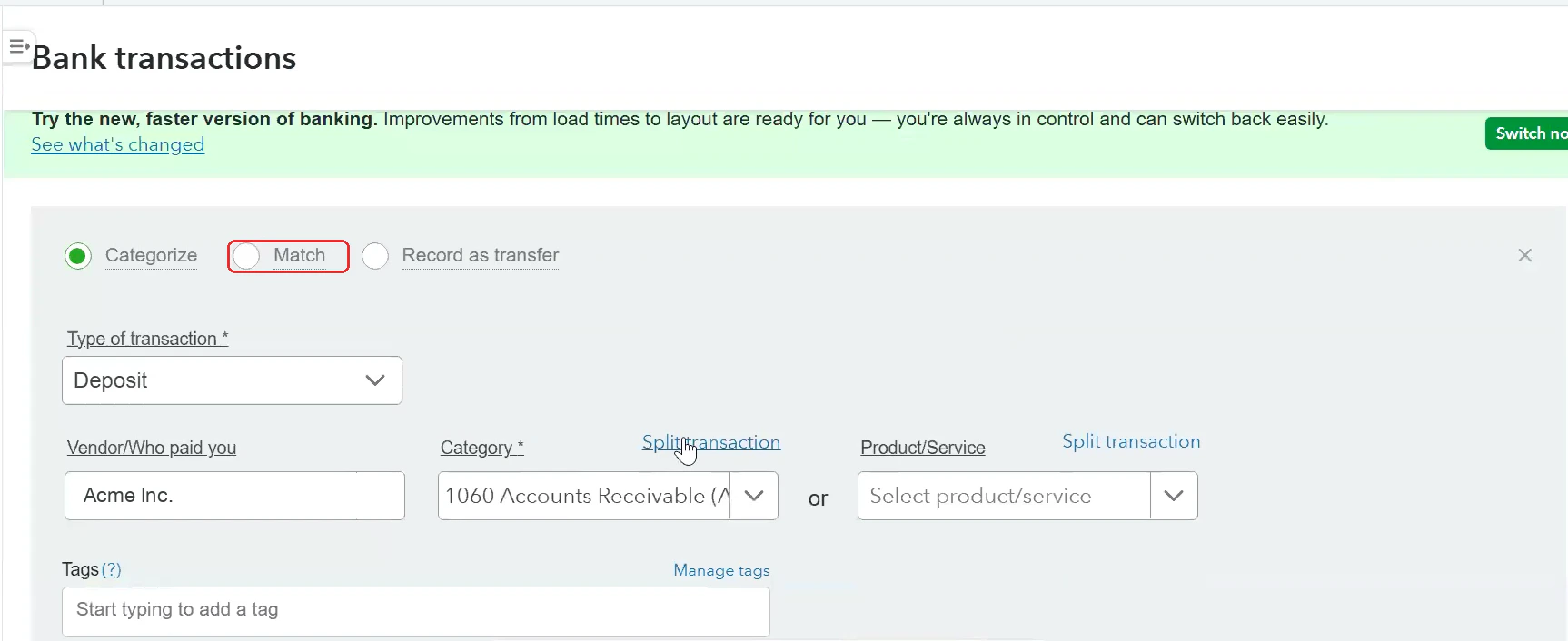 1. Click the payout line, then **Find match**.
2. Set the filter to **Money received** and source to **Undeposited Funds**.
3. Tick every Receive Payment listed in the CSV for that payout. The selected total will be larger than the bank line by the fee amount and smaller than gross by the surcharge offset.
4. Click **Resolve difference** (or **Add resolving transactions**) and add:
* A **positive** line to your **Surcharge Income** account for the surcharge total. Skip if no surcharges.
* A **negative** line to your **Merchant Processing Fees** account for the fee total.
5. Confirm the remaining difference is `$0.00` and save. The bank feed entry is now matched and Undeposited Funds is cleared for those payments.
#### Without a bank feed
1. Go to **+ New → Bank Deposit**.
2. Select the bank account where the payout landed and set the date to `payout_arrival_date`.
3. Under **Select the payments included in this deposit**, tick the Receive Payments listed in the CSV for that payout.
4. Under **Add funds to this deposit**, add:
* A **positive** line to **Surcharge Income** for the surcharge total. Skip if no surcharges.
* A **negative** line to **Merchant Processing Fees** for the fee total.
5. Confirm the deposit **Total** equals `payout_amount` and save.
In either path, saving moves the funds out of Undeposited Funds, books the surcharge as revenue, books the processing fees as an expense, and posts the net to the bank account in a single step.
## Worked example
For a payout of `$239,058.68` arriving on `2026-05-10`, after summing the CSV rows that share the same `payout_upflow_id`:
| Component | Amount |
| --------------------------------------------------------------------- | ---------------: |
| Gross customer payments (sum of `transaction_converted_total_amount`) | \$243,932.68 |
| – Processing fees (sum of `transaction_processing_fees`) | \$4,874.00 |
| + Surcharge included in gross | \$0.00 |
| **Net payout** | **\$239,058.68** |
In the Bank Deposit (or Resolve panel), you would tick `$243,468` of Receive Payments from Undeposited Funds (gross minus surcharge), add a `−$4,874` line to Merchant Processing Fees, and the total would match the `$239,058.68` deposit. Surcharge lines are only added when surcharges were collected for that payout.
1. Click the payout line, then **Find match**.
2. Set the filter to **Money received** and source to **Undeposited Funds**.
3. Tick every Receive Payment listed in the CSV for that payout. The selected total will be larger than the bank line by the fee amount and smaller than gross by the surcharge offset.
4. Click **Resolve difference** (or **Add resolving transactions**) and add:
* A **positive** line to your **Surcharge Income** account for the surcharge total. Skip if no surcharges.
* A **negative** line to your **Merchant Processing Fees** account for the fee total.
5. Confirm the remaining difference is `$0.00` and save. The bank feed entry is now matched and Undeposited Funds is cleared for those payments.
#### Without a bank feed
1. Go to **+ New → Bank Deposit**.
2. Select the bank account where the payout landed and set the date to `payout_arrival_date`.
3. Under **Select the payments included in this deposit**, tick the Receive Payments listed in the CSV for that payout.
4. Under **Add funds to this deposit**, add:
* A **positive** line to **Surcharge Income** for the surcharge total. Skip if no surcharges.
* A **negative** line to **Merchant Processing Fees** for the fee total.
5. Confirm the deposit **Total** equals `payout_amount` and save.
In either path, saving moves the funds out of Undeposited Funds, books the surcharge as revenue, books the processing fees as an expense, and posts the net to the bank account in a single step.
## Worked example
For a payout of `$239,058.68` arriving on `2026-05-10`, after summing the CSV rows that share the same `payout_upflow_id`:
| Component | Amount |
| --------------------------------------------------------------------- | ---------------: |
| Gross customer payments (sum of `transaction_converted_total_amount`) | \$243,932.68 |
| – Processing fees (sum of `transaction_processing_fees`) | \$4,874.00 |
| + Surcharge included in gross | \$0.00 |
| **Net payout** | **\$239,058.68** |
In the Bank Deposit (or Resolve panel), you would tick `$243,468` of Receive Payments from Undeposited Funds (gross minus surcharge), add a `−$4,874` line to Merchant Processing Fees, and the total would match the `$239,058.68` deposit. Surcharge lines are only added when surcharges were collected for that payout.