> ## Documentation Index
> Fetch the complete documentation index at: https://docs.upflow.io/llms.txt
> Use this file to discover all available pages before exploring further.
# QuickBooks - Payment write-back
> How Upflow payments are written back to QuickBooks Online as Receive Payments, how references are reused, and how to recover from a failed export.
When a customer pays through Upflow, the payment is written back to QuickBooks Online so your accounting stays aligned with what you collected. This page covers the successful flow and how to recover from a failed export. Refund handling is documented in [Refund management](/en-us/integrations/quickbooks/refund-management); the downstream bank deposit step is documented in [Payout reconciliation](/en-us/integrations/quickbooks/payout-reconciliation).
## How a successful write-back appears in QuickBooks
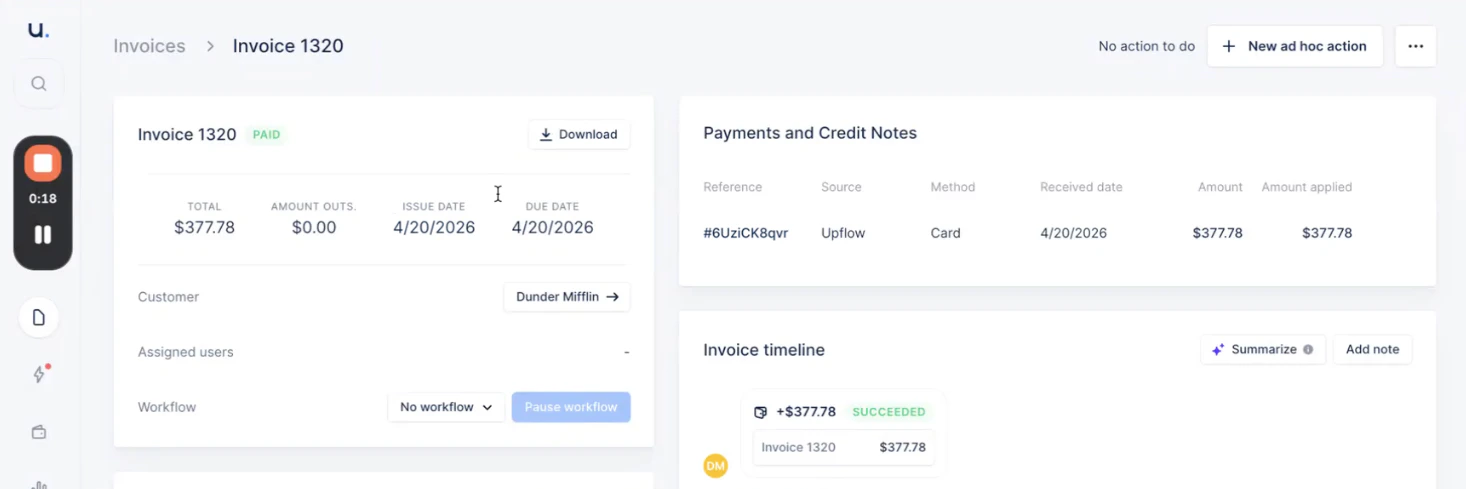
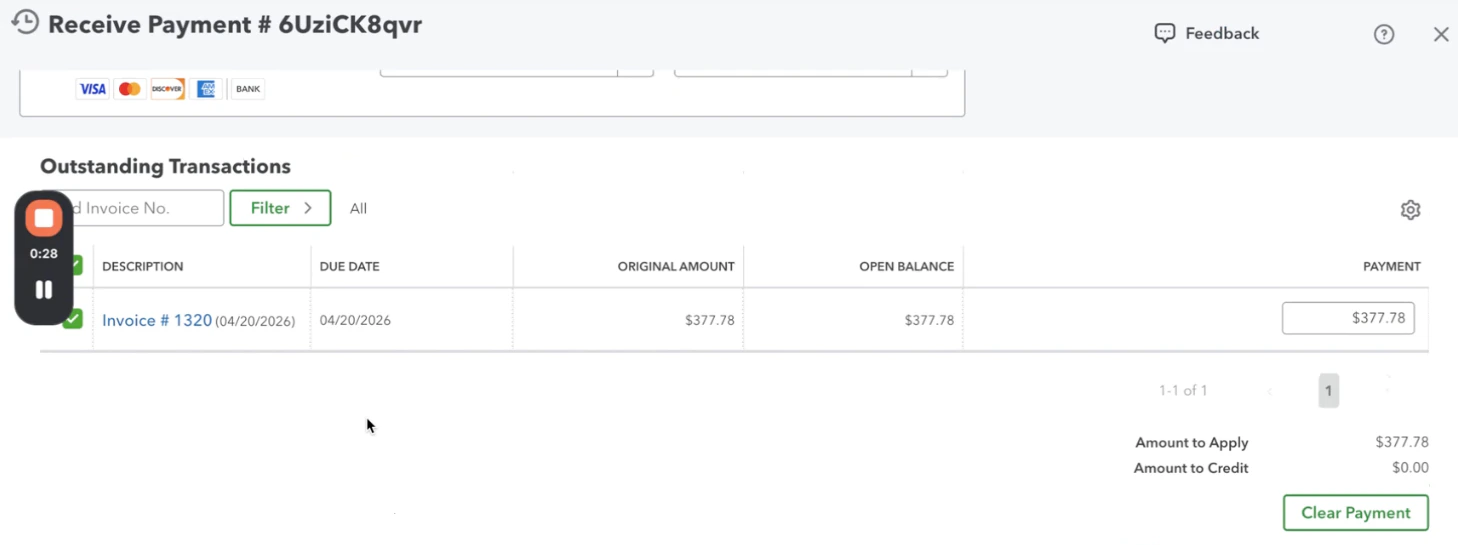
For each successful Upflow payment, we create a **Receive Payment** in QuickBooks Online, applied to the corresponding invoice(s) for the same amount and on the same received date.
The Upflow payment reference (the one shown on the invoice's **Payments and Credit Notes** card in Upflow, e.g. `#6UziCK8qvr`) is reused as the **Receive Payment number** in QuickBooks. You can use it to jump between the two systems with no ambiguity.
 The Receive Payment is always posted to QuickBooks' standard **Undeposited Funds** account. This is fixed and not configurable: payments stay on Undeposited Funds until you record the matching bank deposit during [Payout reconciliation](/en-us/integrations/quickbooks/payout-reconciliation).
## Handling a failed write-back
If a payment can't be exported to QuickBooks, it appears with an **Error** status on the [Payments](https://app.upflow.io/organization/-/transactions) list. Hover over the status to see the underlying QuickBooks error message. To see the message without hovering, add the **QuickBooks message** column to the Payments list view.
### Closed accounting period
The most common cause is a **closed accounting period** in QuickBooks: the payment's date falls before the QuickBooks close date, so QuickBooks refuses to post the transaction.
To resolve:
1. In QuickBooks Online, reopen the period (or move the close date) to allow new entries on the payment date.
2. Back in Upflow, open the three-dot menu next to the payment on the [Payments](https://app.upflow.io/organization/-/transactions) list and click **Export back to QuickBooks**.
3. Within a few seconds the status should switch to **Succeeded**, with a green confirmation at the bottom of the screen.
If the export fails again, refresh the page and re-read the error message — it will indicate what still needs to change in QuickBooks before the retry succeeds.
The Receive Payment is always posted to QuickBooks' standard **Undeposited Funds** account. This is fixed and not configurable: payments stay on Undeposited Funds until you record the matching bank deposit during [Payout reconciliation](/en-us/integrations/quickbooks/payout-reconciliation).
## Handling a failed write-back
If a payment can't be exported to QuickBooks, it appears with an **Error** status on the [Payments](https://app.upflow.io/organization/-/transactions) list. Hover over the status to see the underlying QuickBooks error message. To see the message without hovering, add the **QuickBooks message** column to the Payments list view.
### Closed accounting period
The most common cause is a **closed accounting period** in QuickBooks: the payment's date falls before the QuickBooks close date, so QuickBooks refuses to post the transaction.
To resolve:
1. In QuickBooks Online, reopen the period (or move the close date) to allow new entries on the payment date.
2. Back in Upflow, open the three-dot menu next to the payment on the [Payments](https://app.upflow.io/organization/-/transactions) list and click **Export back to QuickBooks**.
3. Within a few seconds the status should switch to **Succeeded**, with a green confirmation at the bottom of the screen.
If the export fails again, refresh the page and re-read the error message — it will indicate what still needs to change in QuickBooks before the retry succeeds.