> ## Documentation Index
> Fetch the complete documentation index at: https://docs.upflow.io/llms.txt
> Use this file to discover all available pages before exploring further.
# NetSuite - Common error messages and solutions
> Reference of frequent NetSuite integration errors in Upflow with concrete fixes, covering concurrency limits, permissions, and sync issues you may hit.
#### In this article, you will find the most common error message you can come across when using our NetSuite integration.
To easily find the error you're looking for, we recommend using Command or Control + F on your keyboard, and keywords from your error.
## Concurrency limits
If you're facing concurrency limits with Upflow, we might need you to:
* Confirm how many are allocated to Upflow
* To increase them
#### Solution
| Step | Screenshot |
| ------------------------------------------------------------------------------------- | ---------------------------------------------------------------------------------------------------------------------------------------------------------------------------------------------------------------------------------------------------------------------------------------------------------------------------------------------------------------------------------------------------------------------------------------------------------------------------------------------------------------------------------------------------------------------------------------------------------------------------------------------------------------------------------------------------------------------------------------------------------------------------------------------------------------------------------------------------------------------------------------------------------------------------------------------------------------------------------------------------------------------------------------------------------------------------------------------------------------------------------------------------------------------------------------------------------------------------------------------------------------------------------------------------------------------------------------------------------------------------------------------------------------------------------------------------------------- |
| In NetSuite, go to the **Manage Integrations** page | 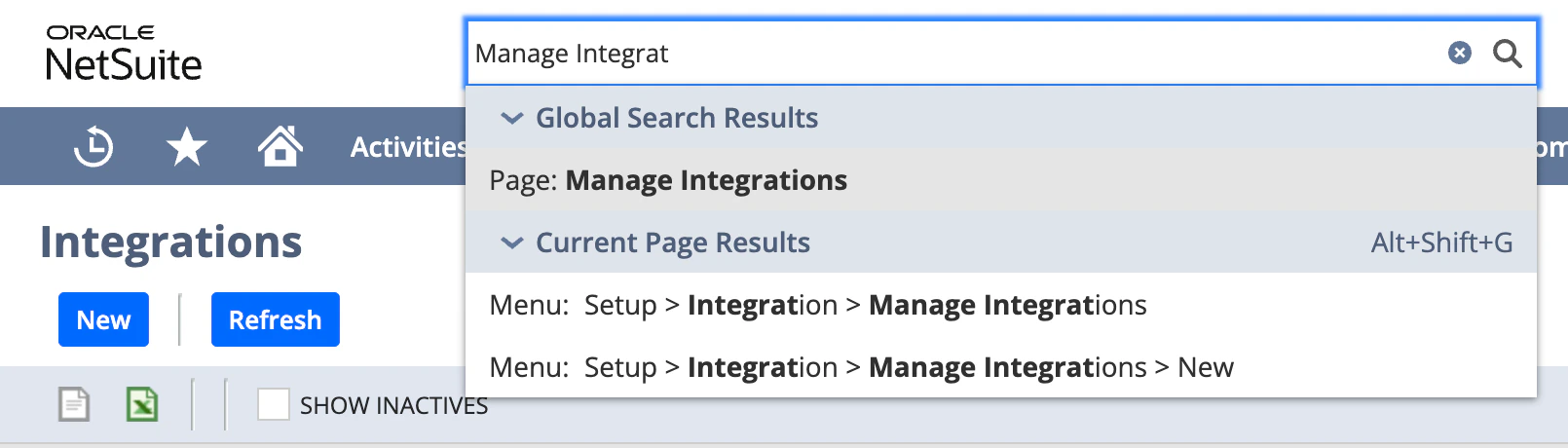 |
| Click on **Upflow SuiteApp** |
|
| Click on **Upflow SuiteApp** | 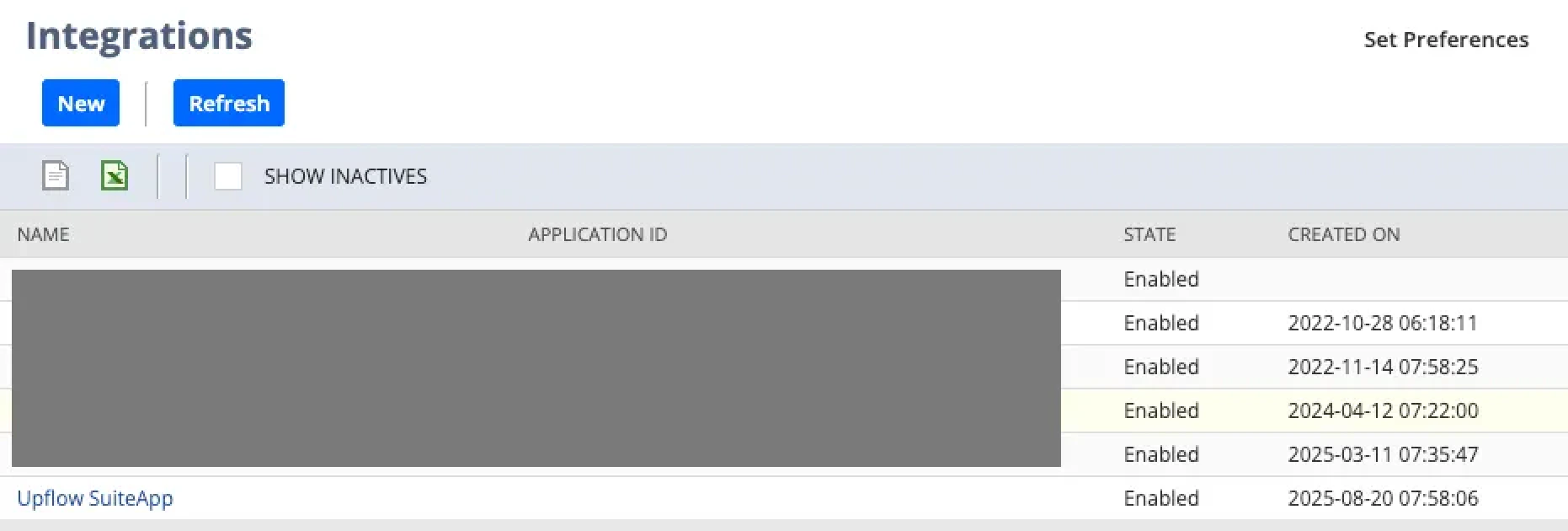 |
| Send us the same screenshot from your instance |
|
| Send us the same screenshot from your instance | 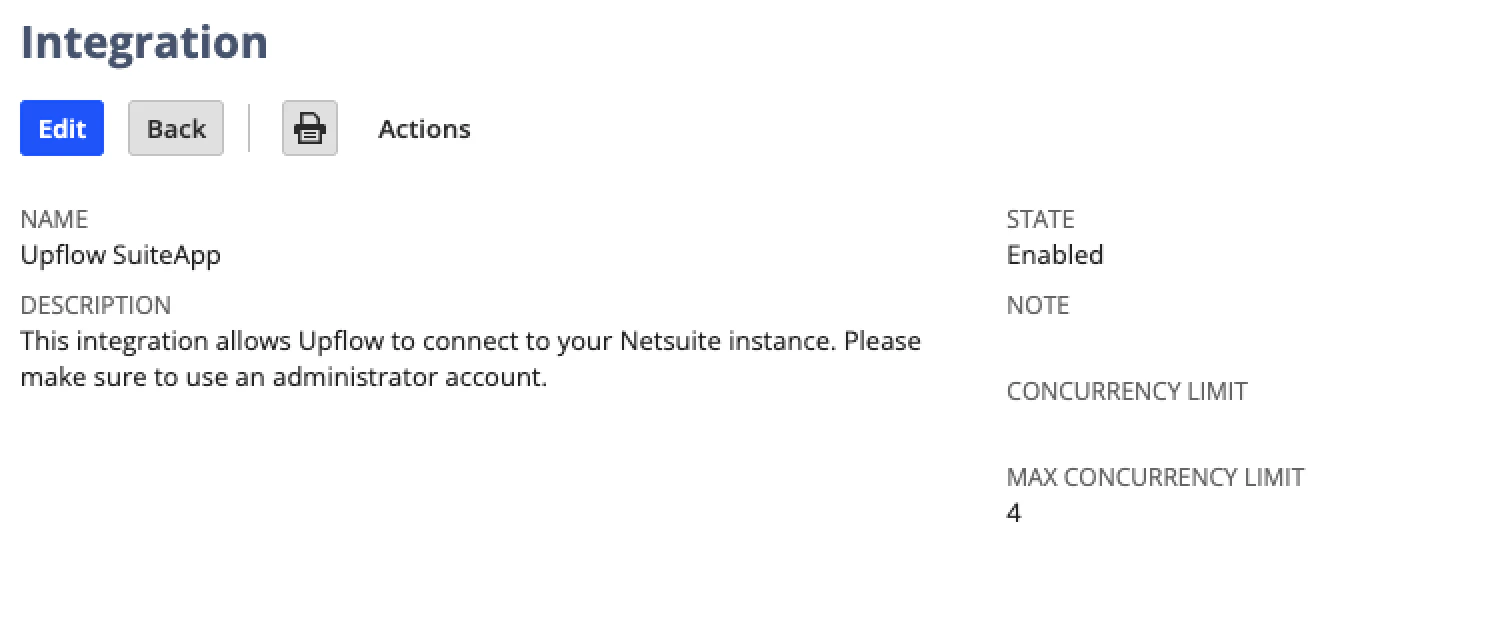 |
| Then, click on **Edit** | |
| Add the concurrency limit value to the **Concurrency limit** field and click **Save** |
|
| Then, click on **Edit** | |
| Add the concurrency limit value to the **Concurrency limit** field and click **Save** | 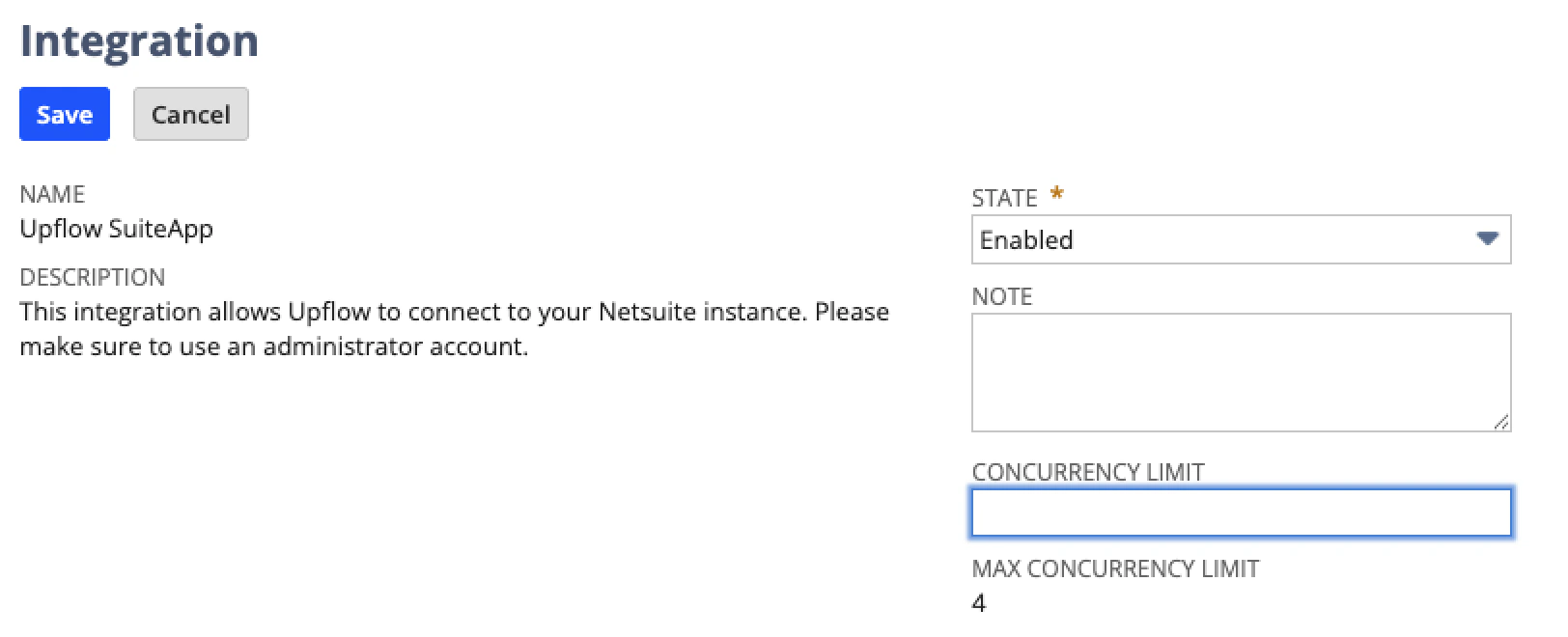 |
***
## You cannot edit this transaction.
#### This is likely because the accounting period is closed
#### Error messages
* You cannot edit this transaction. This is likely because the accounting period is closed, or you do not have sufficient permissions.
* You do not have permissions to edit this transaction.,Are you sure you want to enter an unapplied payment for this customer?
#### Explanation
This error occurs when Upflow can't update a transaction in NetSuite, often due to restrictions on modifying older transactions or closed accounting periods.
#### Potential solutions
1. **In NetSuite:** go to **Setup > Accounting > Manage Accounting Periods**.
2. **Edit Period:** Find and edit the accounting period for the transaction's date.
3. **Enable Non-G/L Changes:** Check the "Allow Non-G/L Changes" box within the period settings.
***
## Payment/Payout sync issue
### Unsynced payout
If a payout hasn't been synced to NetSuite yet, the first step is to try to Export it back to NetSuite.
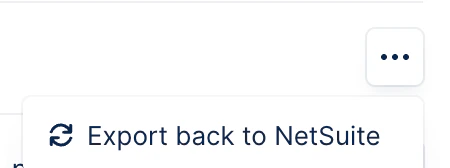
From your Payouts list view, click the payout's three dots, then Export back to NetSuite:
|
***
## You cannot edit this transaction.
#### This is likely because the accounting period is closed
#### Error messages
* You cannot edit this transaction. This is likely because the accounting period is closed, or you do not have sufficient permissions.
* You do not have permissions to edit this transaction.,Are you sure you want to enter an unapplied payment for this customer?
#### Explanation
This error occurs when Upflow can't update a transaction in NetSuite, often due to restrictions on modifying older transactions or closed accounting periods.
#### Potential solutions
1. **In NetSuite:** go to **Setup > Accounting > Manage Accounting Periods**.
2. **Edit Period:** Find and edit the accounting period for the transaction's date.
3. **Enable Non-G/L Changes:** Check the "Allow Non-G/L Changes" box within the period settings.
***
## Payment/Payout sync issue
### Unsynced payout
If a payout hasn't been synced to NetSuite yet, the first step is to try to Export it back to NetSuite.
From your Payouts list view, click the payout's three dots, then Export back to NetSuite:
 It will then be either successful (nothing else to do), or fail.
### Payout sync error/failure
If a payout is flagged as unsynced or shows an error, hover over the Error message (on the payout or related transactions(s) for more information, and if the related message isn't present in this article, contact our Support team for more insights.
### Payment export error
You can identify payment export errors from your Payments list view, by filtering on "NetSuite status contains Error". Then hover over the Error status to know more, or add the column "NetSuite message" to display the error reason.
Once you've fixed the cause in NetSuite or Upflow, head back to the payments list, and click "Export back to NetSuite". The status should turn from Error to Succeeded.
If it fails again, or displays a default error message such as "We couldn't export this payment to NetSuite. Please contact [support@upflow.io](mailto:support@upflow.io)." or "Synchronization failed. Please contact [support@upflow.io](mailto:support@upflow.io)", then please contact us with as much details as possible from the button at the top right.
***
## Unable to set the payment method
#### Error messages
* Unable to set the payment method. Please remove this optional setting in Upflow or change your NetSuite settings.
* You do not have permission to set a value for element paymentmethod due to one of the following reasons: 1) The field is read-only; 2) An associated feature is disabled; 3) The field is available either when a record is created or updated, but not in both cases.
#### Explanation
This error occurs when the element payment method is required when creating or editing a transaction in NetSuite (e.g. payment or refund). This is often related to global settings or custom forms.
#### Solutions
Option 1) Remove the payment method from the Upflow configuration: `/settings/payments-by-upflow`
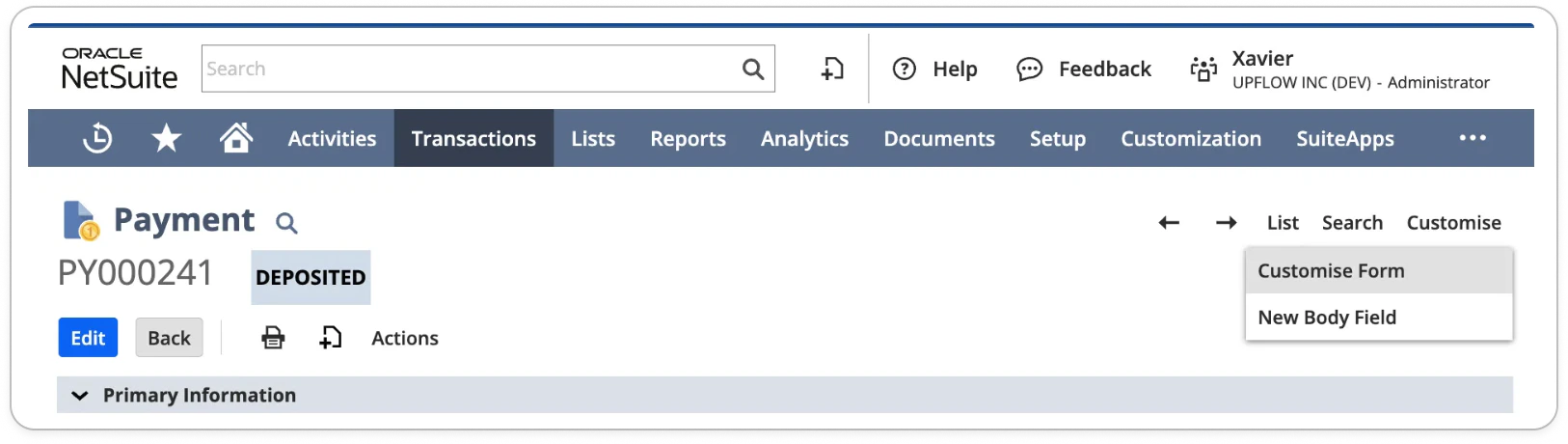
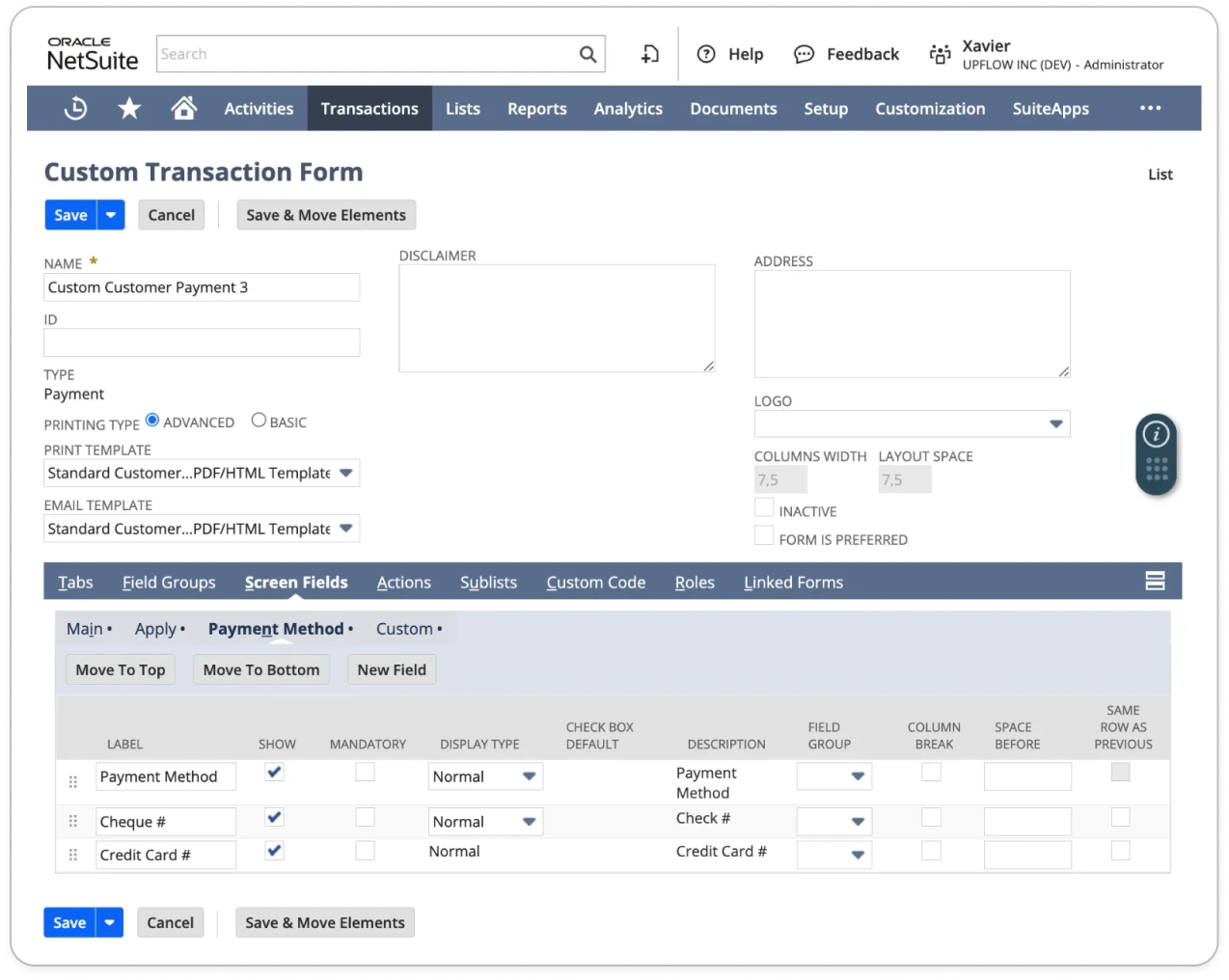
Option 2) Edit the preferred form in NetSuite to show the payment method
* Find the Preferred Form set for your users or for the Upflow basic role
* Edit the preferred form such that payment methods are `shown`
* Navigate to screen Fields > Payment Method > Show ✔️
It will then be either successful (nothing else to do), or fail.
### Payout sync error/failure
If a payout is flagged as unsynced or shows an error, hover over the Error message (on the payout or related transactions(s) for more information, and if the related message isn't present in this article, contact our Support team for more insights.
### Payment export error
You can identify payment export errors from your Payments list view, by filtering on "NetSuite status contains Error". Then hover over the Error status to know more, or add the column "NetSuite message" to display the error reason.
Once you've fixed the cause in NetSuite or Upflow, head back to the payments list, and click "Export back to NetSuite". The status should turn from Error to Succeeded.
If it fails again, or displays a default error message such as "We couldn't export this payment to NetSuite. Please contact [support@upflow.io](mailto:support@upflow.io)." or "Synchronization failed. Please contact [support@upflow.io](mailto:support@upflow.io)", then please contact us with as much details as possible from the button at the top right.
***
## Unable to set the payment method
#### Error messages
* Unable to set the payment method. Please remove this optional setting in Upflow or change your NetSuite settings.
* You do not have permission to set a value for element paymentmethod due to one of the following reasons: 1) The field is read-only; 2) An associated feature is disabled; 3) The field is available either when a record is created or updated, but not in both cases.
#### Explanation
This error occurs when the element payment method is required when creating or editing a transaction in NetSuite (e.g. payment or refund). This is often related to global settings or custom forms.
#### Solutions
Option 1) Remove the payment method from the Upflow configuration: `/settings/payments-by-upflow`
Option 2) Edit the preferred form in NetSuite to show the payment method
* Find the Preferred Form set for your users or for the Upflow basic role
* Edit the preferred form such that payment methods are `shown`
* Navigate to screen Fields > Payment Method > Show ✔️
 ***
## Application failed due to insufficient invoice balance
#### Error messages
* Application failed due to insufficient invoice balance. Adjust the invoice in NetSuite or check for duplicate payment syncs.
* Unable to find a matching line for sublist apply with key: \[doc,line] and value: \[1634092,null].
#### Explanation
This error message indicates a problem with applying a transaction in NetSuite due to a discrepancy in the amounts.
#### Solution
The invoice you are attempting to apply the payment to has an insufficient "Amount Remaining." The invoice's remaining balance must be equal to or greater than the payment amount. The error \[ID] such as "4629556" corresponds to the internal ID of the affected invoice in NetSuite. To fix this, adjust the invoice in NetSuite to ensure its "Amount Remaining" is sufficient to cover the payment.
⚠️ Note that this issue is often caused by duplicate payment applications, for example, in the presence of both Upflow and SuiteSync data synchronization. In this case, you will need to delete or reverse the duplicates
***
## Required fields missing in NetSuite: "Department, Class, Location".
This error occurs if "Department, Class, Location" are set as mandatory classifications in NetSuite.
#### Solution
Ensure that Departments are not a mandatory classification in NetSuite:
1. In NetSuite, go to Setup > Accounting > **Accounting Preferences**
2. Under Classifications, disable **Make Departments Mandatory**
***
## Required fields missing in NetSuite: Refund method. Please remove mandatory settings.
This error occurs if the refund form used by the integration user/role has mandatory fields in NetSuite that the Upflow integration doesn't support.
#### Solution
Ensure the "preferred forms" used by the "Upflow Basic Role" don't require a mandatory refund method:
1. In NetSuite, go to Customization > Forms > Transaction Forms.
2. Create a custom refund form by clicking "Customize" next to NetSuite's "Standard Customer Refund" form.
3. Give the custom form a name, and make sure it is assigned as "preferred" for the "Upflow Basic Role" in the "Roles" tab:
***
## Application failed due to insufficient invoice balance
#### Error messages
* Application failed due to insufficient invoice balance. Adjust the invoice in NetSuite or check for duplicate payment syncs.
* Unable to find a matching line for sublist apply with key: \[doc,line] and value: \[1634092,null].
#### Explanation
This error message indicates a problem with applying a transaction in NetSuite due to a discrepancy in the amounts.
#### Solution
The invoice you are attempting to apply the payment to has an insufficient "Amount Remaining." The invoice's remaining balance must be equal to or greater than the payment amount. The error \[ID] such as "4629556" corresponds to the internal ID of the affected invoice in NetSuite. To fix this, adjust the invoice in NetSuite to ensure its "Amount Remaining" is sufficient to cover the payment.
⚠️ Note that this issue is often caused by duplicate payment applications, for example, in the presence of both Upflow and SuiteSync data synchronization. In this case, you will need to delete or reverse the duplicates
***
## Required fields missing in NetSuite: "Department, Class, Location".
This error occurs if "Department, Class, Location" are set as mandatory classifications in NetSuite.
#### Solution
Ensure that Departments are not a mandatory classification in NetSuite:
1. In NetSuite, go to Setup > Accounting > **Accounting Preferences**
2. Under Classifications, disable **Make Departments Mandatory**
***
## Required fields missing in NetSuite: Refund method. Please remove mandatory settings.
This error occurs if the refund form used by the integration user/role has mandatory fields in NetSuite that the Upflow integration doesn't support.
#### Solution
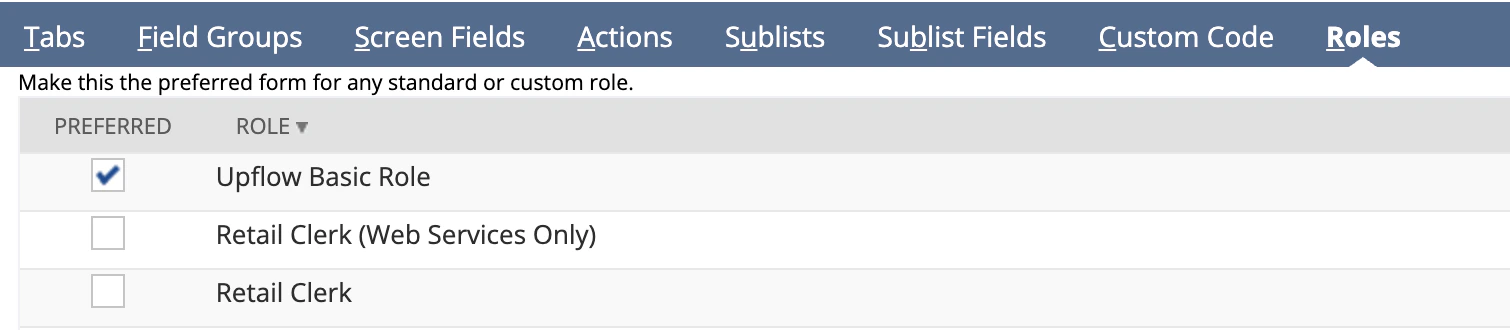
Ensure the "preferred forms" used by the "Upflow Basic Role" don't require a mandatory refund method:
1. In NetSuite, go to Customization > Forms > Transaction Forms.
2. Create a custom refund form by clicking "Customize" next to NetSuite's "Standard Customer Refund" form.
3. Give the custom form a name, and make sure it is assigned as "preferred" for the "Upflow Basic Role" in the "Roles" tab:
 Then, in the Screen Fields > Refund Method tab, make sure "Refund Method" is not mandatory:
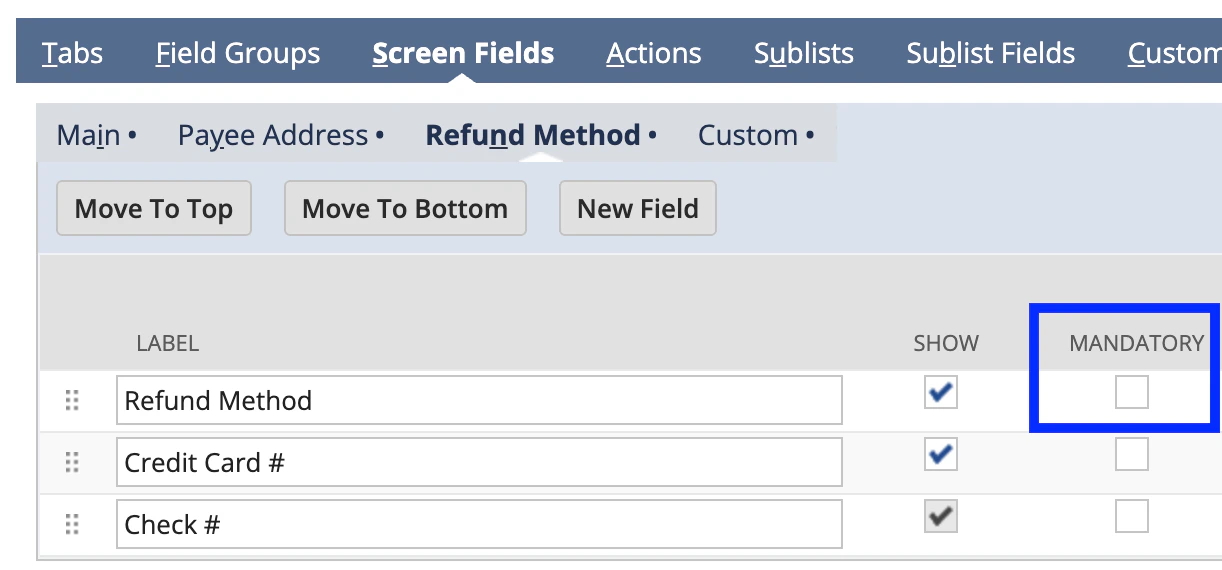 Save the custom form, and re-sync the refund manually from Upflow using the manual "Export back to NetSuite" functionality:
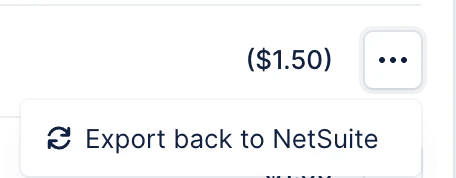 which may take a few seconds to display when you refresh your page.
***
## Record has been locked by a user-defined workflow
#### Explanation
The root cause is a "lock" on such records in your NetSuite instance, somewhere inside a workflow.
#### Solution
The fix is very quick & easy with the following steps:
1. Go to your Lock Record workflow action and click on the condition button.
which may take a few seconds to display when you refresh your page.
***
## Record has been locked by a user-defined workflow
#### Explanation
The root cause is a "lock" on such records in your NetSuite instance, somewhere inside a workflow.
#### Solution
The fix is very quick & easy with the following steps:
1. Go to your Lock Record workflow action and click on the condition button.
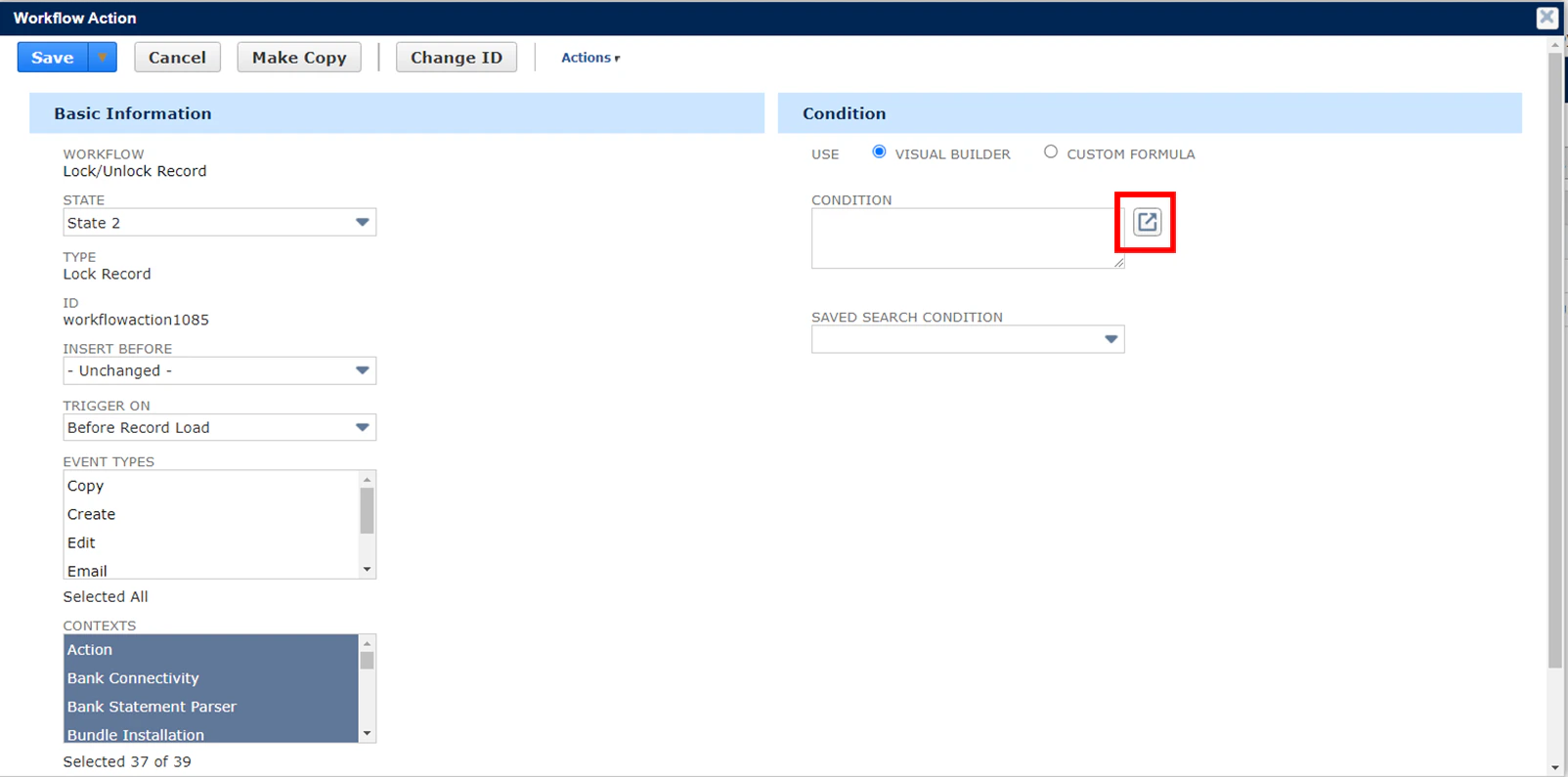 2. Set the fields below:
* Field: User Role
* Compare Type: None Of
* Selection: Upflow Basic Role
2. Set the fields below:
* Field: User Role
* Compare Type: None Of
* Selection: Upflow Basic Role
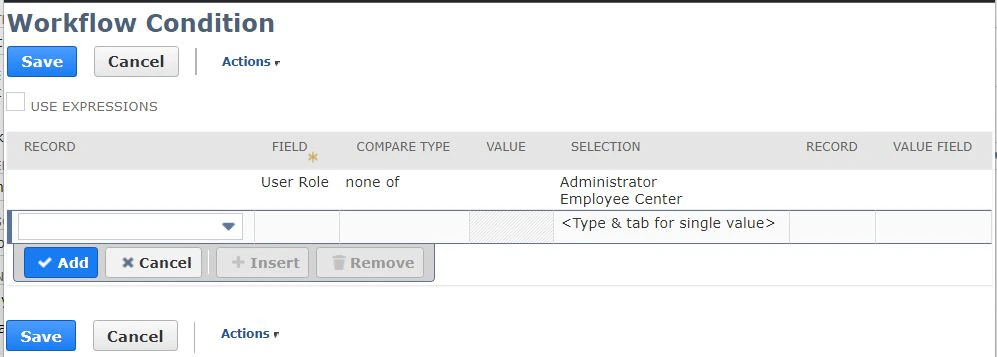 3. Save. The workflow action will not execute anymore when the User Role viewing the record is an Upflow Basic Role.
4. Once this is done, [contact our Support team](https://support.upflow.io/hc/en-us/requests/new) so we can run a quick check on your data sync.
***
## You cannot make changes to this period without the Allow Non-G/L Changes permission
If you see the following error on a recent payout or transaction, you must enable the "Allow Non-G/L Changes" option in NetSuite for your payment to be re-exported successfully.
3. Save. The workflow action will not execute anymore when the User Role viewing the record is an Upflow Basic Role.
4. Once this is done, [contact our Support team](https://support.upflow.io/hc/en-us/requests/new) so we can run a quick check on your data sync.
***
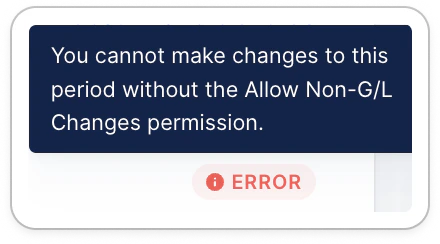
## You cannot make changes to this period without the Allow Non-G/L Changes permission
If you see the following error on a recent payout or transaction, you must enable the "Allow Non-G/L Changes" option in NetSuite for your payment to be re-exported successfully.
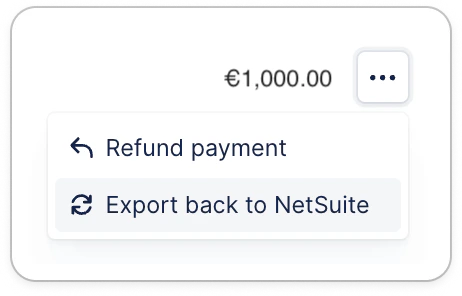
 Once this is done, head back to Upflow and export the transactions back to NetSuite:
 ***
## Error while accessing a resource (...)
***
## Error while accessing a resource (...)
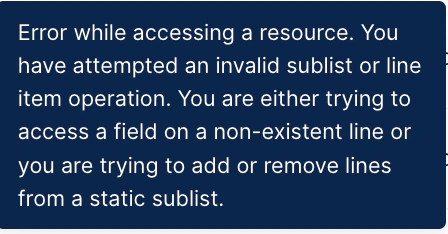 ***Error while accessing a resource. You have attempted an invalid sublist or line item operation. You are either trying to access a field on a non-existent line or you are trying to add or remove lines from a static sublist.***
#### Explanation
This is most likely due to one (or more) payment/refund of the payout being already deposited and preventing the deposit from being created. This is usually because the GL account used is not UNDEPOSITED FUNDS.
#### Solution
1. Check NetSuite records to see if a payment/refund is posted on a Bank GL account or on undeposited funds.
2. Manually change the GL account of the payment/refund so that it is undeposited in NetSuite
3. Retry the payment export or delete it if it was manually created in NetSuite in the meantime.
Any questions, feedback, or error messages that are not listed here? Please [submit a Support request](https://support.upflow.io/hc/en-us/requests/new).
***Error while accessing a resource. You have attempted an invalid sublist or line item operation. You are either trying to access a field on a non-existent line or you are trying to add or remove lines from a static sublist.***
#### Explanation
This is most likely due to one (or more) payment/refund of the payout being already deposited and preventing the deposit from being created. This is usually because the GL account used is not UNDEPOSITED FUNDS.
#### Solution
1. Check NetSuite records to see if a payment/refund is posted on a Bank GL account or on undeposited funds.
2. Manually change the GL account of the payment/refund so that it is undeposited in NetSuite
3. Retry the payment export or delete it if it was manually created in NetSuite in the meantime.
Any questions, feedback, or error messages that are not listed here? Please [submit a Support request](https://support.upflow.io/hc/en-us/requests/new).