> ## Documentation Index
> Fetch the complete documentation index at: https://docs.upflow.io/llms.txt
> Use this file to discover all available pages before exploring further.
# Chargebee Customer Custom Fields
> Import Chargebee customer custom fields into Upflow to segment accounts, assign workflows and payment methods, and route them to the right account managers.
The customer *Custom fields* feature allows you to segment your customers and assign them to the right Account Managers, workflows, and/or payment methods!
You can import information such as the subscription date or plan, the account ID, or any contextual information that lies in your systems at a customer level.
## In Chargebee
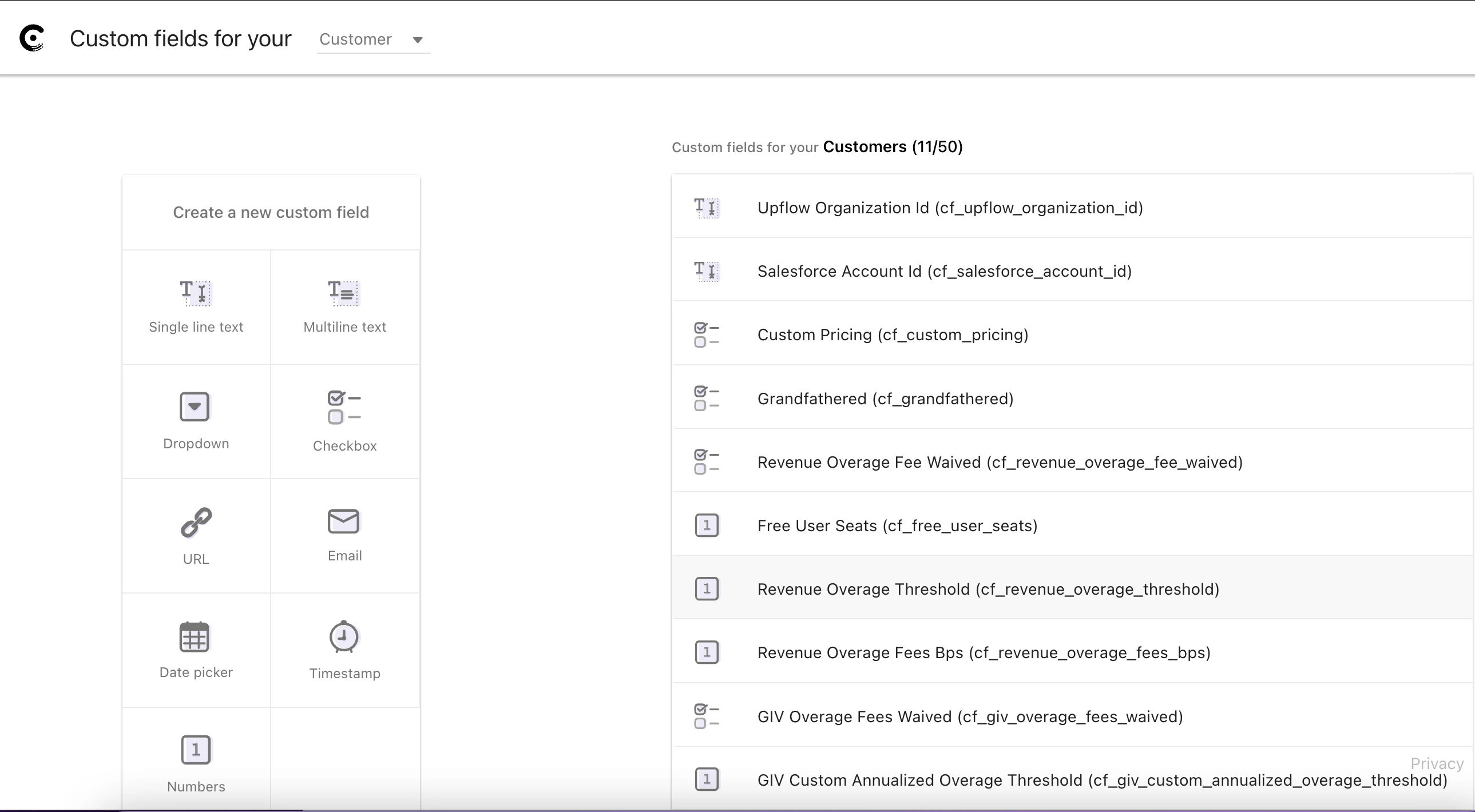
In Chargebee as an Administrator, you can go to *Settings > Configure Chargebee > Custom Fields.* This step will create and/or import your custom fields from Chargebee and make them available in Upflow.
 ## In your Upflow settings
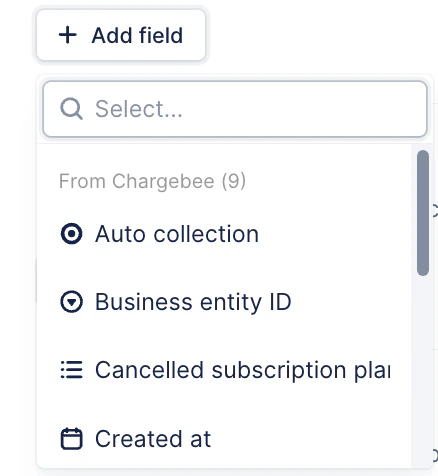
If you want to add your Chargebee custom fields, Upflow got you covered. Head to your Settings > Custom fields section, and click *Add field*, then select your field from the list:
## In your Upflow settings
If you want to add your Chargebee custom fields, Upflow got you covered. Head to your Settings > Custom fields section, and click *Add field*, then select your field from the list:
 #### I can't find my field in the list
If your field is not available in the list, you can scroll down the list and click *Add custom field*. Then, select the option ***Yes, in Chargebee*** :
*
#### I can't find my field in the list
If your field is not available in the list, you can scroll down the list and click *Add custom field*. Then, select the option ***Yes, in Chargebee*** :
* *
The field you create in Upflow **must be exactly as the one from Chargebee:**
* The field type must match the one used in Chargebee
* The name in Upflow must match the field **API Name** in Chargebee.
The fields added in your settings above, will then be available in your [Customers list view](https://app.upflow.io/organization/-/customers). Filter your customers by custom field or add/sort your views' columns based on these fields.
#### The supported custom field types on Chargebee are:
| Chargebee Type | Chargebee Limits | Upflow Type | Notes |
| -------------- | ------------------------------------------------------------------------------------------- | ----------- | -------------------------------------------------------------------------------------------------------------------------------------- |
| Notes | The maximum character limit is 99. | STRING | This field will appear as a text box. |
| Multiline text | The maximum character limit is 250. | STRING | This field will appear as a text area. |
| Dropdown | The total number of characters used for all the options put together, must not exceed 5000. | SELECT | We can add as many options as we’d want, as long as the options limit is respected. |
| Checkbox | default: false | BOOLEAN | True/False dropdown |
| URL | URL validations applied | STRING | This field type will appear as a text area. The URL provided here will be validated for "http\://" and "https\://". (a valid HTTP URL) |
| Email | email validations applied | STRING | This field type will appear as a text box. The email address will be validated. |
| Date Picker | | DATE | |
| Timestamp | | DATETIME | |
| Numbers | | FLOAT | |
### More fields - Subscriptions
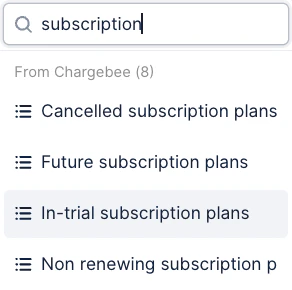
Additionally, you can import subscription names as customer custom fields.
As a customer can have several subscriptions, you will be able to import the subscription name based on the subscription status.
The following statuses are available: Active, Cancelled, Future, In-trial, Non renewing, Paused, Transferred.
*
The field you create in Upflow **must be exactly as the one from Chargebee:**
* The field type must match the one used in Chargebee
* The name in Upflow must match the field **API Name** in Chargebee.
The fields added in your settings above, will then be available in your [Customers list view](https://app.upflow.io/organization/-/customers). Filter your customers by custom field or add/sort your views' columns based on these fields.
#### The supported custom field types on Chargebee are:
| Chargebee Type | Chargebee Limits | Upflow Type | Notes |
| -------------- | ------------------------------------------------------------------------------------------- | ----------- | -------------------------------------------------------------------------------------------------------------------------------------- |
| Notes | The maximum character limit is 99. | STRING | This field will appear as a text box. |
| Multiline text | The maximum character limit is 250. | STRING | This field will appear as a text area. |
| Dropdown | The total number of characters used for all the options put together, must not exceed 5000. | SELECT | We can add as many options as we’d want, as long as the options limit is respected. |
| Checkbox | default: false | BOOLEAN | True/False dropdown |
| URL | URL validations applied | STRING | This field type will appear as a text area. The URL provided here will be validated for "http\://" and "https\://". (a valid HTTP URL) |
| Email | email validations applied | STRING | This field type will appear as a text box. The email address will be validated. |
| Date Picker | | DATE | |
| Timestamp | | DATETIME | |
| Numbers | | FLOAT | |
### More fields - Subscriptions
Additionally, you can import subscription names as customer custom fields.
As a customer can have several subscriptions, you will be able to import the subscription name based on the subscription status.
The following statuses are available: Active, Cancelled, Future, In-trial, Non renewing, Paused, Transferred.
 You can [read more about custom fields here](/en-us/core-entities/others/import-and-create-custom-fields-into-upflow) for more details.
> Only customer custom fields are supported with Chargebee. No invoice, payment, or contact custom field can be synced.
Any questions? Submit a Support request at the top of this article.
You can [read more about custom fields here](/en-us/core-entities/others/import-and-create-custom-fields-into-upflow) for more details.
> Only customer custom fields are supported with Chargebee. No invoice, payment, or contact custom field can be synced.
Any questions? Submit a Support request at the top of this article.