> ## Documentation Index
> Fetch the complete documentation index at: https://docs.upflow.io/llms.txt
> Use this file to discover all available pages before exploring further.
# 🚀 Step 6 — Go Live
> Exit Test Mode, disable duplicate reminders in other tools, and start sending automated collection reminders from Upflow — the final onboarding step.
**Goal:** Start sending reminders from Upflow.
⏱️ **Estimated time:** 30–60 minutes
***
### Before you flip the switch
**Disable reminders in your other tools before going live.** If your billing or ERP system is still sending dunning emails, your customers will receive duplicates. Turn those off first.
***
### Actions
* Turn off dunning reminders in your billing or ERP system
* Run final tests
* Make sure every user who will send reminders has set up their [email signature](https://docs.upflow.io/en-us/upflow-configuration/your-user-profile/set-up-my-profile-signature#set-up-my-profile-signature)
* If you are [sending invoices from Upflow](https://docs.upflow.io/en-us/collection-and-collaboration/send-invoices-from-upflow/overview#send-invoices-from-upflow), mark existing invoices as sent so customers don't receive them again
* Exit test mode via the yellow banner and go live
***
### Key decisions
* **Will you automate immediately or start manual?** We recommend starting with manual actions only for the first few days so you can have a smooth transition from your existing processes to your processes in Upflow
* **Which segment goes first?** Start with a small, low-risk segment before rolling out to everyone
***
### Run your end-to-end test
Before exiting test mode, confirm everything works as expected:
**Send**
* Pick 1–2 internal or test customers
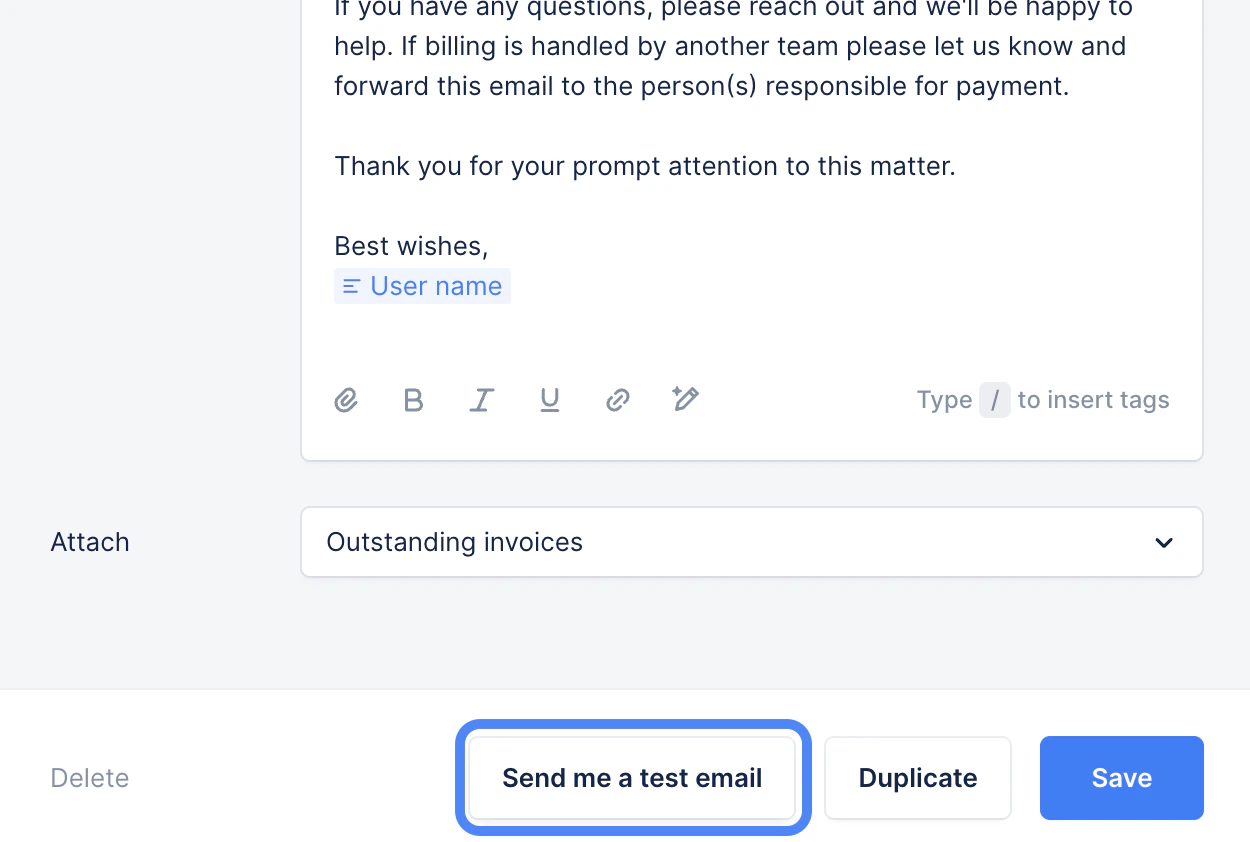
* Send a [test email](https://docs.upflow.io/en-us/collection-and-collaboration/workflows-customize-your-collection/test-your-email-templates#test-your-email-templates) and confirm it lands in your inbox with the right formatting, and content
 **Receive**
* Confirm that you are receiving emails sent from your customers to your inbox
**Check**
* Customer and invoice data looks accurate (contacts, due dates, amounts, etc.)
* The upcoming actions scheduled for your pilot customers look correct — you can check from [Actions → ALL](https://app.upflow.io/organization/-/actions-list?page=0\&filters=%7B%7D)
***
### Go live
Once your test passes, you're ready to start sending reminders from Upflow.
#### Exit test mode
Click the yellow banner at the top of Upflow to exit Test Mode. From this point, real reminders can be sent to your customers.
**Receive**
* Confirm that you are receiving emails sent from your customers to your inbox
**Check**
* Customer and invoice data looks accurate (contacts, due dates, amounts, etc.)
* The upcoming actions scheduled for your pilot customers look correct — you can check from [Actions → ALL](https://app.upflow.io/organization/-/actions-list?page=0\&filters=%7B%7D)
***
### Go live
Once your test passes, you're ready to start sending reminders from Upflow.
#### Exit test mode
Click the yellow banner at the top of Upflow to exit Test Mode. From this point, real reminders can be sent to your customers.
 ***
#### Enable automatic actions
In your Collection settings, turn on **automatic actions**. This is the general setting that unlocks automation across Upflow and is required before you can send an action campaign.
This is different from the per-action automation set inside each workflow. Enabling automatic actions here is just a master switch — nothing will auto-fire if your individual workflow actions are still configured as manual.
Learn more: [Enable automatic actions after going live](https://docs.upflow.io/en-us/upflow-configuration/organization-configuration/test-mode#enable-automatic-actions-after-going-live)
***
#### Send your first action campaign
Send a mass email to notify your customers that you're now using Upflow for invoicing communications. This proactive introduction reduces spam flags, support questions, and customer confusion as your A/R processes change and you introduce the customer portal.
***
#### Enable automatic actions
In your Collection settings, turn on **automatic actions**. This is the general setting that unlocks automation across Upflow and is required before you can send an action campaign.
This is different from the per-action automation set inside each workflow. Enabling automatic actions here is just a master switch — nothing will auto-fire if your individual workflow actions are still configured as manual.
Learn more: [Enable automatic actions after going live](https://docs.upflow.io/en-us/upflow-configuration/organization-configuration/test-mode#enable-automatic-actions-after-going-live)
***
#### Send your first action campaign
Send a mass email to notify your customers that you're now using Upflow for invoicing communications. This proactive introduction reduces spam flags, support questions, and customer confusion as your A/R processes change and you introduce the customer portal.
Learn more: [Action campaigns](https://docs.upflow.io/en-us/collection-and-collaboration/run-your-collection/action-campaigns#action-campaigns)
***
### Recommended rollout
Going live is a starting line, not a finish line. Here's how most teams ramp up safely:
1. **Start small.** Assign workflows to a small segment of customers first, with most workflow actions configured as **manual**. This keeps a human in the loop while patterns settle.
2. **Monitor for a few days.** Watch deliverability, customer replies, and feedback from your team.
3. **Expand to your full customer base.** Once you're confident things are running smoothly, assign workflows to the rest of your customers.
4. **Automate gradually.** Within each workflow, switch individual actions from manual to automatic as patterns become predictable. Standard email reminders are usually the first to automate; calls, escalations, and final notices often stay manual.
 ***
### Critical checks before expanding
Before you expand from your pilot segment to your full customer base, confirm all of the following are true:
* No duplicate reminders running in other systems
* Emails deliver correctly — right sender, right "from" name, no formatting issues
* Customer data is accurate — contacts, invoices, due dates, and amounts
* End-to-end test passed and pilot customer feedback is positive
***
## 🎉 You're live — what's next?
Now that you're up and running, here's how to get more out of Upflow:
| What | Why |
| :-------------------------------------------------------------------------------------------------------------------------------------------------------------- | :--------------------------------------------------------------------------------------------------------------------------------------------------------------------------------------------------- |
| [Automate individual workflow actions](https://docs.upflow.io/en-us/collection-and-collaboration/workflows-customize-your-collection/sending-automatic-actions) | Switch workflow actions from manual to automatic as patterns become predictable. This is the per-action setting inside each workflow — different from the general "Enable automatic actions" toggle. |
| [Activate Smart Rules](https://docs.upflow.io/en-us/collection-and-collaboration/smart-rules/smart-rules#smart-rules) | Auto-assign customers to workflows or account managers |
| [Optimize your workflows](/en-us/essentials/get-started/step-5-configure-workflows) | Refine timing, templates, and ownership based on early results |
| [Create custom dashboards](https://docs.upflow.io/en-us/analytics/good-to-know/analytics-filter-and-export-your-data) | Track what matters to your team |
| [Connect Slack](https://docs.upflow.io/en-us/integrations/slack/connect) | Receive Upflow notifications in Slack |
#### Exit test mode
Click the yellow banner at the top of Upflow to exit Test Mode. From this point, real reminders can be sent to your customers.
#### Enable automatic actions
In your Collection settings, turn on **automatic actions**. This is the general setting that unlocks automation across Upflow and is required before you can send an action campaign.
This is different from the per-action automation set inside each workflow. Enabling automatic actions here is just a master switch — nothing will auto-fire if your individual workflow actions are still configured as manual.
Learn more: [Enable automatic actions after going live](https://docs.upflow.io/en-us/upflow-configuration/organization-configuration/test-mode#enable-automatic-actions-after-going-live)
#### Send your first action campaign
Send a mass email to notify your customers that you're now using Upflow for invoicing communications. This proactive introduction reduces spam flags, support questions, and customer confusion as your A/R processes change and you introduce the customer portal.
***
### Critical checks before expanding
Before you expand from your pilot segment to your full customer base, confirm all of the following are true:
* No duplicate reminders running in other systems
* Emails deliver correctly — right sender, right "from" name, no formatting issues
* Customer data is accurate — contacts, invoices, due dates, and amounts
* End-to-end test passed and pilot customer feedback is positive
***
## 🎉 You're live — what's next?
Now that you're up and running, here's how to get more out of Upflow:
| What | Why |
| :-------------------------------------------------------------------------------------------------------------------------------------------------------------- | :--------------------------------------------------------------------------------------------------------------------------------------------------------------------------------------------------- |
| [Automate individual workflow actions](https://docs.upflow.io/en-us/collection-and-collaboration/workflows-customize-your-collection/sending-automatic-actions) | Switch workflow actions from manual to automatic as patterns become predictable. This is the per-action setting inside each workflow — different from the general "Enable automatic actions" toggle. |
| [Activate Smart Rules](https://docs.upflow.io/en-us/collection-and-collaboration/smart-rules/smart-rules#smart-rules) | Auto-assign customers to workflows or account managers |
| [Optimize your workflows](/en-us/essentials/get-started/step-5-configure-workflows) | Refine timing, templates, and ownership based on early results |
| [Create custom dashboards](https://docs.upflow.io/en-us/analytics/good-to-know/analytics-filter-and-export-your-data) | Track what matters to your team |
| [Connect Slack](https://docs.upflow.io/en-us/integrations/slack/connect) | Receive Upflow notifications in Slack |
#### Exit test mode
Click the yellow banner at the top of Upflow to exit Test Mode. From this point, real reminders can be sent to your customers.
#### Enable automatic actions
In your Collection settings, turn on **automatic actions**. This is the general setting that unlocks automation across Upflow and is required before you can send an action campaign.
This is different from the per-action automation set inside each workflow. Enabling automatic actions here is just a master switch — nothing will auto-fire if your individual workflow actions are still configured as manual.
Learn more: [Enable automatic actions after going live](https://docs.upflow.io/en-us/upflow-configuration/organization-configuration/test-mode#enable-automatic-actions-after-going-live)
#### Send your first action campaign
Send a mass email to notify your customers that you're now using Upflow for invoicing communications. This proactive introduction reduces spam flags, support questions, and customer confusion as your A/R processes change and you introduce the customer portal.
Learn more: [Action campaigns](https://docs.upflow.io/en-us/collection-and-collaboration/run-your-collection/action-campaigns#action-campaigns)
### Recommended rollout
Going live is a starting line, not a finish line. Here's how most teams ramp up safely:
1. **Start small.** Assign workflows to a small segment of customers first, with most workflow actions configured as **manual**. This keeps a human in the loop while patterns settle.
2. **Monitor for a few days.** Watch deliverability, customer replies, and feedback from your team.
3. **Expand to your full customer base.** Once you're confident things are running smoothly, assign workflows to the rest of your customers.
4. **Automate gradually.** Within each workflow, switch individual actions from manual to automatic as patterns become predictable. Standard email reminders are usually the first to automate; calls, escalations, and final notices often stay manual.
### Critical checks before expanding
Before you expand from your pilot segment to your full customer base, confirm all of the following are true:
* No duplicate reminders running in other systems
* Emails deliver correctly — right sender, right "from" name, no formatting issues
* Customer data is accurate — contacts, invoices, due dates, and amounts
* End-to-end test passed and pilot customer feedback is positive