> ## Documentation Index
> Fetch the complete documentation index at: https://docs.upflow.io/llms.txt
> Use this file to discover all available pages before exploring further.
# 📝 Step 5 — Configure workflows & automation
> Build collection workflows in Upflow with clear owners, senders, and recipients to streamline reminders and automate your dunning process end to end.
**Goal:** Streamline your collections process
⏱️ **Estimated time:** 2–4 hours
### ✅ What you’ll have at the end (quick preview)
By the end of this step, you’ll have:
* At least one workflow configured with clear **owners**, **senders**, and **recipients**
* Actions set up with the right **timing** (pre-due / overdue) and **automation level** (automatic vs manual)
* A tested workflow assignment so you can confidently move to Step 6 without surprises
## Actions
* Create workflows
* Assign customers to your workflows
### 🔀 Choose your approach
**Start simple if:**
* This is your first time setting up workflows
* Most customers can follow the same reminder path
* You want to validate the basics quickly (timing, templates, owners)
**Advanced setup if:**
* You have clear segments (SMB vs Enterprise, regions, strategic accounts)
* You need different owners/senders/templates by segment
* You want multiple strategies running in parallel (e.g., pre-due + overdue escalation)
**👉 Start simple**
* 1–2 workflows
* Basic logic
**👉 Advanced setup**
* Segmented workflows
* Complex smart rules
## Key decisions
* Timing and frequency of actions
* Segmentation strategy
* Level of automation
## Creating a Workflow
Workflows define how you follow up with customers over time. They determine when actions happen, what type of action is created, and who is responsible for each step.
Start with a simple workflow first. You can always refine the timing, wording, ownership, and general complexity later.
Click **Get Started** in the interactive guide below to follow along, or follow the steps outlined in this article.
**Prefer reading?** Continue with the steps below.
#### Start from your workflow settings
Go to the **Workflows** section and create a new workflow.
Choose a clear name that your team will recognize, such as **Standard collection workflow**, **Enterprise customers**, or **Pre-due date reminders**.
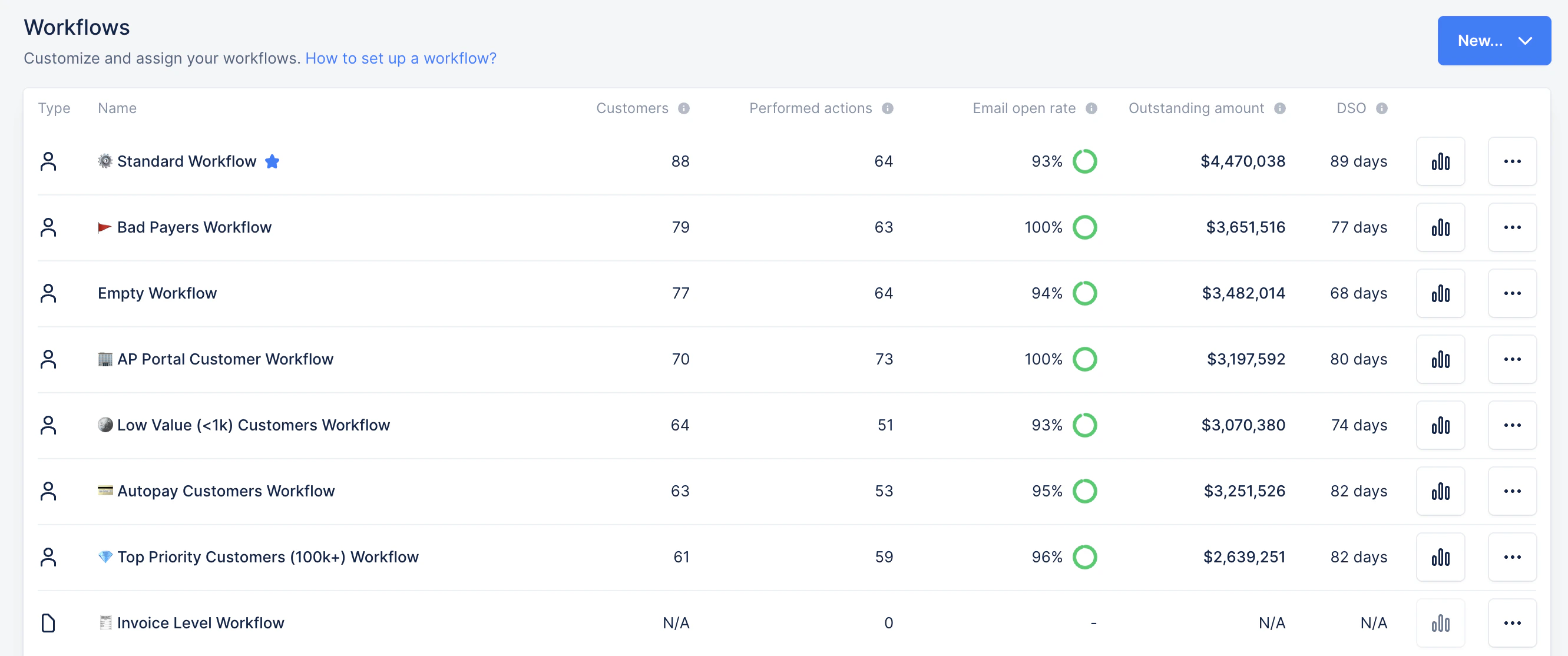 **Customer-level vs invoice-level workflows (quick guide)**
| **Type** | **Description** | **Best for** |
| :----------- | :------------------------------------------------------------------------ | :-------------------------------------------------------------- |
| **Customer** | One workflow for the whole customer account (all open invoices together). | One clear reminder path per customer, account-based escalation. |
| **Invoice** | One workflow per invoice; stops when that invoice is paid. | Pre-due reminders and “every invoice gets a journey.” |
**You can use them separately** (choose one main approach), or **together**. A common setup is **invoice-level** workflows for *pre-due reminders on new invoices*, and **customer-level** workflows for *overdue chasing and escalation across the full account*.
#### Set the minimum contact delay
The **minimum contact delay** is the minimum number of days Upflow waits between two follow-ups to the same customer.
**Customer-level vs invoice-level workflows (quick guide)**
| **Type** | **Description** | **Best for** |
| :----------- | :------------------------------------------------------------------------ | :-------------------------------------------------------------- |
| **Customer** | One workflow for the whole customer account (all open invoices together). | One clear reminder path per customer, account-based escalation. |
| **Invoice** | One workflow per invoice; stops when that invoice is paid. | Pre-due reminders and “every invoice gets a journey.” |
**You can use them separately** (choose one main approach), or **together**. A common setup is **invoice-level** workflows for *pre-due reminders on new invoices*, and **customer-level** workflows for *overdue chasing and escalation across the full account*.
#### Set the minimum contact delay
The **minimum contact delay** is the minimum number of days Upflow waits between two follow-ups to the same customer.
 This prevents customers from receiving too many reminders too close together.\
If customers receive reminders too frequently, increase your minimum contact delay (and remember weekends affect spacing).
For a standard workflow, a good starting point is **5 days**. This usually allows you to follow up about once per week without overwhelming the customer.
⚠️ Upflow does not send reminders on Saturdays or Sundays, so keep this in mind when setting your minimum contact delay.
#### Choose the first action logic
The **first action logic** decides where a customer starts when they are assigned to the workflow.
This prevents customers from receiving too many reminders too close together.\
If customers receive reminders too frequently, increase your minimum contact delay (and remember weekends affect spacing).
For a standard workflow, a good starting point is **5 days**. This usually allows you to follow up about once per week without overwhelming the customer.
⚠️ Upflow does not send reminders on Saturdays or Sundays, so keep this in mind when setting your minimum contact delay.
#### Choose the first action logic
The **first action logic** decides where a customer starts when they are assigned to the workflow.
 If customers are starting at the wrong step, double-check your first action logic choice (**Standard** vs **Contextualized**) before assigning workflows in bulk.
| **Option** | **What it means** | **When to use it** |
| :----------------- | :------------------------------------------------------------------------------ | :------------------------------------------------------------------------------------------ |
| **Standard** | The customer starts at the first step of the workflow. | Use this if you want every customer to go through the full sequence from the beginning. |
| **Contextualized** | The customer starts at the step that best matches how overdue they already are. | Use this if you already have overdue customers and do not want to restart them at step one. |
#### Understanding the carrying invoice
The **carrying invoice** is the invoice that determines where the customer is in the workflow.
For customer-level workflows, this is usually the oldest overdue invoice that is still open. Upflow uses it to decide which workflow step applies and when the next action should happen.
**Example:** If a customer has three open invoices and the oldest overdue one is **Invoice A**, Upflow typically uses **Invoice A** as the carrying invoice to place the customer in the right step and schedule the next action.
#### Create your workflow actions
An **action** is one step in the workflow. Action types include:
* [Emails](https://docs.upflow.io/en-us/collection-and-collaboration/emails/sending-emails#sending-emails)
* [Calls](https://docs.upflow.io/en-us/collection-and-collaboration/live-calls/live-calls-from-upflow#live-calls-from-upflow)
* Tasks
* [Letters](https://docs.upflow.io/en-us/collection-and-collaboration/letters/send-postal-reminders#send-postal-reminders-from-upflow)
* [SMS](https://docs.upflow.io/en-us/collection-and-collaboration/sms/sms-reminders-overview#sms-reminders-connect-more-personally-with-your-customers)
For each action, choose when it should occur, such as **7 days after the issue date**, **5 days before the due date**, or **30 days after the due date**.
Then decide whether the action should be **automatic** or **manual**.
| **Type** | **What it means** | **When to use it** |
| :------------ | :------------------------------------------------- | :----------------------------------------------------------------- |
| **Automatic** | Upflow sends the action automatically. | Best for standard email reminders. |
| **Manual** | A user completes the action from their to-do list. | Best for calls, sensitive accounts, escalations, or final notices. |
Keep the first version simple, then add complexity down the line. A few clear actions are easier to validate than a long, complex workflow.
#### Choose the action owner
The **owner** is the person responsible for the action.
If customers are starting at the wrong step, double-check your first action logic choice (**Standard** vs **Contextualized**) before assigning workflows in bulk.
| **Option** | **What it means** | **When to use it** |
| :----------------- | :------------------------------------------------------------------------------ | :------------------------------------------------------------------------------------------ |
| **Standard** | The customer starts at the first step of the workflow. | Use this if you want every customer to go through the full sequence from the beginning. |
| **Contextualized** | The customer starts at the step that best matches how overdue they already are. | Use this if you already have overdue customers and do not want to restart them at step one. |
#### Understanding the carrying invoice
The **carrying invoice** is the invoice that determines where the customer is in the workflow.
For customer-level workflows, this is usually the oldest overdue invoice that is still open. Upflow uses it to decide which workflow step applies and when the next action should happen.
**Example:** If a customer has three open invoices and the oldest overdue one is **Invoice A**, Upflow typically uses **Invoice A** as the carrying invoice to place the customer in the right step and schedule the next action.
#### Create your workflow actions
An **action** is one step in the workflow. Action types include:
* [Emails](https://docs.upflow.io/en-us/collection-and-collaboration/emails/sending-emails#sending-emails)
* [Calls](https://docs.upflow.io/en-us/collection-and-collaboration/live-calls/live-calls-from-upflow#live-calls-from-upflow)
* Tasks
* [Letters](https://docs.upflow.io/en-us/collection-and-collaboration/letters/send-postal-reminders#send-postal-reminders-from-upflow)
* [SMS](https://docs.upflow.io/en-us/collection-and-collaboration/sms/sms-reminders-overview#sms-reminders-connect-more-personally-with-your-customers)
For each action, choose when it should occur, such as **7 days after the issue date**, **5 days before the due date**, or **30 days after the due date**.
Then decide whether the action should be **automatic** or **manual**.
| **Type** | **What it means** | **When to use it** |
| :------------ | :------------------------------------------------- | :----------------------------------------------------------------- |
| **Automatic** | Upflow sends the action automatically. | Best for standard email reminders. |
| **Manual** | A user completes the action from their to-do list. | Best for calls, sensitive accounts, escalations, or final notices. |
Keep the first version simple, then add complexity down the line. A few clear actions are easier to validate than a long, complex workflow.
#### Choose the action owner
The **owner** is the person responsible for the action.
 If owners get overloaded with tasks, reduce the number of manual steps at first and be intentional with owner assignment (especially user groups/shared queues).
For manual actions, the task appears in the owner’s to-do list. For automatic actions, the owner helps track who is responsible for that follow-up.
Common options include a finance user, an assigned account manager, an assigned customer user, or a user group.
#### Choose the sender
The **sender** is the person or email address the customer sees when they receive the message.
If owners get overloaded with tasks, reduce the number of manual steps at first and be intentional with owner assignment (especially user groups/shared queues).
For manual actions, the task appears in the owner’s to-do list. For automatic actions, the owner helps track who is responsible for that follow-up.
Common options include a finance user, an assigned account manager, an assigned customer user, or a user group.
#### Choose the sender
The **sender** is the person or email address the customer sees when they receive the message.
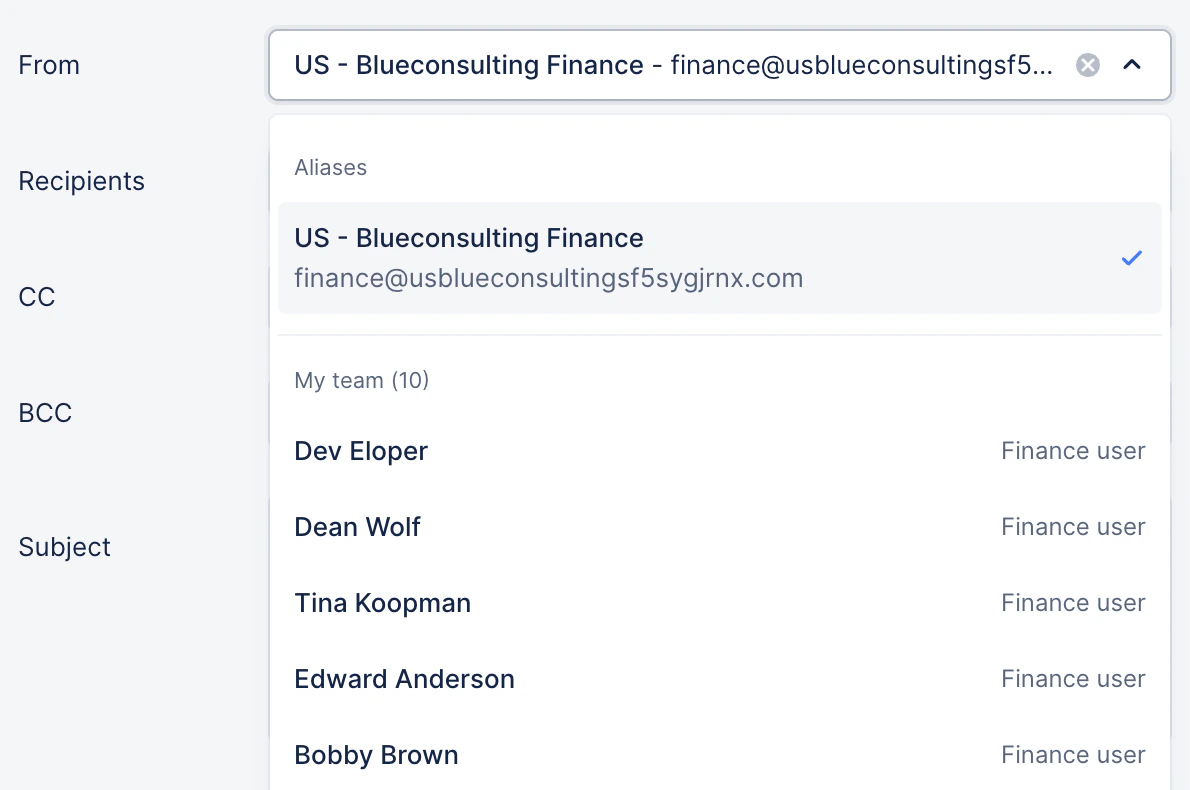 Choose the sender based on who should appear to be contacting the customer. This could be a shared [alias](https://docs.upflow.io/en-us/collection-and-collaboration/workflows-customize-your-collection/aliases#aliases) such as a billing or collections email address, a specific finance user, or an account manager.
#### Choose the recipient
The **recipient** is the customer contact who receives the message.
Choose the sender based on who should appear to be contacting the customer. This could be a shared [alias](https://docs.upflow.io/en-us/collection-and-collaboration/workflows-customize-your-collection/aliases#aliases) such as a billing or collections email address, a specific finance user, or an account manager.
#### Choose the recipient
The **recipient** is the customer contact who receives the message.
 If reminders go to the wrong person, confirm your recipient logic and clean up customer contact data before rollout.
This is usually the billing, finance, or main contact on the customer account. Before going live, make sure your contacts are accurate so reminders go to the right people.
**Tip:** You can add your Assigned Users and additional email addresses in the CC and BCC fields below.
If reminders go to the wrong person, confirm your recipient logic and clean up customer contact data before rollout.
This is usually the billing, finance, or main contact on the customer account. Before going live, make sure your contacts are accurate so reminders go to the right people.
**Tip:** You can add your Assigned Users and additional email addresses in the CC and BCC fields below.
 #### Select or edit the message template
Edit the message customers will receive to suit the stage in the escalation.
Utilize [custom tags](https://docs.upflow.io/en-us/collection-and-collaboration/workflows-customize-your-collection/collection-tag-inserter-best-practices#collection-tag-inserter-best-practices) to customize the communication with the most important information for your customers.
#### Select or edit the message template
Edit the message customers will receive to suit the stage in the escalation.
Utilize [custom tags](https://docs.upflow.io/en-us/collection-and-collaboration/workflows-customize-your-collection/collection-tag-inserter-best-practices#collection-tag-inserter-best-practices) to customize the communication with the most important information for your customers.
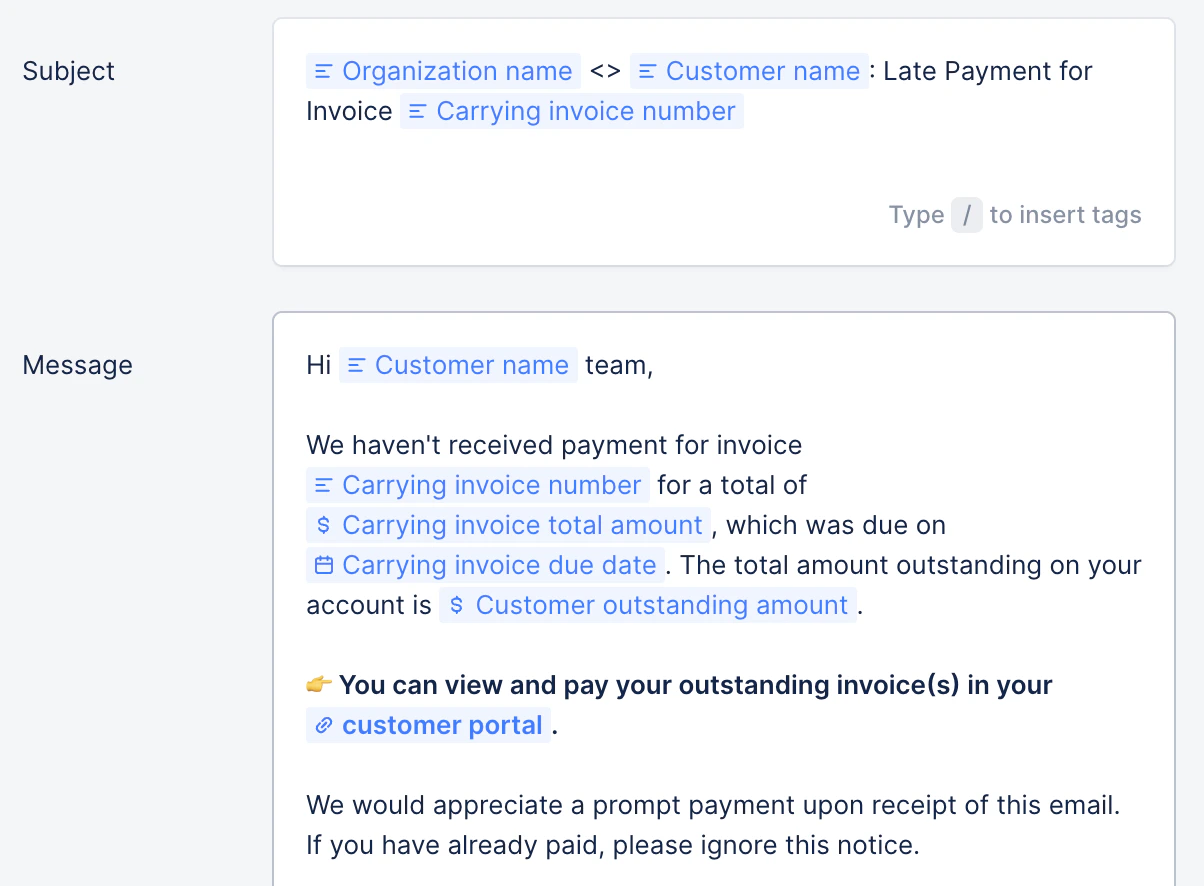 A good reminder should be clear, short, polite, and easy to act on. Make sure it includes the right invoice, balance, payment, or portal information.
#### Review the final action
The final action can repeat until the carrying invoice is paid.
A good reminder should be clear, short, polite, and easy to act on. Make sure it includes the right invoice, balance, payment, or portal information.
#### Review the final action
The final action can repeat until the carrying invoice is paid.
 The repeat timing is based on your **minimum contact delay**. For example, if the minimum contact delay is **5 days**, the final action can repeat every 5 days while the invoice remains unpaid.
Choose a final action that makes sense to repeat, such as a reminder email, a call task, or an internal escalation.
#### Save and test
Before using the workflow, review the key details:
* The workflow name is clear
* The minimum contact delay matches your process
* The first action logic is correct
* Each action has the right timing
* Owners, senders, and recipients are correct
* Templates are ready
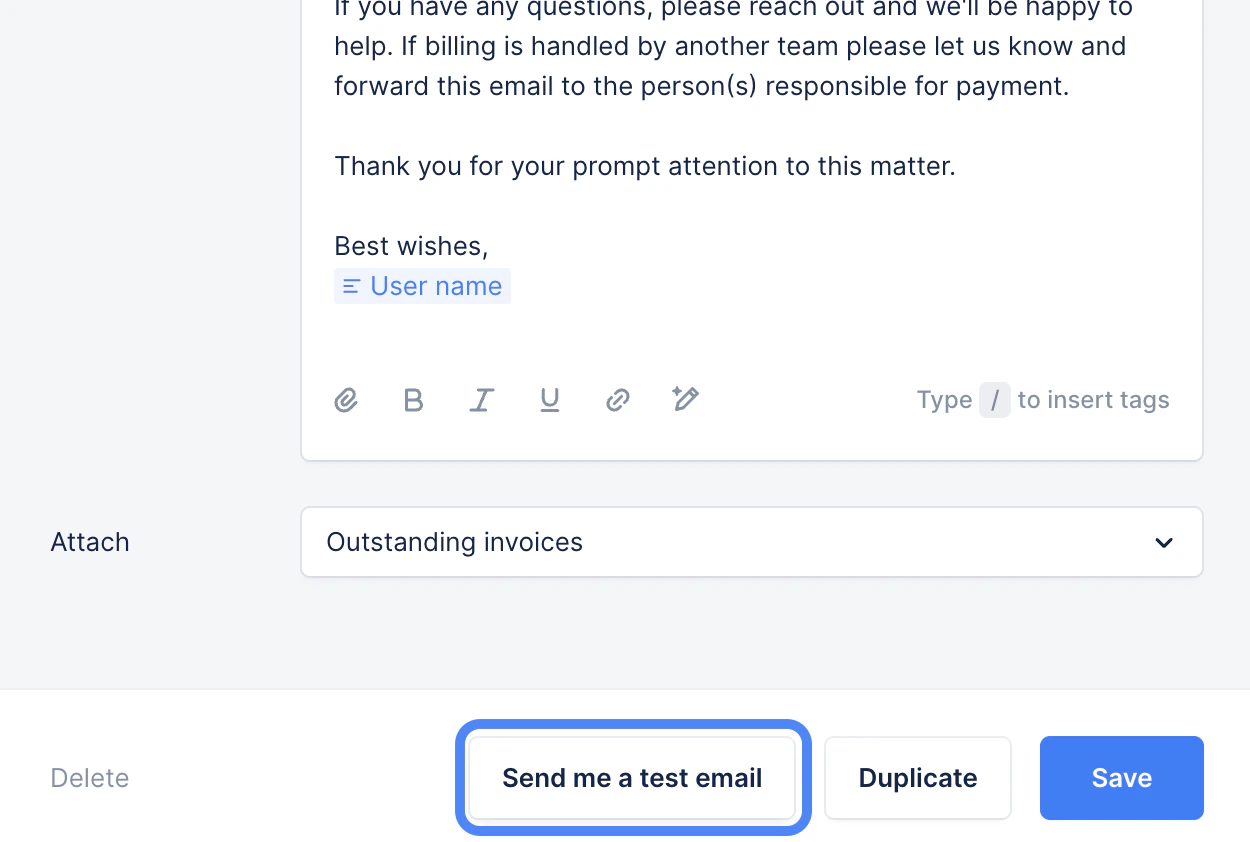
Send yourself some [test emails](https://docs.upflow.io/en-us/collection-and-collaboration/workflows-customize-your-collection/test-your-email-templates#test-your-email-templates) to make sure you are happy with the email content and formatting.\
If templates look correct in-editor but break in real emails, always rely on test emails to confirm tag resolution and formatting.
The repeat timing is based on your **minimum contact delay**. For example, if the minimum contact delay is **5 days**, the final action can repeat every 5 days while the invoice remains unpaid.
Choose a final action that makes sense to repeat, such as a reminder email, a call task, or an internal escalation.
#### Save and test
Before using the workflow, review the key details:
* The workflow name is clear
* The minimum contact delay matches your process
* The first action logic is correct
* Each action has the right timing
* Owners, senders, and recipients are correct
* Templates are ready
Send yourself some [test emails](https://docs.upflow.io/en-us/collection-and-collaboration/workflows-customize-your-collection/test-your-email-templates#test-your-email-templates) to make sure you are happy with the email content and formatting.\
If templates look correct in-editor but break in real emails, always rely on test emails to confirm tag resolution and formatting.
 #### Assign workflows to your customers or invoices
Once you're confident with your workflows - [assign](https://docs.upflow.io/en-us/core-entities/customers/assign-users-or-workflows-to-your-customers#assign-users-or-workflows-to-your-customers) customers or invoices to them manually, in bulk, or with Smart Rules.
**Rollout tip (recommended):** Start with a small pilot group (e.g., **5–10 customers**) for **1–2 days** before assigning workflows in bulk. This helps you confirm timing, recipients, and templates in real conditions.
Before go-live, check a few examples to confirm the upcoming actions are scheduled as expected. You can do this from [Actions → ALL](https://app.upflow.io/organization/-/actions-list?page=0\&filters=%7B%7D).
## ✅ Validation (required to continue)
* At least one workflow created
* Workflows are assigned correctly to your customers or invoices
⚠️ *Do not move forward until this step is complete.*
👉 Next: [**Step 6 - Go Live**](https://docs.upflow.io/en-us/essentials/get-started/step-6-go-live)
#### Assign workflows to your customers or invoices
Once you're confident with your workflows - [assign](https://docs.upflow.io/en-us/core-entities/customers/assign-users-or-workflows-to-your-customers#assign-users-or-workflows-to-your-customers) customers or invoices to them manually, in bulk, or with Smart Rules.
**Rollout tip (recommended):** Start with a small pilot group (e.g., **5–10 customers**) for **1–2 days** before assigning workflows in bulk. This helps you confirm timing, recipients, and templates in real conditions.
Before go-live, check a few examples to confirm the upcoming actions are scheduled as expected. You can do this from [Actions → ALL](https://app.upflow.io/organization/-/actions-list?page=0\&filters=%7B%7D).
## ✅ Validation (required to continue)
* At least one workflow created
* Workflows are assigned correctly to your customers or invoices
⚠️ *Do not move forward until this step is complete.*
👉 Next: [**Step 6 - Go Live**](https://docs.upflow.io/en-us/essentials/get-started/step-6-go-live)