> ## Documentation Index
> Fetch the complete documentation index at: https://docs.upflow.io/llms.txt
> Use this file to discover all available pages before exploring further.
# 🔌 Step 1 — Sign up & sync your data
> Connect your billing or ERP system to Upflow so customers, invoices, and contacts become visible — the first step of the onboarding before going live.
**Goal:** Connect your billing or ERP system so your customers, invoices, and contacts are visible in Upflow.
⏱️ **Estimated time:** 30–60 minutes (+ time for the initial sync to complete)
### Before you start
**Upflow starts in Test Mode.** Test Mode is a safe onboarding state that prevents anything from being sent to your customers while you're still setting everything up. Manual actions are blocked, automation can't be enabled, and a banner stays visible so it's always clear you're in a safe state. You'll exit Test Mode in Step 6 when you're ready to go live.
 Learn more: [Test Mode](https://docs.upflow.io/en-us/upflow-configuration/organization-configuration/test-mode#test-mode)
### Actions
* Sign up and connect your integration
* Validate that your data has synced correctly
* (Optional) Connect Salesforce
### Connect your integration
Head to the [sign up page](https://app.upflow.io/signup) and select your integration. Follow the setup guide for your system:
Learn more: [Test Mode](https://docs.upflow.io/en-us/upflow-configuration/organization-configuration/test-mode#test-mode)
### Actions
* Sign up and connect your integration
* Validate that your data has synced correctly
* (Optional) Connect Salesforce
### Connect your integration
Head to the [sign up page](https://app.upflow.io/signup) and select your integration. Follow the setup guide for your system:
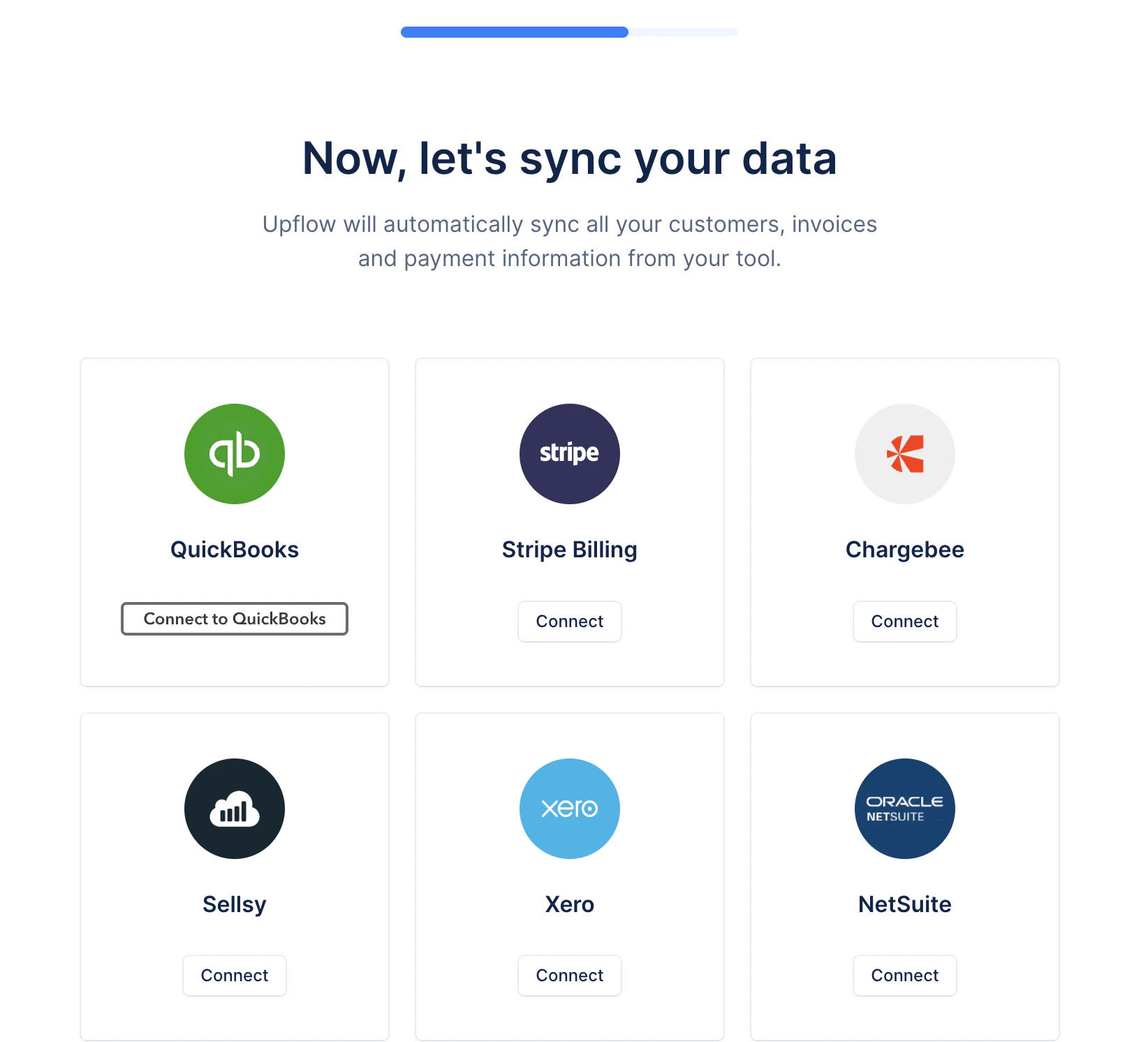 * [NetSuite](/en-us/integrations/netsuite/connect)
* [Sage Intacct](/en-us/integrations/sage-intacct/connect)
* [QuickBooks Online](/en-us/integrations/quickbooks/connect)
* [Stripe Billing](/en-us/integrations/stripe-billing/overview)
* [Chargebee](/en-us/integrations/chargebee/connect)
* [Pennylane](/en-us/integrations/pennylane/overview)
* [Xero](/en-us/integrations/xero/connect)
* [Zuora](/en-us/integrations/zuora/connect)
* [Upflow API](/en-us/technical-documentation/api/integrating-with-the-upflow-api)
Don't see your integration? Contact [Upflow Support](https://support.upflow.io/hc/en-us/requests/new).
**One important note for multi-entity setups:** if you use subsidiaries (NetSuite, Sage Intacct, Xero), create one Upflow organization per subsidiary.
### Connect Salesforce (Optional)
Salesforce can be connected to both import data into Upflow (contacts, account owners, custom fields) and export collections data back to Salesforce for wider team visibility.
See the full setup guide: [Connecting Salesforce to Upflow](/en-us/integrations/salesforce/connect)
*Using a different CRM? Reach out to our team to explore your options.*
### Validation — Required to continue
Once your integration is connected, confirm the following before moving on:
* Customers, invoices, and contacts are visible in Upflow
* Data is syncing correctly
* No major gaps or inconsistencies in amounts, due dates, or contact details
Do not move forward until your data looks right. Everything in Steps 2–6 depends on the accuracy of what's synced here.
👉 Next: [**Step 2 — Manage your team**](/en-us/essentials/get-started/step-2-manage-your-team)
* [NetSuite](/en-us/integrations/netsuite/connect)
* [Sage Intacct](/en-us/integrations/sage-intacct/connect)
* [QuickBooks Online](/en-us/integrations/quickbooks/connect)
* [Stripe Billing](/en-us/integrations/stripe-billing/overview)
* [Chargebee](/en-us/integrations/chargebee/connect)
* [Pennylane](/en-us/integrations/pennylane/overview)
* [Xero](/en-us/integrations/xero/connect)
* [Zuora](/en-us/integrations/zuora/connect)
* [Upflow API](/en-us/technical-documentation/api/integrating-with-the-upflow-api)
Don't see your integration? Contact [Upflow Support](https://support.upflow.io/hc/en-us/requests/new).
**One important note for multi-entity setups:** if you use subsidiaries (NetSuite, Sage Intacct, Xero), create one Upflow organization per subsidiary.
### Connect Salesforce (Optional)
Salesforce can be connected to both import data into Upflow (contacts, account owners, custom fields) and export collections data back to Salesforce for wider team visibility.
See the full setup guide: [Connecting Salesforce to Upflow](/en-us/integrations/salesforce/connect)
*Using a different CRM? Reach out to our team to explore your options.*
### Validation — Required to continue
Once your integration is connected, confirm the following before moving on:
* Customers, invoices, and contacts are visible in Upflow
* Data is syncing correctly
* No major gaps or inconsistencies in amounts, due dates, or contact details
Do not move forward until your data looks right. Everything in Steps 2–6 depends on the accuracy of what's synced here.
👉 Next: [**Step 2 — Manage your team**](/en-us/essentials/get-started/step-2-manage-your-team)