> ## Documentation Index
> Fetch the complete documentation index at: https://docs.upflow.io/llms.txt
> Use this file to discover all available pages before exploring further.
# Customer portal
> Set up your Upflow customer portal with branding, contact details, dispute and promise-to-pay options to give customers self-service access to invoices.
Whenever a new Customer is imported on your organization, Upflow automatically generates a dedicated "customer portal" link.
## Customizing your customer portals
All configuration & customization options are grouped under your organization's [Settings > Customer portal section](https://app.upflow.io/organization/-/settings/customer-portal).
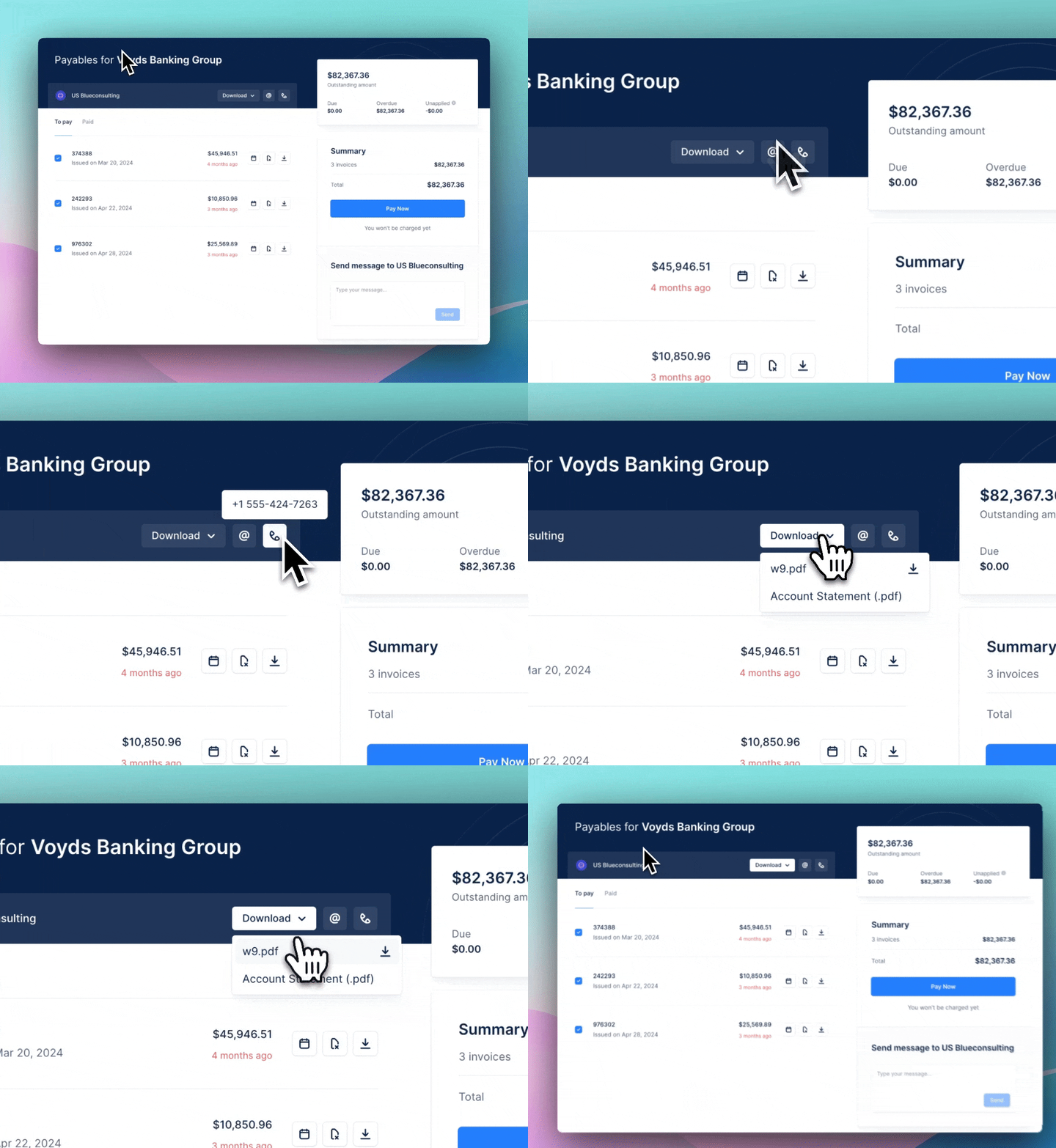
You can view any change made using the "Save & View" button at the top right, which will take you to a sample portal:
 ## Display options
These options determine both the look & feel of your Upflow portals, as well as functionalities you can make available to your customers.
### Your contact information
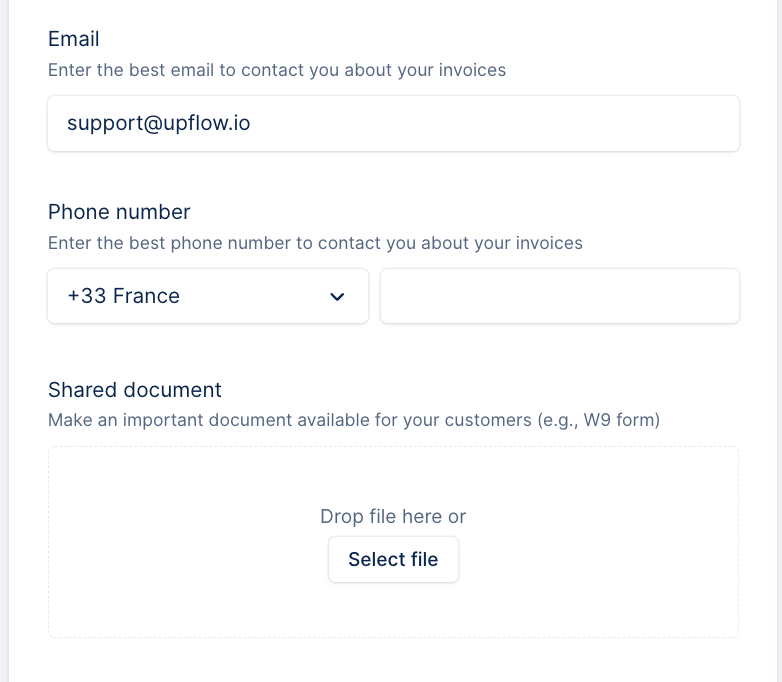
Start by inputting useful contact information in the **Email** & **Phone Number** fields, as well as upload any **Shared Document** you want to make available to all of your customers (e.g. a W9 form you keep getting requests for over email) so they become clearly accessible on your portals:
## Display options
These options determine both the look & feel of your Upflow portals, as well as functionalities you can make available to your customers.
### Your contact information
Start by inputting useful contact information in the **Email** & **Phone Number** fields, as well as upload any **Shared Document** you want to make available to all of your customers (e.g. a W9 form you keep getting requests for over email) so they become clearly accessible on your portals:
 To add this information to your customers portals, head to your Settings > Customer portal here:
* Enter an email address and/or phone number for them to contact you.
* Select or drop a file for them to download, such as your W9 form.
To add this information to your customers portals, head to your Settings > Customer portal here:
* Enter an email address and/or phone number for them to contact you.
* Select or drop a file for them to download, such as your W9 form.
 ### Portal features - organization level
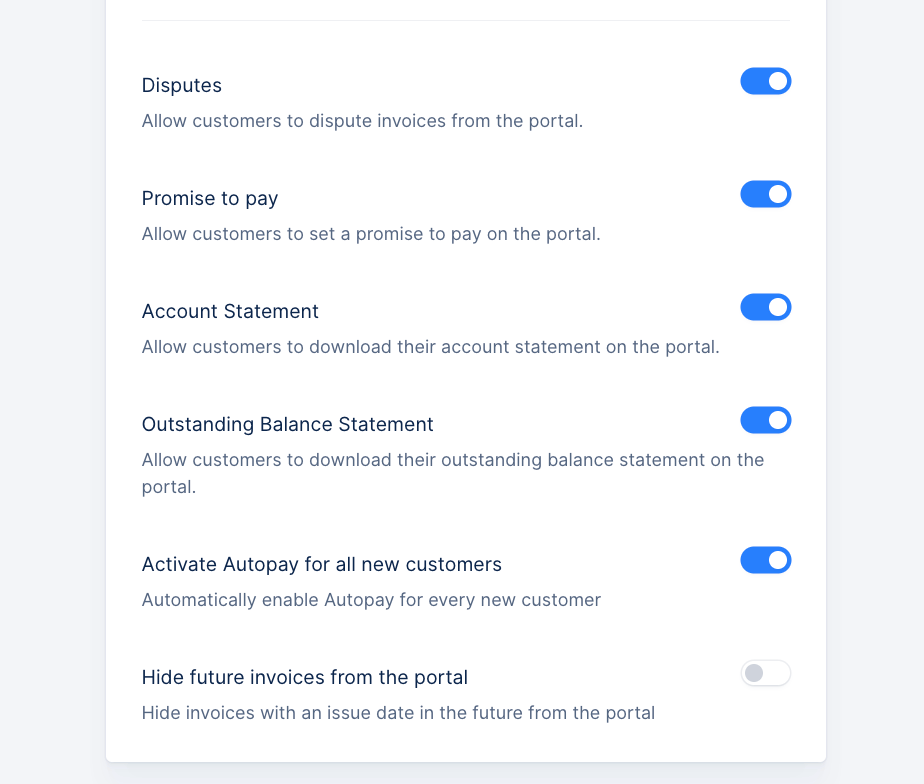
Finally, decide if you want to allow your customers to do the following via their portals by toggling options on or off:
* Raise **Disputes** ([more details here](/en-us/core-entities/invoices/invoice-disputes)).
* Set a **Promise to Pay** ([more details here](/en-us/core-entities/invoices/promise-to-pay)).
* Download an **Account Statement**
* Download an outstanding balance statement
* Activate Autopay for new customers
* Hide future invoices from the portal
### Portal features - organization level
Finally, decide if you want to allow your customers to do the following via their portals by toggling options on or off:
* Raise **Disputes** ([more details here](/en-us/core-entities/invoices/invoice-disputes)).
* Set a **Promise to Pay** ([more details here](/en-us/core-entities/invoices/promise-to-pay)).
* Download an **Account Statement**
* Download an outstanding balance statement
* Activate Autopay for new customers
* Hide future invoices from the portal
 ### Portal features - Customer level
From the Customer details page, under:
### Portal features - Customer level
From the Customer details page, under:
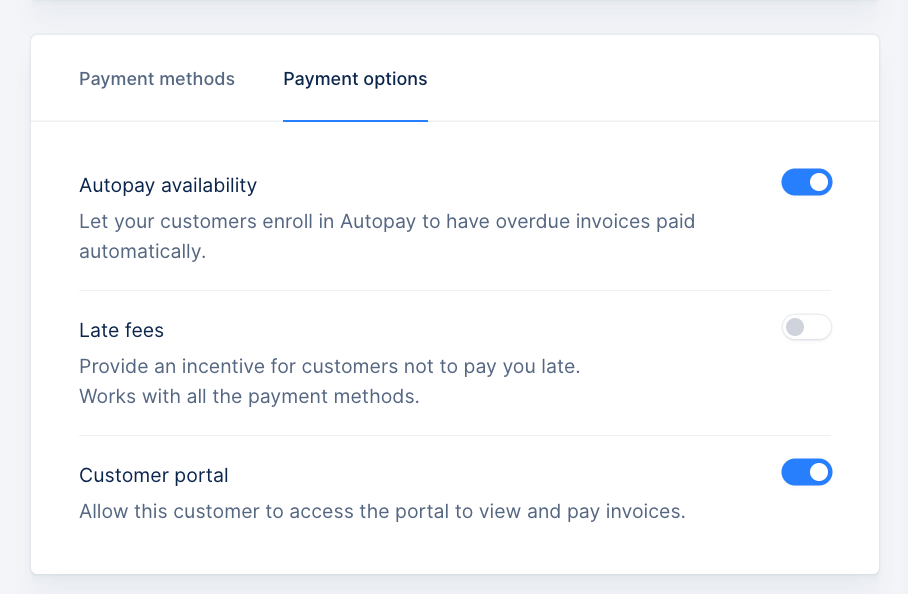 You can enable/disable
* Autopay
* their Customer portal
## Customization
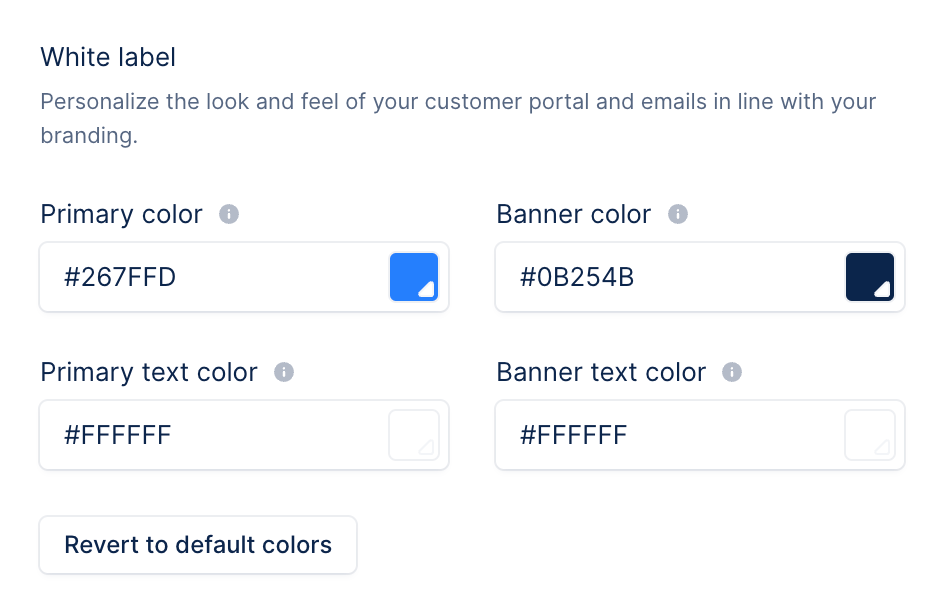
To provide a consistent and on-brand experience, head over to the **White label** section next and input your company color palette for both Primary & Banner elements of the portal. You can either input the exact hexadecimal value for each color, or click on the color icon to pick the closest match:
You can enable/disable
* Autopay
* their Customer portal
## Customization
To provide a consistent and on-brand experience, head over to the **White label** section next and input your company color palette for both Primary & Banner elements of the portal. You can either input the exact hexadecimal value for each color, or click on the color icon to pick the closest match:
 ## Branded notifications
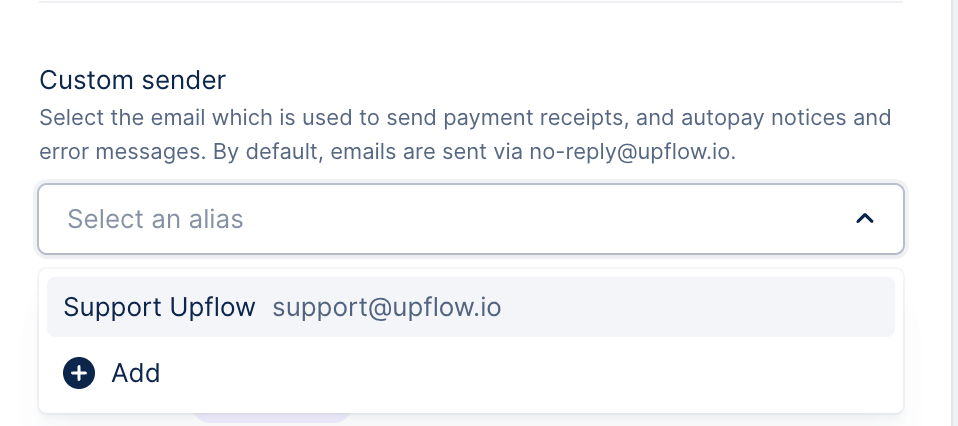
By default, useful payments-related notifications from your organization's customer portals are sent from [no-reply@upflow.io](mailto:no-reply@upflow.io). Make sure you create & select [an appropriate alias](/en-us/collection-and-collaboration/workflows-customize-your-collection/aliases) to send those from an email you own and recognizable by your customers:
## Branded notifications
By default, useful payments-related notifications from your organization's customer portals are sent from [no-reply@upflow.io](mailto:no-reply@upflow.io). Make sure you create & select [an appropriate alias](/en-us/collection-and-collaboration/workflows-customize-your-collection/aliases) to send those from an email you own and recognizable by your customers:
 *(Don't forget to click **Save** at the bottom of the page once done!)*