> ## Documentation Index
> Fetch the complete documentation index at: https://docs.upflow.io/llms.txt
> Use this file to discover all available pages before exploring further.
# Customize your customers' portal URL and favicon - White label portal
> Configure a custom domain and favicon for your Upflow customer portal so payment links match your brand instead of the default app.upflow.io address.
To offer a fully white-labeled experience to your customers, you can customize the portal URL so it matches your domain. Instead of "[https://app.upflow.io/customers/xxxxx](https://app.upflow.io/customers/xxxxx)," it could be "[https://yourdomain.com/xxxxx](https://yourdomain.com/xxxxx)." As well as the tab favicon.
For the URL configuration, you will need your IT team's help. Let's start with the favicon, which will only ask you a few clicks!
## Setting up the white-labeled portal
### Customer portal favicon
Head over to [the Customer portal settings](https://app.upflow.io/organization/-/settings/customer-portal). Scroll down to the dedicated section:
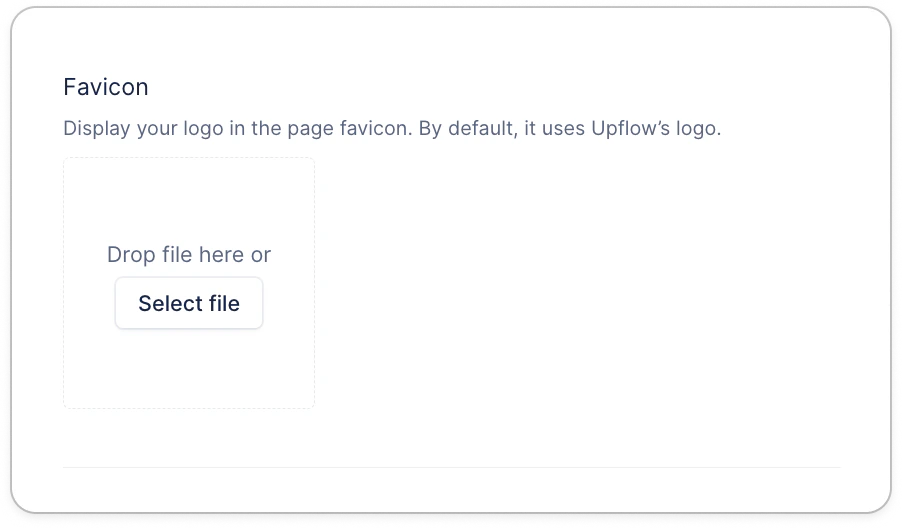 Click "Select file" and select your logo in your computer's files.
Then, it should look like this:
Click "Select file" and select your logo in your computer's files.
Then, it should look like this:
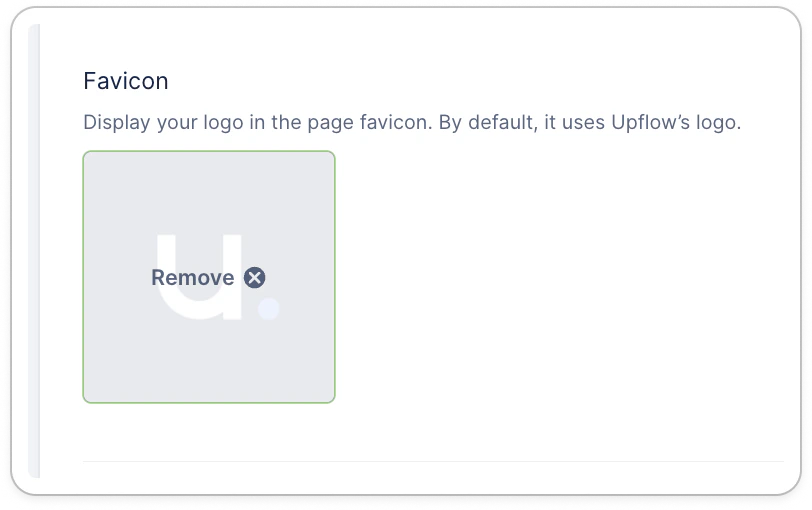 Don't forget to Save at the bottom of the page! You can now refresh, and access a customer portal to check it's displayed as expected!
#### Notes
* The logo must be .PNG, .SVG or .ICO
* Ideally square - If less than 32, we upscale to 32x32. If more, we downscale.
* By default, we fall back on the Upflow logo.
### Customer portal URL
Still from [the Customer portal settings.](https://app.upflow.io/organization/-/settings/customer-portal) From there, you can add the domain name you would like to use, in the example below: portal.example.com.
Don't forget to Save at the bottom of the page! You can now refresh, and access a customer portal to check it's displayed as expected!
#### Notes
* The logo must be .PNG, .SVG or .ICO
* Ideally square - If less than 32, we upscale to 32x32. If more, we downscale.
* By default, we fall back on the Upflow logo.
### Customer portal URL
Still from [the Customer portal settings.](https://app.upflow.io/organization/-/settings/customer-portal) From there, you can add the domain name you would like to use, in the example below: portal.example.com.

 Once you add the domain, it will provide DNS records that your IT team should add.
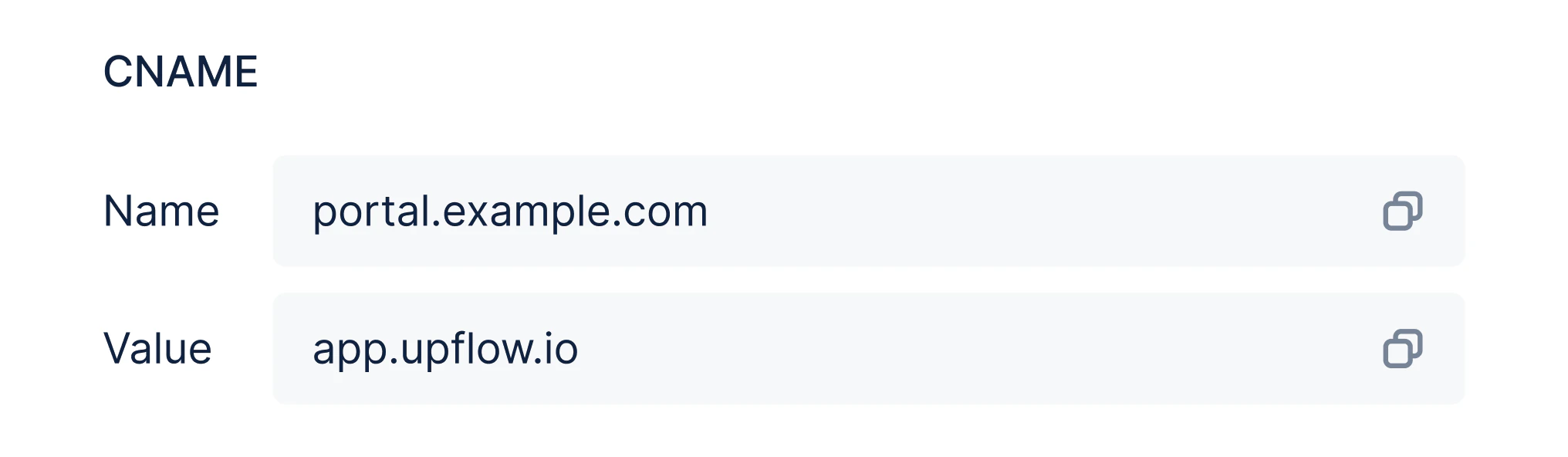 It can take up to 24 hours to propagate, but once done you should be able to click on "Verify your domain", and it should turn green:
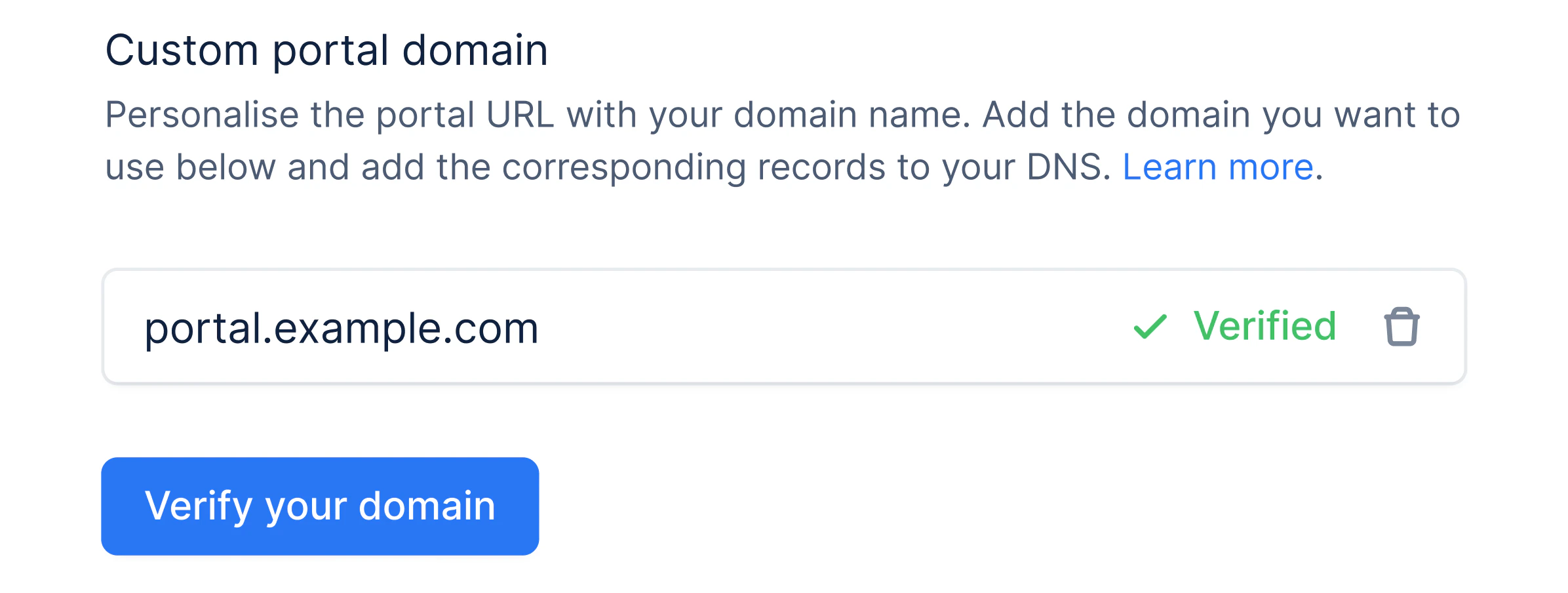 From there, you can check what it looks like by using the top-right button:
 Going forward, the portal will be accessible with URLs following this format: [https://portal.example.com/customers/xxxxxx](https://portal.example.com/customers/xxxxxx)
## FAQ
#### What if I have several organizations?
* You can use the same domain for all the portals if you have several organizations. Simply go to the other organizations' settings and add the domain name. It will be automatically validated.
#### What happens if I delete the domain?
* We will fall back on the Upflow URLs to send the portal link; however, unless you add a redirection, the previous links will no longer work.
#### I've added the CNAME record and given it time to propagate but when I click on the Preview Customer Portal button of a customer's page I encounter the following screen:
Going forward, the portal will be accessible with URLs following this format: [https://portal.example.com/customers/xxxxxx](https://portal.example.com/customers/xxxxxx)
## FAQ
#### What if I have several organizations?
* You can use the same domain for all the portals if you have several organizations. Simply go to the other organizations' settings and add the domain name. It will be automatically validated.
#### What happens if I delete the domain?
* We will fall back on the Upflow URLs to send the portal link; however, unless you add a redirection, the previous links will no longer work.
#### I've added the CNAME record and given it time to propagate but when I click on the Preview Customer Portal button of a customer's page I encounter the following screen:
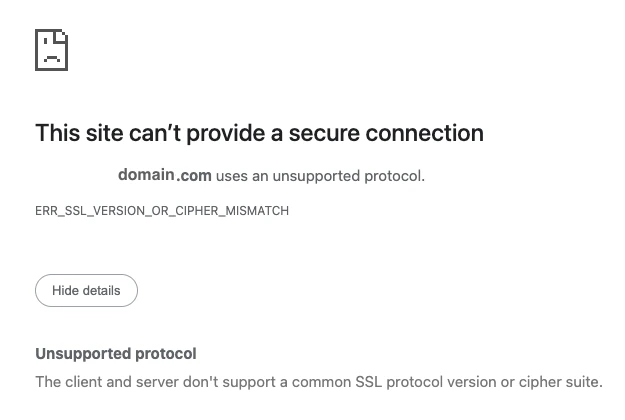 * Please check whether there is an existing CAA record for the domain.
If so, you can either delete the record or add the following Upflow CAA record:
CAA 0 issue pki.goog
* Once added, please click on the Verify Your Domain button found on your Customer Portal settings page on Upflow to refresh the custom web domain.
* Please check whether there is an existing CAA record for the domain.
If so, you can either delete the record or add the following Upflow CAA record:
CAA 0 issue pki.goog
* Once added, please click on the Verify Your Domain button found on your Customer Portal settings page on Upflow to refresh the custom web domain.