> ## Documentation Index
> Fetch the complete documentation index at: https://docs.upflow.io/llms.txt
> Use this file to discover all available pages before exploring further.
# How to update an invoice PDF via API
> Upload or replace an invoice PDF on an existing Upflow invoice through the API so customers always receive the latest billing document on their portal.
Our [API](https://developer.upflow.io/) allows you to programmatically perform functions and operations outside of the Upflow UI, such as creating or updating a new customer, invoice, customer contact, etc.
In this case, you can use our [Upload Invoice PDF endpoint](https://developer.upflow.io/#tag/invoices/POST/invoices/%7BinvoiceId%7D/pdf) if you have an invoice PDF already generated by your integration but which needs updating or if you have an invoice but no downloadable PDF available to your customer. (We recommend there always be an up-to-date invoice PDF per invoice.)
There are two ways to upload or update the PDF of an existing invoice via the API:
* send the PDF in a multipart/form-data request (i.e. a regular "file upload" in HTML)
* send a JSON request with the file encoded in base64
Both of these alternatives require the following endpoint:
**POST** `https://api.upflow.io/v1/invoices/{invoiceId}/pdf`
**Note: If you're referring to the invoice's external id, 'invoiceid' in the Call URL above would be replaced by 'external:XXXXX' \[**[**https://api.upflow.io/v1/invoices/external:XXXXX/pdf**](https://upflow.docs.apiary.io/#reference/0/invoices/upload-invoice-pdf)**]**
***HEADERS***
**X-API-KEY:** YOUR\_API\_KEY
**X-API-SECRET:** YOUR\_API\_SECRET
**CONTENT-TYPE:** MULTIPART/FORM-DATA *OR* APPLICATION/JSON
**ATTRIBUTES**
data : *string*
base64 string for PDF file, mandatory when using the application/json content-type
'JVBERi0xLjYNJeLjz9MNCjE5IDAgb2JqDTw8L0Zp...DSUlRU9GDQ==...'
file : *string*
The file must be provided as the value of a form field named "file", with any filename, when using the multipart/form-data content-type.
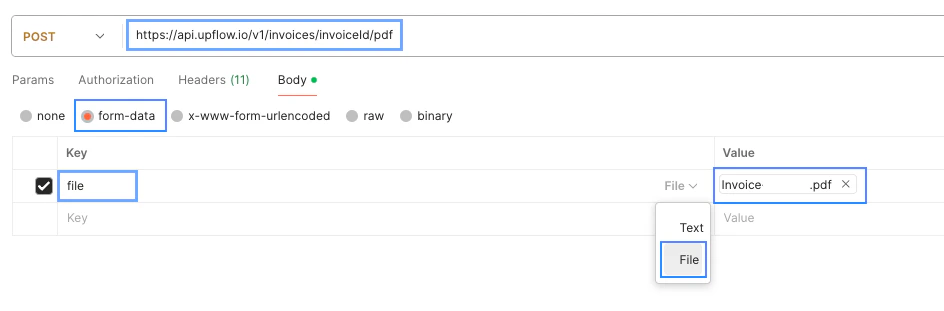
**1.** If you're updating the invoice PDF via a **form-data request** , follow the format shown below where you select the PDF file as the value of the key named 'file':
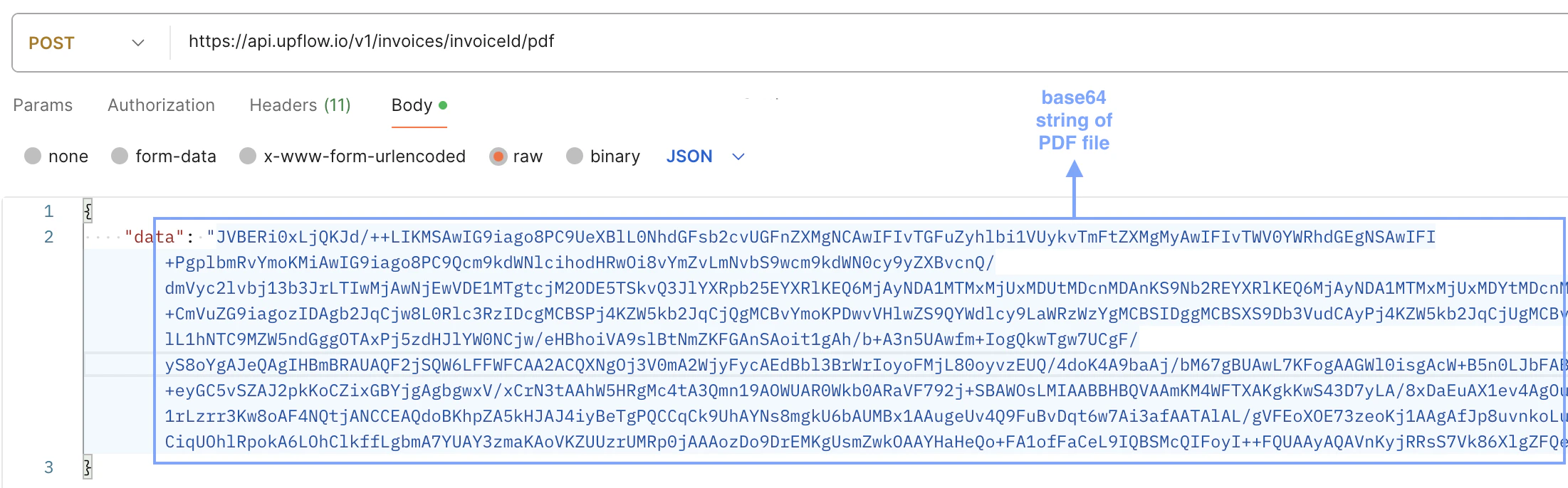
 **2.** If you're updating the invoice PDF via a **JSON request** with the file encoded in base64, follow the format below where the body of the request contains a single key: "data" followed by the string of the encoded file:
 3. The response will yield a 204 Status indicating the server successfully processed the request, although no content will be returned.
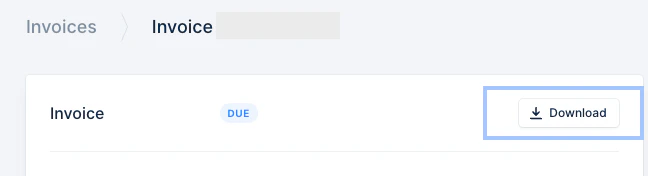
You can verify the PDF was successfully updated by visiting the invoice page on the Upflow UI and clicking on the Download button:
3. The response will yield a 204 Status indicating the server successfully processed the request, although no content will be returned.
You can verify the PDF was successfully updated by visiting the invoice page on the Upflow UI and clicking on the Download button:
 **FAQ:**
* What happens to the PDFs extracted through our native integration once the invoice PDF is updated through the API?
The PDF extracted from the integration is bypassed.
**FAQ:**
* What happens to the PDFs extracted through our native integration once the invoice PDF is updated through the API?
The PDF extracted from the integration is bypassed.