> ## Documentation Index
> Fetch the complete documentation index at: https://docs.upflow.io/llms.txt
> Use this file to discover all available pages before exploring further.
# Your Credit notes in Upflow
> Browse, filter and reconcile every customer credit note in Upflow from the dedicated Credit Notes tab and understand how they offset open balances.
## Credit notes list view
Find all your credit notes (credit memos) under the [Invoices list view > Credit Notes tab](https://app.upflow.io/organization/-/creditnotes):
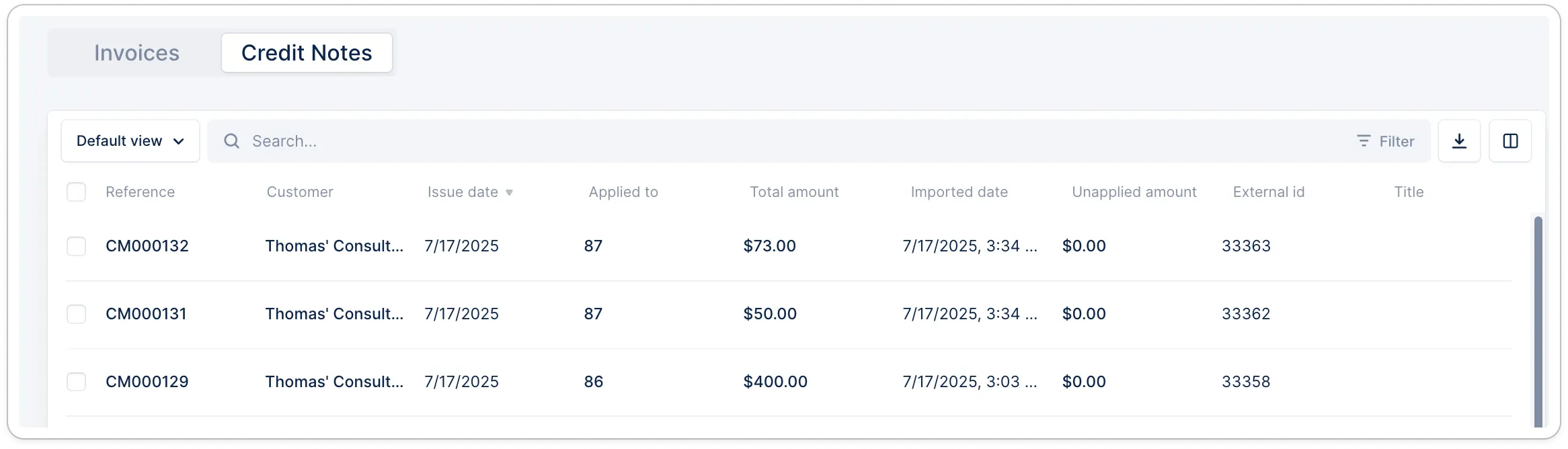 All credit notes imported/synced from your billing tool will be displayed in this list view.
You can filter them based on different information (learn more here: [Filters in Upflow](/en-us/upflow-configuration/organization-configuration/filters)).
* Add, remove, reorder columns\* to your needs and save the view to find this format later.
* Export the (filtered) list.
All credit notes imported/synced from your billing tool will be displayed in this list view.
You can filter them based on different information (learn more here: [Filters in Upflow](/en-us/upflow-configuration/organization-configuration/filters)).
* Add, remove, reorder columns\* to your needs and save the view to find this format later.
* Export the (filtered) list.
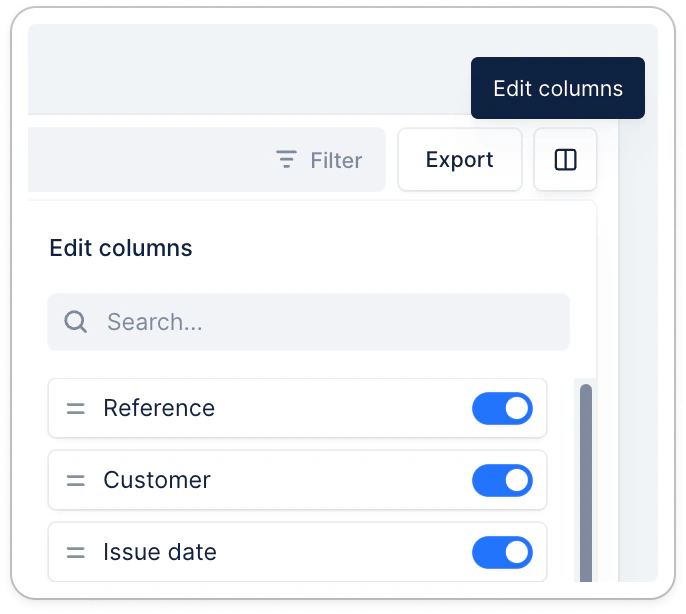 ### \*Available credit note fields
| **Field name** | **Description** |
| ---------------- | -------------------------------------------------------------- |
| Reference | The credit note reference in your source system |
| Customer | The customer the credit note is applied to |
| Issue date | Based on the date filled in your source system |
| Applied to | The reference the credit note is applied to (invoice, payment) |
| Total amount | Credit note’s total amount when issued |
| Unapplied amount | Amount unapplied to any references, left to apply |
| Imported date | Date and time the credit note was synced into Upflow |
| External ID | Credit note ID from your source system |
| Title | If any synced from your source system |
## Credit notes - Customer page
### \*Available credit note fields
| **Field name** | **Description** |
| ---------------- | -------------------------------------------------------------- |
| Reference | The credit note reference in your source system |
| Customer | The customer the credit note is applied to |
| Issue date | Based on the date filled in your source system |
| Applied to | The reference the credit note is applied to (invoice, payment) |
| Total amount | Credit note’s total amount when issued |
| Unapplied amount | Amount unapplied to any references, left to apply |
| Imported date | Date and time the credit note was synced into Upflow |
| External ID | Credit note ID from your source system |
| Title | If any synced from your source system |
## Credit notes - Customer page
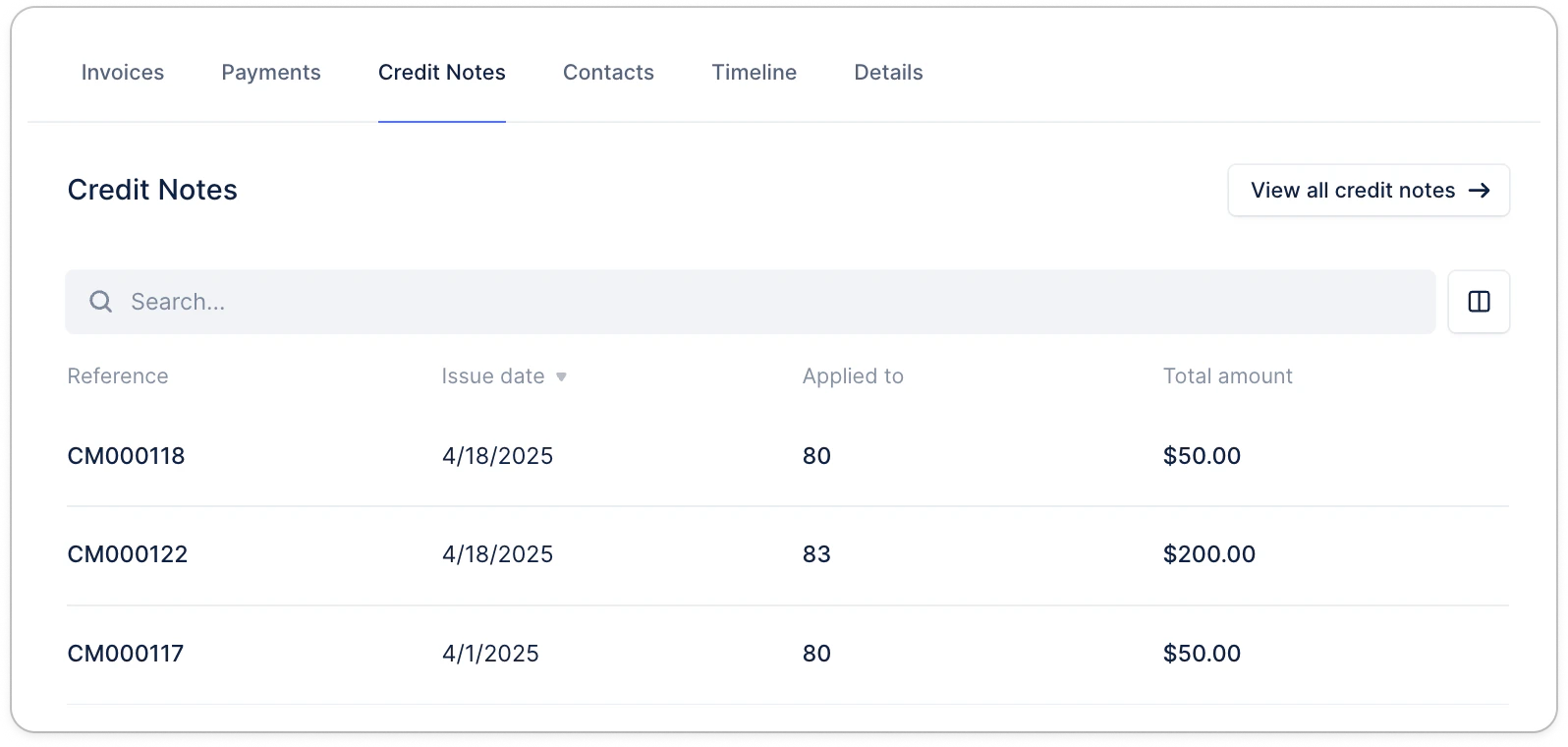 From your customer's detail page, click the Credit Notes tab at the top right to see all their related references. There, you can rearrange the available columns as in the list view. And search for a specific reference if there are more than 10 references.
Click "View all credit notes" to be redirected to the list view, filtered on this customer.
## Credit notes - Customer portal
In your customer portals, credit notes are currently available based on their application.
Applied credit notes PDFs are by default merged with the related invoice(s) PDFs when downloaded from the portal. They're not yet visible in a dedicated section.
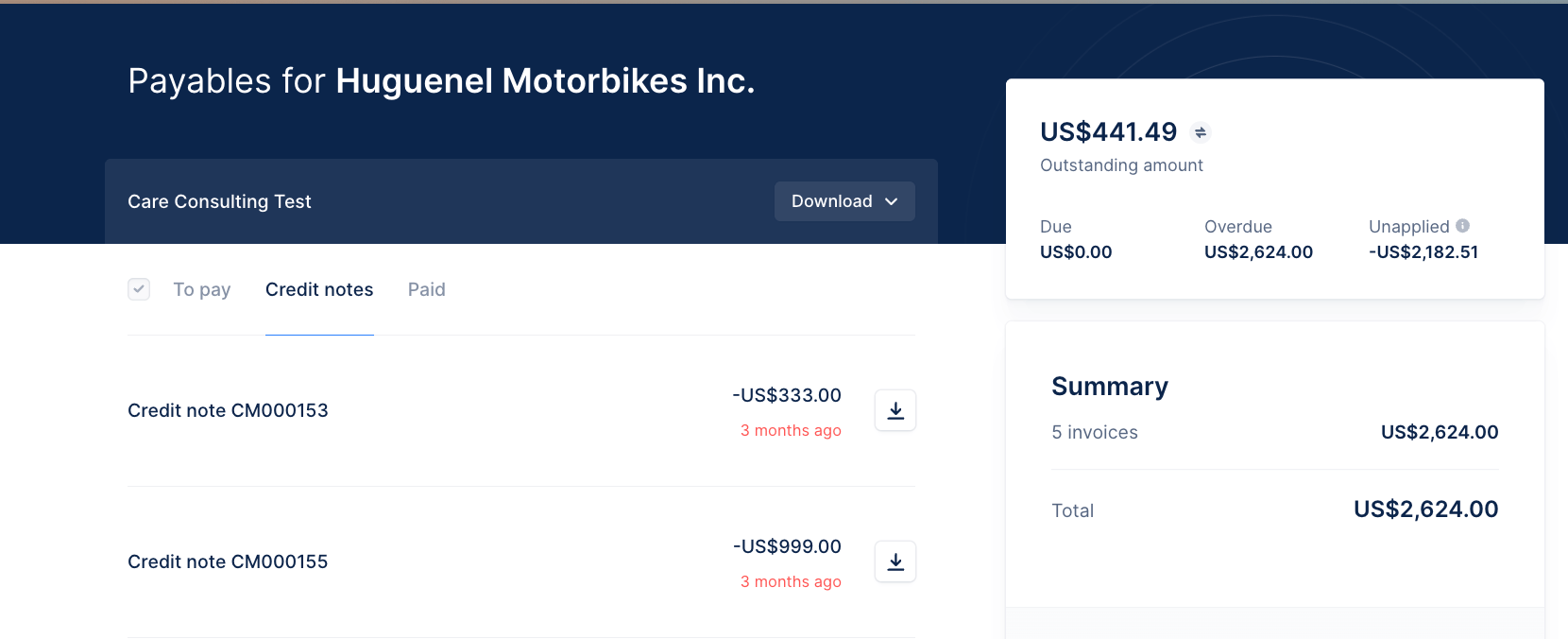
Unapplied (or not fully applied) credit notes, are visible in a dedicated section for information, but can't be applied from the portal. They must be applied from your source of truth.
From your customer's detail page, click the Credit Notes tab at the top right to see all their related references. There, you can rearrange the available columns as in the list view. And search for a specific reference if there are more than 10 references.
Click "View all credit notes" to be redirected to the list view, filtered on this customer.
## Credit notes - Customer portal
In your customer portals, credit notes are currently available based on their application.
Applied credit notes PDFs are by default merged with the related invoice(s) PDFs when downloaded from the portal. They're not yet visible in a dedicated section.
Unapplied (or not fully applied) credit notes, are visible in a dedicated section for information, but can't be applied from the portal. They must be applied from your source of truth.
 ## Troubleshooting
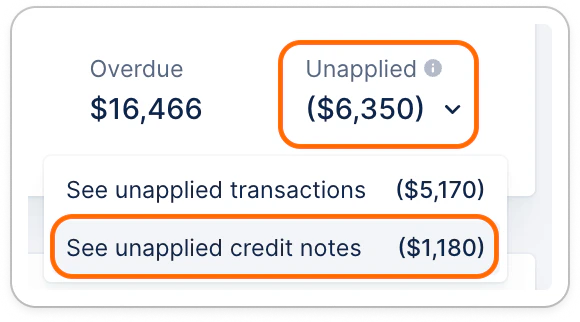
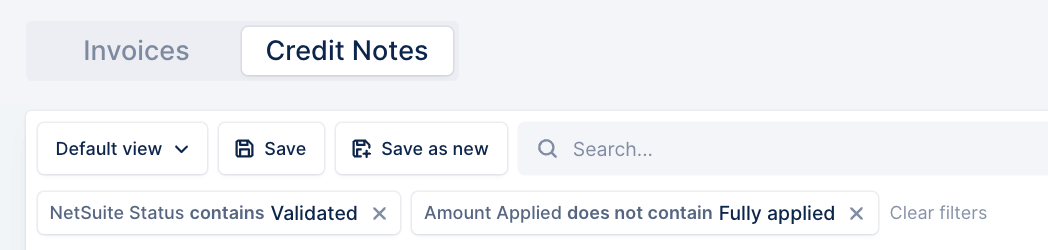
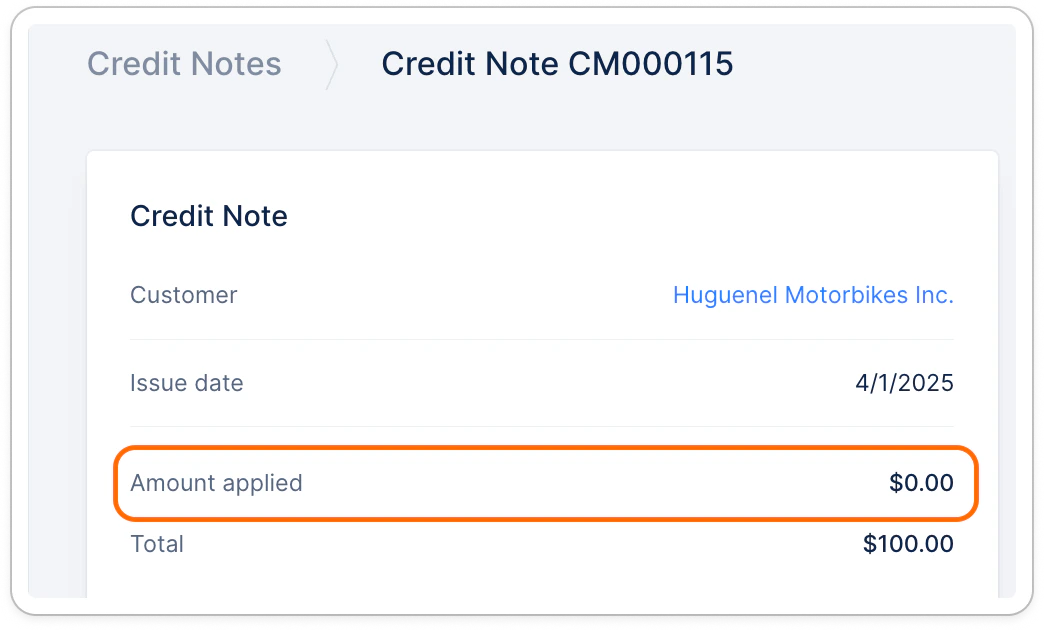
You can identify unapplied credit notes from:
## Troubleshooting
You can identify unapplied credit notes from:
 #### A credit note is missing or unexpectedly unapplied?
Head to your billing tool, check its information and submit a Support request at the top with:
* The context + identified issue
* The reference (number)
* Its external ID (+ Upflow URL if present in Upflow)
* The invoice(s) it should be linked to and the linked amount
* Any additional information you'd believe relevant here. :)
#### A credit note is missing or unexpectedly unapplied?
Head to your billing tool, check its information and submit a Support request at the top with:
* The context + identified issue
* The reference (number)
* Its external ID (+ Upflow URL if present in Upflow)
* The invoice(s) it should be linked to and the linked amount
* Any additional information you'd believe relevant here. :)