> ## Documentation Index
> Fetch the complete documentation index at: https://docs.upflow.io/llms.txt
> Use this file to discover all available pages before exploring further.
# Send emails to a custom field address
> Use an email address stored in a custom field as the recipient of your customer communications, so reminders reach the right person on each invoice or customer automatically.
Some invoices and customers need to reach a specific person — a billing contact that can differ from one invoice to the next. When that email address is stored in a custom field, you can use the field itself as the recipient, and Upflow pulls the right address every time it sends.
With this, you can:
* Use an email held in a custom field as the **To**, **Cc**, or **Bcc** of any email — in a workflow step, a template, a campaign, or a one-off email.
* Keep automated emails reaching the right person without copying the address in by hand
* Stay in sync with your source system — the field's current value is resolved each time the email is sent
## Before you start
The custom field must already exist and hold a valid email address. You can sync the value from your source system or enter it directly in Upflow.
Custom-field recipients use your existing **text** custom fields — there's no separate "email" field type to set up. See [Import and create custom fields into Upflow](/en-us/core-entities/others/import-and-create-custom-fields-into-upflow) for how to create a field or sync one from your ERP.
## Use a custom field as a recipient
1. Open the email you want to configure — a step in a [workflow](https://app.upflow.io/organization/-/settings/workflows), a [template](https://app.upflow.io/organization/-/settings/action-content-templates), a campaign, or a one-off email.
2. Click the **To**, **Cc**, or **Bcc** field to open the recipient picker.
3. Your custom fields appear grouped in the list — invoice fields under **Invoice fields**, alongside your customer fields and team members. Each field shows its current value so you can confirm the address.
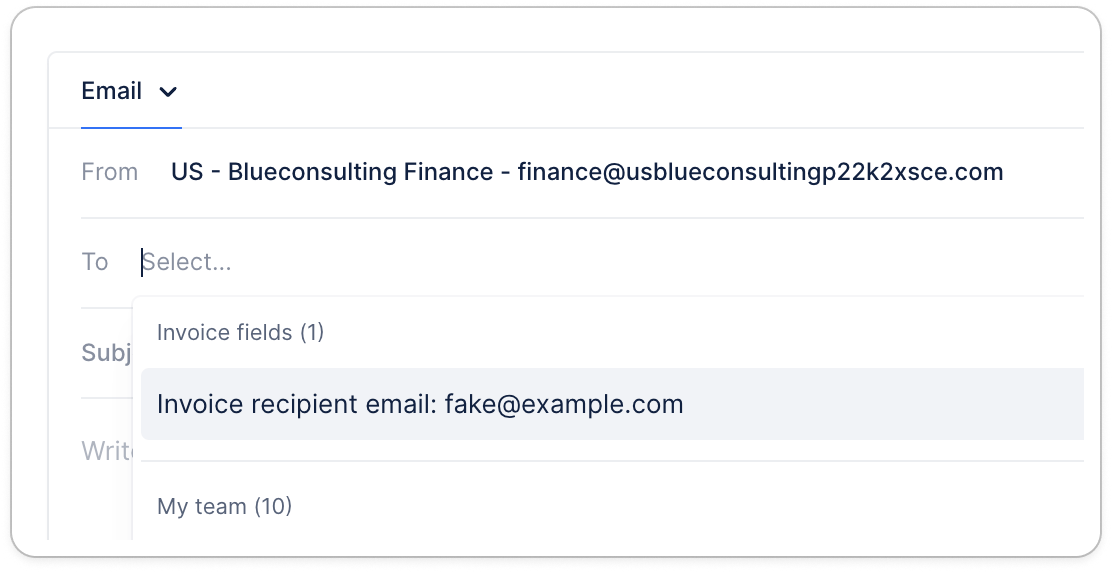 4. Select the field. Upflow uses that field's value as the recipient, resolving the current address on each invoice or customer every time the email is sent.
A custom-field recipient is treated like any other typed-in email address: no contact is created, and nothing is added to the customer's contact list.
4. Select the field. Upflow uses that field's value as the recipient, resolving the current address on each invoice or customer every time the email is sent.
A custom-field recipient is treated like any other typed-in email address: no contact is created, and nothing is added to the customer's contact list.
## When a field is empty or invalid
Upflow normalizes and validates the field's value at send time.
* **Automatic actions** fall back to manual: if the field is empty or the address isn't valid, the email isn't sent automatically — it's surfaced for someone to handle manually instead.
* **Manual actions** flag the problem on the recipient — for example, *"Invoice recipient email" is missing or invalid*. Update the field's value to fix it.
If a message is sent but can't be delivered, it appears in the [Action emails not delivered](/en-us/collection-and-collaboration/emails/action-emails-not-delivered) widget as an *invalid email* — not an invalid contact, since the address doesn't belong to a contact. To resolve it, correct the value in the custom field.
## Good to know
Both customer and invoice custom fields can be used as recipients:
* **Customer fields** work everywhere — in both customer and invoice workflows.
* **Invoice fields** read the address from the invoice the email is about, so they're available wherever an invoice is in context: invoice workflows, one-off invoice emails, and the billing step of a customer workflow.
On a customer level workflow step — which isn't tied to a single invoice — use a customer field. If an invoice field is used in a template that runs there with no invoice in context, the email falls back to a manual action so you can choose the recipient.
## Related articles
* [Import and create custom fields into Upflow](/en-us/core-entities/others/import-and-create-custom-fields-into-upflow)
* [Customize Collection Reminders](/en-us/collection-and-collaboration/workflows-customize-your-collection/customize-collection-reminders)
* [Templates](/en-us/collection-and-collaboration/collaboration/templates)
* [Action emails not delivered](/en-us/collection-and-collaboration/emails/action-emails-not-delivered)