> ## Documentation Index
> Fetch the complete documentation index at: https://docs.upflow.io/llms.txt
> Use this file to discover all available pages before exploring further.
# Action types - Collection Reminders
> Mix emails, calls, SMS, tasks and letters in Upflow workflows, choose between automatic and manual actions, and escalate your dunning cycle for better recovery results.
When managing your Actions to create the perfect communication with your customers, define the type of each reminder you want to send through your cash collection cycle. Combine multiple channels to serve your goals—escalating from emails to phone calls—and get better results!
You will be able to choose between automatic and manual actions. The first type will roll in the background with nothing else but their setup to do, while the second requires their owner to complete them.
| Screenshot | Step |
| --------------------------------------------------------------------------------------------------------------------------------------------------------------------------------------------------------------------------------------------------------------------------------------------------------------------------------------------------------------------------------------------------------------------------------------------------------------------------------------------------------------------------------------------------------------------------------------------------------------------------------------------------------------------------------------------------------------------------------------------------------------------------------------------------------------------------------------------------------------------------------------------------------------------------------------------------------------------------------------------------------------------------------------------------------------------------------------------------------------------------------------------------------------------------------------------------------------------------------------------------------------------------------------------------------------------------------------------------------------------------------------------------------------------------------------- | ------------------------------------------------------------------------------------------------------------------------ |
|  | Set this from any Workflow's configuration panel, either by clicking on an existing action or creating one from scratch. |
|
| Set this from any Workflow's configuration panel, either by clicking on an existing action or creating one from scratch. |
|  | Select your preferred type from the eponymous field. |
|
| Select your preferred type from the eponymous field. |
|  | Select whether it should be automated or not (when available). |
Actions will be triggered and/or sent out following the conditions you defined and your organization's settings:
* Trigger- time elapsed (in days) since the carrying invoice's issue/due date
| Select whether it should be automated or not (when available). |
Actions will be triggered and/or sent out following the conditions you defined and your organization's settings:
* Trigger- time elapsed (in days) since the carrying invoice's issue/due date
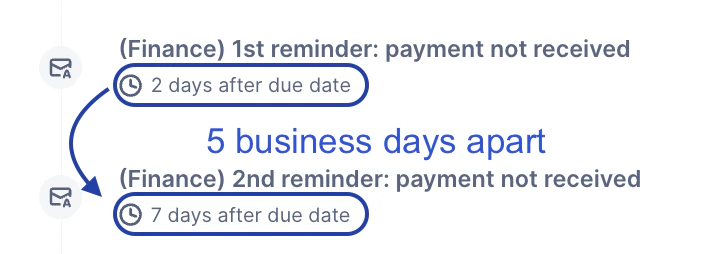 * Minimum contact delay- time elapsed since the execution of the workflow's previous action
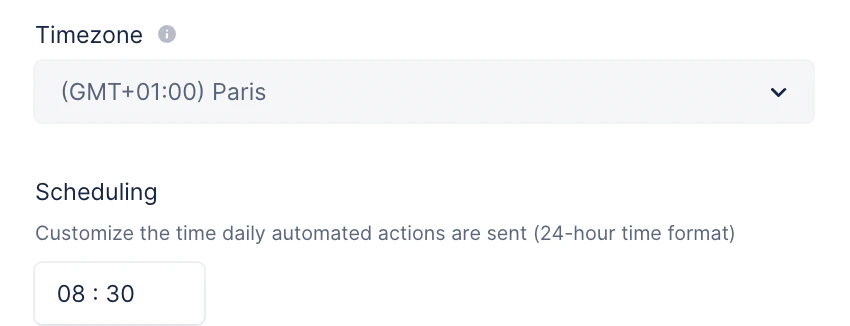
 * [Schedule](https://app.upflow.io/organization/-/settings/company)- Your desired time of the day for automatic actions to be sent
 Refer to this [dedicated article to learn more about automatic actions](/en-us/collection-and-collaboration/workflows-customize-your-collection/sending-automatic-actions).
#### Important for both manual and automatic actions:
Note that if the trigger between two actions is less than the minimum contact delay, the latter will be the one applied. For example, there is a 3-day delay between Action 1 and Action 2, while the minimum contact delay is 5 days. Then, Action 2 will be triggered 5 days after Action 1, not 3 days.
### Manual actions
Displayed on their owner’s Actions tab from their due completion date, these actions must be validated or skipped. The workflow remains stuck at this step until then. They can be entirely reviewed and updated from a type change to a content update, including document attachments or notes logging.
❗Even as an admin, if you are not an action’s owner, you will neither see it on the actions list nor be able to complete it from the customer’s details.
| **Type** | **Description** | **To populate** | **Trackable** |
| ----------- | ----------------------------------------------------------------------------------------------------------------------------------------------------------------------------------------------------------------- | ------------------------------------------------------------------------------------------- | -------------------------------------------------------------------------------------------------- |
| **Emails** | Set up like their automated version, you can choose the sender via the **From** field. Select your profile or an alias. |
Refer to this [dedicated article to learn more about automatic actions](/en-us/collection-and-collaboration/workflows-customize-your-collection/sending-automatic-actions).
#### Important for both manual and automatic actions:
Note that if the trigger between two actions is less than the minimum contact delay, the latter will be the one applied. For example, there is a 3-day delay between Action 1 and Action 2, while the minimum contact delay is 5 days. Then, Action 2 will be triggered 5 days after Action 1, not 3 days.
### Manual actions
Displayed on their owner’s Actions tab from their due completion date, these actions must be validated or skipped. The workflow remains stuck at this step until then. They can be entirely reviewed and updated from a type change to a content update, including document attachments or notes logging.
❗Even as an admin, if you are not an action’s owner, you will neither see it on the actions list nor be able to complete it from the customer’s details.
| **Type** | **Description** | **To populate** | **Trackable** |
| ----------- | ----------------------------------------------------------------------------------------------------------------------------------------------------------------------------------------------------------------- | ------------------------------------------------------------------------------------------- | -------------------------------------------------------------------------------------------------- |
| **Emails** | Set up like their automated version, you can choose the sender via the **From** field. Select your profile or an alias. | - Recipient(s)
- CCed/BCCed address(es)
- Title
- Message
| Per recipient:- Sending
- Reception
- Bounced / failed
- Opening
|
| **SMS** | With a higher opening rate than emails, they enable a less formal contact as thoroughly tracked. This feature comes with [fees](/en-us/collection-and-collaboration/sms/sms-reminders-pricing). | - Message
- Sent to the main contact only
| - Sending
- Reception
- Failure
- Opening
|
| **Calls** | Calls work as reminders. They do not allow you to phone from your organization but display a script for their owners to complete with their notes. | | |
| **Letters** | Formalize the conversation tone. You can also send registered letters — for past due notices, for instance. This feature comes with [fees](/en-us/collection-and-collaboration/letters/postal-reminders-pricing). | | - Sending
- Reception
- Failure
- Return to sender
|
| **Tasks** | Destined to the assigned owner and not the client. The former are reminded of the expected behavior (limit access to a service, notify another team…) and can log their feedback before completing. | | |
💡 Review your completed actions and measure their efficiency from their list, your customers’ and invoices’ timelines, or the dedicated Analytics widget!
Do you still have a question? [Submit a Support request](https://support.upflow.io/hc/en-us/requests/new)!