> ## Documentation Index
> Fetch the complete documentation index at: https://docs.upflow.io/llms.txt
> Use this file to discover all available pages before exploring further.
# Invoice smart rules
> Automate invoice-level processes in Upflow with smart rules triggered on creation or update, then filter and apply actions tailored to your collection logic.
To discover and understand our smart rules logic and behavior, we invite you to read [Smart rules](/en-us/collection-and-collaboration/smart-rules/smart-rules) first.
Invoice smart rules apply to any invoice on Upflow.
## Triggers
| **Trigger** | **Description** |
| ----------------------------- | ----------------------------------------------- |
| Invoice is created | Triggered when an invoice is created |
| Invoice is created or updated | Triggered when an invoice is created or updated |
## Filters
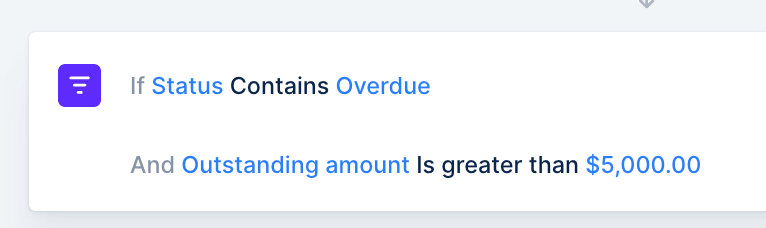
You can then add the specific filters/conditions this rule should follow to be applied. You can add as many conditions as you want, and those conditions will be additive (Condition 1 AND Condition 2).
* If Status contains Overdue **And** Outstanding amount is greater than \$5k, **THEN**...
 Within the same field, multiple values will not be complementary\*, but independent from each other:
* If Status contains Due **Or** Overdue, then...
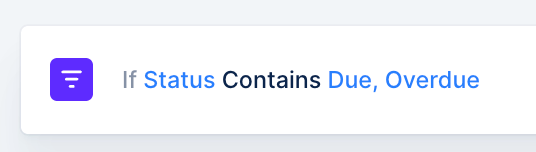
Within the same field, multiple values will not be complementary\*, but independent from each other:
* If Status contains Due **Or** Overdue, then...
 ### Available filters
* Customer
* Status
* Due date
* Outstanding amount
* Paid amount
* Total amount
* Aging bucket
* Currency
* Issue date
* Payment date
* Workflow name
* Invoice visibility
* *Custom fields*
→ Filters related to the promise to pay status are not supported.
## Actions
| **Action** | **Description** | **Example scenario** |
| ------------------- | -------------------------------------------------------------------------------------------------------------- | ---------------------------------------------------------------------------------- |
| Assign a workflow | Assign a workflow to the corresponding invoice. | Assign workflows automatically depending on invoice due date. |
| Send a notification | Send a notification to the person of your choice via the channel of your choice and with personalized content. | Send a notification to the customer's CSM when the invoice is created. |
| Hide / Show invoice | Hide / Show the invoice from your customers | Hide invoices that are disputed from your customers while you resolve the dispute. |
## Delete or Deactivate a rule
### Available filters
* Customer
* Status
* Due date
* Outstanding amount
* Paid amount
* Total amount
* Aging bucket
* Currency
* Issue date
* Payment date
* Workflow name
* Invoice visibility
* *Custom fields*
→ Filters related to the promise to pay status are not supported.
## Actions
| **Action** | **Description** | **Example scenario** |
| ------------------- | -------------------------------------------------------------------------------------------------------------- | ---------------------------------------------------------------------------------- |
| Assign a workflow | Assign a workflow to the corresponding invoice. | Assign workflows automatically depending on invoice due date. |
| Send a notification | Send a notification to the person of your choice via the channel of your choice and with personalized content. | Send a notification to the customer's CSM when the invoice is created. |
| Hide / Show invoice | Hide / Show the invoice from your customers | Hide invoices that are disputed from your customers while you resolve the dispute. |
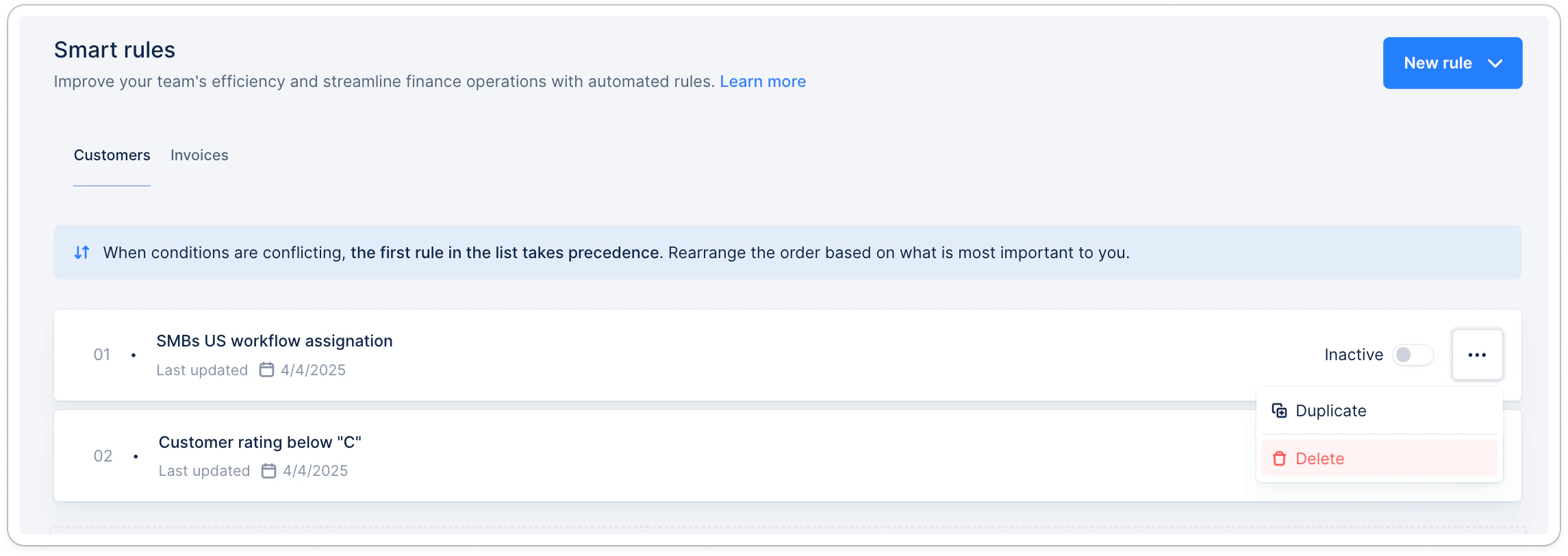
## Delete or Deactivate a rule
 ## Apply the rule to existing invoices
The rule you created will only apply to invoices matching the rule’s trigger as detailed above.
For existing invoices, you must ensure to use the option “Apply to all existing objects matching the rule’s conditions” when activating or reactivating the rule.
For more detailed examples, check [Smart Rules - Assignment Best Practice](/en-us/collection-and-collaboration/smart-rules/smart-rules-assignment-best-practice).
## Apply the rule to existing invoices
The rule you created will only apply to invoices matching the rule’s trigger as detailed above.
For existing invoices, you must ensure to use the option “Apply to all existing objects matching the rule’s conditions” when activating or reactivating the rule.
For more detailed examples, check [Smart Rules - Assignment Best Practice](/en-us/collection-and-collaboration/smart-rules/smart-rules-assignment-best-practice).