> ## Documentation Index
> Fetch the complete documentation index at: https://docs.upflow.io/llms.txt
> Use this file to discover all available pages before exploring further.
# Call recording & transcript
> Record the calls you place from Upflow and get an automatic transcript — turn recording on, start or pause it mid-call, then listen back and read the transcript from your customer's timeline.
Thanks to call recording and transcripts, you can gain visibility into previous calls and understand how they went. Once activated, all your calls can be recorded, and you are no longer left wondering how it went for your team.
This applies to calls placed from Upflow — see [Live calls from Upflow](/en-us/collection-and-collaboration/live-calls/live-calls-from-upflow) to set up and place a call.
## Activating call recording & transcripts
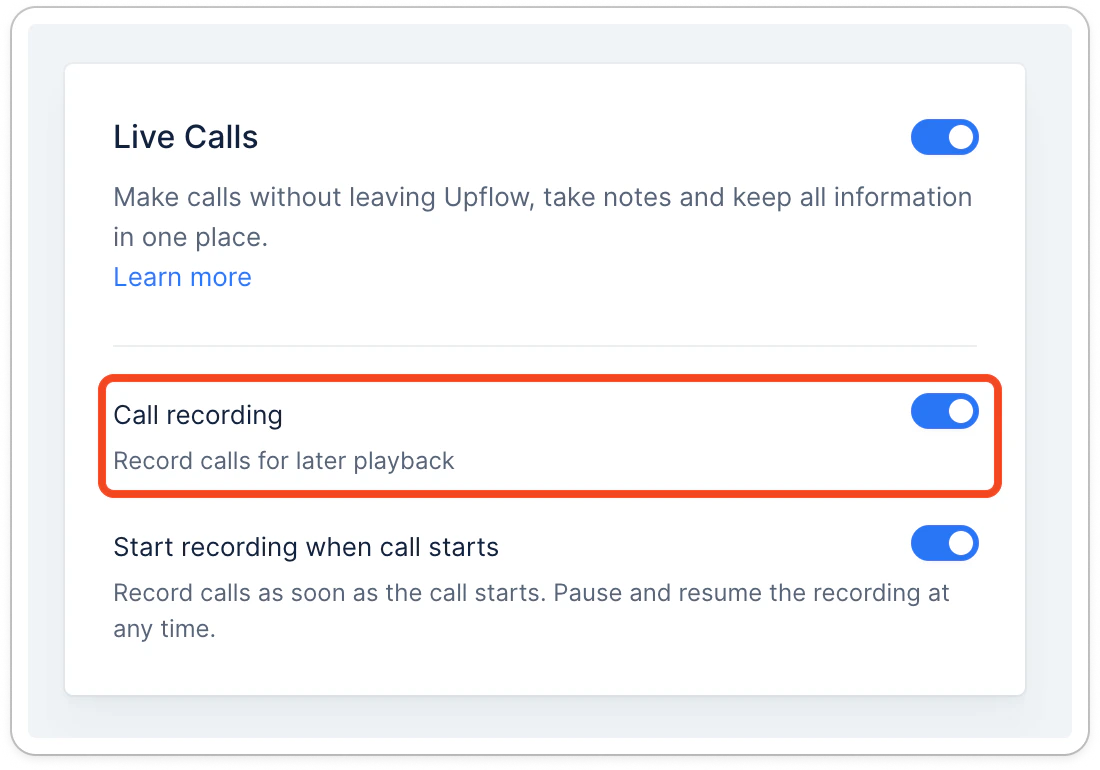
To activate that feature, head to the [calls settings](https://app.upflow.io/organization/-/settings/calls) and toggle on Call recordings. It will automatically include the transcripts. We recommend you also toggle on the *Start recording* option when the call starts, so you never forget about it.
 Recording and transcripts add a per-minute fee on top of the call itself — see [Live calls pricing](/en-us/collection-and-collaboration/live-calls/live-calls-pricing).
## Recording a call
If you haven’t activated the call recording by default, you can do so right after the call starts.
Recording and transcripts add a per-minute fee on top of the call itself — see [Live calls pricing](/en-us/collection-and-collaboration/live-calls/live-calls-pricing).
## Recording a call
If you haven’t activated the call recording by default, you can do so right after the call starts.
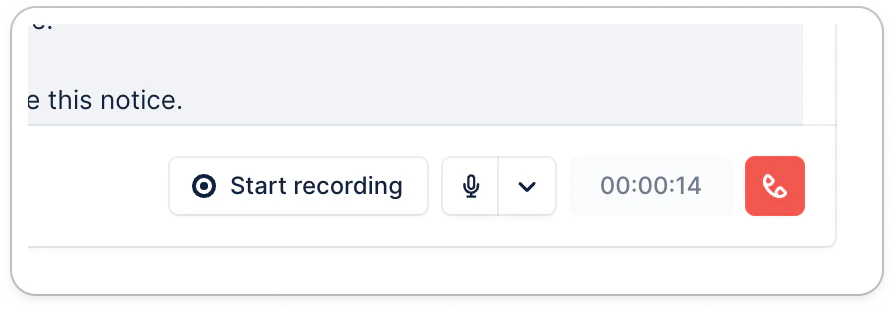 You will see a red dot next to your microphone whenever a call is being recorded.
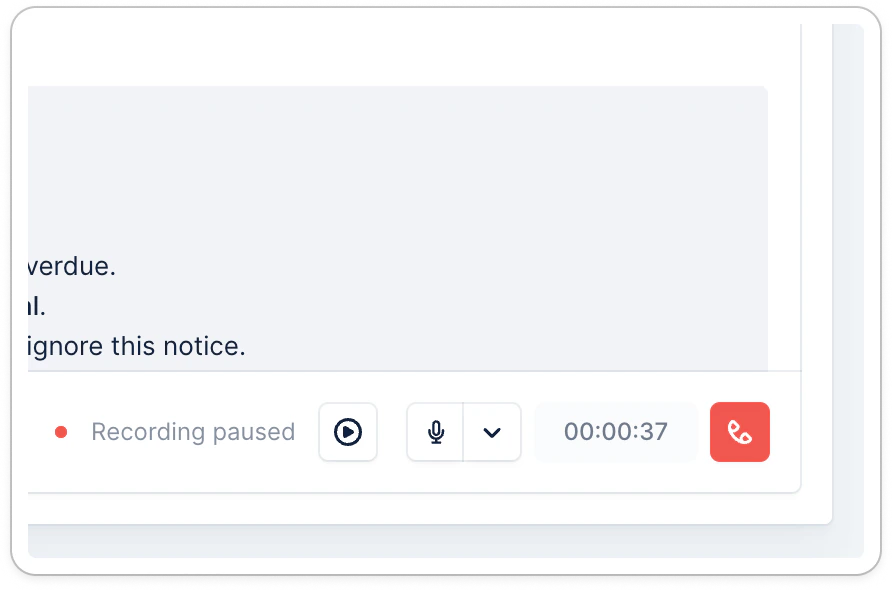
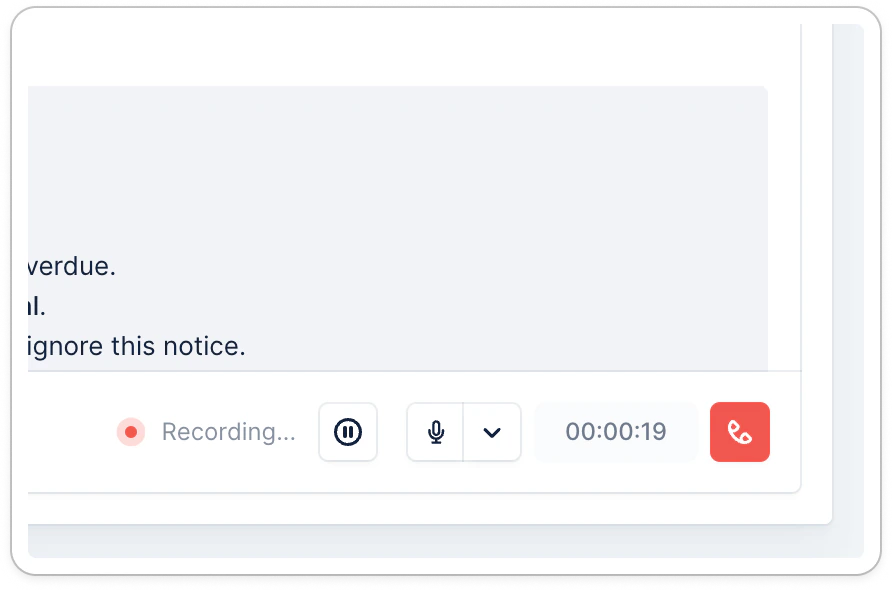 You can pause the recording at any time and restart afterward.
 There is no automatic mention that the call is being recorded. If you operate in a jurisdiction requiring bi-directional consent to recording, we recommend you tell your contact.
## Listening to call recordings
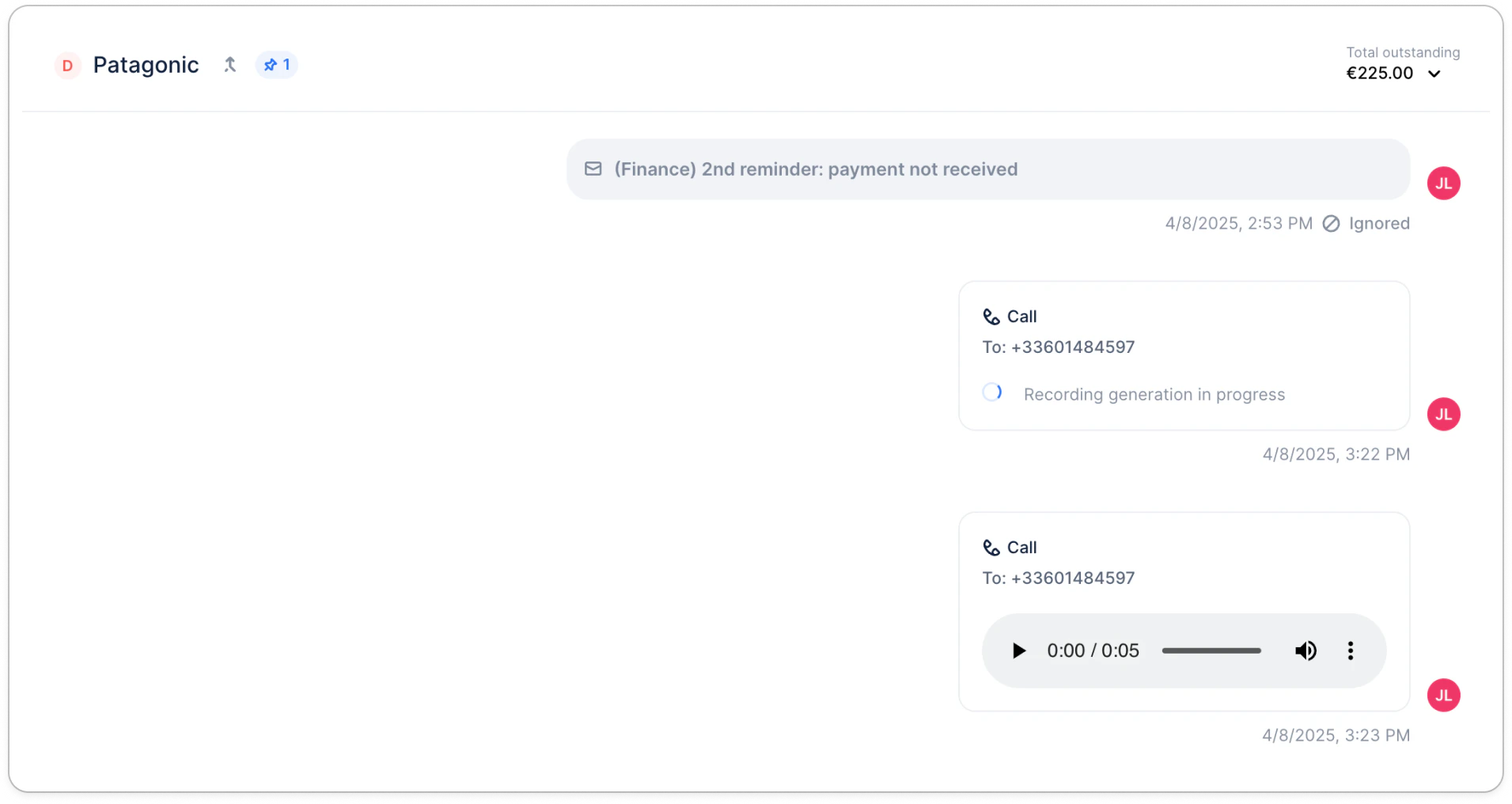
You can listen to the call recording a few seconds after the call. Head to your customer’s timeline to access it. Simply use the player to listen to each conversation:
There is no automatic mention that the call is being recorded. If you operate in a jurisdiction requiring bi-directional consent to recording, we recommend you tell your contact.
## Listening to call recordings
You can listen to the call recording a few seconds after the call. Head to your customer’s timeline to access it. Simply use the player to listen to each conversation:
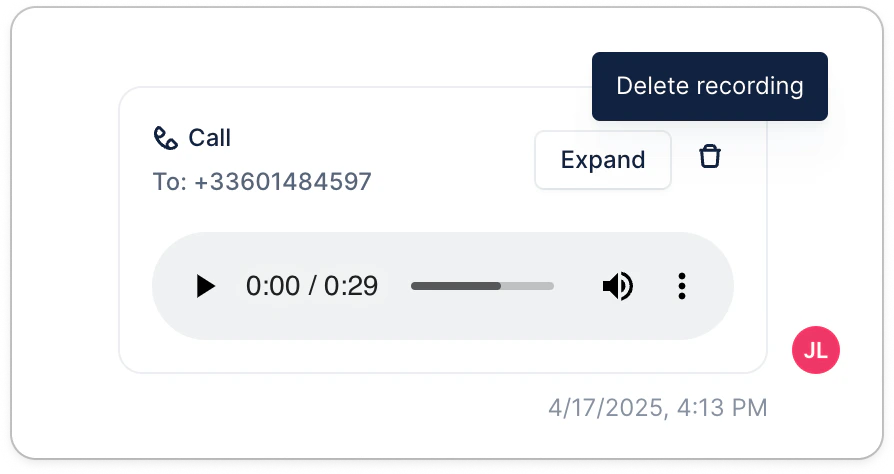
 If needed, you always have the option to delete the call recording, hit the Delete recording button to do so:
 ## Reading call transcripts
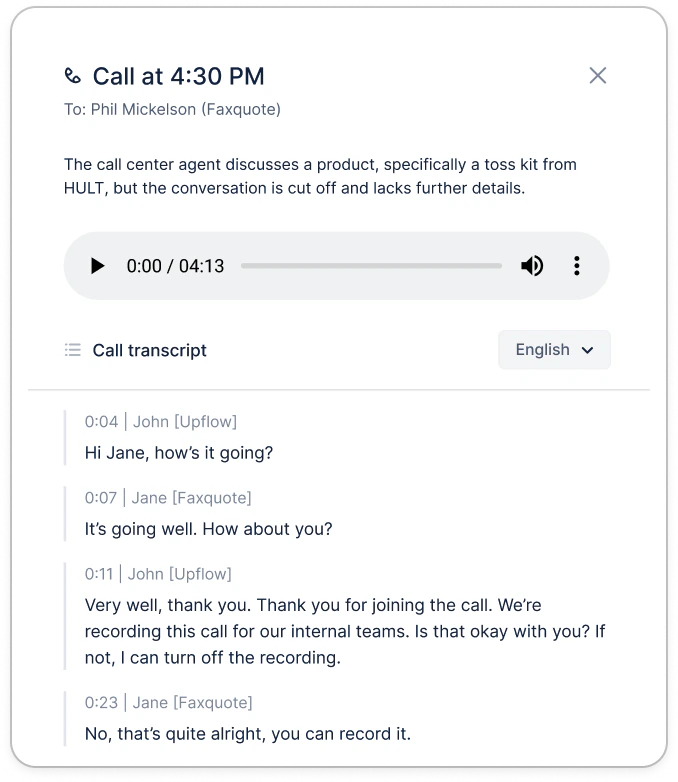
Click on the expand button to see the transcript of the call. You will be able to see what each speaker said as well as when they said it.
## Reading call transcripts
Click on the expand button to see the transcript of the call. You will be able to see what each speaker said as well as when they said it.
 Transcripts are only available in English today.
This documentation is built and hosted on [Mintlify](https://mintlify.com), a developer documentation platform.
Transcripts are only available in English today.
This documentation is built and hosted on [Mintlify](https://mintlify.com), a developer documentation platform.