> ## Documentation Index
> Fetch the complete documentation index at: https://docs.upflow.io/llms.txt
> Use this file to discover all available pages before exploring further.
# Live calls from Upflow
> Call your customers directly from Upflow without switching tools, with phone number requirements, country code formatting rules and tips to keep context across teams.
Don’t lose context as you switch tools and call your customers directly from Upflow.
## Important
Ensure your contacts have a phone number in Upflow. If they are synced from your accounting tool or Salesforce, ensure to update the phone number there. If the contact was created in Upflow, you can update their phone number manually or via CSV.
Ensure your customers' contacts have a **valid phone number, with the accurate country/area code** (+33 for France, +44 for the UK, etc.).
The phone format can contain hyphens, dashes, spaces, or none, as long as the +/country/code area are there.
## Configuration & Usage
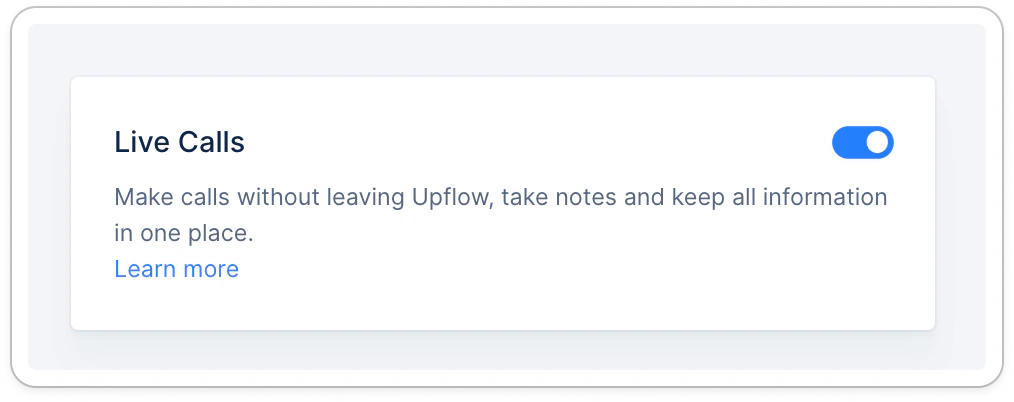
From your [Settings > Calls section](https://app.upflow.io/organization/-/settings/calls), enable the following option:
 ### Configure your call actions
From your workflow(s), add call actions and configure them based on your needs. Note that our default workflows already contain a call action.
### Configure your call actions
From your workflow(s), add call actions and configure them based on your needs. Note that our default workflows already contain a call action.
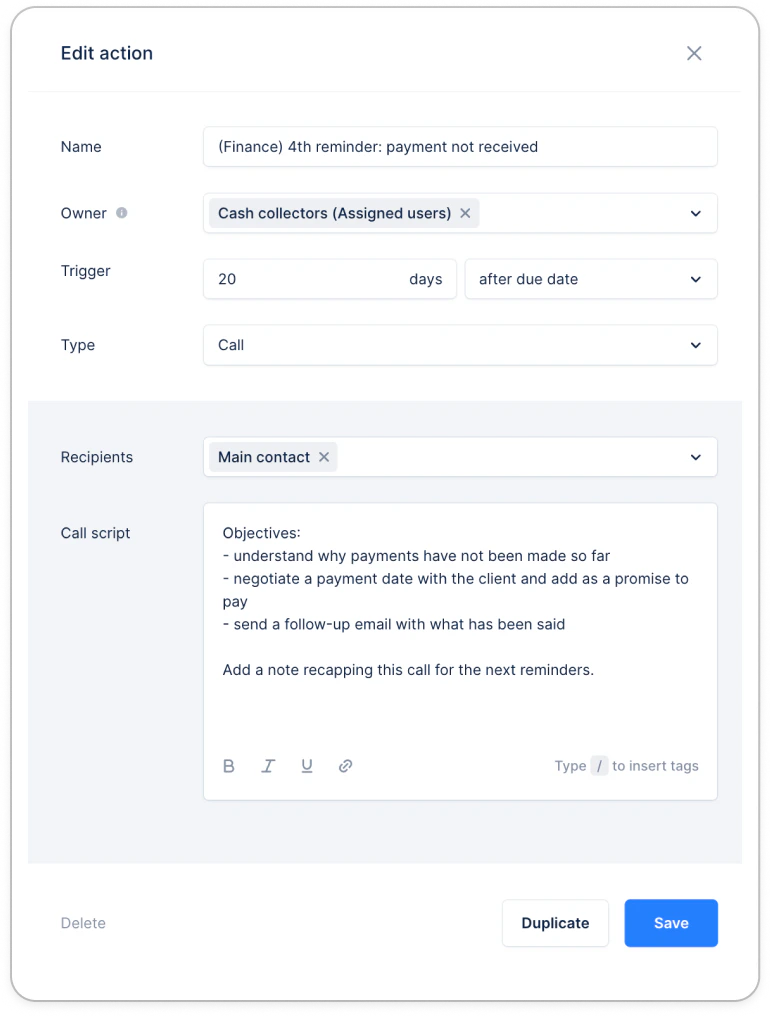 As for any other action types, name it for internal usage, select the owner(s), the trigger. Then the recipients, and type your script for your team to follow. Don't forget to Save!
### Call your customers
Within a call action, you will see the “Call now” button, hit it, and get started.
As for any other action types, name it for internal usage, select the owner(s), the trigger. Then the recipients, and type your script for your team to follow. Don't forget to Save!
### Call your customers
Within a call action, you will see the “Call now” button, hit it, and get started.
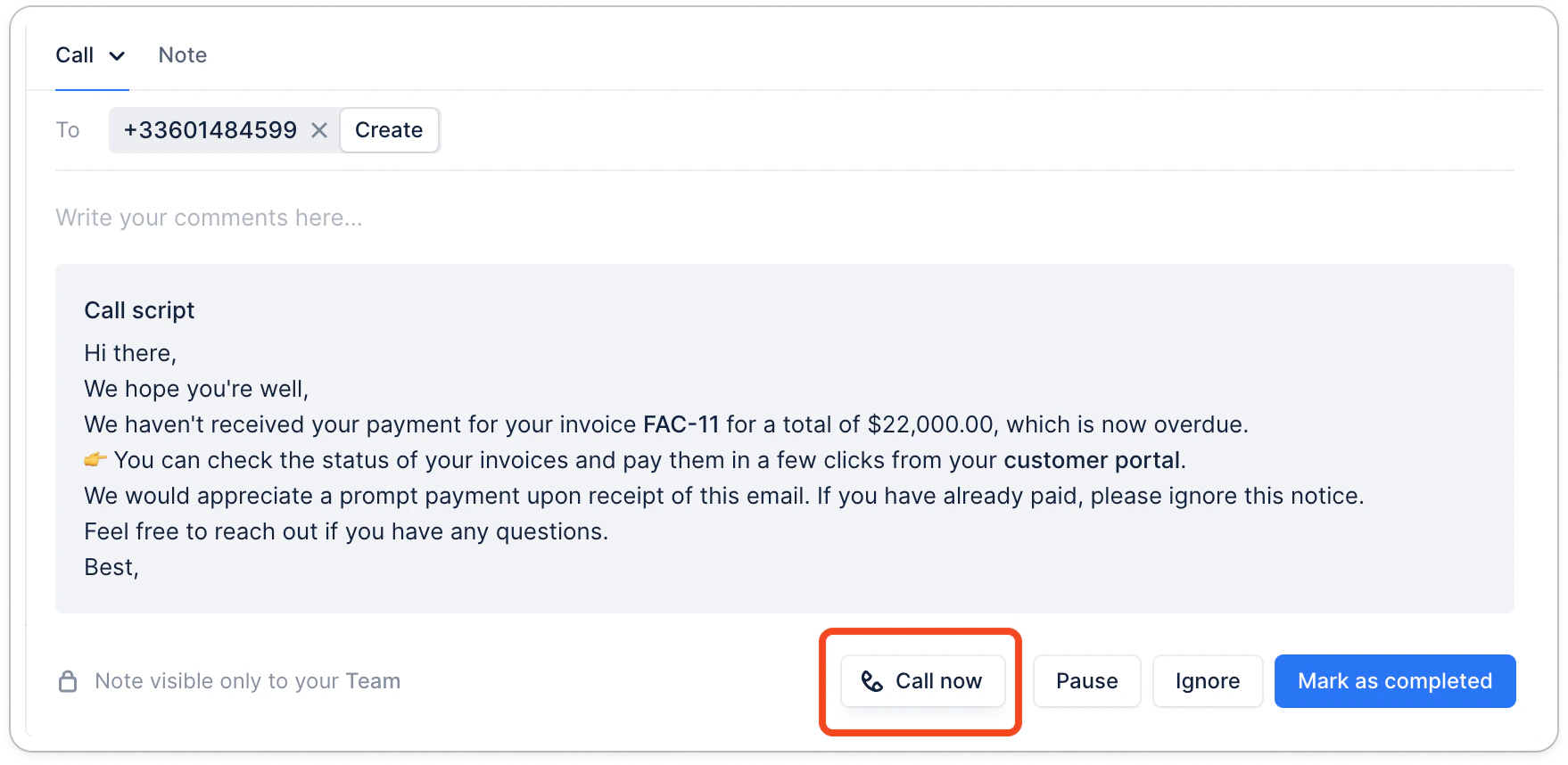 If this is not available yet, head over to your [Settings > Calls section](https://app.upflow.io/organization/-/settings/calls), and go back to your pending action.
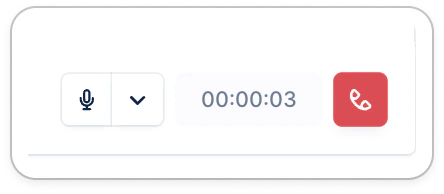
Once your call is over, click the phone icon to stop:
If this is not available yet, head over to your [Settings > Calls section](https://app.upflow.io/organization/-/settings/calls), and go back to your pending action.
Once your call is over, click the phone icon to stop:
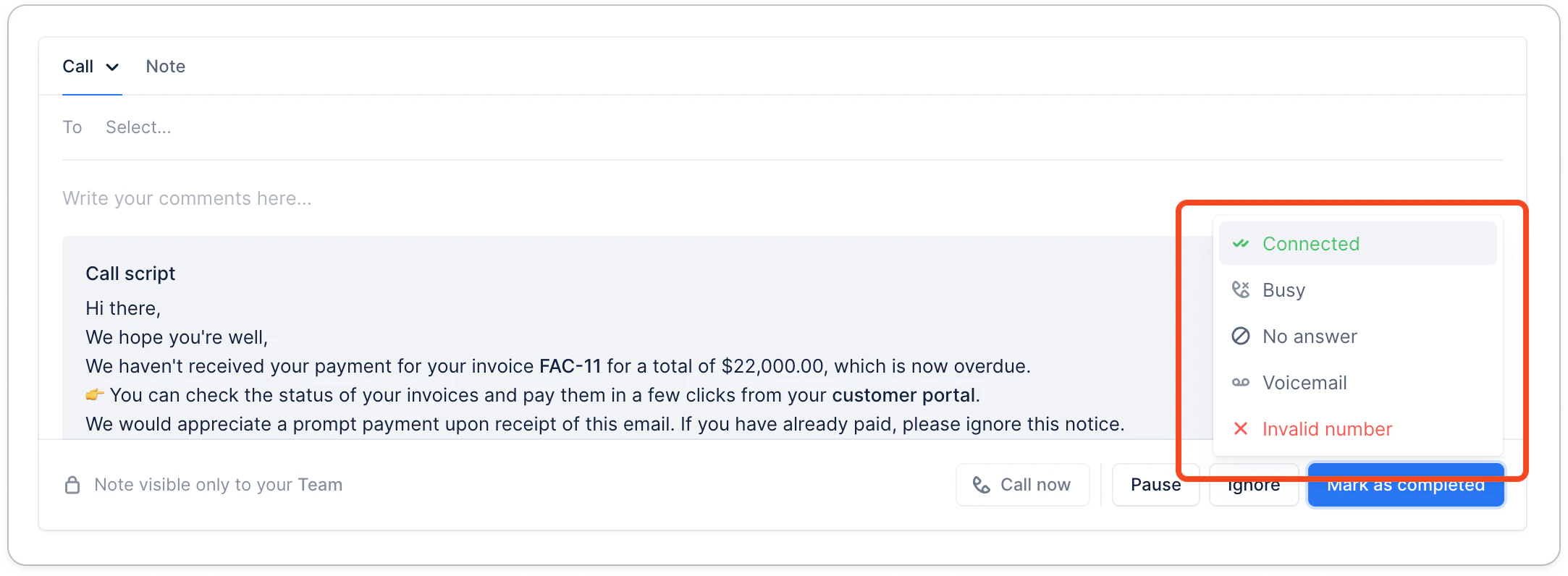
 Finally, don’t forget to close your pending action and specify the call disposition.
 Note: The first time you use this feature, we’ll request access to your microphone.
‼️ Your contacts phone number must use an international code to be called: "+XX"
## How does it work?
→ Upflow uses a 3rd-party to allow you to call your customers.
→ Those calls are initiated from a US-based phone number.
→ When you hit the call button, they will call your customers and put you through.
→ Your contacts must have a phone number with a valid international code to be reachable. (e.g. +33601483057)
→ Depending on usage, the calls are billed to you.
→ You also have the option to activate call recording and transcripts (see below).
## Call recording & transcript
Thanks to call recording and transcripts, you can gain visibility into previous calls and understand how they went. Once activated, all your calls can be recorded, and you are no longer left wondering how it went for your team.
### Activating call recording & transcripts
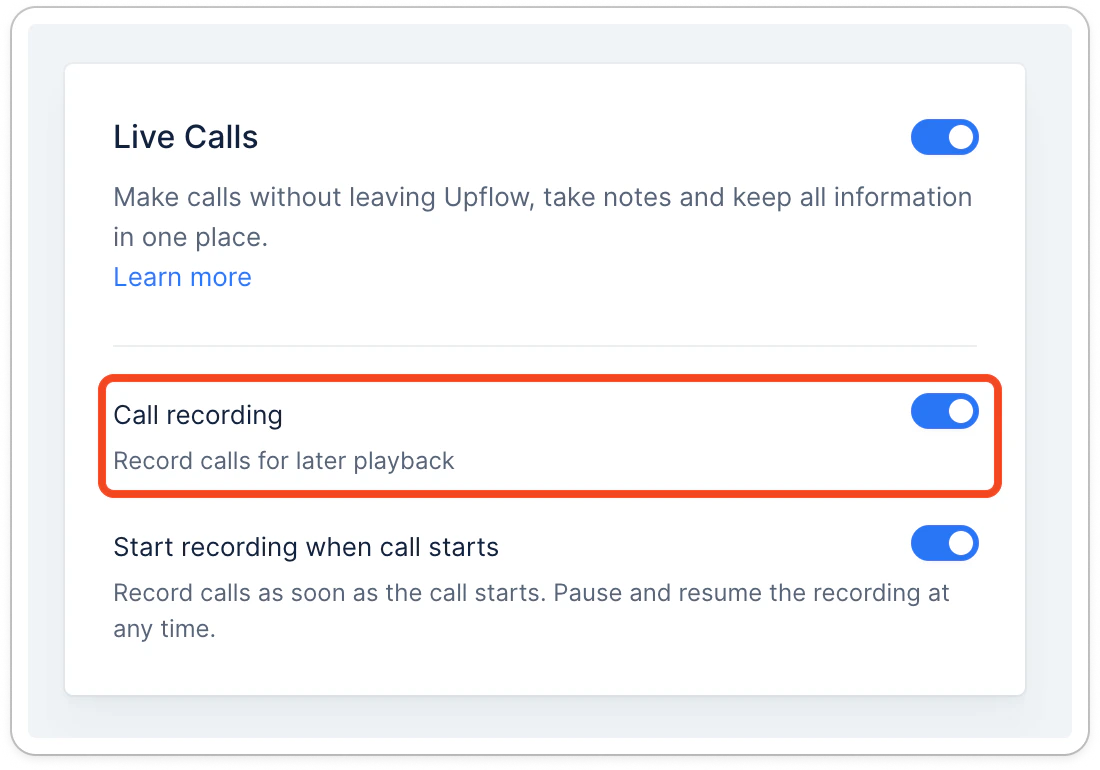
To activate that feature, head to the [calls settings](https://app.upflow.io/organization/-/settings/calls) and toggle on Call recordings. It will automatically include the transcripts. We recommend you also toggle on the *Start recording* option when the call starts, so you never forget about it.
Note: The first time you use this feature, we’ll request access to your microphone.
‼️ Your contacts phone number must use an international code to be called: "+XX"
## How does it work?
→ Upflow uses a 3rd-party to allow you to call your customers.
→ Those calls are initiated from a US-based phone number.
→ When you hit the call button, they will call your customers and put you through.
→ Your contacts must have a phone number with a valid international code to be reachable. (e.g. +33601483057)
→ Depending on usage, the calls are billed to you.
→ You also have the option to activate call recording and transcripts (see below).
## Call recording & transcript
Thanks to call recording and transcripts, you can gain visibility into previous calls and understand how they went. Once activated, all your calls can be recorded, and you are no longer left wondering how it went for your team.
### Activating call recording & transcripts
To activate that feature, head to the [calls settings](https://app.upflow.io/organization/-/settings/calls) and toggle on Call recordings. It will automatically include the transcripts. We recommend you also toggle on the *Start recording* option when the call starts, so you never forget about it.
 ### Recording a call
If you haven’t activated the call recording by default, you can do so right after the call starts.
### Recording a call
If you haven’t activated the call recording by default, you can do so right after the call starts.
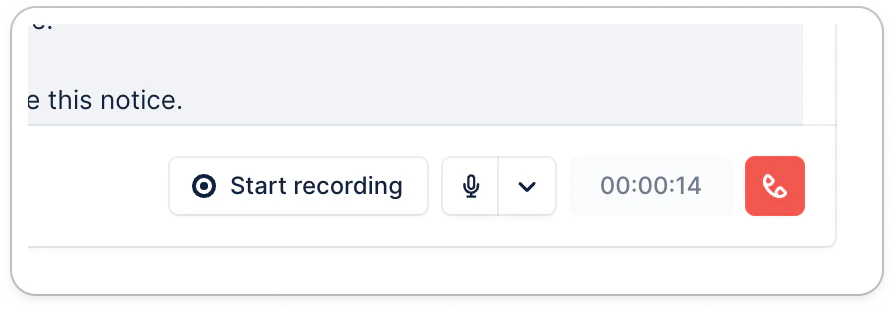 You will see a red dot next to your microphone whenever a call is being recorded.
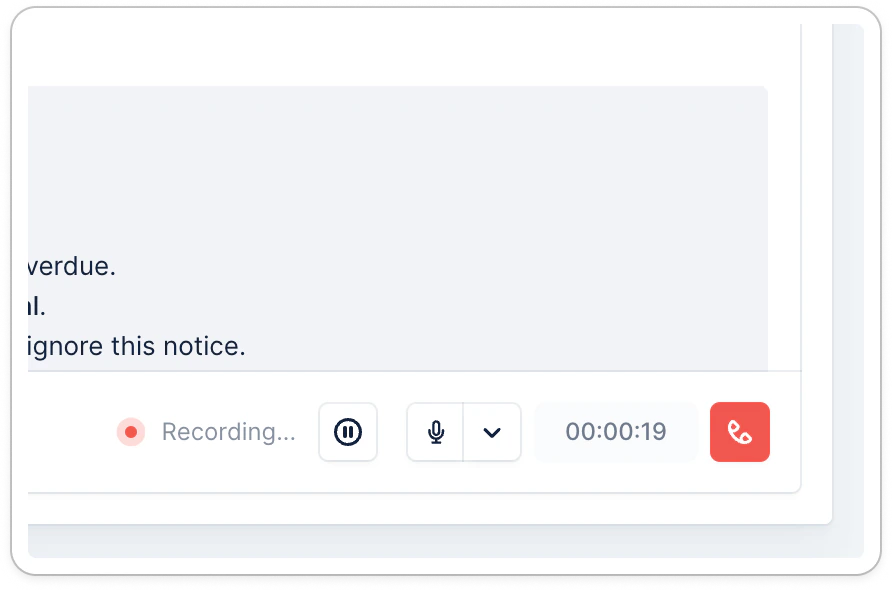 You can pause the recording at any time and restart afterward.
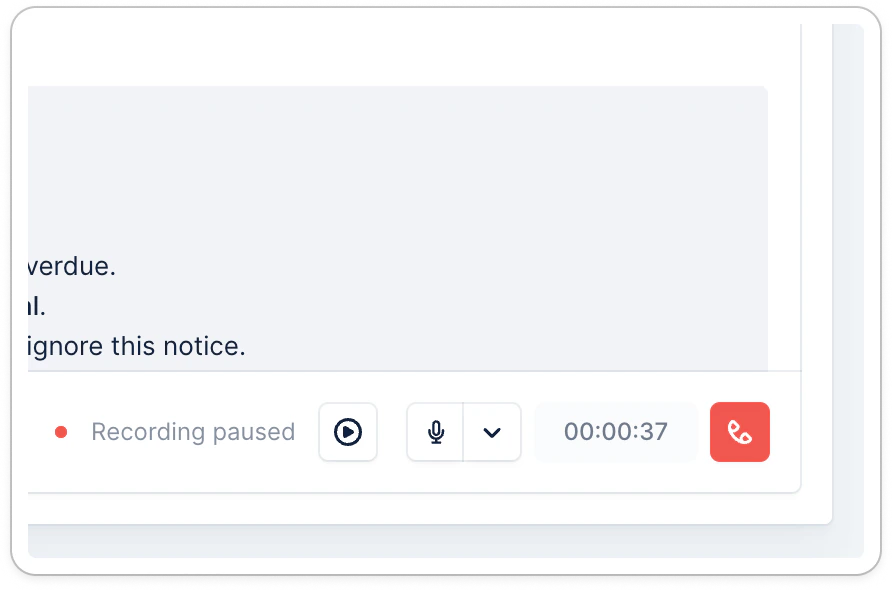 📌 Please note that there is no automatic mention that the call is being recorded. If you operate in a jurisdiction requiring bi-directional consent to recording, we recommend you tell your contact.
### Listening to call recordings
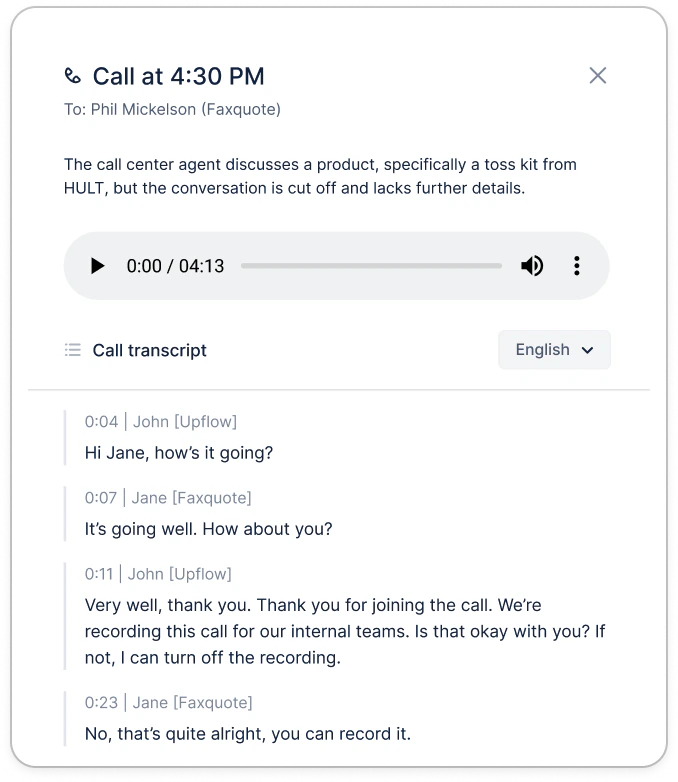
You can listen to the call recording a few seconds after the call. Head to your customer's timeline to access it. Simply use the player to listen to each conversation:
📌 Please note that there is no automatic mention that the call is being recorded. If you operate in a jurisdiction requiring bi-directional consent to recording, we recommend you tell your contact.
### Listening to call recordings
You can listen to the call recording a few seconds after the call. Head to your customer's timeline to access it. Simply use the player to listen to each conversation:
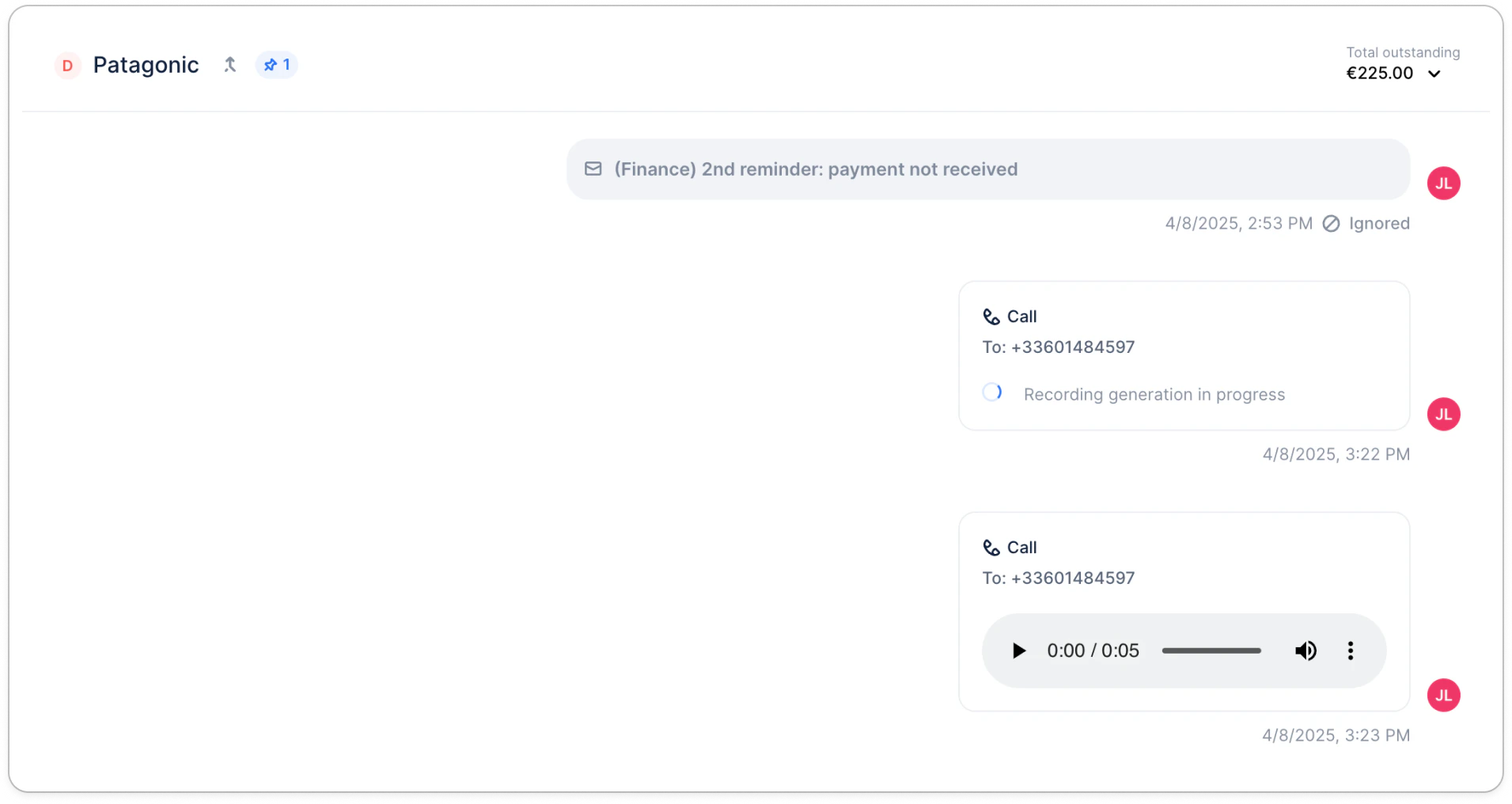 If needed, you always have the option to delete the call recording, hit the Delete recording button to do so:
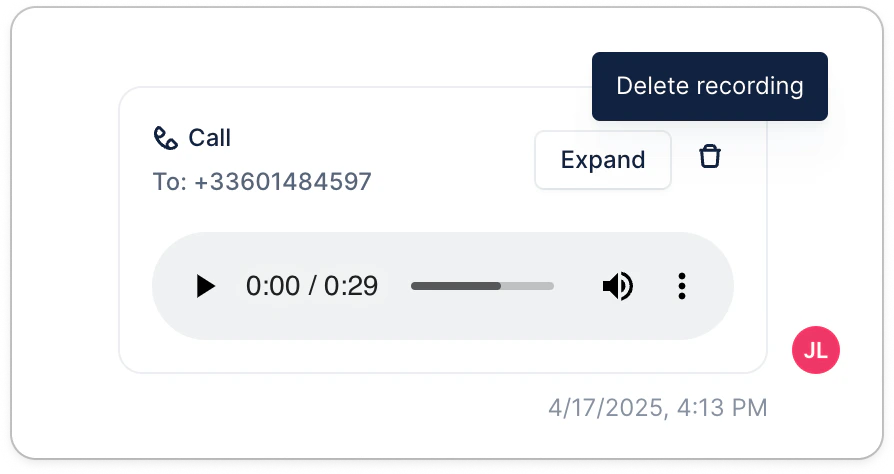 ### Reading call transcripts
Click on the expand button to see the transcript of the call. You will be able to see what each speaker said as well as when they said it.
→ Please note that transcripts are only available in English today.
### Reading call transcripts
Click on the expand button to see the transcript of the call. You will be able to see what each speaker said as well as when they said it.
→ Please note that transcripts are only available in English today.