> ## Documentation Index
> Fetch the complete documentation index at: https://docs.upflow.io/llms.txt
> Use this file to discover all available pages before exploring further.
# Sending emails - Configure your domain
> Set up the DNS records required by Mailgun to send Upflow reminders from your own domain, with step-by-step guidance for your technical team and admins.
To send emails, we are using an email sending provider called Mailgun. In this article, we will explain how you can give Mailgun and us the right to send emails on your behalf.
Don't hesitate to share this article with your technical team along with Upflow admin access.
## Configuring your domain DNS
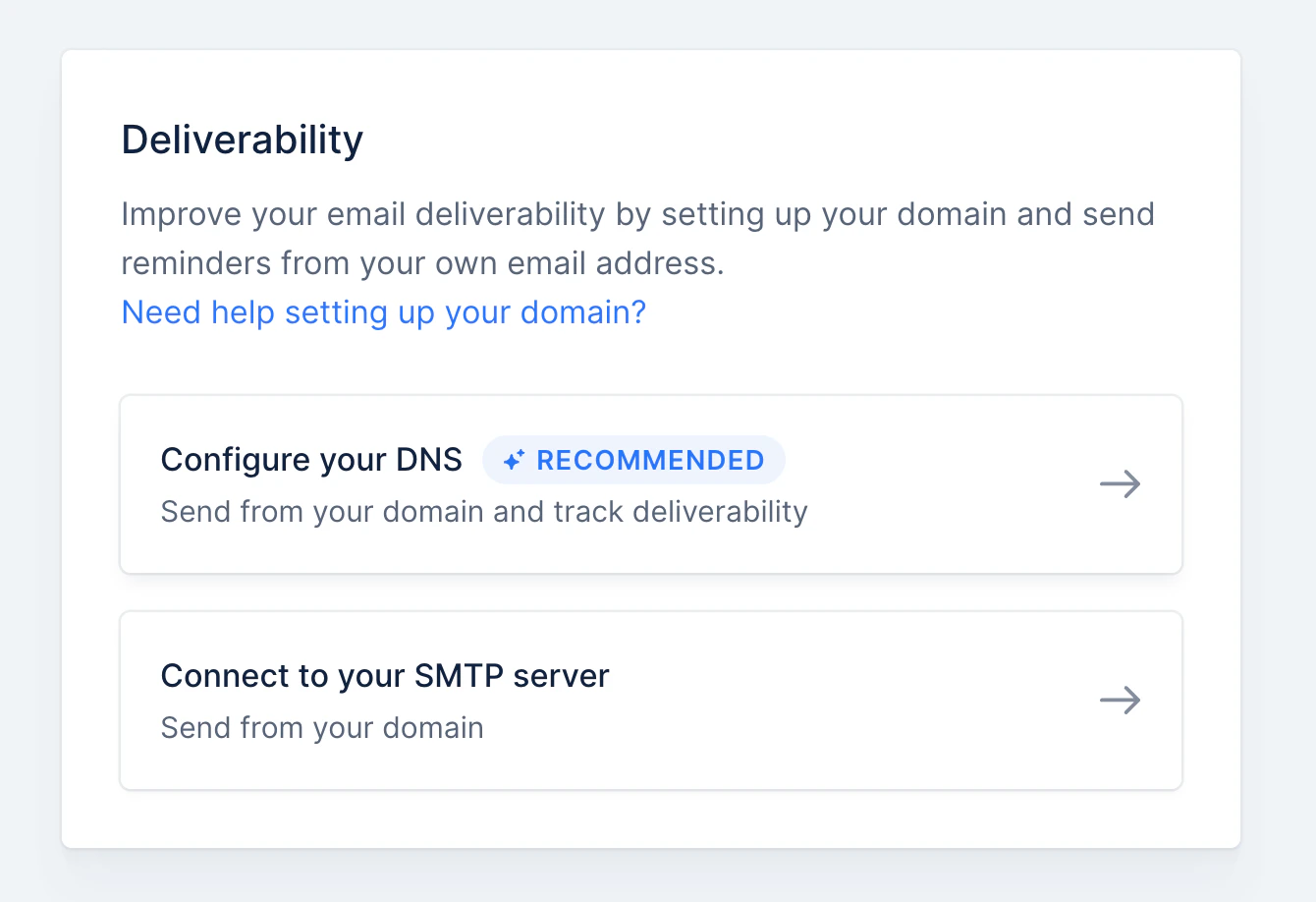
Go to the [Deliverability](https://app.upflow.io/organization/-/settings/domain/dns) menu in your Settings and select **Configure your DNS**
 ### Adding a domain
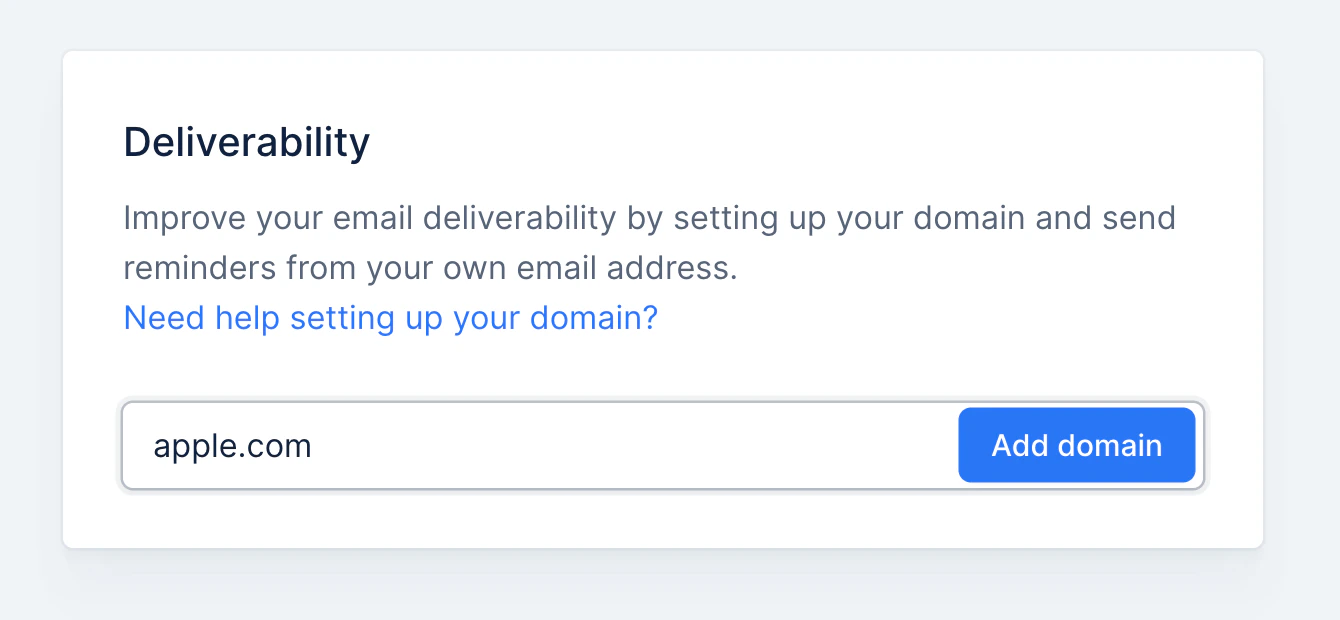
Enter your domain name. If your address is [john@apple.com](mailto:john@apple.com), then the domain name is "apple.com".
### Adding a domain
Enter your domain name. If your address is [john@apple.com](mailto:john@apple.com), then the domain name is "apple.com".
 ### Adding records to your DNS provider.
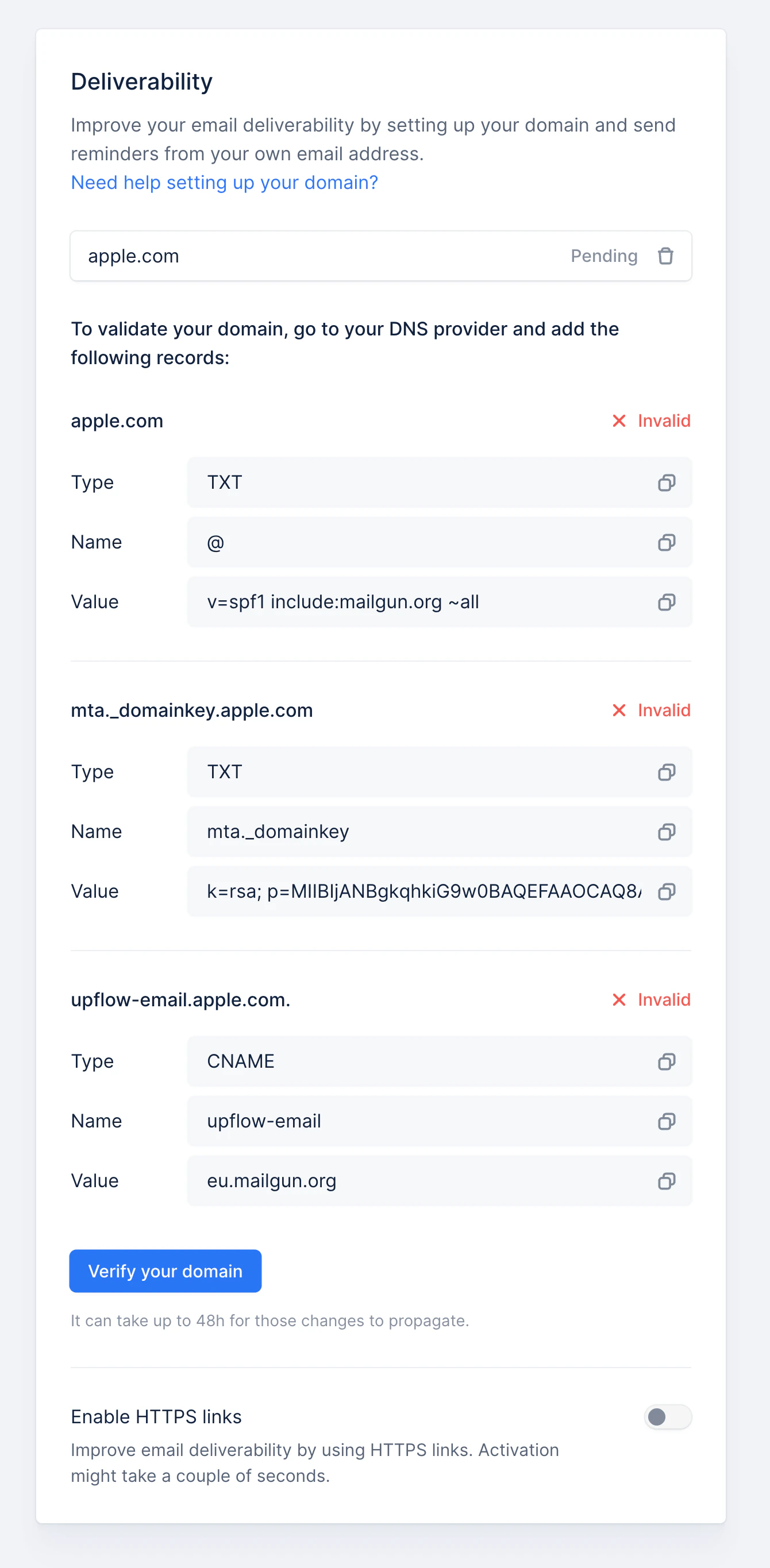
A list of records to add to your DNS provider is now displayed. The first two allow us to send emails on your behalf, and the last one enables email tracking.
### Adding records to your DNS provider.
A list of records to add to your DNS provider is now displayed. The first two allow us to send emails on your behalf, and the last one enables email tracking.
 ### Validating the domain verification
Once those records are added to your DNS, click on the "Verify your domain button". If the records are properly created, each record should display a green tick, and your domain is now verified.
### Validating the domain verification
Once those records are added to your DNS, click on the "Verify your domain button". If the records are properly created, each record should display a green tick, and your domain is now verified.
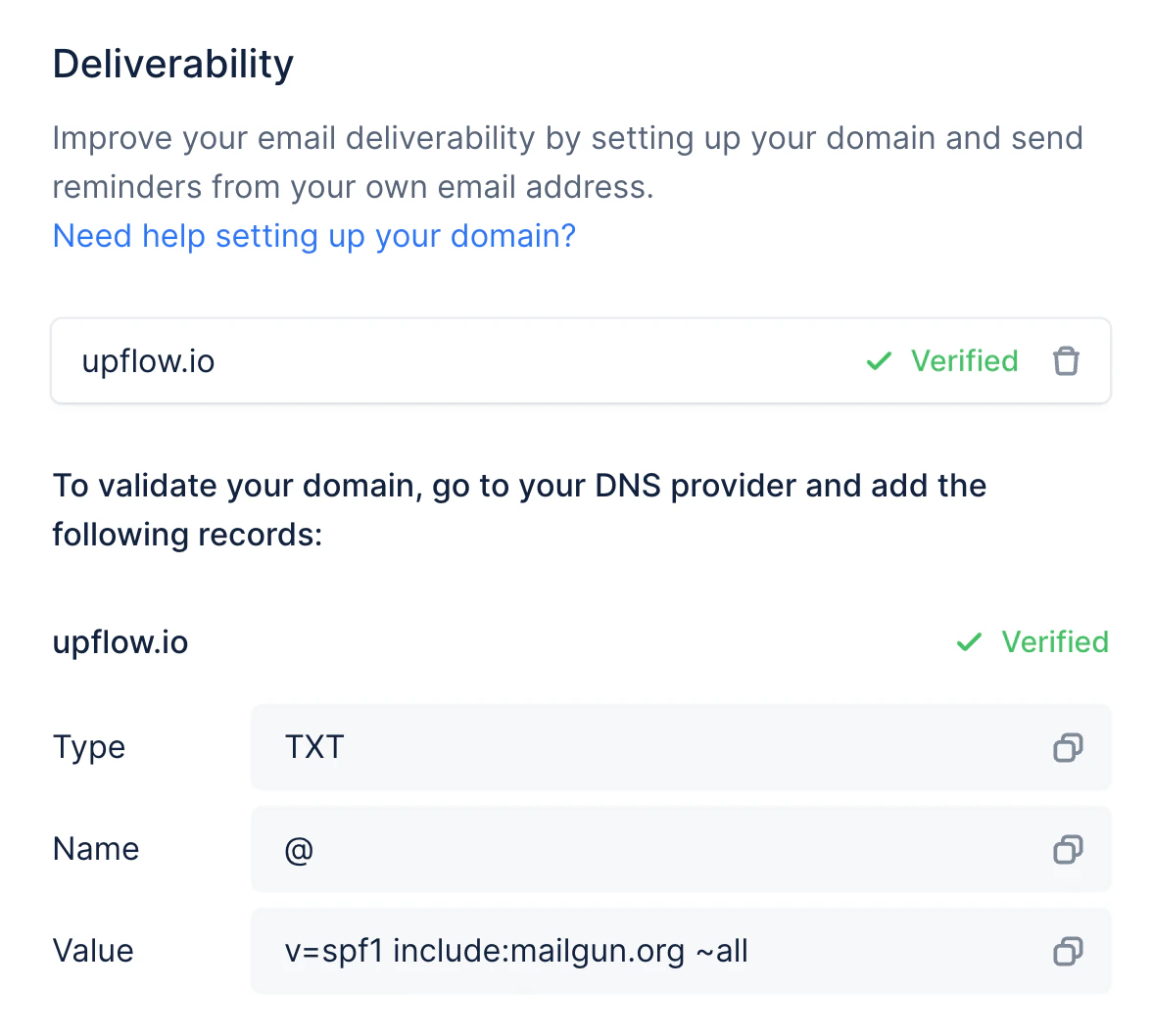 Congratulations! Emails are now sent from this domain if the user performing the action matches the address. If not, it will fall back to [reminders@upflow-mail.com](mailto:reminders@upflow-mail.com).
## DNS setup guide by provider
You can find how to set up the DNS records in your DNS provider by following the articles from our partner Mailgun.
* [Cloudflare](#)
* [GoDaddy](#)
* [Namecheap](#)
* [Google Domains](#)
* [DigitalOcean](#)
## FAQ
### Mailgun already used
If you receive the following error message: *“It seems that this domain is already used by a Mailgun account. Please contact our Support* ” and still need Mailgun for another use case, you should use one of the 2 other options for sending emails.
### Testing the record propagation
If, after updating your DNS provider, the records are still not valid in Upflow, you can use this [DNS lookup tool](https://mxtoolbox.com/DNSLookup.aspx) to check what is actually published on your domain. It will help troubleshoot the issue.
Congratulations! Emails are now sent from this domain if the user performing the action matches the address. If not, it will fall back to [reminders@upflow-mail.com](mailto:reminders@upflow-mail.com).
## DNS setup guide by provider
You can find how to set up the DNS records in your DNS provider by following the articles from our partner Mailgun.
* [Cloudflare](#)
* [GoDaddy](#)
* [Namecheap](#)
* [Google Domains](#)
* [DigitalOcean](#)
## FAQ
### Mailgun already used
If you receive the following error message: *“It seems that this domain is already used by a Mailgun account. Please contact our Support* ” and still need Mailgun for another use case, you should use one of the 2 other options for sending emails.
### Testing the record propagation
If, after updating your DNS provider, the records are still not valid in Upflow, you can use this [DNS lookup tool](https://mxtoolbox.com/DNSLookup.aspx) to check what is actually published on your domain. It will help troubleshoot the issue.