> ## Documentation Index
> Fetch the complete documentation index at: https://docs.upflow.io/llms.txt
> Use this file to discover all available pages before exploring further.
# Manage your customers' replies in Upflow
> Centralize incoming customer replies in your Upflow inbox, decide how new emails impact ongoing dunning workflows and respond without switching to another tool.
The sooner you hear from and respond to your customers regarding cash collection, the better. This is why Upflow offers a centralized inbox experience, allowing you to manage incoming and outgoing communication with your customers right from our platform.
To set up email replies import, follow the dedicated configuration guidelines: [Automatic collection replies import](/en-us/collection-and-collaboration/emails/import-your-customers-replies-automatically). Once you've done this, here are the different options for managing them from Upflow.
## What is the impact of a new email received on Upflow?
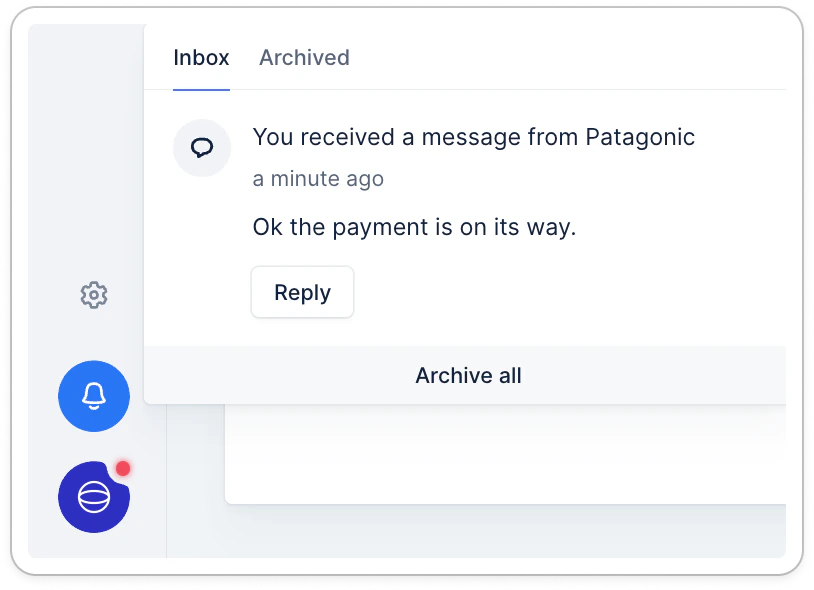
By default, Upflow will simply notify you that a new email has been received. You can see it and reply to it from your interface, but it will not impact your existing workflows.
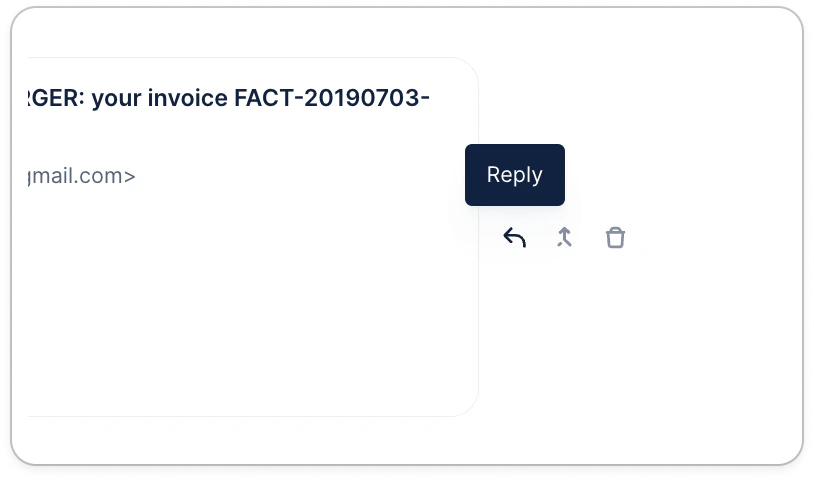
 You can reply to it by clicking on the reply icon on the timeline next to the email.
 If you want to stop the workflow until you reply to that email or ignore it, you must activate the following settings: Handle replies in Upflow.
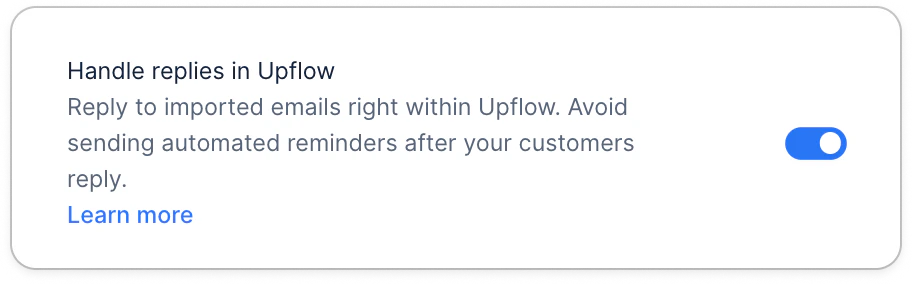 From that moment, any new reply imported will generate an action to perform.
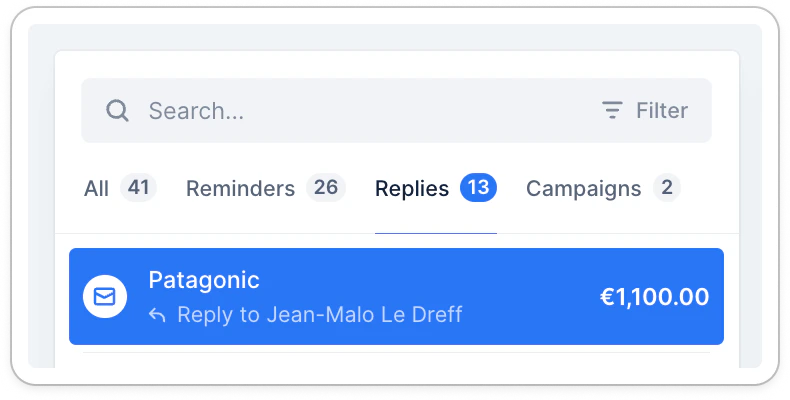 ### Reply actions and notifications assignment
This action is assigned to:
* Assigned users > if none, falling back on Finance users > if none, falling back on the organization.owner.
When replies are imported, if they're linked to a sent email reminder, the notifications will be sent to:
* the user who performed the manual email (clicked sent)
* the organization owner if the manual email sender was set on an alias
* the user set up as Sender in the email template (workflow)
* the organization owner if the automatic sender is set on an alias.
* no notification will be sent if the imported reply is not linked to a sent reminder
#### Reply to actions pausing the collection
Until that action is sent or ignored, no other action in the workflow will be performed.
We recommend this solution to prevent automated reminders from being sent after your customer tells you that there is an issue or that a payment is on its way. Preserving a good customer experience.
You can disable this setting at any time, by untoggling the option "Include ad hoc actions when calculating the contact delay of workflows." from your [Collections settings](https://app.upflow.io/organization/-/settings/collection).
### Mass ignore reply actions
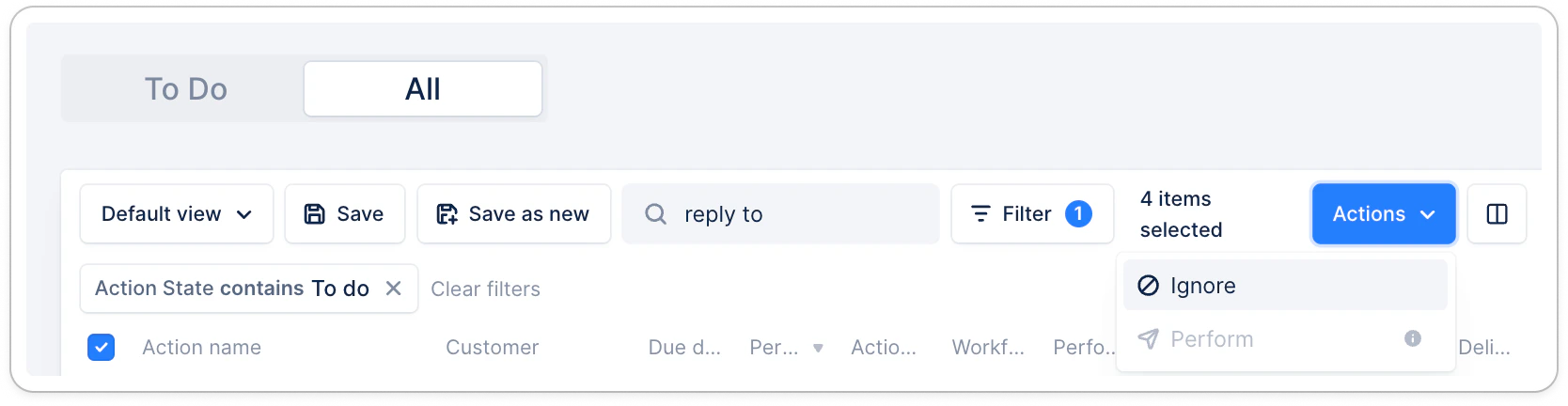
From your Actions list view, you can mass ignore reply actions generated by imported replies.
Filter on "Action state contains To do" and type "Reply to" in the search bar to identify them.
If you need to ignore only certain of these actions, add more filters to identify them.
Then select them all (tick the Action name column + click the blue link at the top right of the list if more than 50). Click Actions > Ignore:
### Reply actions and notifications assignment
This action is assigned to:
* Assigned users > if none, falling back on Finance users > if none, falling back on the organization.owner.
When replies are imported, if they're linked to a sent email reminder, the notifications will be sent to:
* the user who performed the manual email (clicked sent)
* the organization owner if the manual email sender was set on an alias
* the user set up as Sender in the email template (workflow)
* the organization owner if the automatic sender is set on an alias.
* no notification will be sent if the imported reply is not linked to a sent reminder
#### Reply to actions pausing the collection
Until that action is sent or ignored, no other action in the workflow will be performed.
We recommend this solution to prevent automated reminders from being sent after your customer tells you that there is an issue or that a payment is on its way. Preserving a good customer experience.
You can disable this setting at any time, by untoggling the option "Include ad hoc actions when calculating the contact delay of workflows." from your [Collections settings](https://app.upflow.io/organization/-/settings/collection).
### Mass ignore reply actions
From your Actions list view, you can mass ignore reply actions generated by imported replies.
Filter on "Action state contains To do" and type "Reply to" in the search bar to identify them.
If you need to ignore only certain of these actions, add more filters to identify them.
Then select them all (tick the Action name column + click the blue link at the top right of the list if more than 50). Click Actions > Ignore:
 ## How does Upflow match new emails to invoices, customers, or actions?
### Import only emails we can match
By default, Upflow will only import the emails it knows are related to the collection process.
To do this, we:
1. check if the email is in reply to a reminder sent via Upflow. If that's the case, then we import the email and link it to that customer. If it's not linked to a reminder, we
2. check if the sender of the email is a customer contact in Upflow; if the contact belongs to only one customer, we match it to that customer.
3. check if the domain of the sender is the same as the domain of the main contact of a single customer
4. otherwise, we ignore the email. We would rather show less than more.
Another option is available on demand: match any replies not falling into the three above logics, if they match one Parent customer's domain only in the organization.
### Import all emails
If you want to match the entire inbox from Upflow, you can activate the "Import all replies" settings.
## How does Upflow match new emails to invoices, customers, or actions?
### Import only emails we can match
By default, Upflow will only import the emails it knows are related to the collection process.
To do this, we:
1. check if the email is in reply to a reminder sent via Upflow. If that's the case, then we import the email and link it to that customer. If it's not linked to a reminder, we
2. check if the sender of the email is a customer contact in Upflow; if the contact belongs to only one customer, we match it to that customer.
3. check if the domain of the sender is the same as the domain of the main contact of a single customer
4. otherwise, we ignore the email. We would rather show less than more.
Another option is available on demand: match any replies not falling into the three above logics, if they match one Parent customer's domain only in the organization.
### Import all emails
If you want to match the entire inbox from Upflow, you can activate the "Import all replies" settings.
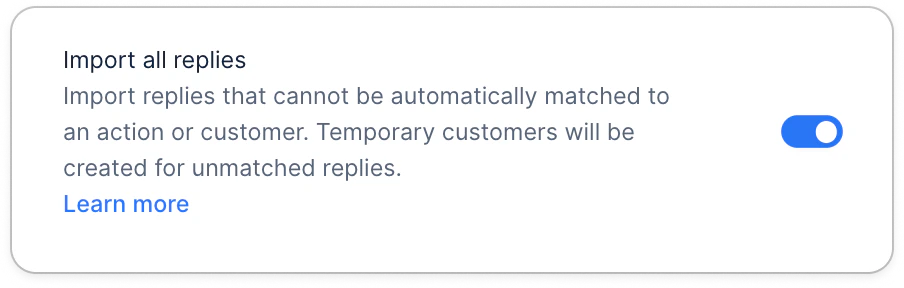 In that case, when we can't match the email to a specific customer, we will create a temporary customer to whom the email will be linked. The name of that customer will be the email address of the sender.
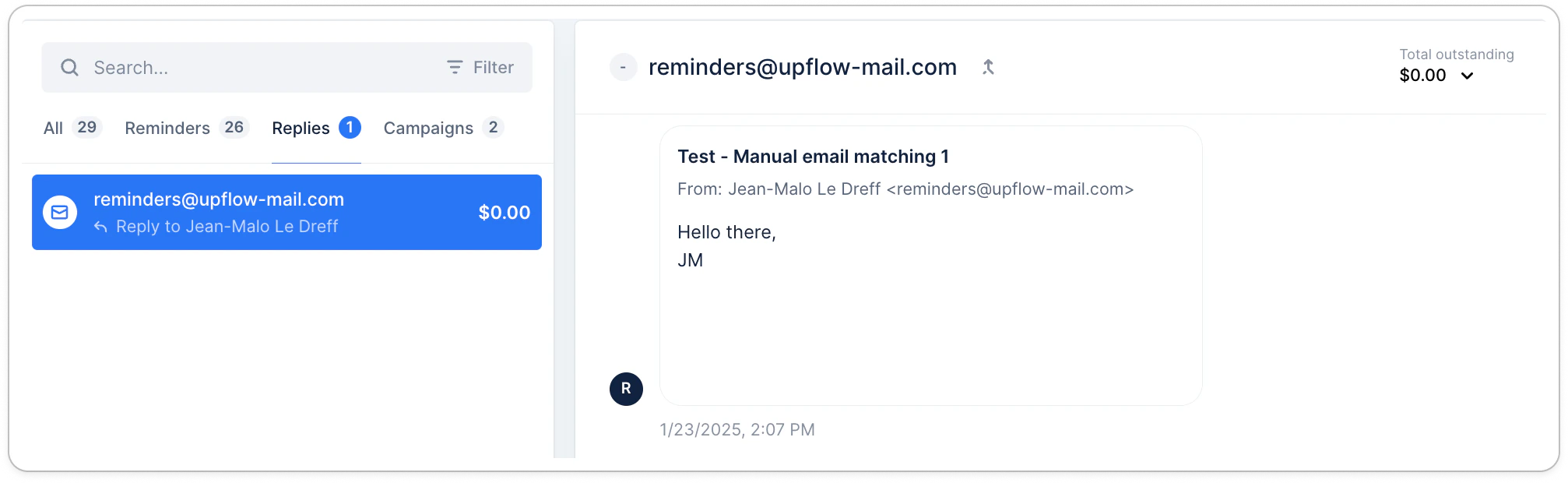 From there, you can either continue the conversation this way or merge that temporary customer with the appropriate customer. To do this, you can click on the merge icon next to the customer name or head over to the customer details page.
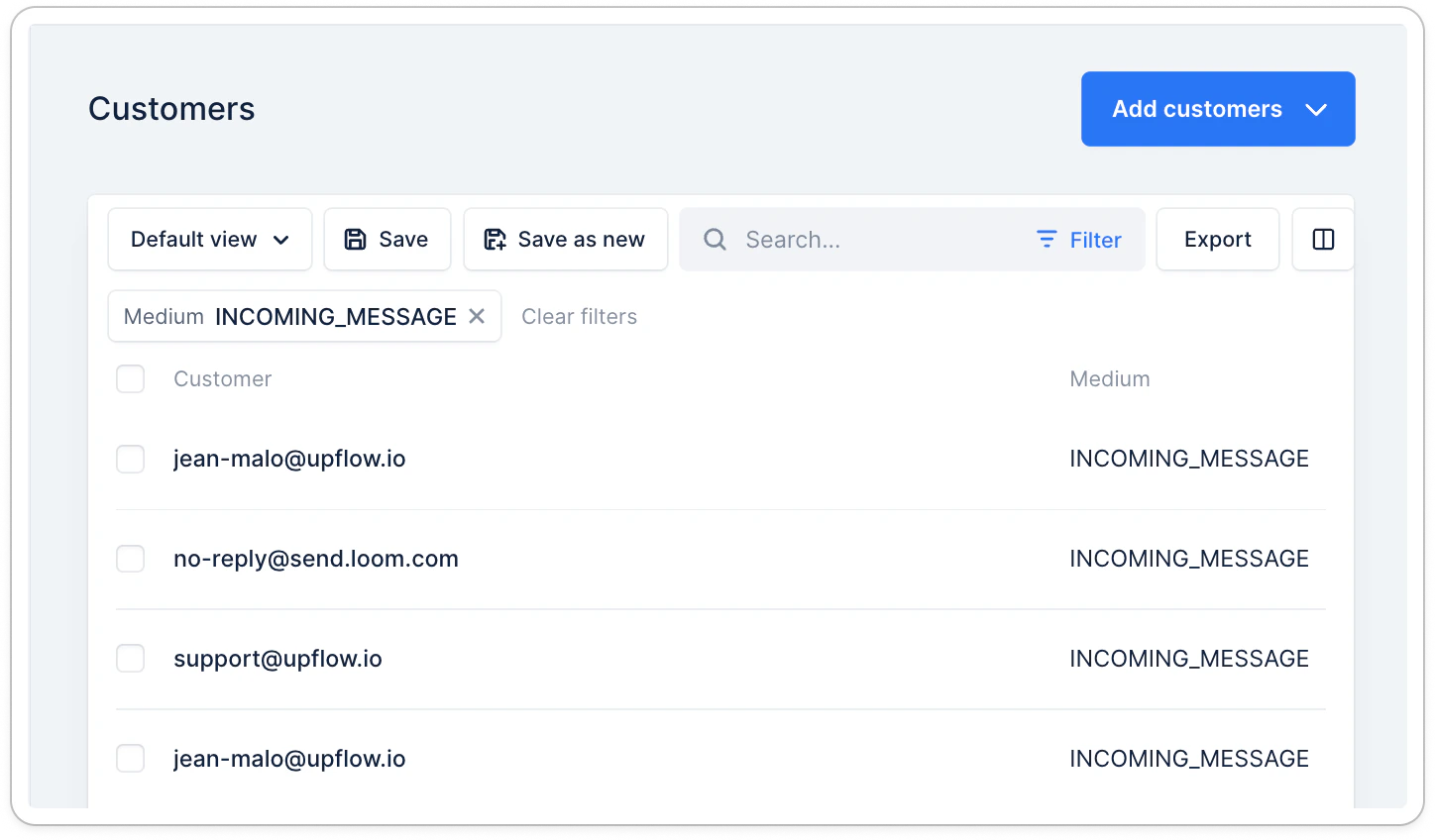
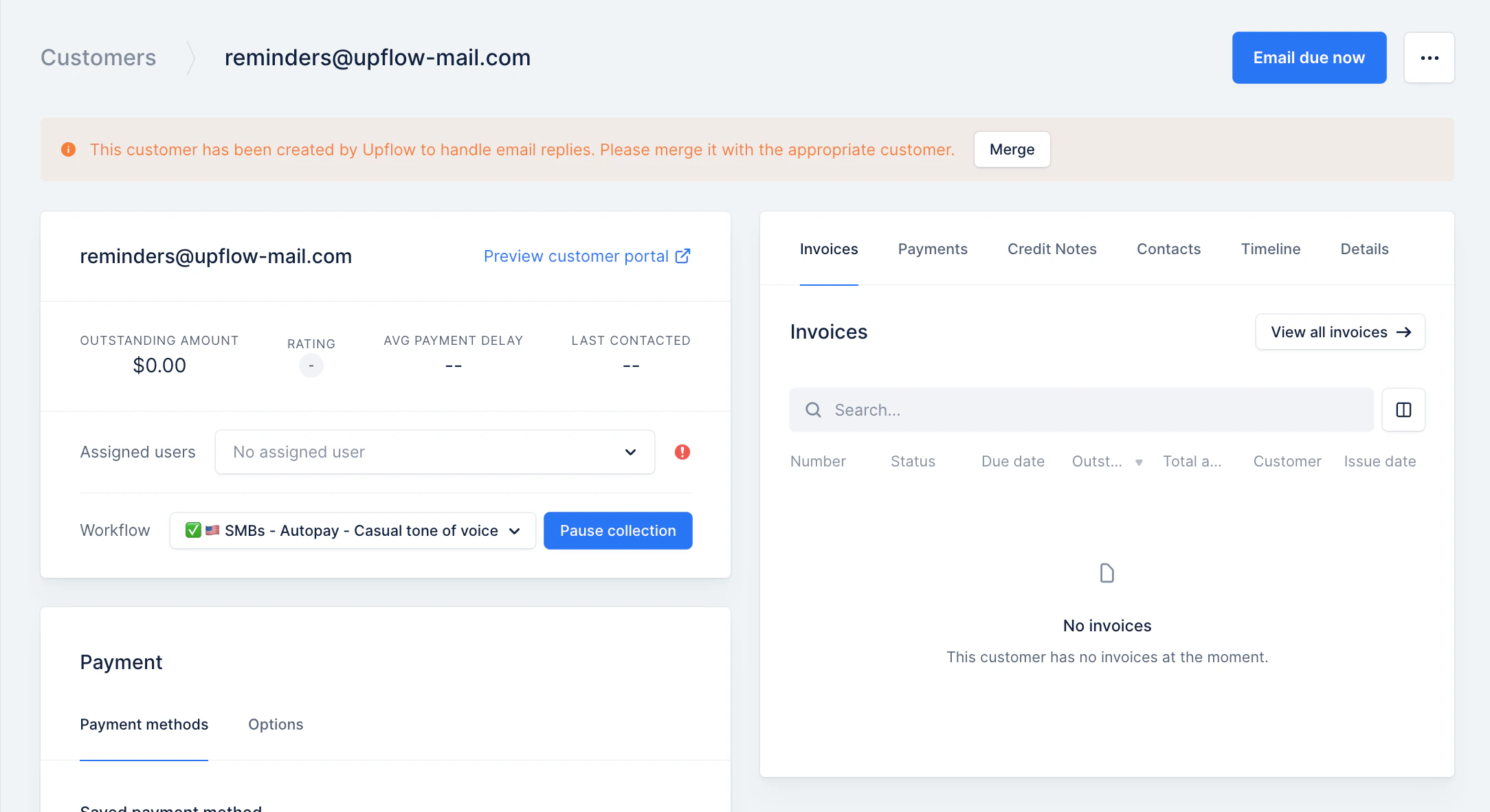 Those customers are easily identifiable from the customer list as you can filter on the medium = "INCOMING\_MESSAGE."
 #### How “Import all emails” matches incoming messages
When you use the Import all replies feature, Upflow follows a set of rules to decide which customer timeline an incoming email belongs to.
The system checks in this order:
1. Reply to an Action email sent from Upflow → The email is matched to the same customer timeline as the Action.
2. Reply to a previous linked incoming email → The email is matched to the same customer timeline.
3. Otherwise, check the sender’s contact information:
* Exact contact match: if the sender’s email address is linked to a single customer in Upflow, the email is linked there.
* Multiple customer match: if the same contact is linked to more than one customer, the system cannot choose. The email appears in the “incoming\_message” bucket for your team to merge manually.
* No contact match, but domain match: if the sender is not in Upflow, but their domain matches the main contact domain of a single customer, the email is assigned to that customer.
* Example:
* [john@acme.com](mailto:john@acme.com) is not in Upflow
* But [alice@acme.com](mailto:alice@acme.com) is the main contact for Acme
* Result: John’s email is matched to Acme.
→ Note: Domain matching has been applied only to emails received after August 12th 2025 (if the related contact already exists as an "incoming\_message" customer, their emails will keep being linked there, instead of the related main customer > delete or merge the temporary customer to the main one to solve this situation).
#### Why emails sometimes remain unassigned
* If a sender’s address is linked to multiple customers (e.g. parent company + entity), Upflow cannot link the email.
* If the sender’s address doesn’t exist in Upflow and the domain isn’t linked to a unique customer, the email also stays unlinked.
These cases will show up in the “incoming\_message” bucket (Customers list view filtered on "Medium contains incoming\_message"), where your team can manually merge the message into the correct customer timeline, or delete it\*.
\*If this customer can't be deleted (error message) due to linked events, you can exclude them from Upflow ([learn more](/en-us/core-entities/customers/exclude-customers)).
### Delete a reply-generated customer
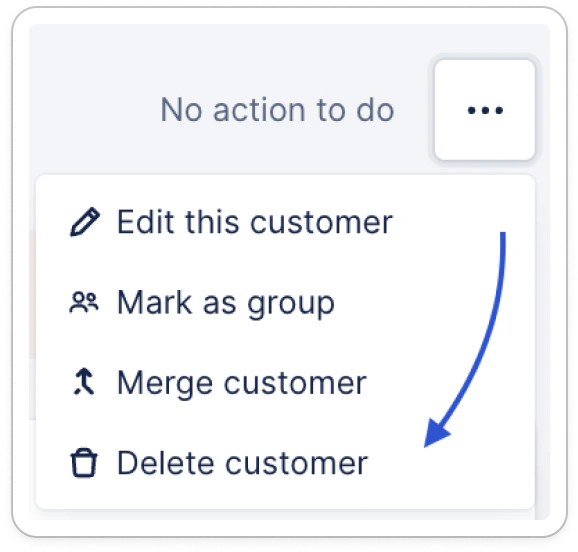
If a reply was imported to the wrong organization, you can delete it individually from its detail page, top right:
#### How “Import all emails” matches incoming messages
When you use the Import all replies feature, Upflow follows a set of rules to decide which customer timeline an incoming email belongs to.
The system checks in this order:
1. Reply to an Action email sent from Upflow → The email is matched to the same customer timeline as the Action.
2. Reply to a previous linked incoming email → The email is matched to the same customer timeline.
3. Otherwise, check the sender’s contact information:
* Exact contact match: if the sender’s email address is linked to a single customer in Upflow, the email is linked there.
* Multiple customer match: if the same contact is linked to more than one customer, the system cannot choose. The email appears in the “incoming\_message” bucket for your team to merge manually.
* No contact match, but domain match: if the sender is not in Upflow, but their domain matches the main contact domain of a single customer, the email is assigned to that customer.
* Example:
* [john@acme.com](mailto:john@acme.com) is not in Upflow
* But [alice@acme.com](mailto:alice@acme.com) is the main contact for Acme
* Result: John’s email is matched to Acme.
→ Note: Domain matching has been applied only to emails received after August 12th 2025 (if the related contact already exists as an "incoming\_message" customer, their emails will keep being linked there, instead of the related main customer > delete or merge the temporary customer to the main one to solve this situation).
#### Why emails sometimes remain unassigned
* If a sender’s address is linked to multiple customers (e.g. parent company + entity), Upflow cannot link the email.
* If the sender’s address doesn’t exist in Upflow and the domain isn’t linked to a unique customer, the email also stays unlinked.
These cases will show up in the “incoming\_message” bucket (Customers list view filtered on "Medium contains incoming\_message"), where your team can manually merge the message into the correct customer timeline, or delete it\*.
\*If this customer can't be deleted (error message) due to linked events, you can exclude them from Upflow ([learn more](/en-us/core-entities/customers/exclude-customers)).
### Delete a reply-generated customer
If a reply was imported to the wrong organization, you can delete it individually from its detail page, top right:
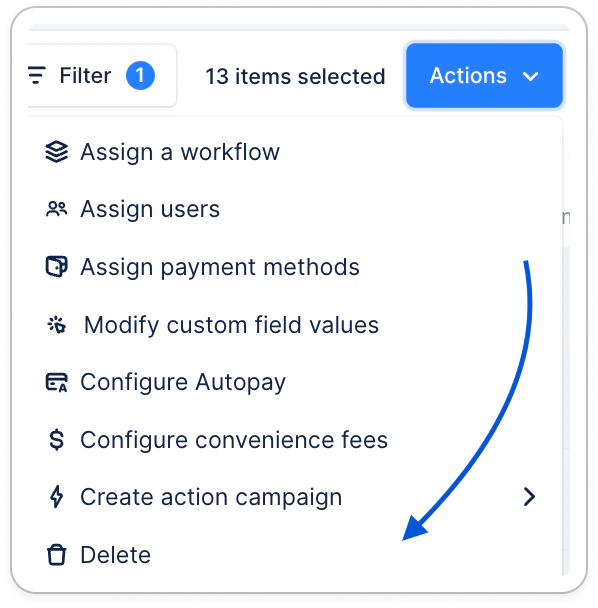
 Or in bulk, after filtering on "Medium = INCOMING\_MESSAGE" > Actions button:
 # Re-linking or deleting emails
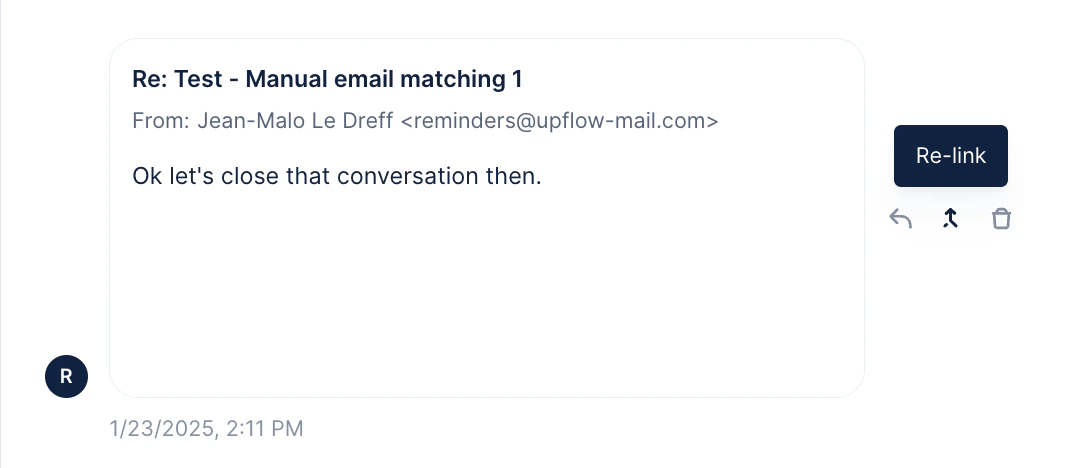
In addition, you can re-link an email to the appropriate customer or delete it. From any timeline, you can do it by hovering on the email and clicking on the corresponding icon.
# Re-linking or deleting emails
In addition, you can re-link an email to the appropriate customer or delete it. From any timeline, you can do it by hovering on the email and clicking on the corresponding icon.
 It will then recompute the actions of each customer to know what reminders should be sent next.
## FAQ
## What happens to the customer workflow if the customer replies to an email reminder from an invoice level workflow?
* If the incoming message is a reply to an invoice action: It will halt the invoice level workflow *but* it will not block the customer collection workflow.
* If the incoming message is a reply to a customer workflow action: It will halt the customer level workflow *but* it will not block the invoice collection workflow.
* If the incoming message is only matched to a customer (via their contacts): It will not halt the invoice collection workflow *but* it will block the customer collection workflow.
## What happens when I receive multiple emails from the same customer?
The last incoming email will be the pending Reply action for that customer or invoice collection workflow.
It will then recompute the actions of each customer to know what reminders should be sent next.
## FAQ
## What happens to the customer workflow if the customer replies to an email reminder from an invoice level workflow?
* If the incoming message is a reply to an invoice action: It will halt the invoice level workflow *but* it will not block the customer collection workflow.
* If the incoming message is a reply to a customer workflow action: It will halt the customer level workflow *but* it will not block the invoice collection workflow.
* If the incoming message is only matched to a customer (via their contacts): It will not halt the invoice collection workflow *but* it will block the customer collection workflow.
## What happens when I receive multiple emails from the same customer?
The last incoming email will be the pending Reply action for that customer or invoice collection workflow.