> ## Documentation Index
> Fetch the complete documentation index at: https://docs.upflow.io/llms.txt
> Use this file to discover all available pages before exploring further.
# Import customer emails automatically with Gmail Integration [Beta]
> Connect Gmail to Upflow to import customer emails in near real-time, sync up to 90 days of history and centralize every conversation on the customer timeline.
**Get the full picture of your customer conversations by connecting your Gmail account to Upflow.**
## What is the Gmail integration?
The Gmail integration allows Upflow to automatically import emails from your inbox, giving you a complete view of customer conversations.
**Benefits of connecting your Gmail account:**
* **Automatic import** - Emails sync in near real-time (within 10 minutes)
* **Historical context** - Import up to 90 days of past emails
* **Complete visibility** - See both sent and received emails in customer timelines
* **Attachments included** - Documents and images are imported automatically
## How it works
Upflow connects to your Gmail account and synchronizes all the emails, sent and received, related to the active aliases in your organization.
1. **You activate the Gmail integration feature** - From your organization settings
2. **You grant access** - Connect your Gmail account from your profile settings
3. **We sync your emails** - Upflow imports emails related to your verified aliases
4. **We match them automatically** - Emails are linked to the right customers, contacts, and actions
5. **You see them in context** - View all conversations in customer timelines
**Sync logic**
If your verified alias is [collections@acme.com](mailto:collections@acme.com), Upflow will import:
* Emails you sent FROM [collections@acme.com](mailto:collections@acme.com)
* Emails customers sent TO [collections@acme.com](mailto:collections@acme.com)
* Emails where [collections@acme.com](mailto:collections@acme.com) is in CC or BCC
## Setting up the integration
### Step 1: Activate email import for your organization
1. Go to [**Settings > Import emails and aliases**](https://app.upflow.io/organization/-/settings/import-emails)
2. Toggle on **Import emails from Gmail**
3. Review the list of users and their connection status
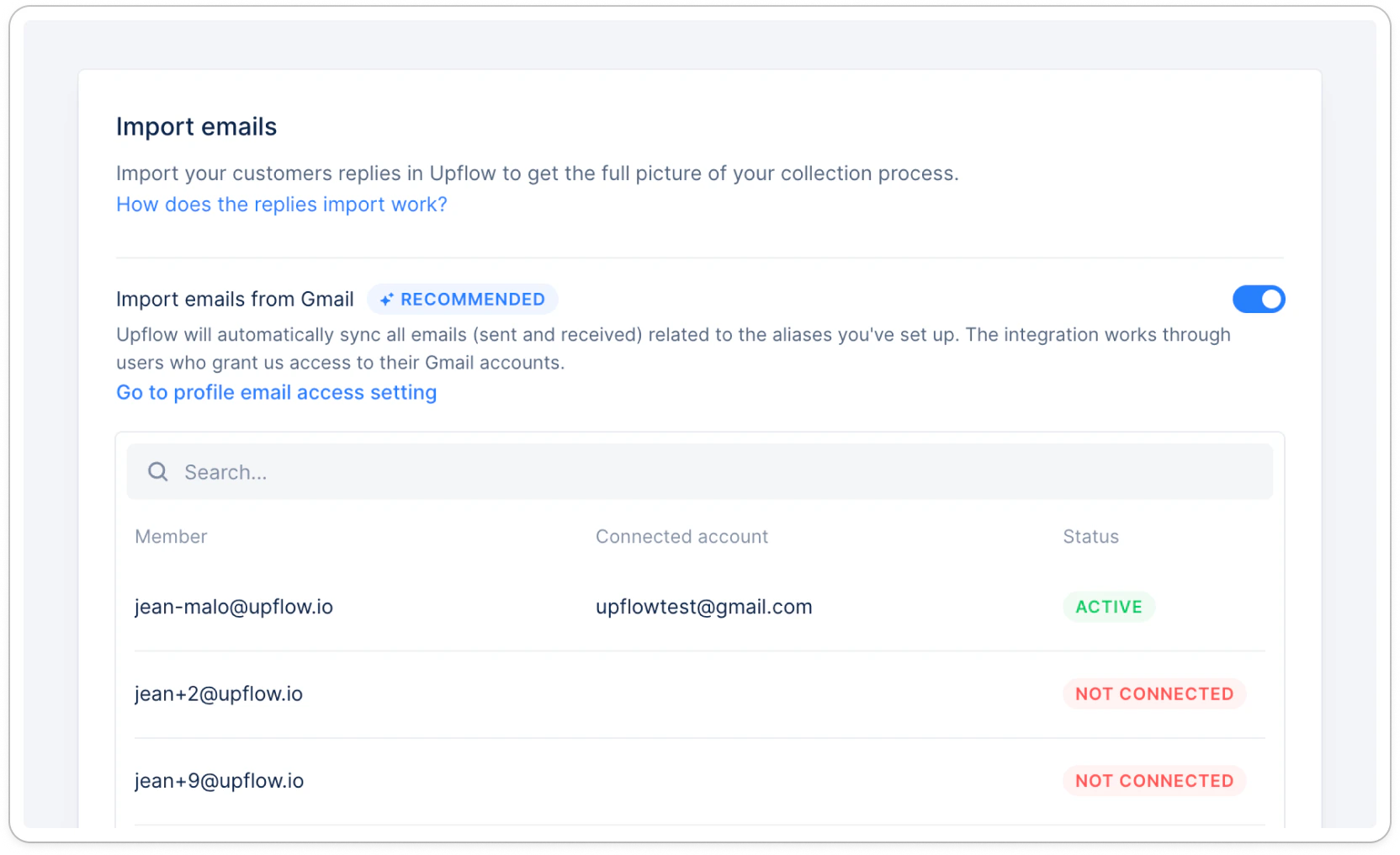 You'll see a table showing:
* **User** - Team members in your organization
* **Connected account** - The Gmail account they connected
* **Status** - Connection state
| Status | Description | Action needed |
| ----------------- | ---------------------------------------------------------------- | ----------------------------------------- |
| **NOT CONNECTED** | The user hasn't granted access to their Gmail account yet | Connect your Gmail account |
| **SYNCING** | Initial sync is in progress (importing up to 90 days of history) | Wait for sync to complete |
| **ACTIVE** | Email sync is working correctly | None - emails are importing automatically |
| **UNAUTHORIZED** | Upflow can't access the Gmail account (token expired or revoked) | Re-authenticate your account |
### Step 2: Select aliases to use for email sync
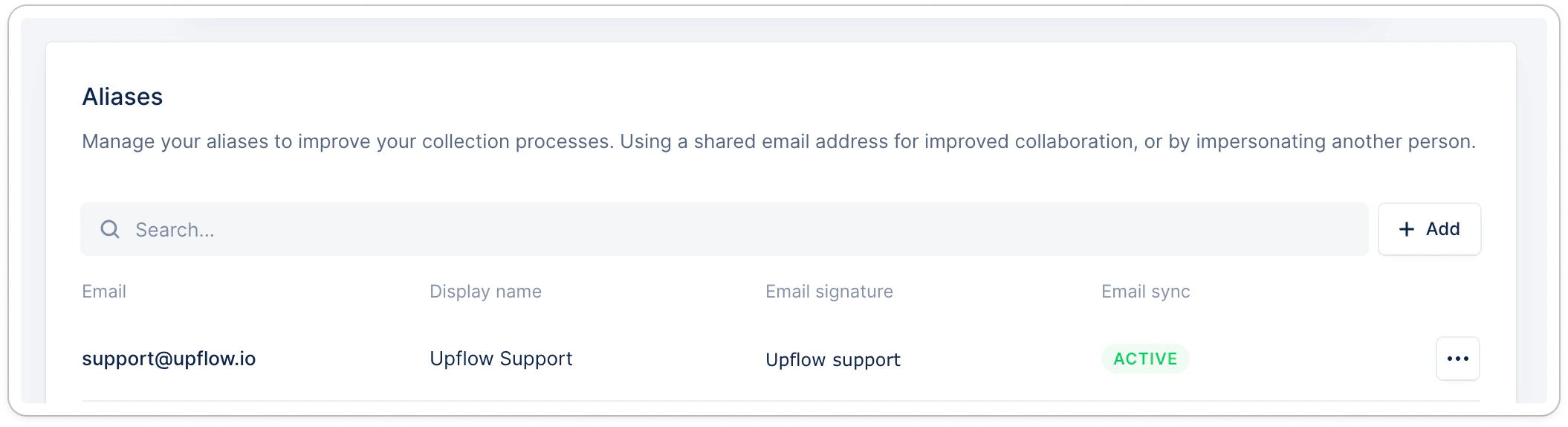
Upflow only imports emails related to your verified aliases (e.g., [finance@yourcompany.com](mailto:finance@yourcompany.com), [collections@yourcompany.com](mailto:collections@yourcompany.com)).
1. At the bottom of the page, look at the Alias section
2. Verify you have at least one verified alias
If not, click **Add alias** and follow the verification steps
1. Activate the **email sync** for the appropriate aliases.
You'll see a table showing:
* **User** - Team members in your organization
* **Connected account** - The Gmail account they connected
* **Status** - Connection state
| Status | Description | Action needed |
| ----------------- | ---------------------------------------------------------------- | ----------------------------------------- |
| **NOT CONNECTED** | The user hasn't granted access to their Gmail account yet | Connect your Gmail account |
| **SYNCING** | Initial sync is in progress (importing up to 90 days of history) | Wait for sync to complete |
| **ACTIVE** | Email sync is working correctly | None - emails are importing automatically |
| **UNAUTHORIZED** | Upflow can't access the Gmail account (token expired or revoked) | Re-authenticate your account |
### Step 2: Select aliases to use for email sync
Upflow only imports emails related to your verified aliases (e.g., [finance@yourcompany.com](mailto:finance@yourcompany.com), [collections@yourcompany.com](mailto:collections@yourcompany.com)).
1. At the bottom of the page, look at the Alias section
2. Verify you have at least one verified alias
If not, click **Add alias** and follow the verification steps
1. Activate the **email sync** for the appropriate aliases.
 ### Step 3: Connect your Gmail account
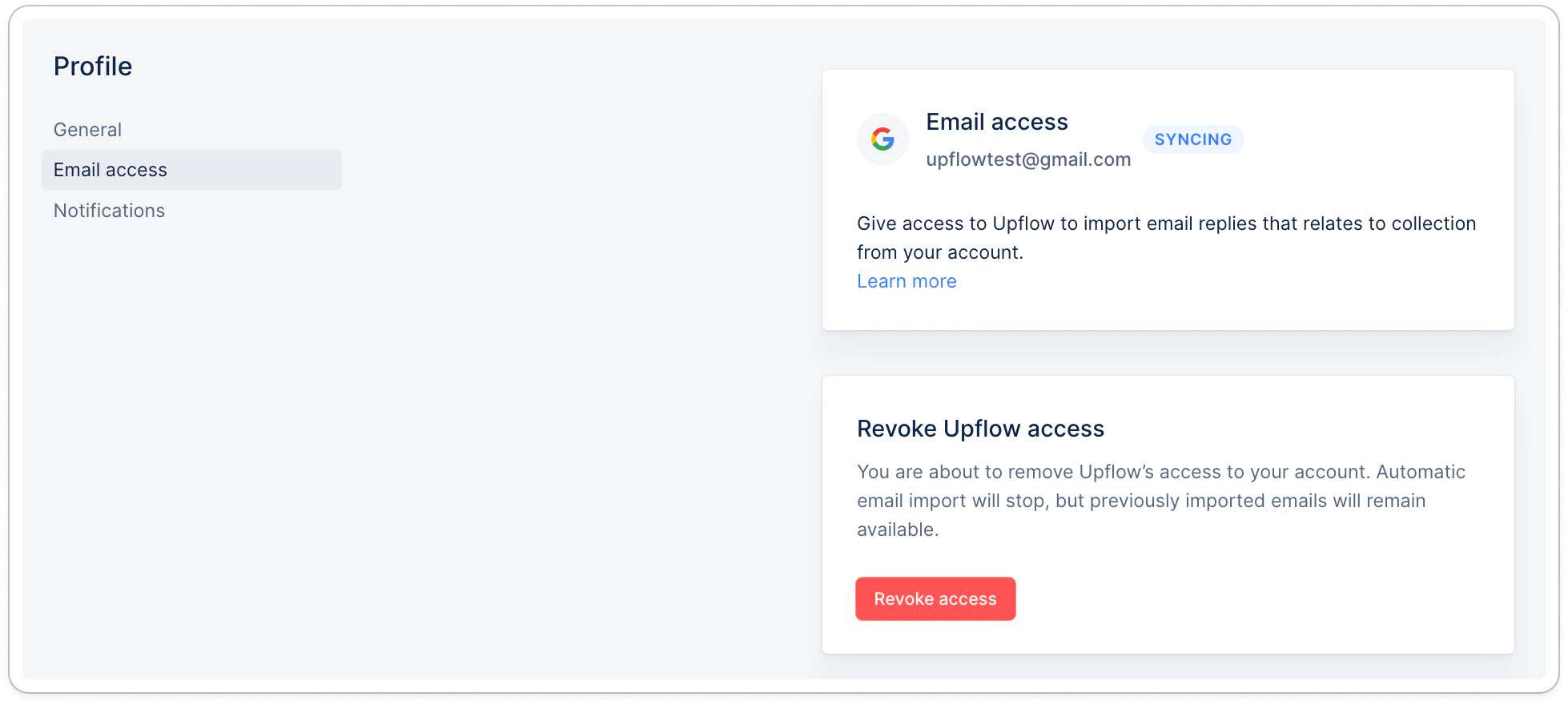
1. Go to your [**Profile Settings > Email access**](https://app.upflow.io/organization/-/profile/email) section
2. Click **Connect Gmail**
3. Sign in with your Google account when prompted
4. Review and accept the permissions Upflow requests
5. Once connected, Upflow will begin syncing your emails
### Step 3: Connect your Gmail account
1. Go to your [**Profile Settings > Email access**](https://app.upflow.io/organization/-/profile/email) section
2. Click **Connect Gmail**
3. Sign in with your Google account when prompted
4. Review and accept the permissions Upflow requests
5. Once connected, Upflow will begin syncing your emails
 **Note:** You can connect a Gmail address different from the one you use to log into Upflow. For example, you might log in with [jdoe@company.com](mailto:jdoe@company.com) but sync emails from [collections@company.com](mailto:collections@company.com).
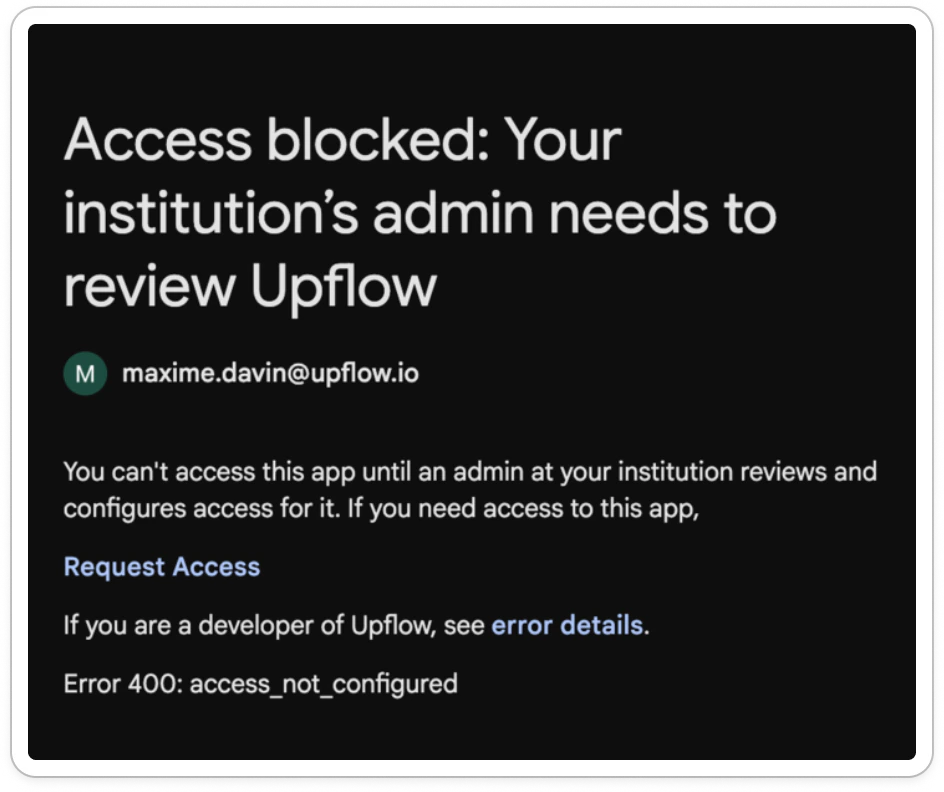
The Upflow app might require approval by your Gmail admin. In that case, reach out to them for approval.
**Note:** You can connect a Gmail address different from the one you use to log into Upflow. For example, you might log in with [jdoe@company.com](mailto:jdoe@company.com) but sync emails from [collections@company.com](mailto:collections@company.com).
The Upflow app might require approval by your Gmail admin. In that case, reach out to them for approval.
 ## Revoking access
You can revoke Upflow's access to your Gmail account at any time:
1. Go to your **Profile Settings > Emails**
2. Click **Disconnect Gmail**
3. Your previously imported emails will remain in Upflow unless deleted by an administrator
You can also revoke access directly from your [Google Account permissions page](https://myaccount.google.com/permissions).
## Managing email import for multiple organizations
If you have multiple Upflow organizations and use a single Gmail account to run collection, emails from your account will be synced to **all organizations** where email import is activated.
Our recommendation is to **not** activate the “Import all emails” feature on all your organizations otherwise emails that belong to organization 1 will be creating temporary customers in organization 2.
## Revoking access
You can revoke Upflow's access to your Gmail account at any time:
1. Go to your **Profile Settings > Emails**
2. Click **Disconnect Gmail**
3. Your previously imported emails will remain in Upflow unless deleted by an administrator
You can also revoke access directly from your [Google Account permissions page](https://myaccount.google.com/permissions).
## Managing email import for multiple organizations
If you have multiple Upflow organizations and use a single Gmail account to run collection, emails from your account will be synced to **all organizations** where email import is activated.
Our recommendation is to **not** activate the “Import all emails” feature on all your organizations otherwise emails that belong to organization 1 will be creating temporary customers in organization 2.