> ## Documentation Index
> Fetch the complete documentation index at: https://docs.upflow.io/llms.txt
> Use this file to discover all available pages before exploring further.
# Collection agents
> Let an AI collection agent handle inbound customer emails in Upflow — reply, log promises to pay and raise disputes.
A collection agent helps you handle inbound customer emails directly in Upflow. Instead of reading, deciding and writing every reply by hand, you set up an agent, choose how much autonomy it has, and assign it to your workflows.
Each agent has three skills — **Replies**, **Promise to pay** and **Disputes** — and you decide, skill by skill, whether the agent stays out of the way, prepares suggestions for you to review, or acts on its own.
You manage agents from the [**Collection agents**](https://app.upflow.io/organization/-/settings/collection-agents) settings page.
 ## Before you start
Collection agents act on the replies that land in your Upflow inbox, so you first need to be managing replies in Upflow. If you haven't already, turn on **Handle replies in Upflow** and set up reply import — see [Manage your customers' replies in Upflow](/en-us/collection-and-collaboration/emails/manage-customer-replies).
Only **admin** users can create and configure collection agents.
## What a collection agent can do
An agent is made up of three skills. Each one works on the inbound emails matched to a customer in your Upflow inbox:
* **Replies** — handles inbound customer emails in the AR Inbox by drafting or sending a response.
* **Promise to pay** — detects when a customer commits to a payment date and creates a promise to pay from the email.
* **Disputes** — detects when a customer contests an invoice and creates a dispute from the email.
## Autonomy modes
Each skill runs at one of three autonomy levels. You set them independently, so a single agent can, for example, only suggest replies while automatically logging promises to pay.
## Before you start
Collection agents act on the replies that land in your Upflow inbox, so you first need to be managing replies in Upflow. If you haven't already, turn on **Handle replies in Upflow** and set up reply import — see [Manage your customers' replies in Upflow](/en-us/collection-and-collaboration/emails/manage-customer-replies).
Only **admin** users can create and configure collection agents.
## What a collection agent can do
An agent is made up of three skills. Each one works on the inbound emails matched to a customer in your Upflow inbox:
* **Replies** — handles inbound customer emails in the AR Inbox by drafting or sending a response.
* **Promise to pay** — detects when a customer commits to a payment date and creates a promise to pay from the email.
* **Disputes** — detects when a customer contests an invoice and creates a dispute from the email.
## Autonomy modes
Each skill runs at one of three autonomy levels. You set them independently, so a single agent can, for example, only suggest replies while automatically logging promises to pay.
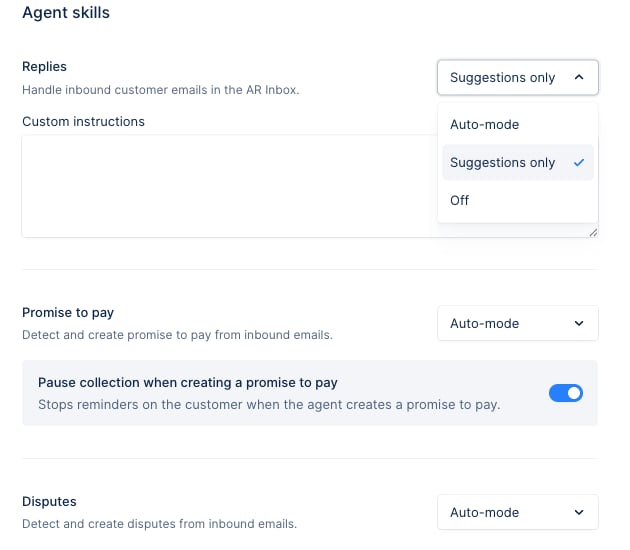 | Mode | What the agent does |
| -------------------- | ----------------------------------------------------------------------------------------------------------------------------------------------------------------------------------- |
| **Off** | The agent does nothing for this skill. The action behaves exactly as it does today. |
| **Suggestions only** | The agent prepares the work — a drafted reply, or a detected promise to pay or dispute — and leaves it for you to review, edit and confirm. Nothing is sent or created without you. |
| **Auto-mode** | The agent acts on its own — sends the reply, or creates the promise to pay or dispute — without waiting for you. |
When a skill is in **Auto-mode**, the agent only executes automatically when it is confident. If there is any doubt, then it will act as if it was in the **Suggestions-only mode**, so you can take over. Emails that don't need an answer — a simple "thanks", for example — are left alone.
## Create a collection agent
1. Go to [**Collection agents**](https://app.upflow.io/organization/-/settings/collection-agents) in your settings.
2. Click **New agent**.
3. Give the agent a **Name** and pick an **Avatar** colour. The name and avatar are how the agent's actions are identified across Upflow, so choose something recognisable (for example, the segment it serves).
4. Under **Agent skills**, set a mode for each of **Replies**, **Promise to pay** and **Disputes**.
| Mode | What the agent does |
| -------------------- | ----------------------------------------------------------------------------------------------------------------------------------------------------------------------------------- |
| **Off** | The agent does nothing for this skill. The action behaves exactly as it does today. |
| **Suggestions only** | The agent prepares the work — a drafted reply, or a detected promise to pay or dispute — and leaves it for you to review, edit and confirm. Nothing is sent or created without you. |
| **Auto-mode** | The agent acts on its own — sends the reply, or creates the promise to pay or dispute — without waiting for you. |
When a skill is in **Auto-mode**, the agent only executes automatically when it is confident. If there is any doubt, then it will act as if it was in the **Suggestions-only mode**, so you can take over. Emails that don't need an answer — a simple "thanks", for example — are left alone.
## Create a collection agent
1. Go to [**Collection agents**](https://app.upflow.io/organization/-/settings/collection-agents) in your settings.
2. Click **New agent**.
3. Give the agent a **Name** and pick an **Avatar** colour. The name and avatar are how the agent's actions are identified across Upflow, so choose something recognisable (for example, the segment it serves).
4. Under **Agent skills**, set a mode for each of **Replies**, **Promise to pay** and **Disputes**.
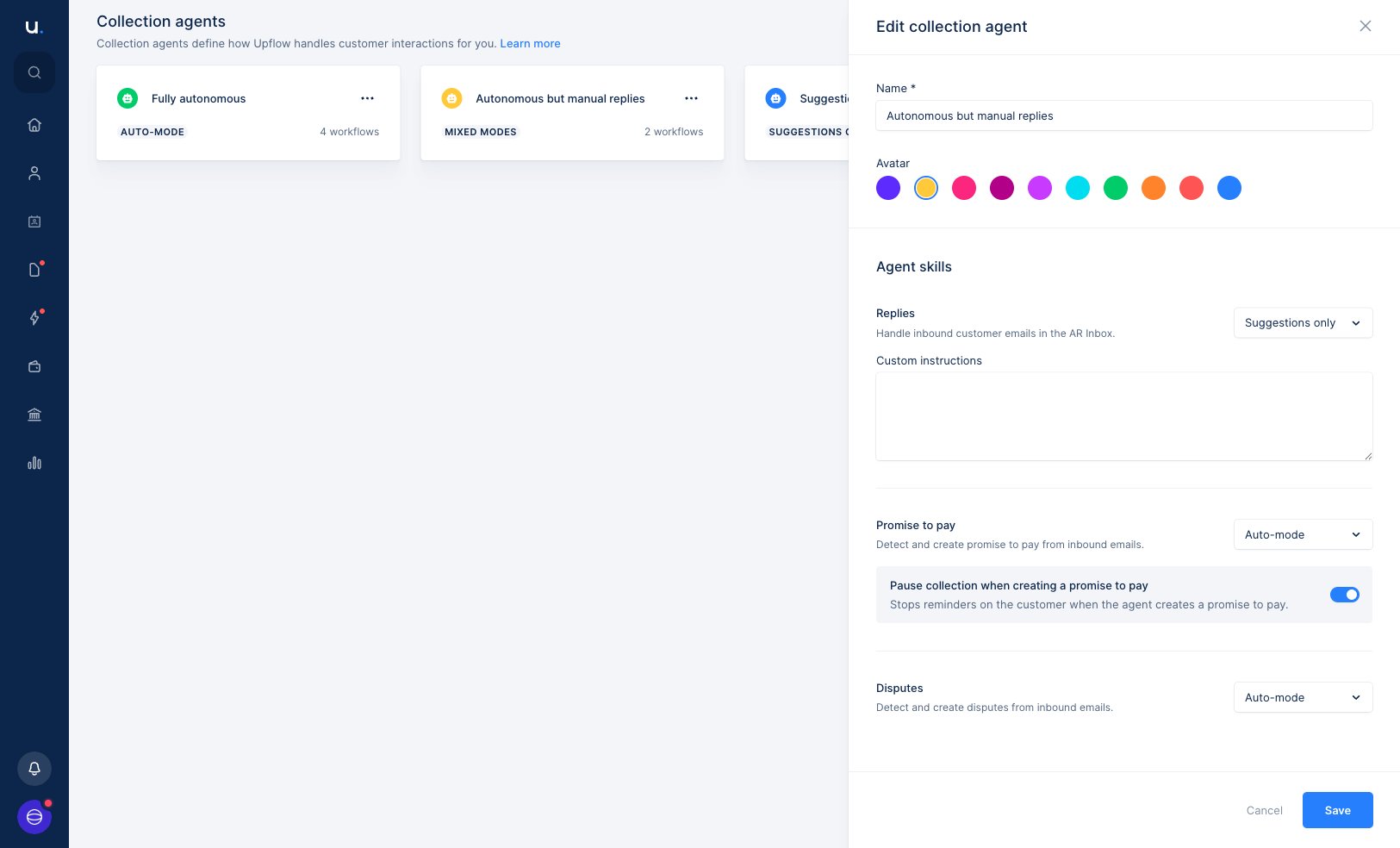 5. (Optional) Add **Custom instructions** for the **Replies** skill to steer the agent's tone and content — see [Custom instructions](#custom-instructions) below.
6. (Optional) Keep **Pause collection when creating a promise to pay** enabled so that reminders stop for a customer once the agent logs a promise to pay. This is on by default.
7. Click **Save**.
Once saved, the agent appears in your list with a summary of its modes — **Auto-mode**, **Suggestions only**, or **Mixed modes** when its skills use different levels — and the number of workflows it's assigned to.
## Assign an agent to a workflow
An agent only starts working once it's attached to a workflow. Workflows decide which customers each agent handles.
1. Open the workflow you want the agent to run on, from [**Settings > Workflows**](https://app.upflow.io/organization/-/settings/workflows).
2. In the **Collection agent** block at the top of the workflow, open the agent picker.
3. Choose an agent from the list — or select **No agent** to remove one. You can also create a new agent from here.
5. (Optional) Add **Custom instructions** for the **Replies** skill to steer the agent's tone and content — see [Custom instructions](#custom-instructions) below.
6. (Optional) Keep **Pause collection when creating a promise to pay** enabled so that reminders stop for a customer once the agent logs a promise to pay. This is on by default.
7. Click **Save**.
Once saved, the agent appears in your list with a summary of its modes — **Auto-mode**, **Suggestions only**, or **Mixed modes** when its skills use different levels — and the number of workflows it's assigned to.
## Assign an agent to a workflow
An agent only starts working once it's attached to a workflow. Workflows decide which customers each agent handles.
1. Open the workflow you want the agent to run on, from [**Settings > Workflows**](https://app.upflow.io/organization/-/settings/workflows).
2. In the **Collection agent** block at the top of the workflow, open the agent picker.
3. Choose an agent from the list — or select **No agent** to remove one. You can also create a new agent from here.
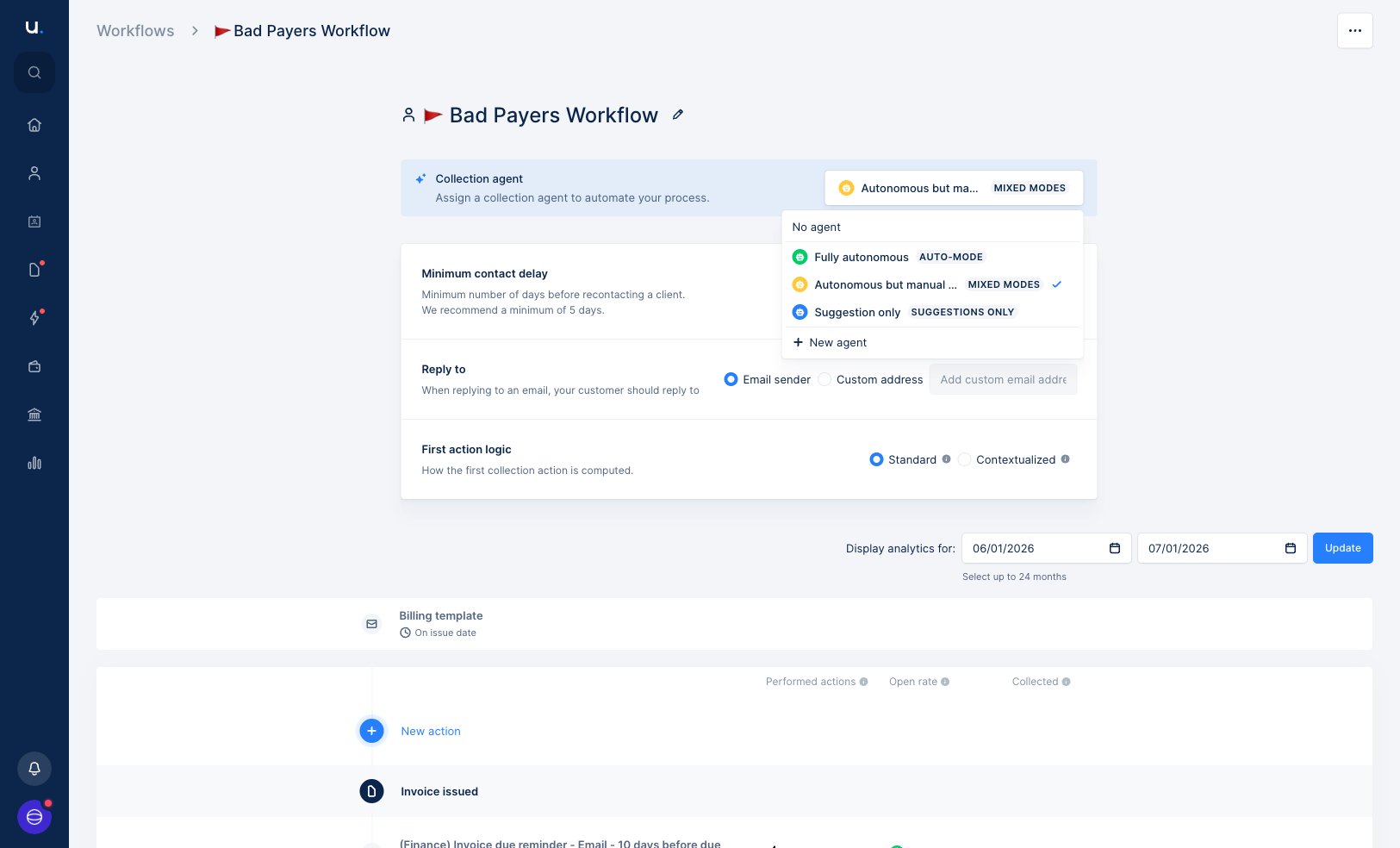 You can assign the same agent to as many workflows as you like, but a workflow can only have one agent at a time. The **Collection agent** column in your [Workflows](https://app.upflow.io/organization/-/settings/workflows) list shows which agent each workflow uses at a glance.
## Review a suggested reply
When the **Replies** skill is in **Suggestions only** mode, the agent drafts a reply and leaves it for you — it never sends on its own. You'll find the draft in the reply action, alongside your other actions in the [Actions](https://app.upflow.io/organization/-/actions) list.
Open the action and the draft appears in the **Email** composer. A banner names the agent that wrote it, and the recipients, subject and message are pre-filled.
You can assign the same agent to as many workflows as you like, but a workflow can only have one agent at a time. The **Collection agent** column in your [Workflows](https://app.upflow.io/organization/-/settings/workflows) list shows which agent each workflow uses at a glance.
## Review a suggested reply
When the **Replies** skill is in **Suggestions only** mode, the agent drafts a reply and leaves it for you — it never sends on its own. You'll find the draft in the reply action, alongside your other actions in the [Actions](https://app.upflow.io/organization/-/actions) list.
Open the action and the draft appears in the **Email** composer. A banner names the agent that wrote it, and the recipients, subject and message are pre-filled.
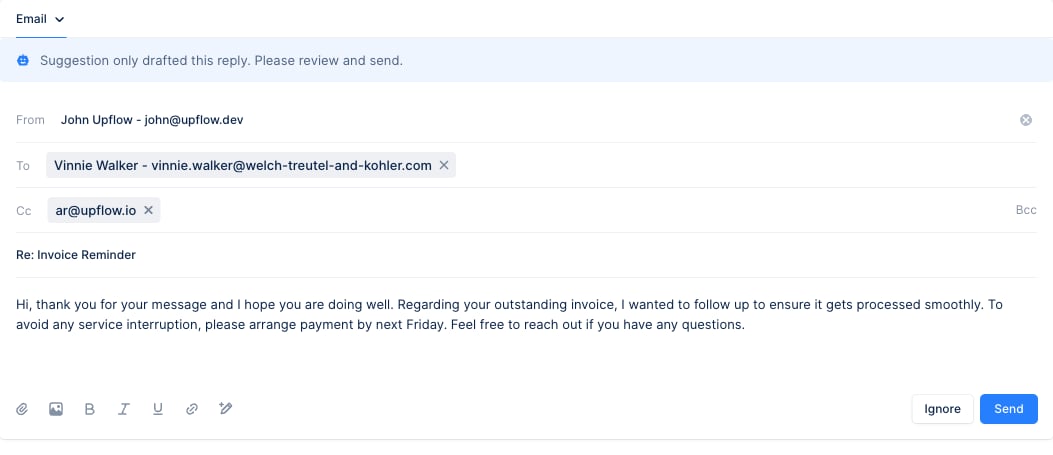 From here you can:
* **Edit** the draft — adjust the wording, recipients or subject before you send.
* **Send** the reply as it stands once you're happy with it.
* **Ignore** the action if no reply is needed.
The banner always shows which agent produced the draft (above, an agent named *Suggestion only*), so it's clear when a reply was written by an agent rather than a teammate.
## Custom instructions
The **Replies** skill accepts free-text **custom instructions** that run alongside Upflow's own guidance whenever the agent drafts a reply. Use them to set the tone, spell out how to handle recurring situations, or tell the agent when to hand a conversation back to a human.
## Good to know
* **You stay in control.** In **Suggestions only** mode, nothing is sent or created until you confirm it. Agent actions appear in your timelines and actions list just like manual ones, identified by the agent's name and avatar.
* **The agent works from what's in Upflow.** Its answers are based on the customer, invoice and conversation data available in Upflow, which is why it won't reply when it isn't confident.
* **Sender address.** In **Auto-mode**, replies are sent from the alias the customer originally wrote to. If the recipient address isn't a recognised alias in your organization, the reply is left as a manual action for you to send.
* **Deactivating an agent.** Removing an agent from a workflow stops it from acting on that workflow's customers; the workflow keeps running its reminders as normal.
From here you can:
* **Edit** the draft — adjust the wording, recipients or subject before you send.
* **Send** the reply as it stands once you're happy with it.
* **Ignore** the action if no reply is needed.
The banner always shows which agent produced the draft (above, an agent named *Suggestion only*), so it's clear when a reply was written by an agent rather than a teammate.
## Custom instructions
The **Replies** skill accepts free-text **custom instructions** that run alongside Upflow's own guidance whenever the agent drafts a reply. Use them to set the tone, spell out how to handle recurring situations, or tell the agent when to hand a conversation back to a human.
## Good to know
* **You stay in control.** In **Suggestions only** mode, nothing is sent or created until you confirm it. Agent actions appear in your timelines and actions list just like manual ones, identified by the agent's name and avatar.
* **The agent works from what's in Upflow.** Its answers are based on the customer, invoice and conversation data available in Upflow, which is why it won't reply when it isn't confident.
* **Sender address.** In **Auto-mode**, replies are sent from the alias the customer originally wrote to. If the recipient address isn't a recognised alias in your organization, the reply is left as a manual action for you to send.
* **Deactivating an agent.** Removing an agent from a workflow stops it from acting on that workflow's customers; the workflow keeps running its reminders as normal.