> ## Documentation Index
> Fetch the complete documentation index at: https://docs.upflow.io/llms.txt
> Use this file to discover all available pages before exploring further.
# Templates
> Reuse predefined action content across workflows and campaigns in Upflow, so updating a template instantly applies to every linked email, task, call, SMS or letter.
Templates let you define the content of an action once — subject line, message body, recipients, attachments — and reuse it across your workflows and campaigns. When you update a template, every action referencing it reflects the change automatically, so you don't have to update the same wording in multiple places.
## What is a Template?
A template is a reusable preset for an action. It stores the default content for a given action type (email, task, call, SMS, or letter) and can be linked to workflow steps or applied to campaigns.
The key benefit: **edit the template once, and everything that references it updates** — instead of manually updating the same content across multiple workflow steps.
## When is it useful?
Templates are helpful when:
* Your team regularly sends similar emails and wants to avoid rewriting them each time
* You want consistent wording across all actions of the same type
* Multiple workflows need to share the exact same email content
* You want to update a recurring message in one place and have it apply everywhere
## How to create a Template
### From scratch
Use this approach when you're setting up Upflow for the first time, or if you want to create a new workflow or update one or multiple existing ones.
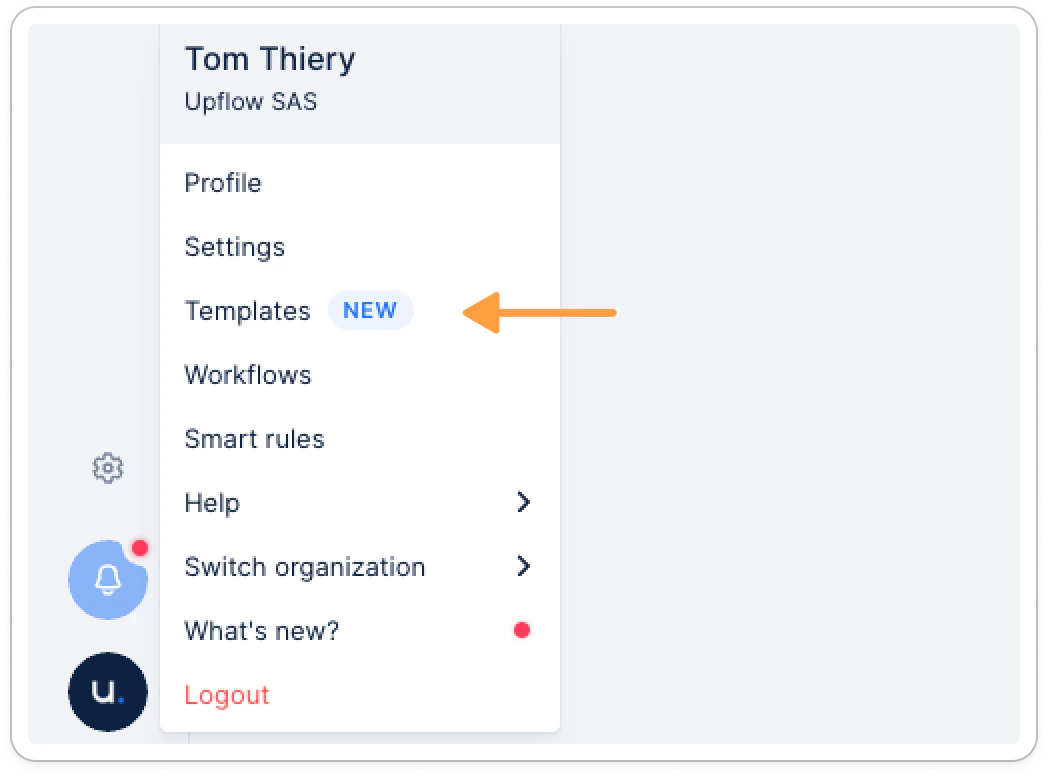
**1. Go to** [**Menu > Templates**](https://app.upflow.io/organization/-/settings/action-content-templates)
Click your company logo in the left sidebar, then select **Templates**.
 **2. Create a new template**
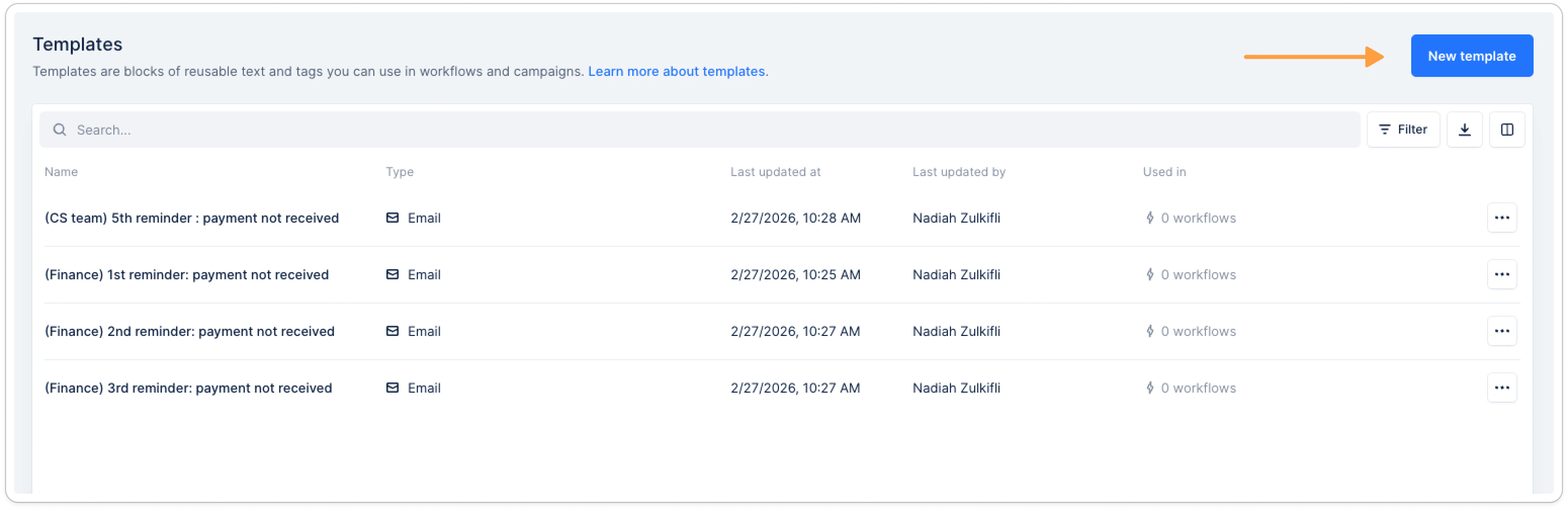
Click **New template** in the top right. A panel will open where you can configure the template.
**2. Create a new template**
Click **New template** in the top right. A panel will open where you can configure the template.
 **3. Fill in the template fields**
Depending on the action type, you can define:
* **Name** — used to identify the template across workflows and actions
* **Type** — Email, Task, Call, SMS, or Letter
* **Owners** — the team members responsible for actions using this template
* **Content** — subject line, message body, attachments, recipients, and other type-specific fields
**4. Save**
Click **Save**. The template is now available to use in your workflows and campaigns.
### From an existing workflow action template
Use this approach if you're already using Upflow and want to turn a workflow action template you've already written into a reusable template.
**1. Go to** [**Menu > Workflows**](https://app.upflow.io/organization/-/settings/action-content-templates)
Open the workflow that contains the action template you want to save as a template.
**2. Open the action editor**
Click the action to open its editor.
**3. Check "Save as template"**
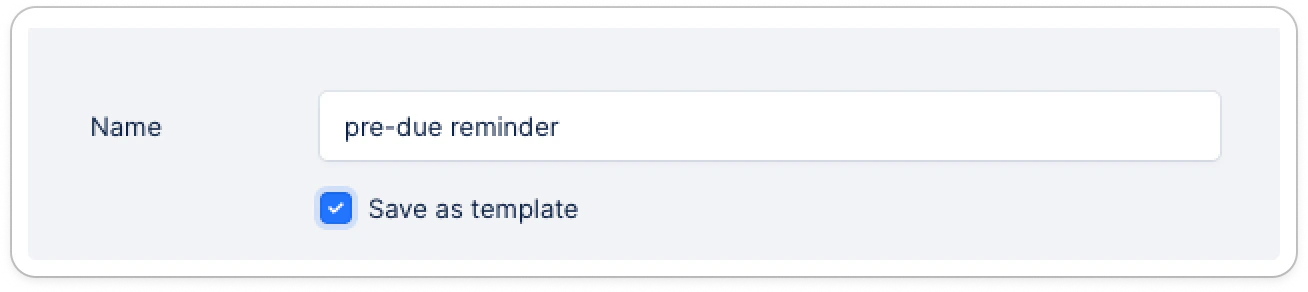
Below the **Name** field, check the **Save as template** checkbox. This option only appears if the action isn't already linked to a template.
**3. Fill in the template fields**
Depending on the action type, you can define:
* **Name** — used to identify the template across workflows and actions
* **Type** — Email, Task, Call, SMS, or Letter
* **Owners** — the team members responsible for actions using this template
* **Content** — subject line, message body, attachments, recipients, and other type-specific fields
**4. Save**
Click **Save**. The template is now available to use in your workflows and campaigns.
### From an existing workflow action template
Use this approach if you're already using Upflow and want to turn a workflow action template you've already written into a reusable template.
**1. Go to** [**Menu > Workflows**](https://app.upflow.io/organization/-/settings/action-content-templates)
Open the workflow that contains the action template you want to save as a template.
**2. Open the action editor**
Click the action to open its editor.
**3. Check "Save as template"**
Below the **Name** field, check the **Save as template** checkbox. This option only appears if the action isn't already linked to a template.
 **4. Save**
Click **Save**. The action's content is now saved as a template and available across your organization. The "Save as template" checkbox will no longer appear — instead, you'll see **Edit template** and **Detach template** buttons, indicating the action is now linked to a template.
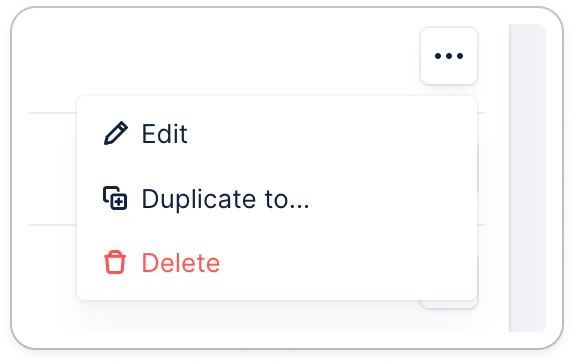
**Note:** Templates can be copied to another organization via **Duplicate to** action in the template menu. This is a manual one-time copy — it does not sync future changes across orgs.
**4. Save**
Click **Save**. The action's content is now saved as a template and available across your organization. The "Save as template" checkbox will no longer appear — instead, you'll see **Edit template** and **Detach template** buttons, indicating the action is now linked to a template.
**Note:** Templates can be copied to another organization via **Duplicate to** action in the template menu. This is a manual one-time copy — it does not sync future changes across orgs.
 ## How to use a Template
### In your workflows
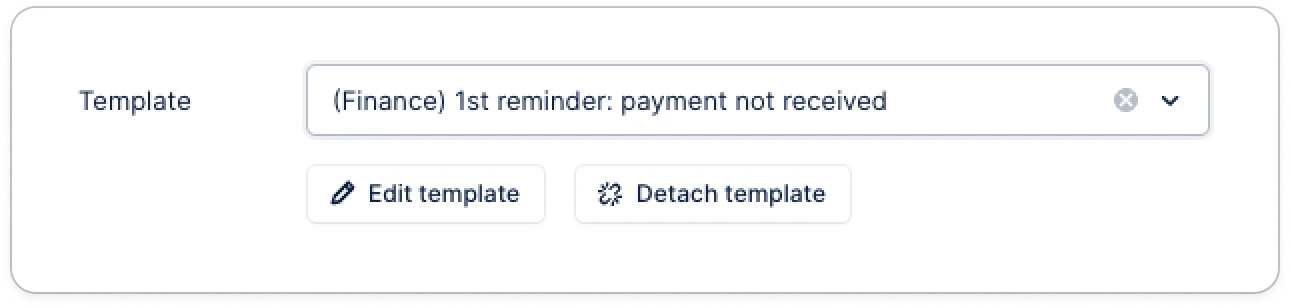
When editing a workflow action template, a **Template** dropdown appears at the top of the action editor. Select a template to apply it.
Once a template is selected:
* All content fields (subject, body, recipients, attachments) are **pre-filled and locked** — they reflect the template content and cannot be edited directly from the workflow
* Click **Edit template** to update the template itself — this affects all action templates referencing it
* Click **Detach template** to unlink the action template and edit it independently, without affecting the original template
## How to use a Template
### In your workflows
When editing a workflow action template, a **Template** dropdown appears at the top of the action editor. Select a template to apply it.
Once a template is selected:
* All content fields (subject, body, recipients, attachments) are **pre-filled and locked** — they reflect the template content and cannot be edited directly from the workflow
* Click **Edit template** to update the template itself — this affects all action templates referencing it
* Click **Detach template** to unlink the action template and edit it independently, without affecting the original template
 *⚠️ If a template is used in automated workflow steps, the **From** field cannot be set to "Current user". Use a specific sender, alias, or group instead.*
### In manual actions
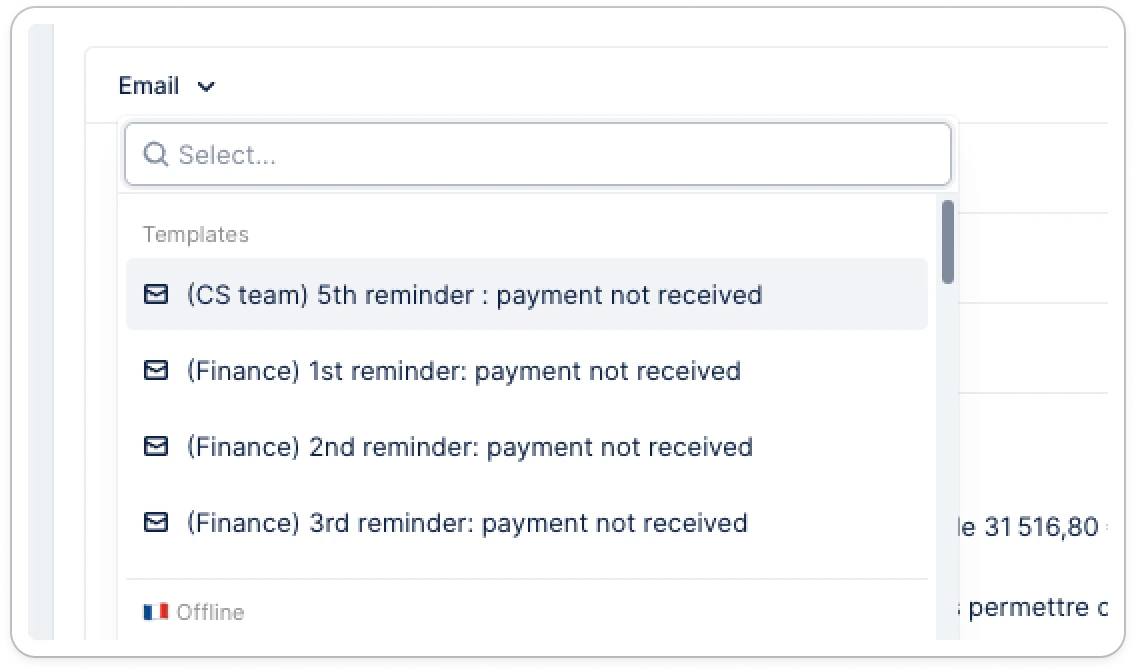
When setting up a campaign or performing a manual action, a **Template** dropdown appears at the top of the action form. Selecting a template pre-fills the content, you can still customize the content if needed.
*⚠️ If a template is used in automated workflow steps, the **From** field cannot be set to "Current user". Use a specific sender, alias, or group instead.*
### In manual actions
When setting up a campaign or performing a manual action, a **Template** dropdown appears at the top of the action form. Selecting a template pre-fills the content, you can still customize the content if needed.
 ## Managing Templates
Go to [**Menu > Templates**](https://app.upflow.io/organization/-/settings/action-content-templates) to see all templates in your organization. From there you can:
* **Search** by name or filter by type (Email, Call, SMS, etc.)
* **Edit** a template — changes apply to all workflow steps and campaigns using it
* **Duplicate** a template to use as a starting point for a variation
* **Delete** a template — if it's used in workflow steps, you'll be asked to reassign those steps first
## Testing an email template
For email templates, you can send a test email to yourself to preview what your customers will see. Open the template and click **Send me a test email**.
## FAQ
**Can I use variables or placeholders in a template?**
Yes — you can use [collection tags](/en-us/collection-and-collaboration/workflows-customize-your-collection/collection-tag-inserter) (such as customer name or invoice amount) in the subject and body fields. Tags are resolved when the action is created or sent.
**What if I want to change a template?**
Edit it anytime from [**Menu > Templates**](https://app.upflow.io/organization/-/settings/action-content-templates). Changes will apply to all workflows and campaigns that reference it — existing sent actions are not affected.
**Can I have multiple templates for the same action type?**
Yes. You can create as many templates as you need, each with a different name and content. Each workflow action or campaign references one template at a time.
**What happens if I detach a template from a workflow action?**
The action keeps its current content but is no longer linked to the template. Future changes to the template won't affect it.
## Managing Templates
Go to [**Menu > Templates**](https://app.upflow.io/organization/-/settings/action-content-templates) to see all templates in your organization. From there you can:
* **Search** by name or filter by type (Email, Call, SMS, etc.)
* **Edit** a template — changes apply to all workflow steps and campaigns using it
* **Duplicate** a template to use as a starting point for a variation
* **Delete** a template — if it's used in workflow steps, you'll be asked to reassign those steps first
## Testing an email template
For email templates, you can send a test email to yourself to preview what your customers will see. Open the template and click **Send me a test email**.
## FAQ
**Can I use variables or placeholders in a template?**
Yes — you can use [collection tags](/en-us/collection-and-collaboration/workflows-customize-your-collection/collection-tag-inserter) (such as customer name or invoice amount) in the subject and body fields. Tags are resolved when the action is created or sent.
**What if I want to change a template?**
Edit it anytime from [**Menu > Templates**](https://app.upflow.io/organization/-/settings/action-content-templates). Changes will apply to all workflows and campaigns that reference it — existing sent actions are not affected.
**Can I have multiple templates for the same action type?**
Yes. You can create as many templates as you need, each with a different name and content. Each workflow action or campaign references one template at a time.
**What happens if I detach a template from a workflow action?**
The action keeps its current content but is no longer linked to the template. Future changes to the template won't affect it.