> ## Documentation Index
> Fetch the complete documentation index at: https://docs.upflow.io/llms.txt
> Use this file to discover all available pages before exploring further.
# Import bank transactions via CSV
> Manually upload bank transactions into Upflow from a CSV file when your bank isn't connected through a bank feed, with column mapping and an import history to track every upload.
To perform Cash Application, Upflow needs your bank transactions on a regular basis. When your bank can't be connected through an automatic [bank feed](/en-us/cash-application/bank-feed/connect-your-bank-account-for-automatic-transaction-import), you can still bring your transactions in by uploading a CSV file you exported from your bank.
This guide covers how to format your file, upload it, map its columns to Upflow fields, and check the result.
If your bank is supported by our [bank feed](/en-us/cash-application/bank-feed/connect-your-bank-account-for-automatic-transaction-import), connect it instead — transactions then sync automatically every day with no manual upload.
## Before you start
You need at least one bank account set up in Upflow to receive the imported transactions. You can review and add bank accounts from [**Settings > Cash Application**](https://app.upflow.io/organization/-/settings/cash-application). When you start an import, you'll choose which of these accounts the transactions belong to.
## Prepare your CSV file
Export your transactions from your bank as a CSV file, then make sure it includes the columns Upflow needs. **Each row is one transaction.**
**Required columns**
| Column | Details | Example |
| ---------------- | ---------------------------------------------------------------------------------------------------------------------------------------------------------------------------------------------------------------------------------------------- | ------------ |
| External ID | A unique identifier for each transaction. Upflow uses it to recognize transactions and avoid creating duplicates. Free text. If there is none in your bank export, you will need to create one (e.g. concatenate transaction date and amount). | `TXN-10024` |
| Transaction date | The date the transaction occurred. Use the `YYYY-MM-DD` format. | `2026-06-02` |
| Amount | The transaction amount. Use a period (`.`) for decimals, with no currency symbol and no thousands separator. | `1250.00` |
**Optional columns**
| Column | Details | Example |
| ----------------- | --------------------------------------------------------------------------------------------------------------------------------------------------------- | -------------------------- |
| Posted date | The date the transaction was posted to your account. Use the `YYYY-MM-DD` format. | `2026-06-03` |
| Currency | The transaction currency, as a three-letter ISO code. If omitted, the currency of the selected bank account is used. | `EUR` |
| Description | The transaction description from your bank. Helps you and the [Cash App agent](/en-us/cash-application/cash-app-agent) match it to an invoice. Free text. | `Invoice INV-4471 payment` |
| Counterparty name | The name of the payer as provided by your bank. Free text. | `ACME Corp` |
Your bank doesn't provide a unique transaction reference? Build your own External ID by combining the transaction's date, amount and description into a single value, and use that column in your file.
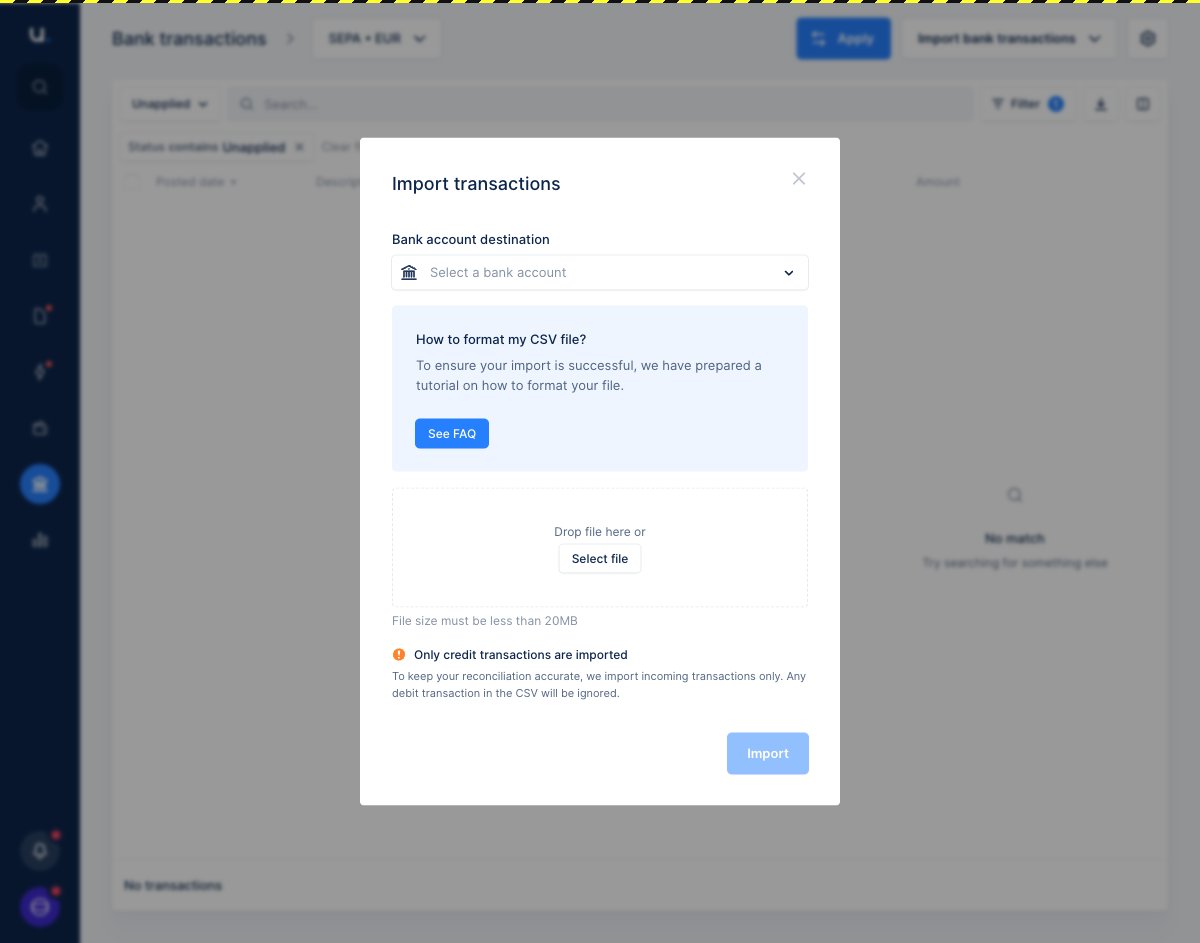
**Only credit (incoming) transactions are imported.** To keep your reconciliation accurate, Upflow imports incoming transactions only — any debit transaction in your CSV is ignored.
Your file must be a `.csv` and smaller than 20MB.
## Import your file
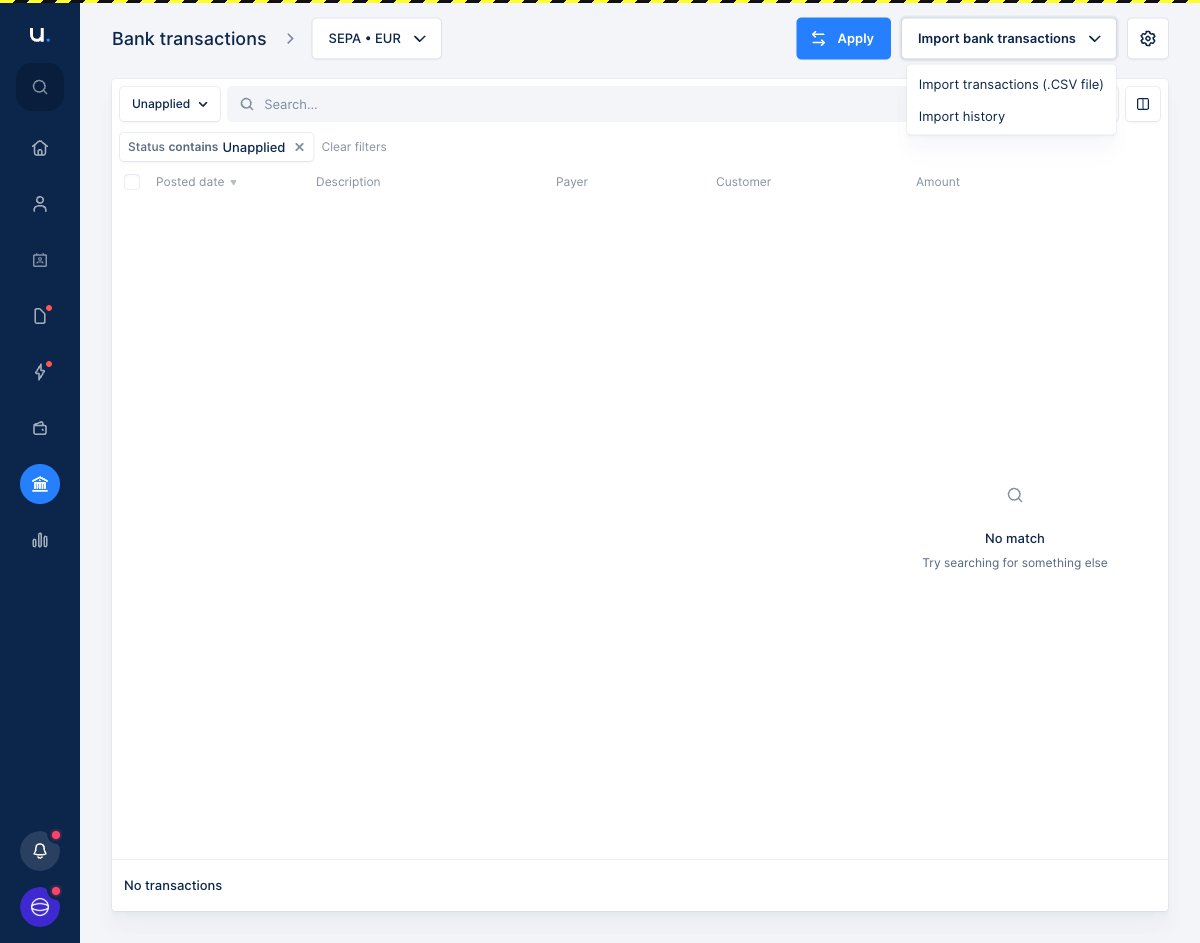
1. From the [**Bank transactions**](https://app.upflow.io/organization/-/bank-transactions) page, click **Import bank transactions** in the top-right corner and select **Import transactions (.CSV file)**.
 2. In the **Import transactions** window, choose the **Bank account destination** — the account these transactions belong to.
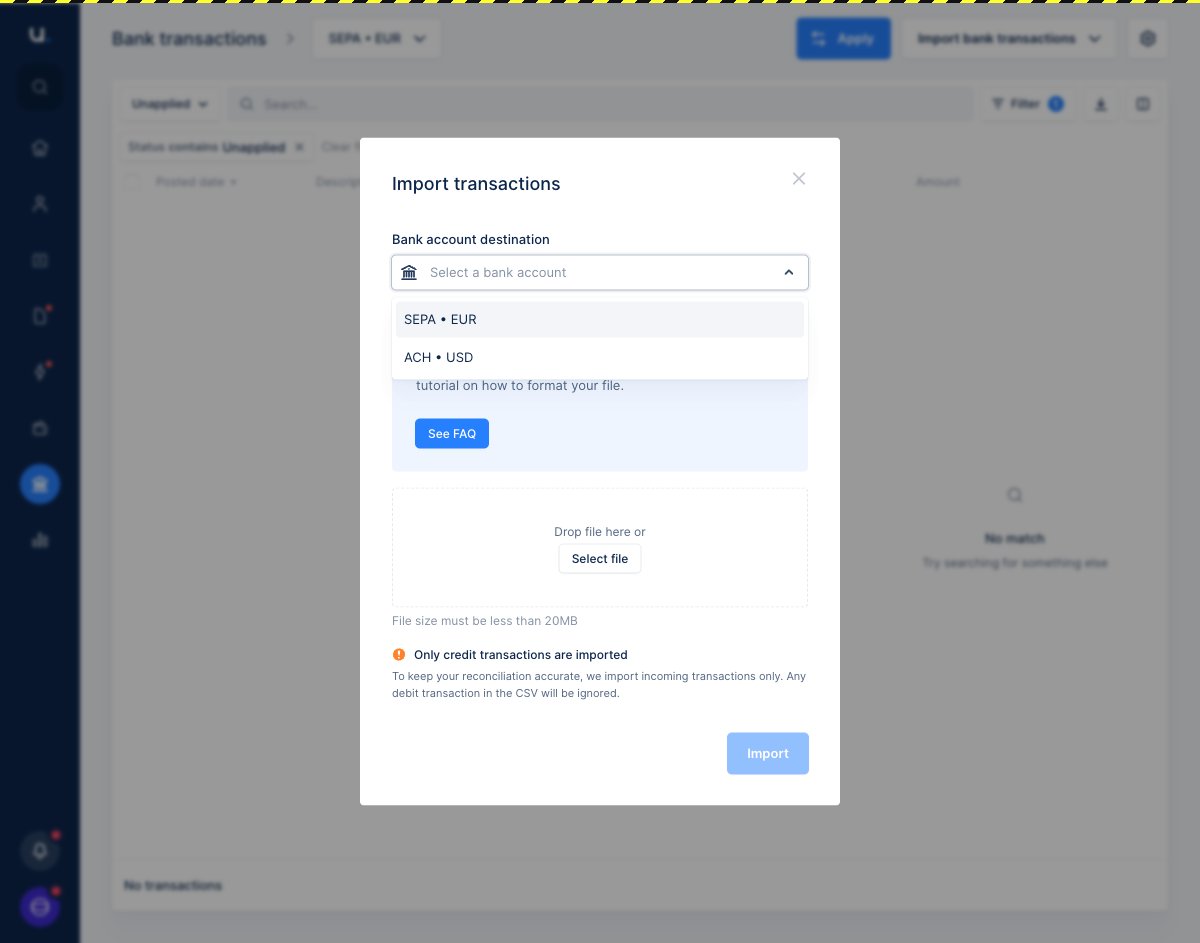
 3. Open the dropdown to pick the relevant bank account.
 4. Drop your CSV into the upload zone or click **Select file** to choose it from your computer, then click **Import**.
## Map your columns
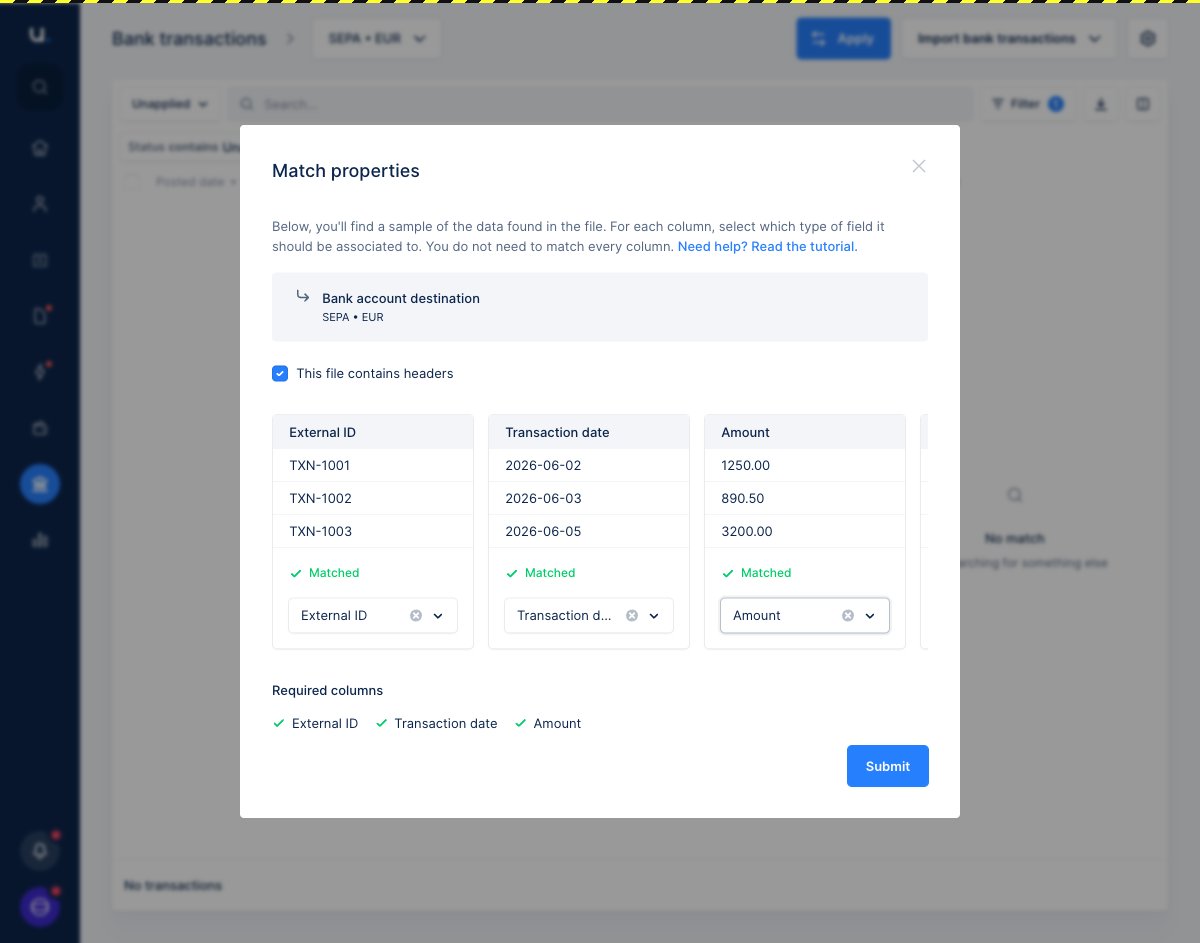
After uploading, the **Match properties** step shows a sample of your file. For each column, choose which Upflow field it corresponds to — you don't need to map every column, only the ones you want to import.
4. Drop your CSV into the upload zone or click **Select file** to choose it from your computer, then click **Import**.
## Map your columns
After uploading, the **Match properties** step shows a sample of your file. For each column, choose which Upflow field it corresponds to — you don't need to map every column, only the ones you want to import.
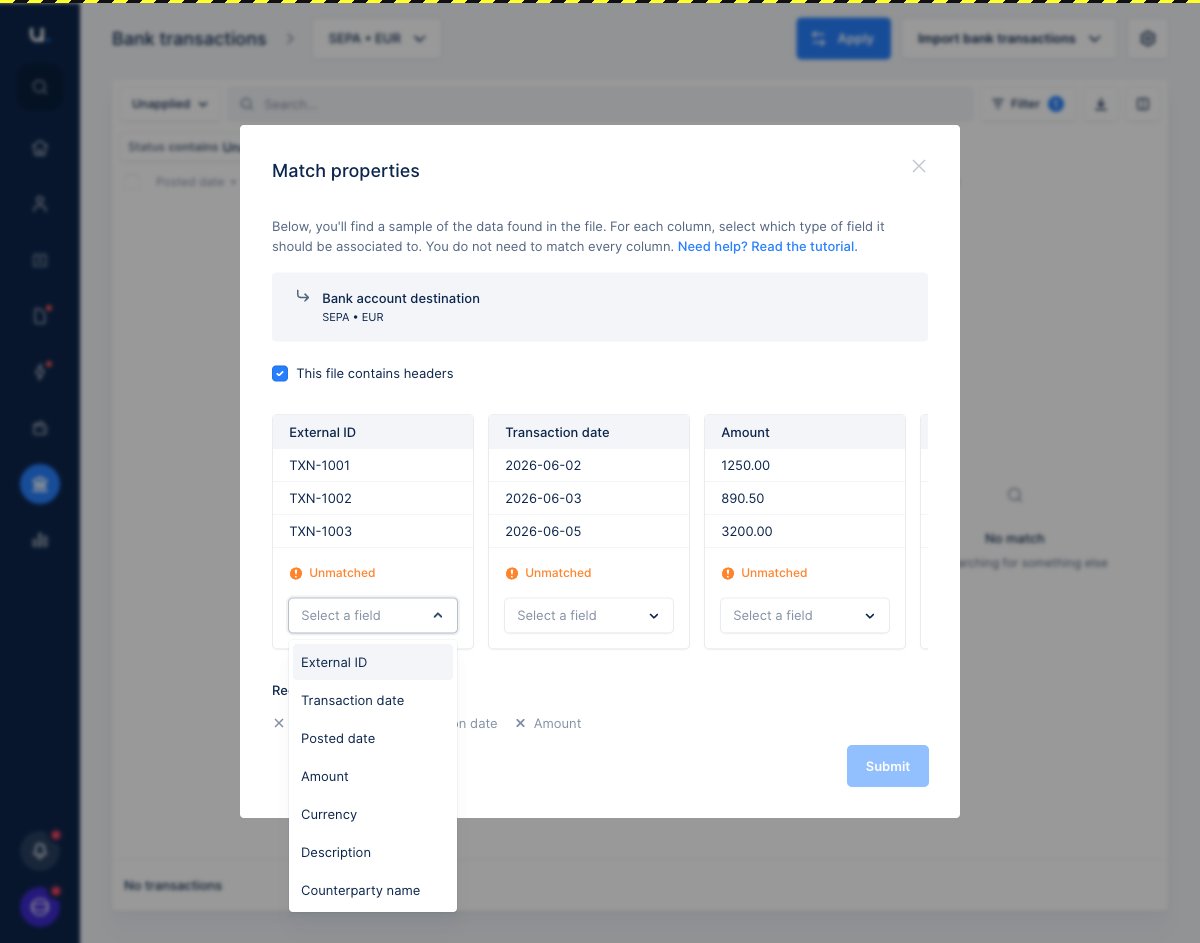 * Keep **This file contains headers** checked if your CSV's first row contains column titles.
* The **External ID**, **Transaction date** and **Amount** fields are required. They appear under **Required columns** and must each be matched before you can continue.
* Once your required columns show **Matched**, click **Submit**.
* Keep **This file contains headers** checked if your CSV's first row contains column titles.
* The **External ID**, **Transaction date** and **Amount** fields are required. They appear under **Required columns** and must each be matched before you can continue.
* Once your required columns show **Matched**, click **Submit**.
 Your transactions are imported into the selected bank account and appear in your **Unapplied** list, ready to be [matched to invoices](/en-us/cash-application/application-logic/apply-bank-transactions-to-invoices).
## Check your import history
To review your past uploads, click **Import bank transactions** and select **Import history**. This list shows every file you've uploaded, who imported it, and the result.
Your transactions are imported into the selected bank account and appear in your **Unapplied** list, ready to be [matched to invoices](/en-us/cash-application/application-logic/apply-bank-transactions-to-invoices).
## Check your import history
To review your past uploads, click **Import bank transactions** and select **Import history**. This list shows every file you've uploaded, who imported it, and the result.
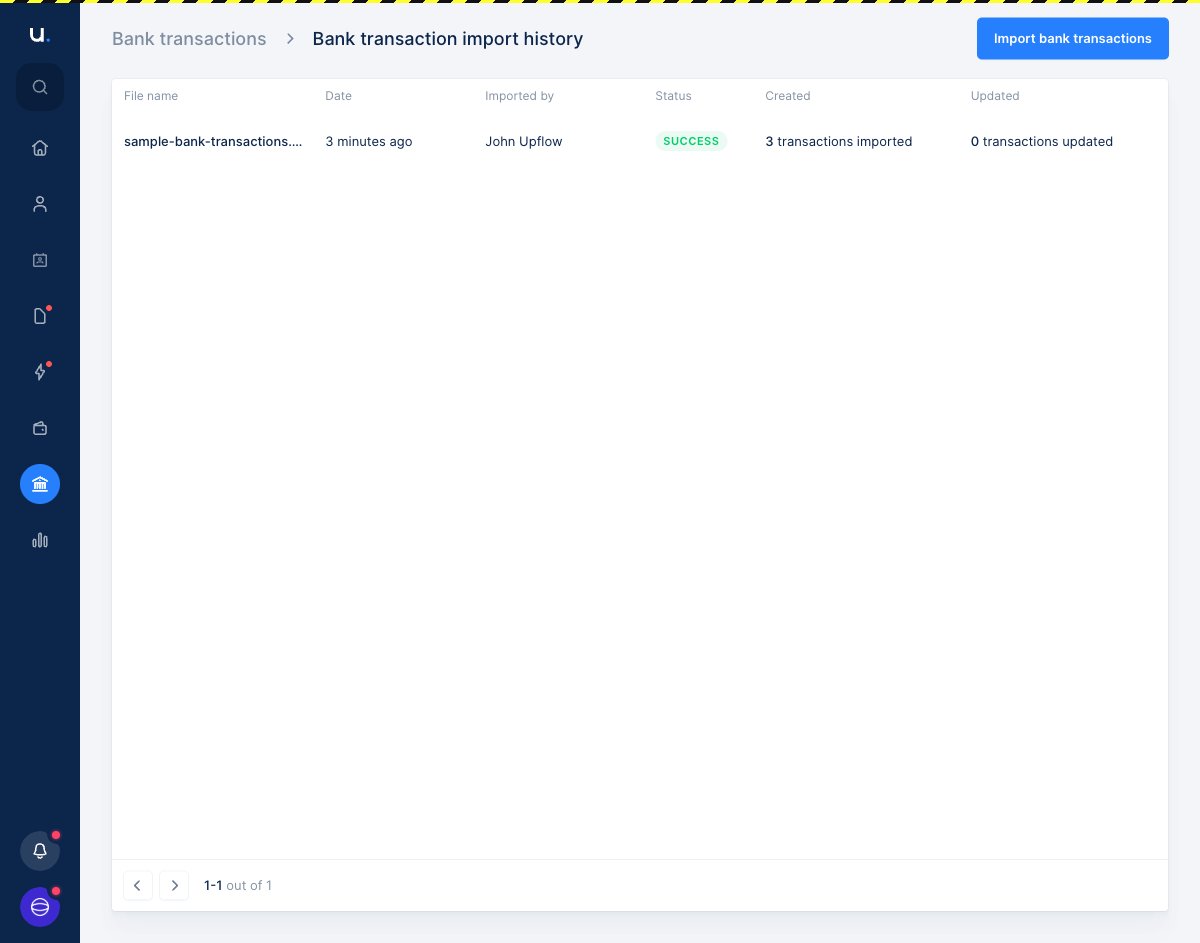 Each row shows the file's **Status**, along with how many transactions were **Created** and **Updated**:
* **Success** — the file was processed and its transactions imported.
* **Failure** — the file couldn't be processed. Review the error, correct your file, and upload it again.
Because Upflow recognizes transactions by their **External ID**, re-uploading a corrected file won't create duplicates — transactions that already exist are updated rather than added again.
Need a hand with a failed import or your file format? Reach out to [support@upflow.io](mailto:support@upflow.io).
Each row shows the file's **Status**, along with how many transactions were **Created** and **Updated**:
* **Success** — the file was processed and its transactions imported.
* **Failure** — the file couldn't be processed. Review the error, correct your file, and upload it again.
Because Upflow recognizes transactions by their **External ID**, re-uploading a corrected file won't create duplicates — transactions that already exist are updated rather than added again.
Need a hand with a failed import or your file format? Reach out to [support@upflow.io](mailto:support@upflow.io).