> ## Documentation Index
> Fetch the complete documentation index at: https://docs.upflow.io/llms.txt
> Use this file to discover all available pages before exploring further.
# Cash App agent
> Learn how Upflow's Cash App agent auto-applies bank transactions to invoices when matches are unambiguous, and which transactions stay as suggestions.
The Cash App agent automatically reconciles bank transactions to your invoices when the match is clear — so your team only has to step in when a decision actually needs to be made.
The agent is conservative by design: it only acts on the safest matches. Anything ambiguous still surfaces as a suggestion for review.
## What the agent applies
The agent applies a transaction only when it can confidently link it to a single open invoice in your account. If there's any doubt — multiple possible candidates, an amount that doesn't line up, an unfamiliar payer — the transaction stays as a suggestion for you to review and apply manually.
## What the agent never applies
These transactions are never applied automatically by the agent:
* Transactions explicitly **excluded** by you or by a smart rule
* Transactions **older than 90 days** at the time of import
* Transactions that were previously auto-applied and then **Unapplied** — they won't be picked up again
* Transactions where the invoice is already marked as paid in your accounting system
The agent only runs on bank transactions as they are imported (or updated by a sync). Turning the setting on does **not** retroactively apply your existing backlog of unapplied transactions — those stay as suggestions until you act on them.
## Enable the agent
The agent is controlled by a single admin setting at the organization level.
1. Go to [**Settings → Cash application**](https://app.upflow.io/organization/-/settings/cash-application).
2. Toggle **Enable the Cash App agent** to ON, then click **Save**.
 3. The next time a bank transaction is imported, the agent will evaluate it.
This setting is admin-only and applies to the whole organization. Turning it off does not revert past auto-applications — only new incoming transactions stop being auto-applied.
3. The next time a bank transaction is imported, the agent will evaluate it.
This setting is admin-only and applies to the whole organization. Turning it off does not revert past auto-applications — only new incoming transactions stop being auto-applied.
## Identify auto-applied transactions
Auto-applied transactions have a distinct **Auto-applied** status, separate from the regular **Applied** status used for transactions you've applied manually.
On the [**Bank transactions**](https://app.upflow.io/organization/-/bank-transactions) page, you can filter the list to see only auto-applied transactions using the pre-built **Auto-applied** saved view in the views dropdown.
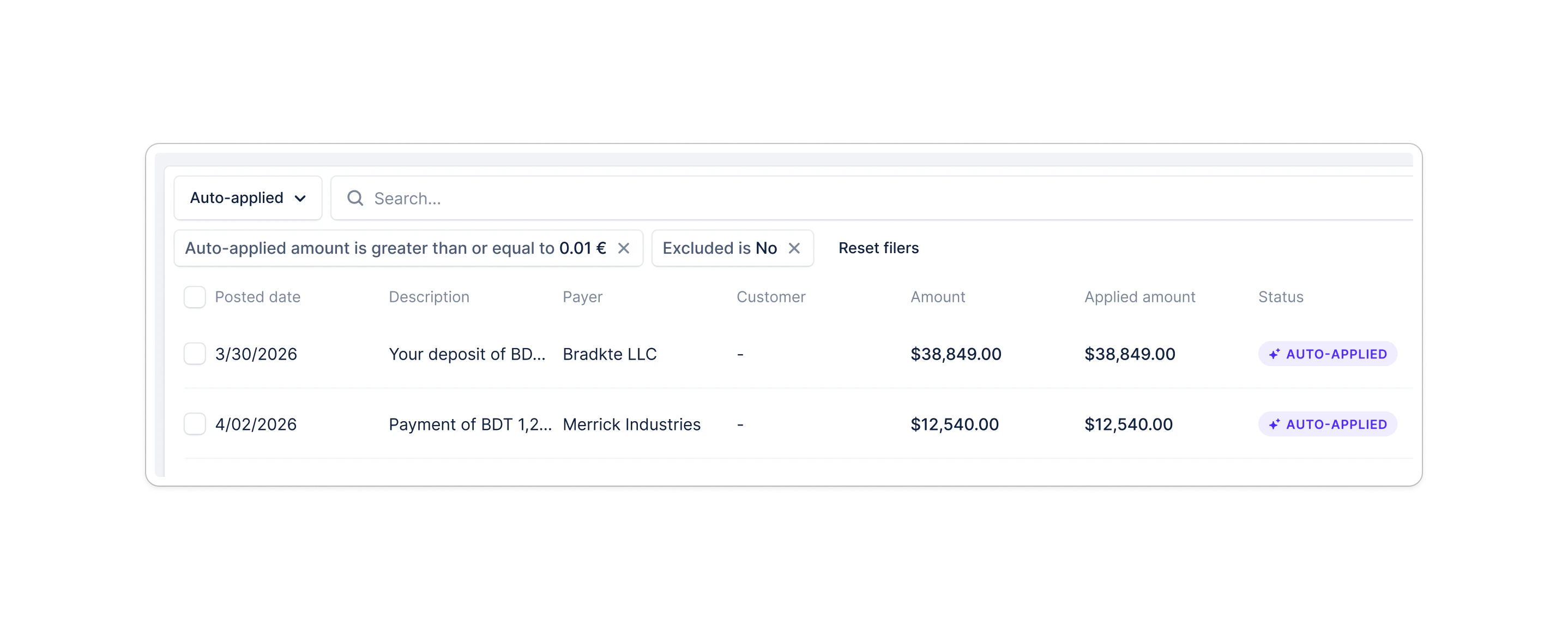 You can also filter manually: click **Filter → Status → Auto-applied**.
## Sync to your accounting system
Auto-applied transactions sync to your accounting system the same way as manually applied ones. On NetSuite, the synced payment carries a memo: **"Auto-applied by Upflow"**, so your finance team can tell at a glance which payments were applied by the agent.
## Unapply an auto-applied transaction
If the agent applied a transaction incorrectly, you can revert it in one click — the flow is the same as for manually applied transactions.
1. From the [**Bank transactions**](https://app.upflow.io/organization/-/bank-transactions) page, click **Edit** on the auto-applied transaction.
2. Uncheck the invoice in the matching panel.
3. Click the red **Unapply** button in the footer, then confirm.
Once a transaction is unapplied, the agent will **not** apply it again, even if the match would still be valid. To re-apply it, you'll need to do so manually.
## Related articles
* [Apply bank transactions to invoices](/en-us/cash-application/application-logic/apply-bank-transactions-to-invoices)
* [Review match suggestions](/en-us/cash-application/application-logic/review-match-suggestions)
* [Connect your bank account for automatic transaction import](/en-us/cash-application/bank-feed/connect-your-bank-account-for-automatic-transaction-import)