> ## Documentation Index
> Fetch the complete documentation index at: https://docs.upflow.io/llms.txt
> Use this file to discover all available pages before exploring further.
# Connect your bank account for automatic transaction import
> Set up a bank feed in Upflow to import transactions automatically every day through Plaid, with duplicate detection and no manual file uploads required.
To perform Cash Application, Upflow needs access to your bank transactions on a regular basis. Rather than manually uploading files, you can connect your bank account directly to Upflow for automatic daily imports — this is called a **bank feed**.
👉 Bank feeds are the recommended way to import bank transactions into Upflow. Once set up, transactions sync automatically every day with no manual effort required.
## How it works
Upflow uses **Plaid**, a trusted third-party service, to securely connect to your bank. Once your bank account is linked:
* Transactions are imported automatically, at least once per day.
* Duplicate transactions are detected and filtered out.
* You no longer need to download or upload files from your bank.
This connection uses a secure OAuth flow — Upflow never sees your banking credentials.
## Connect your bank account
1. Go to [**Settings > Cash Application**](https://app.upflow.io/organization/-/settings/cash-application).
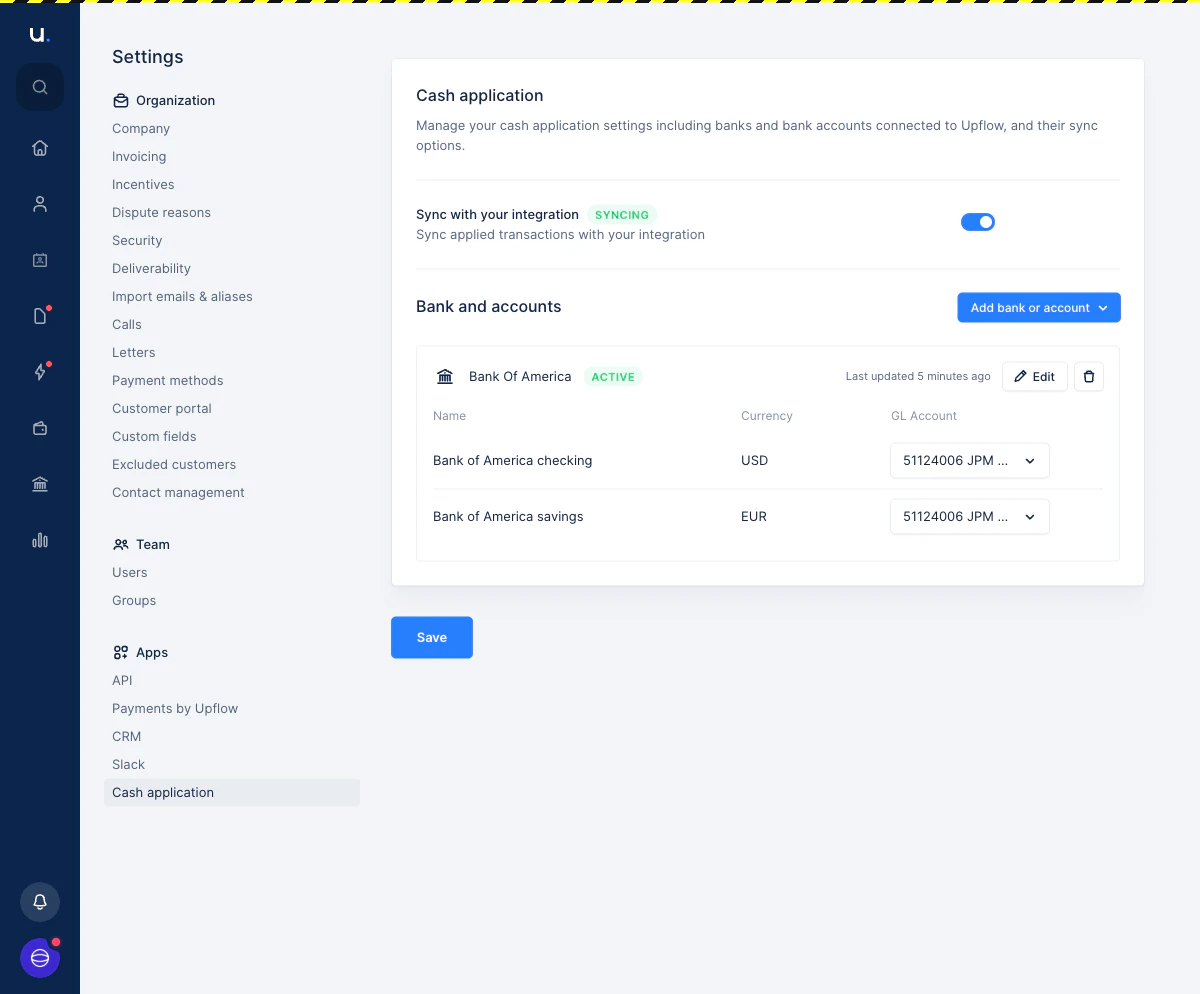 2. In the **Bank and accounts** section, click **Add bank or account** and select your region.
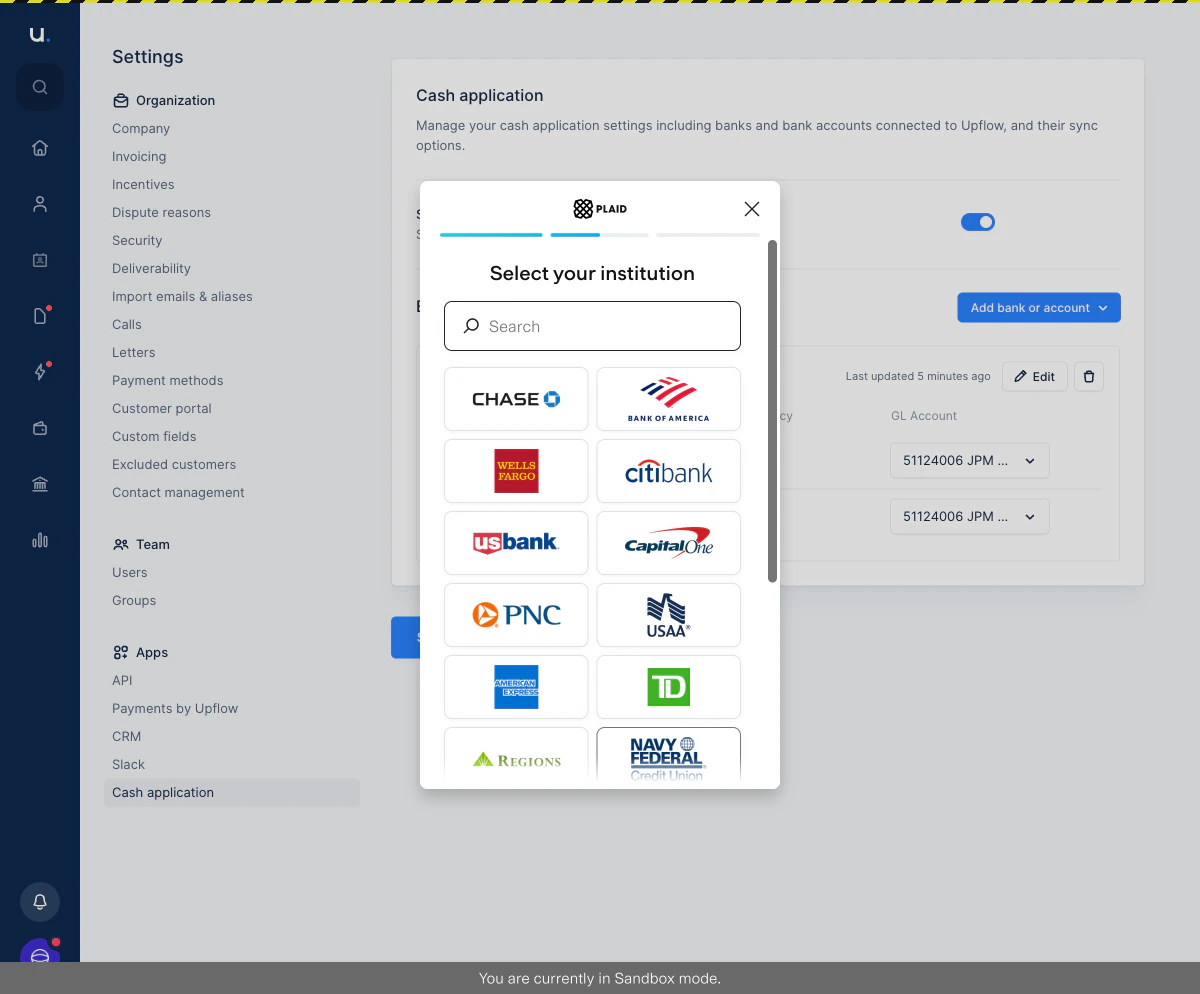
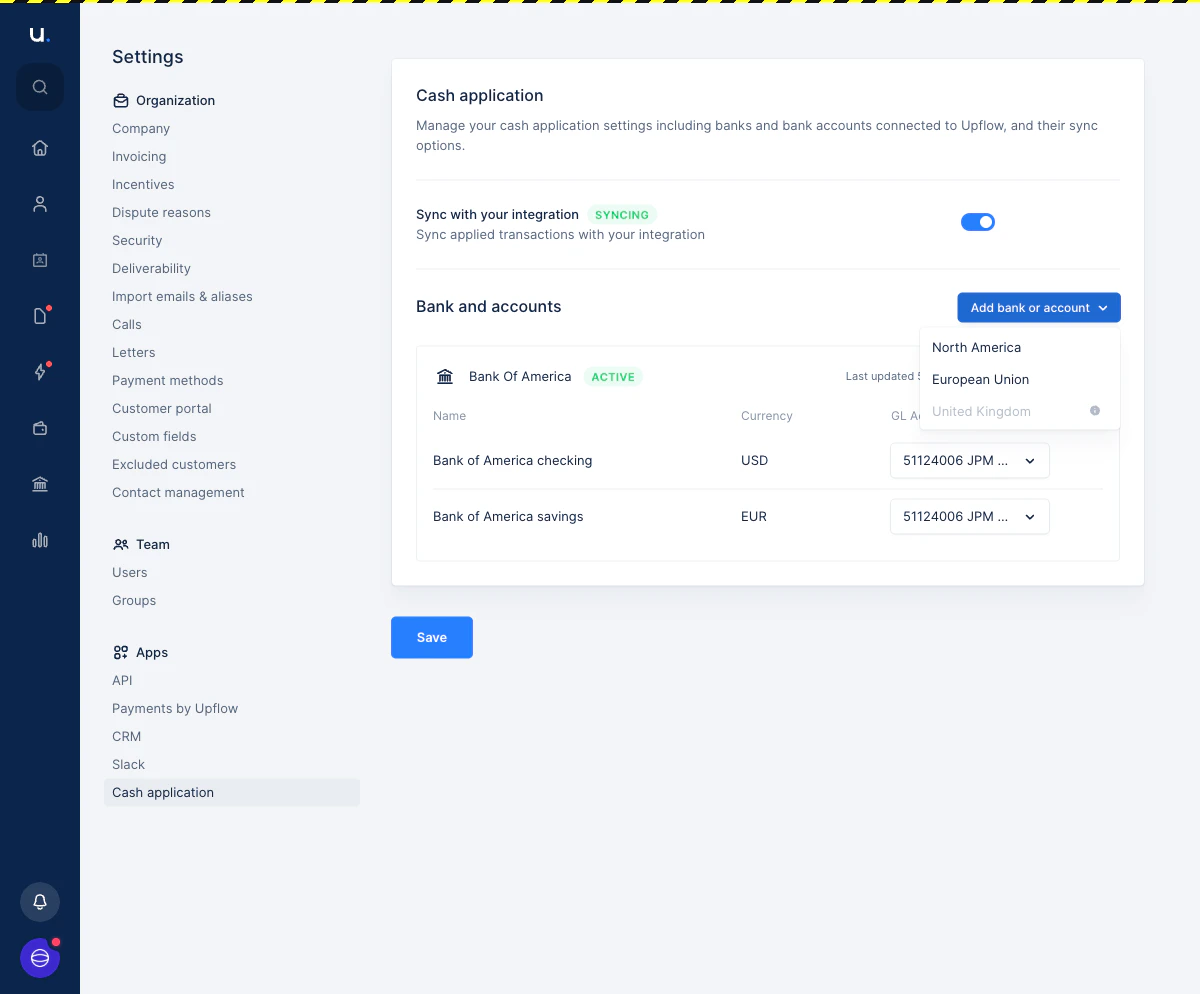 3. The Plaid connection window opens. Select your bank and follow the on-screen steps to authenticate via your bank's secure login.
 4. Select the account(s) you want to import transactions from and confirm.
Once connected, transactions will start syncing automatically.
## Check if your bank is supported
Plaid connects to over 12,000 financial institutions. The easiest way to check if your bank is supported is to start the connection flow in Upflow — the Plaid window includes a search bar where you can look up your bank by name.
If your bank does not appear in the search results, it is not currently supported for automatic import. In that case, you can still [import transactions manually from a CSV file](/en-us/cash-application/csv-import/upload-bank-transactions).
👉 If you're having trouble connecting, visit [Plaid's troubleshooting page](https://plaid.com/trouble-connecting/) for common issues and fixes.
## Manage your bank connection
From [**Settings > Cash Application**](https://app.upflow.io/organization/-/settings/cash-application), you can:
* **View** your active bank connections and their sync status.
* **Edit** or update connection details.
* **Disconnect** a bank account if it is no longer needed.
4. Select the account(s) you want to import transactions from and confirm.
Once connected, transactions will start syncing automatically.
## Check if your bank is supported
Plaid connects to over 12,000 financial institutions. The easiest way to check if your bank is supported is to start the connection flow in Upflow — the Plaid window includes a search bar where you can look up your bank by name.
If your bank does not appear in the search results, it is not currently supported for automatic import. In that case, you can still [import transactions manually from a CSV file](/en-us/cash-application/csv-import/upload-bank-transactions).
👉 If you're having trouble connecting, visit [Plaid's troubleshooting page](https://plaid.com/trouble-connecting/) for common issues and fixes.
## Manage your bank connection
From [**Settings > Cash Application**](https://app.upflow.io/organization/-/settings/cash-application), you can:
* **View** your active bank connections and their sync status.
* **Edit** or update connection details.
* **Disconnect** a bank account if it is no longer needed.
 ## Link bank accounts to GL accounts
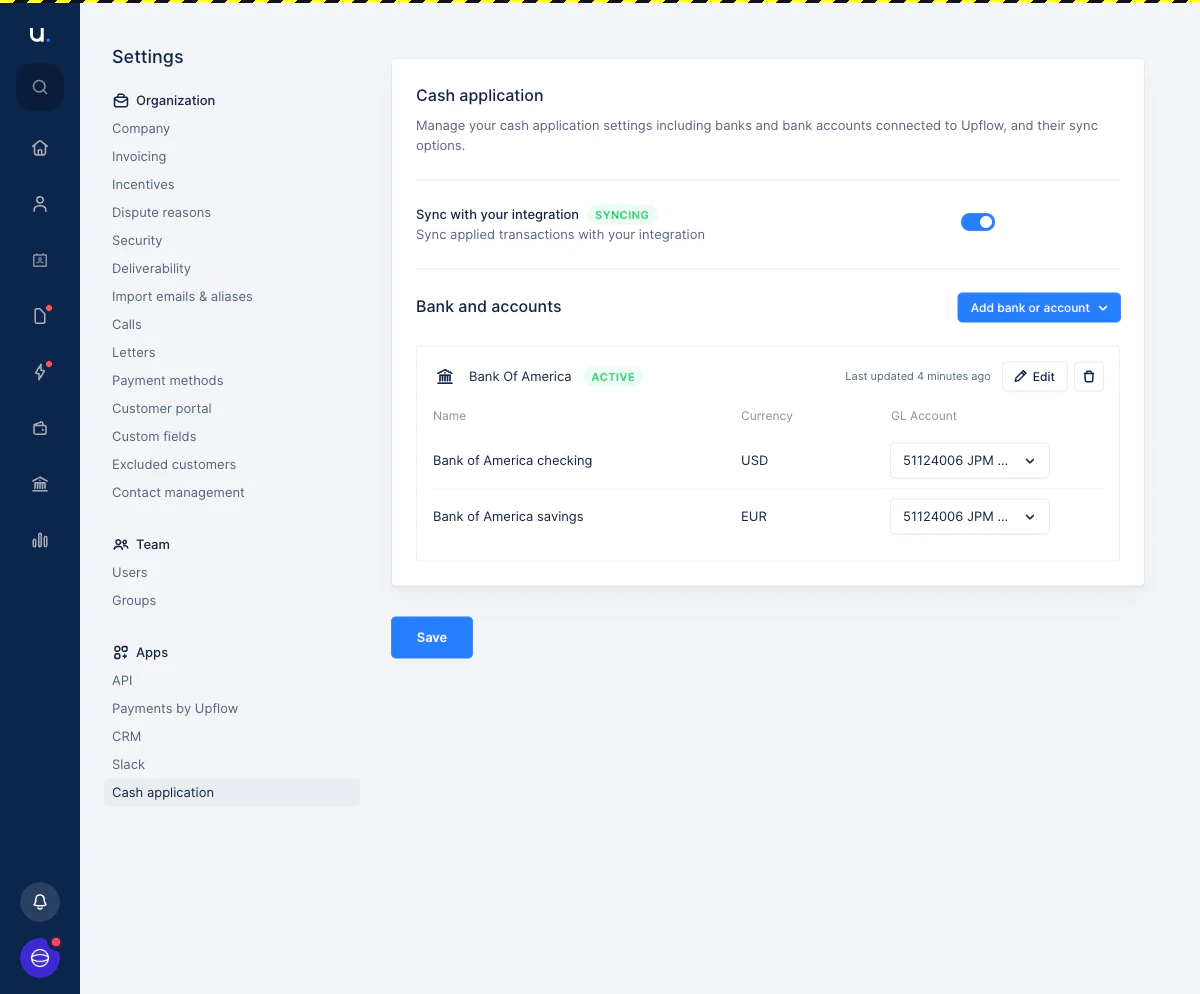
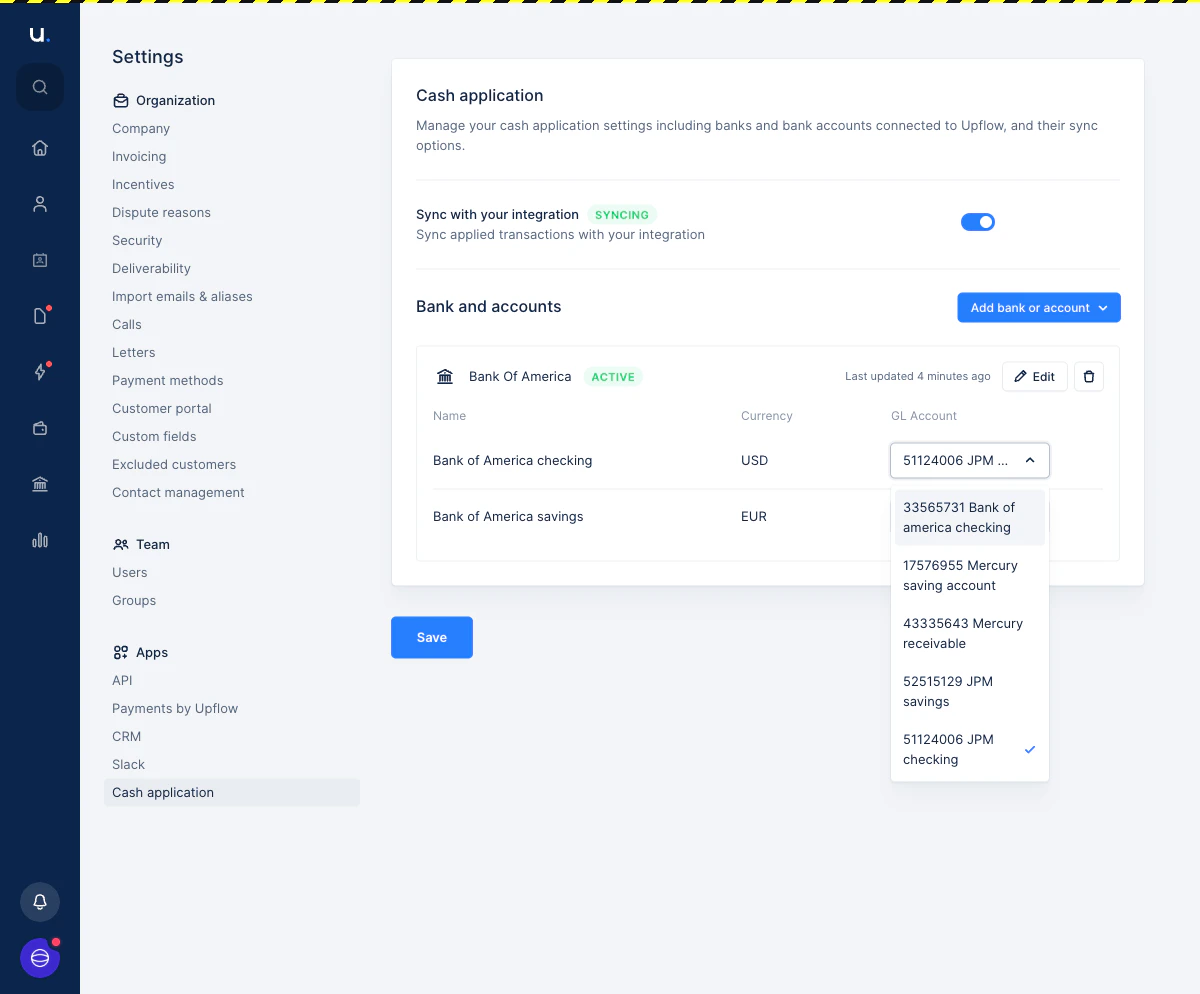
Each bank account can be mapped to a GL account from your chart of accounts. This mapping tells Upflow which ledger account to use when syncing applied transactions back to your accounting system.
To assign a GL account, click the dropdown next to the relevant bank account and select the appropriate GL account. Click **Save** to confirm.
## Link bank accounts to GL accounts
Each bank account can be mapped to a GL account from your chart of accounts. This mapping tells Upflow which ledger account to use when syncing applied transactions back to your accounting system.
To assign a GL account, click the dropdown next to the relevant bank account and select the appropriate GL account. Click **Save** to confirm.
 ## What happens if my bank connection is lost?
In some cases, your bank connection may become inactive — for example, if your bank refreshes its security tokens or requires re-authentication. If this happens:
* A banner will appear on your bank transaction screen indicating that the connection is unauthorized.
* Click **Reconnect** in the banner to be taken to the Cash Application settings page, where you can re-authenticate via Plaid's secure OAuth flow.
👉 If you need help setting up or reconnecting your bank account, reach out to [support@upflow.io](mailto:support@upflow.io).
## What happens if my bank connection is lost?
In some cases, your bank connection may become inactive — for example, if your bank refreshes its security tokens or requires re-authentication. If this happens:
* A banner will appear on your bank transaction screen indicating that the connection is unauthorized.
* Click **Reconnect** in the banner to be taken to the Cash Application settings page, where you can re-authenticate via Plaid's secure OAuth flow.
👉 If you need help setting up or reconnecting your bank account, reach out to [support@upflow.io](mailto:support@upflow.io).